

Albumize
This plugin organizes different WordPress 2.5+ galleries into albums for easy display and navigation by using parent/child pages and custom fields.
Plugin info
Maintenance & Compatibility
Maintenance score
Possibly abandoned • Last updated 6339 days ago
Is Albumize abandoned?
Possibly abandoned (last update 6339 days ago).
Compatibility
Similar & Alternatives
Explore plugins with similar tags, and compare key metrics like downloads, ratings, updates, support, and WP/PHP compatibility.
Description
I wanted to take the convenience and ease of use of the built-in WordPress [gallery] shortcode and add a little more functionality to it. By organizing your galleries as multiple child pages of one parent page, you can use this plugin to see a preview thumbnail and description of each gallery.
Styling
Version 1.2 added increasing styling options by wrapping each element in a [albumize] shortcode. However, to use the included vertical styling (thanks Roman!) simply use [albumize style='vert'].
To add your own custom styling, use [albumize style='yourstylename'] (where ‘yourstylename’ is any name you’d like to classify it as) and add the styling to your themes stylesheet. The Albumize elements are classified as the following:
albumize_gallery_yourstylenamealbumize_thumb_yourstylenamealbumize_title_yourstylenamealbumize_desc_yourstylenamealbumize_count_yourstylename
Whatever you use for the style attribute will be used as the last part of the element classification when the album is displayed. Just add your own styling for these elements and you are all set to go. Add as many different styles as you want and call any of them using the style attribute.
Installation
- Upload the
albumizefolder to the/wp-content/plugins/directory - Activate the plugin through the ‘Plugins’ menu in WordPress
- Create a page that will function as your album and place the
[albumize]shortcode in it. - Create child pages of your album page and place your galleries in them.
- (Optional) Create a brief description of your gallery by using an “alb_blurb” custom field key and the description in the value.
- (Optional) Select the gallery cover for the album by using an “alb_cover” custom field key and the number of the picture in the gallery (e.g. 5, 13, etc) for the value. The first picture in the gallery will be used by default.
Frequently Asked Questions
Does this plugin work for posts?
Nope. Currently this plugin only works for pages because it relies on the parent/child page relationship.
Do I need to use the custom fields for the plugin to work?
Nope. The plugin will use the first image in the gallery by default. If you don’t put in a blurb to describe your gallery, the plugin will just display the title of the gallery and nothing else.
How many levels of child pages will this work for?
Unfortunately (or fortunately, I suppose), the plugin displays all levels of child pages underneath the parent page. There is currently no way to restrict it to only one level. A page hierarchy like the following:
- Album Page (Parent)
- Gallery 1 (Child of Album)
- Gallery 2 (Child of Album)
- Gallery 3 (Child of Album)
-
- Gallery 3, Day 1 (Child of Gallery 3)
-
- Gallery 3, Day 2 (Child of Gallery 3)
Would be displayed as the following on the album page:
- Gallery 1
- Gallery 2
- Gallery 3
- Gallery 3, Day 1
- Gallery 3, Day 2
How would you recommend setting up your page hierarchy for Albumize and WordPress’ Gallery function?
This is what works for me. I have a parent Photos page. I have my Album pages as child pages of the Photos page. I just manually link to the Album pages on the Photos page. Then I have my Gallery pages as child pages of each Album page.
I’m sure you can figure out your own way of doing it. But this type of hierarchy was what I had in mind when I designed this plugin.
If you have any other questions, feel free to visit the plugin homepage at http://www.litschers.com/wordpress/albumize/
Review feed
Screenshots
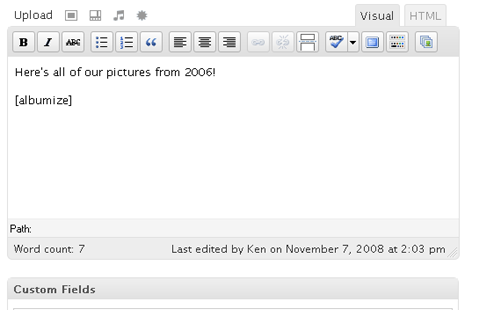
Demonstrating how to add the shortcode to your page.

Note the two custom fields added to the page to designate the blurb and the thumbnail cover. Also note that "2006" was selected as the parent page.

Sample display of the album including the blurb and thumbnail cover as added in screenshot-2.png.