

Analog Clock Widget
Analog Clock Widget plugin allows you to create an unlimited number of different analog clocks. The plugin based on SVG Raphael - JavaScript Library.
Plugin info
Maintenance & Compatibility
Maintenance score
Possibly abandoned • Last updated 2826 days ago • 1 reviews
Is Analog Clock Widget abandoned?
Possibly abandoned (last update 2826 days ago).
Compatibility
Similar & Alternatives
Explore plugins with similar tags, and compare key metrics like downloads, ratings, updates, support, and WP/PHP compatibility.
Description
Analog Clock Widget plugin allows you to create an unlimited number of different analog clocks. The plugin based on SVG Raphaël – JavaScript Library.
To be able to add any time zone, you need to have a username in geonames.org.
Read more on http://plugins.mcnika.com/analog-clock-widget-documentation/.
Installation
Install the plugin just like any other WordPress plugins. There are two ways to do that:
- Using WordPress built-in installer From the Administration Panels, click on the Plugins tab. Go to Add New->Upload Plugin. Choose the plugin’s .zip file from your computer and click Install Now. Then click activate to activate the plugin.
- Traditional manual installation. Upload analog-clock-widget folder to your server in the wp-content/plugins folder of your WordPress installation. Access the Plugin Panel in your Administration Panel. Scroll down through the list of Plugins to find the newly installed Plugin. Click on the Activate link to turn the Plugin on.
Frequently Asked Questions
Installation Instructions
Install the plugin just like any other WordPress plugins. There are two ways to do that:
- Using WordPress built-in installer From the Administration Panels, click on the Plugins tab. Go to Add New->Upload Plugin. Choose the plugin’s .zip file from your computer and click Install Now. Then click activate to activate the plugin.
- Traditional manual installation. Upload analog-clock-widget folder to your server in the wp-content/plugins folder of your WordPress installation. Access the Plugin Panel in your Administration Panel. Scroll down through the list of Plugins to find the newly installed Plugin. Click on the Activate link to turn the Plugin on.
How can I add World clock to my website
- Go to http://www.geonames.org
- Create a new user account (Note: Username may only include characters, digits and underscore. You will then receive an email with a confirmation link and after you need to confirm the email you can enable your account for the webservice on your account page.)
- Log in to your WordPress admin area and go to Appearance > Widgets
- Find “Analog Clock Widget” and click the “Add Widget” button next to the widget to add to your sidebar
- Add your “Username” in “Username” field in the widget
- Add Longitude/ Latitude of the location, click on save button.
Review feed
Screenshots
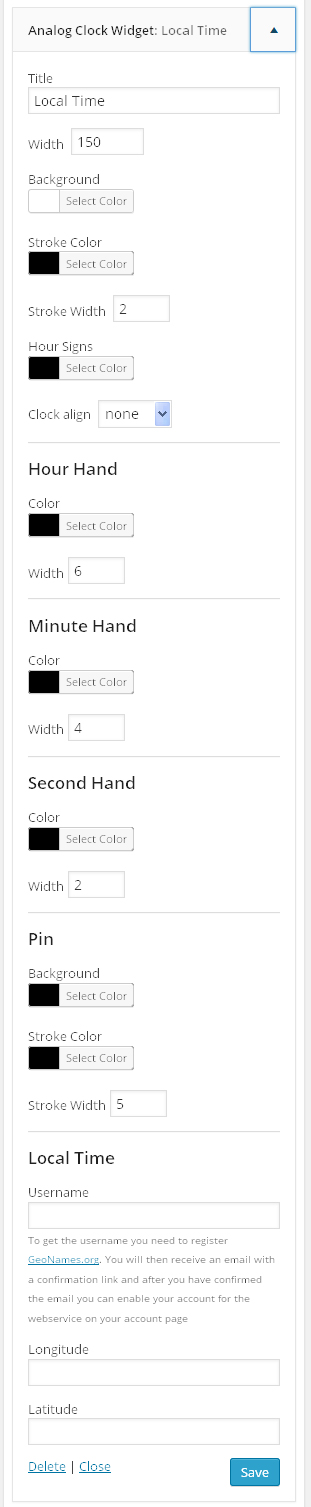
The Analog Clock Widget configuration dialog.
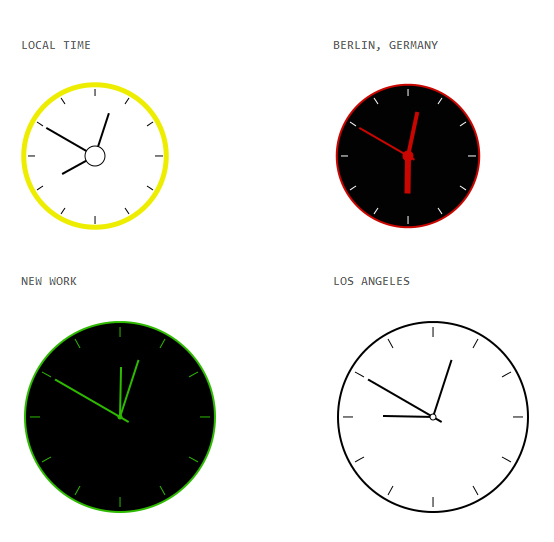
Front end of the widget.
Changelog
1.3
- CSS improvement
1.2
- Small improvement
1.1
- Added link and target fields
- Fix time after sleep and hibernate issues
1.0
- Release