

Animate In View
Fade and slide in your blocks with style as they enter into the user's view.
Plugin info
Maintenance & Compatibility
Maintenance score
Possibly abandoned • Last updated 597 days ago • 2 reviews
Is Animate In View abandoned?
Possibly abandoned (last update 597 days ago).
Compatibility
Developers
Similar & Alternatives
Explore plugins with similar tags, and compare key metrics like downloads, ratings, updates, support, and WP/PHP compatibility.
Description
Using a fast, simple, native technique, the Animate In View block will watch over inner blocks you add within it and when they come into the user’s view, it will simply fade and optionally slide in.
Trigger simple, smooth, modern animations as the content enters the screen.
- Follow @kevinbatdorf on Twitter
- View on GitHub
Features
- Both lightweight and fast, and only does one thing.
- Set a threshold for when the block starts to animate.
- Run only once, or each time it comes in/out of view.
- Wrap any existing block with the Animate In block with the push of a button.
- Transition in left, right, or neither (fade only).
- Fade only mode: Set the starting position to “none”
- Change the class name used to add your own custom animations.
General Tips & Tricks
- You can wrap the currently selected block with an Animate In View block by pressing the icon toward the end of the toolbar.
- You may need to place the block within a group block to ensure content styling is consistent. Some themes may require a group block be at the top level. Alternatively, the Animate In View block has alignment controls enabled just in case.
- You may need to tweak things if your layouts have custom classes or styles applied. Try copy/pasting the classes, or try to nest the blocks in a way that doesn’t affect the theme styling.
- Nest blocks to stagger animations. The animations won’t start until all are in view, then one by one. But make sure you don’t use an area too large for the viewport.
- The Animate In View block comes with a single nested group block by default, but you may use others as well.
- Use the list view to drag and drop blocks into the Animate In View block.
- Open an issue if you need an assist. I’m happy to take a look.
Installation
- Activate the plugin through the ‘Plugins’ screen in WordPress
Frequently Asked Questions
Some blocks that require a specific parent block aren’t supported. For example, buttons inside a button group, or images within an image gallery. For these you will need to remove them from their container and position them using the column or group blocks first.
This keeps block functionality composable. This block is very lightweight and does the minimum it needs to keep track of the blocks on screen and just animate them in. I want to avoid adding bulk to the front end of the site, so this plugin will remain feature minimum.
Because the block wraps other blocks, deactivating the plugin will confuse WordPress and the editor will ask you to either re-install or attempt to recover the block as html. If you must uninstall this plugin, I recommend you drag the inner blocks out of the Animate In View block before deactivating. Open an issue on GitHub if you want to discuss this further.
Review feed
Screenshots

Simple, clean, consistent animations.
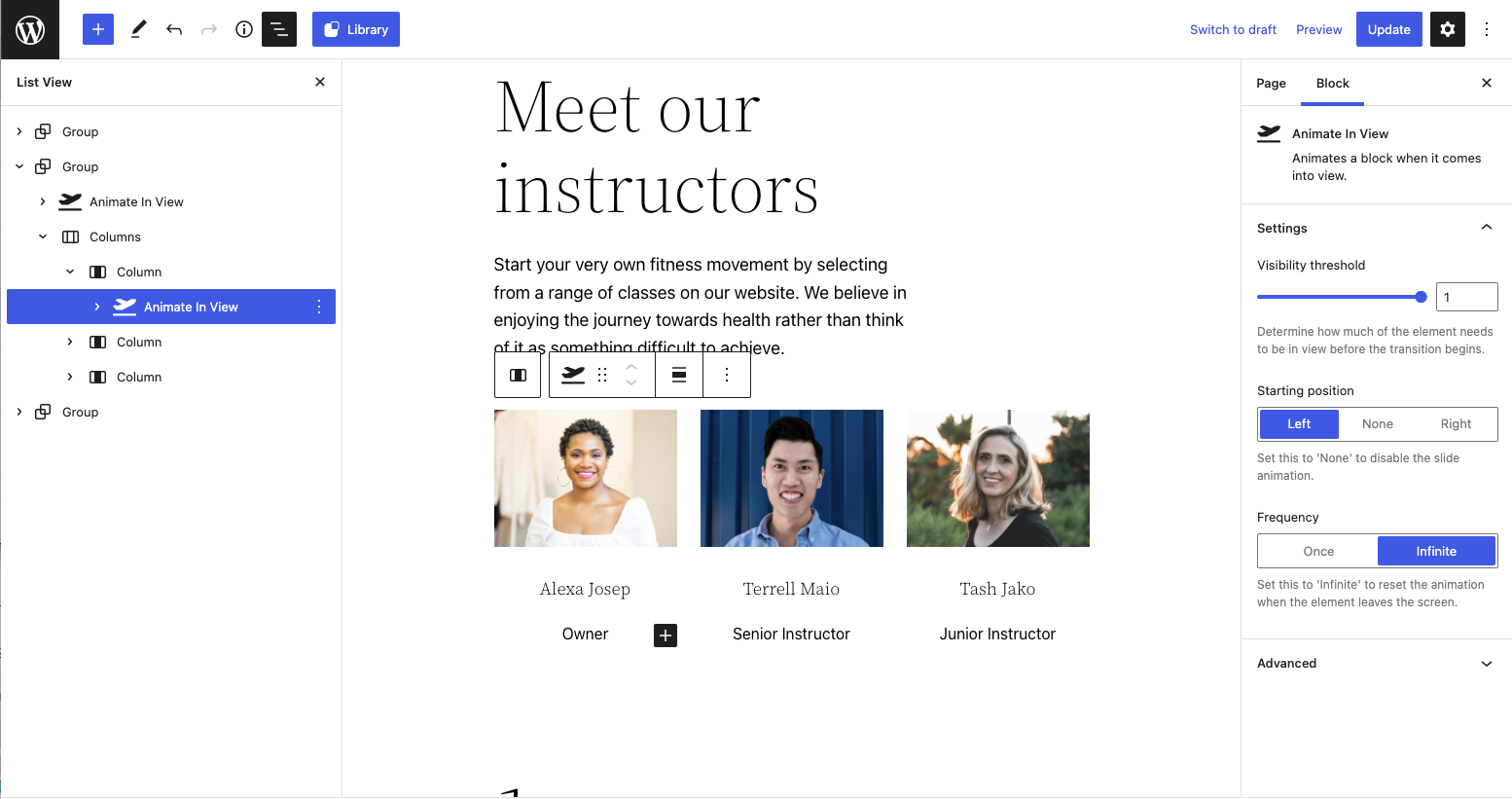
Minimum controls to get the best results
Changelog
1.2.2
- Chore: Update npm packages + test for WP 6.2
1.2.1
- Remove package-lock file to lower download size
1.2.0
- Add enable/disable button
- Return function instead of component from filter
1.1.0
- Switch to only showing once by default
1.0.4
- Adds content overflow strategy
1.0.3
- Adds language translation plugin
1.0.2
- Initial release