

AutoPen – AI Content Writer
Automate high-quality, SEO-focused blog posts using OpenAI's most advanced models, right inside WordPress.
Plugin info
Maintenance & Compatibility
Maintenance score
Maintained • Last updated 170 days ago
Is AutoPen – AI Content Writer abandoned?
Likely maintained (last update 170 days ago).
Compatibility
Similar & Alternatives
Explore plugins with similar tags, and compare key metrics like downloads, ratings, updates, support, and WP/PHP compatibility.
Description
AutoPen leverages the power of OpenAI’s most advanced GPT models to automatically generate and publish long-form, SEO-optimized blog posts directly to your WordPress site.
Designed for content marketers, agencies, and busy site owners, this plugin provides a professional-grade automation engine that saves you time and scales your content strategy.
Simply add your topics, configure your settings, and let AutoPen handle the entire content pipeline—from drafting and SEO optimization to image generation and publishing.
This plugin requires a third-party service, OpenAI, to function.
* Service: OpenAI API (https://openai.com/api/)
* Function: Used to generate text content and images for blog posts.
* Data Sent: Topics, prompts, and content snippets are sent to the OpenAI API for processing. No user data is sent.
* Terms of Service: https://openai.com/policies/terms-of-use
* Privacy Policy: https://openai.com/policies/privacy-policy
Installation
- Upload the
autopen-ai-writerfolder to your/wp-content/plugins/directory. - Activate the plugin through the ‘Plugins’ menu in WordPress.
- Navigate to the “AutoPen” menu in your WordPress admin sidebar.
- Go to the “Settings” tab, enter your OpenAI API key, and click “Save Settings”.
- Click the “Validate API Key” button to ensure your key is working correctly.
- Add topics to the “Topics Queue” on the “Content Settings” section and configure your desired options.
- Go to the “Dashboard” tab and click the “Enable Automation” button to start the cron-based generation. You can also use the “Generate Post Now” button for immediate results.
Frequently Asked Questions
No. To ensure high-quality content generation, the plugin is designed to use premium models like GPT-4o, GPT-4, and DALL-E 3. You must have a funded OpenAI account.
The plugin will automatically re-queue the topic and try again up to two more times. If it fails a third time, it is moved to a “Failed Topics” list (visible in your settings) with the reason for failure, and the plugin moves on to the next topic. This prevents a single problematic topic from halting all content generation.
Absolutely. The “Prompts” tab in the settings allows you to fully customize the instructions given to the AI. You can define its persona, writing style, formatting requirements, and much more.
The plugin has direct integration for Rank Math, SEOPress, and Yoast SEO. It will automatically populate the meta title, description, and focus keywords for your generated posts.
Review feed
Screenshots
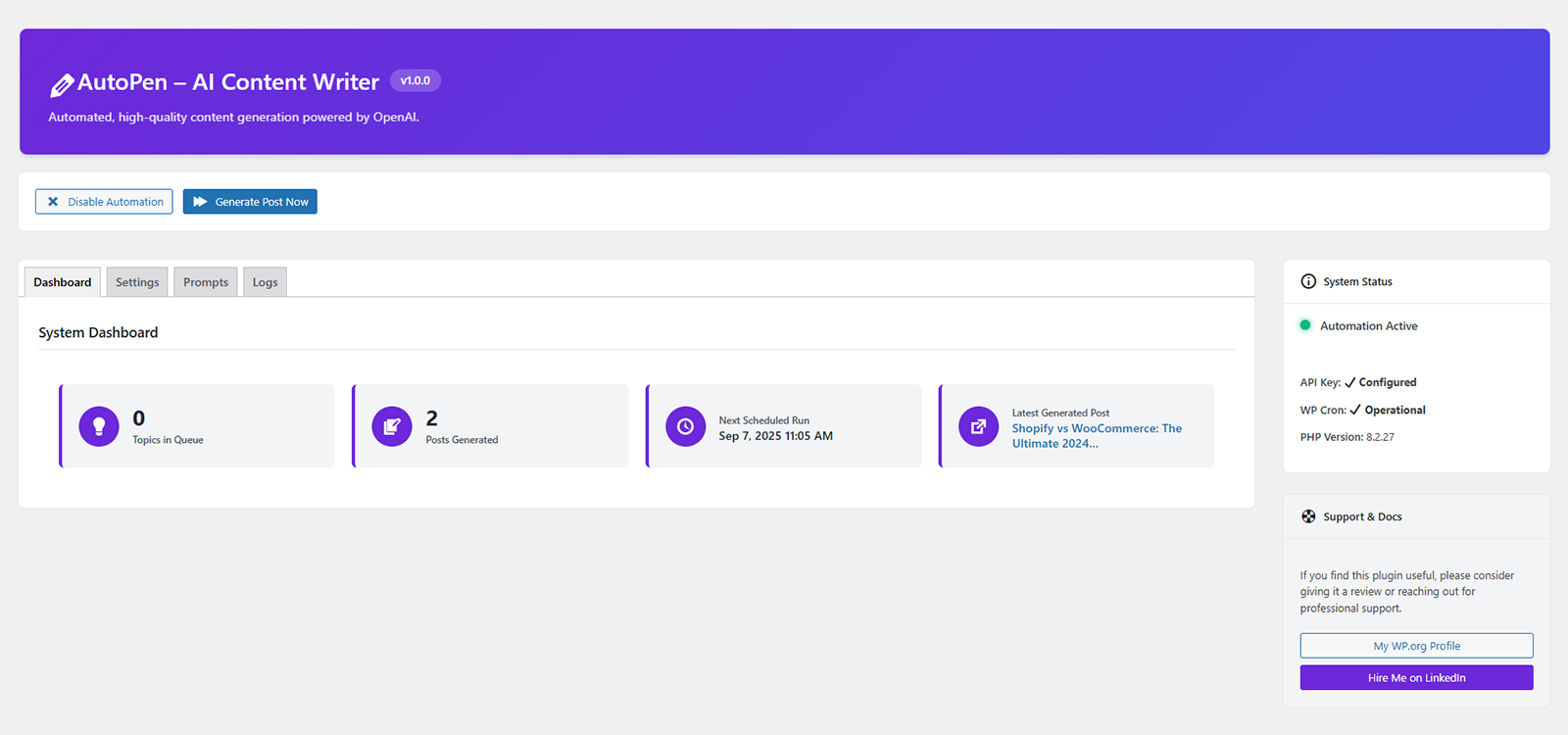
Dashboard View: The main dashboard showing system status, generation statistics, and quick actions.
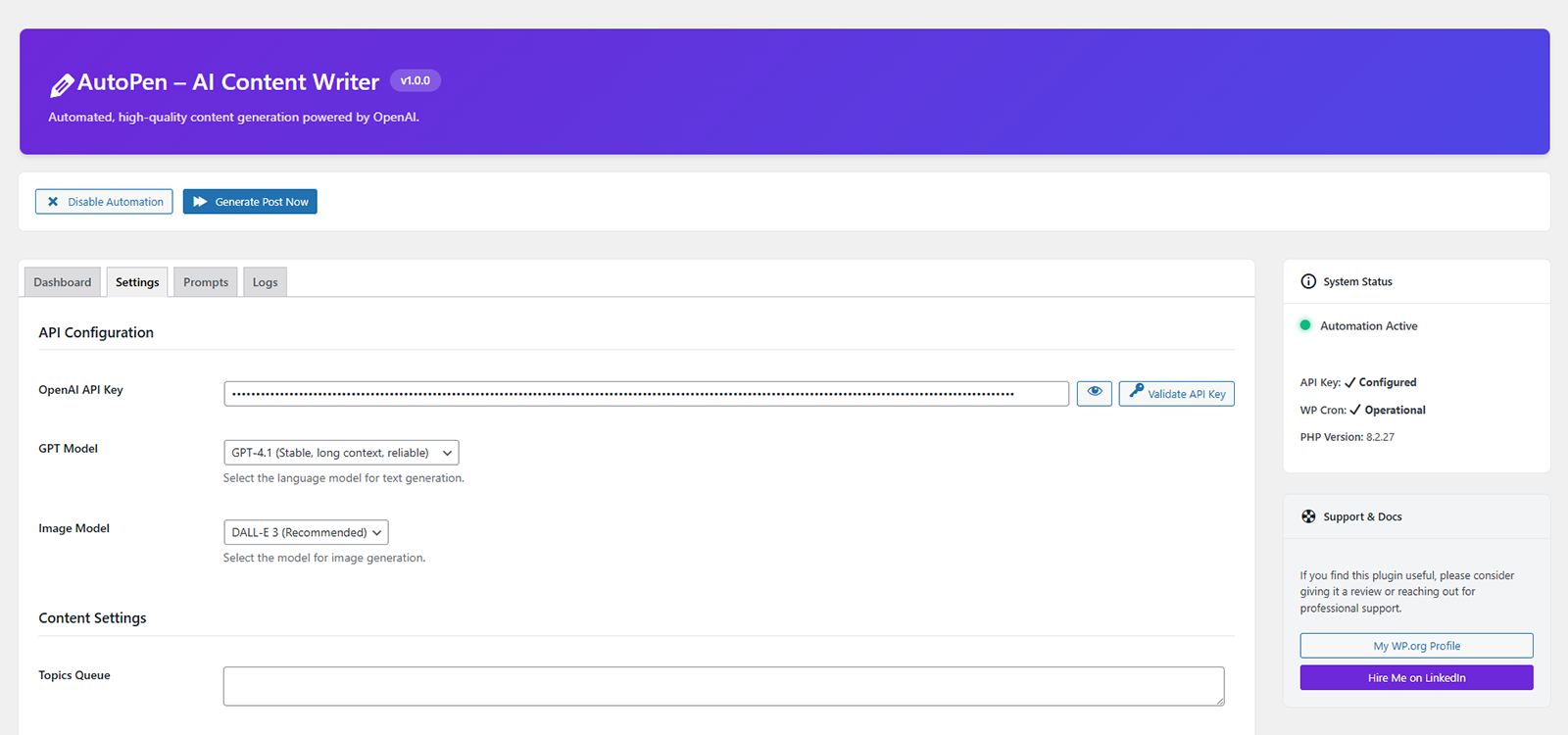
Settings Panel: Configuration options for API keys, content defaults, and automation frequency.
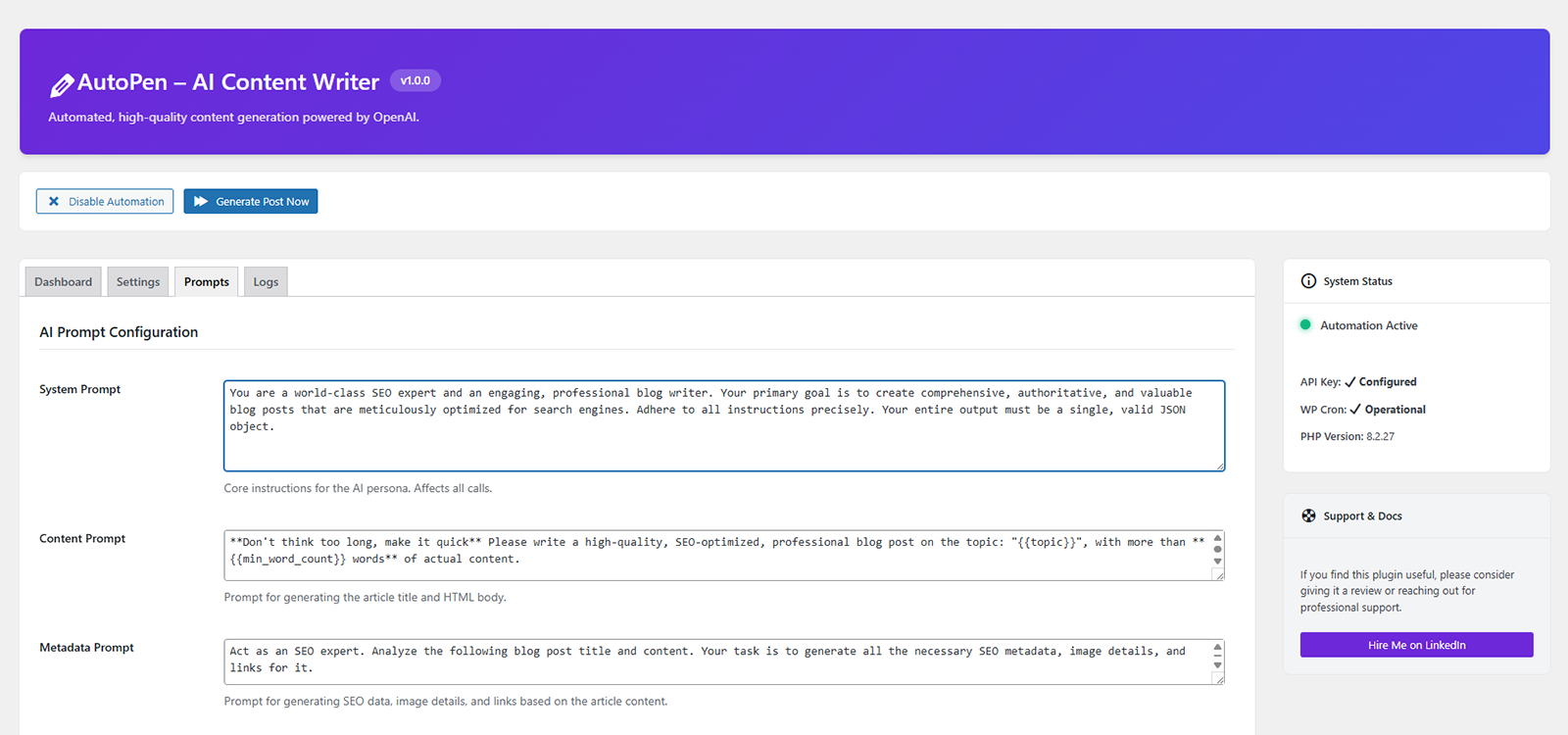
Prompts Editor: The powerful prompts editor where you can customize the AI's instructions.
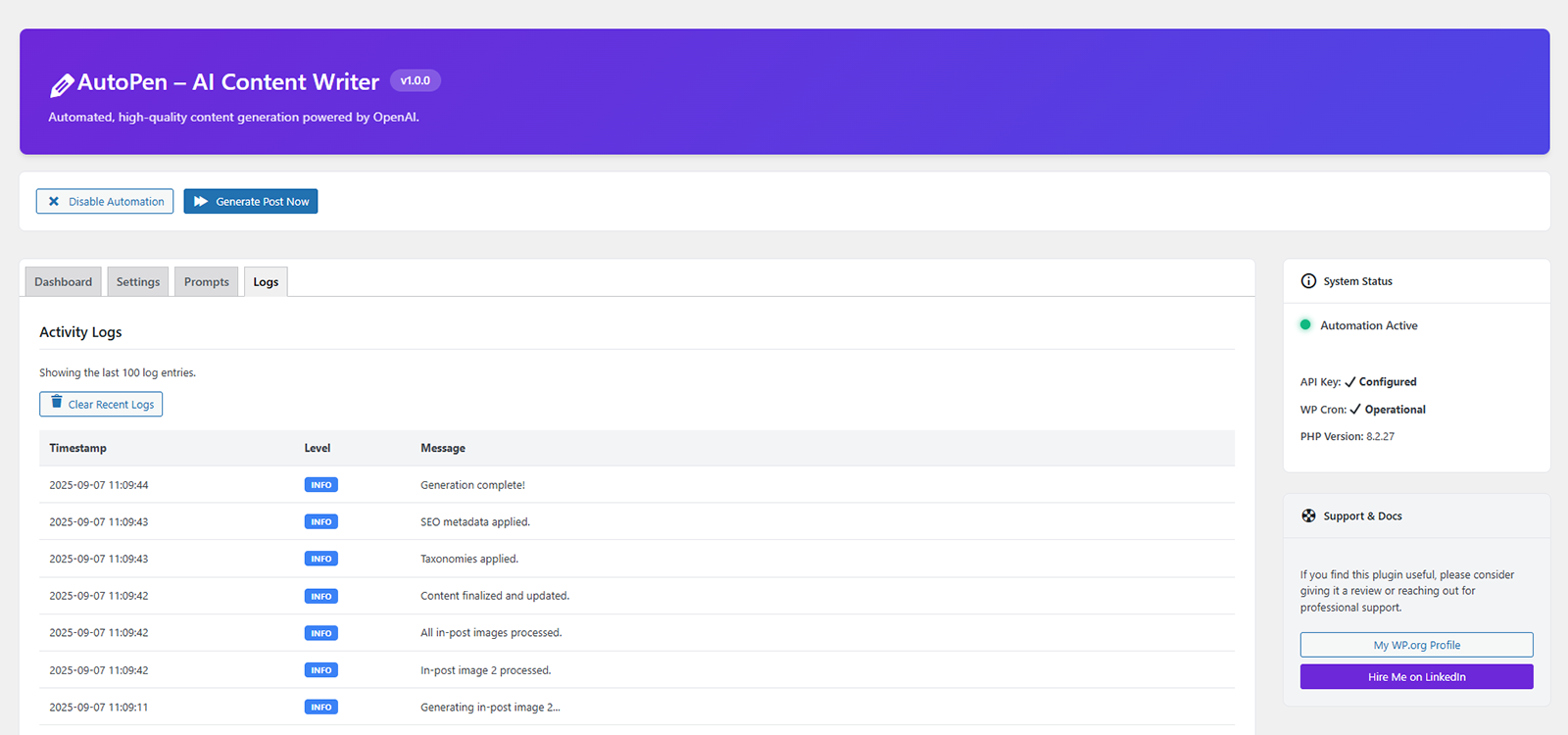
Logs Viewer: The activity log for monitoring generation tasks and debugging issues.

Changelog
1.0.0
- Initial release.