

Plugin info
Maintenance & Compatibility
Maintenance score
Possibly abandoned • Last updated 4873 days ago • 8 reviews
Is Availability Calendar abandoned?
Possibly abandoned (last update 4873 days ago).
Compatibility
Similar & Alternatives
Explore plugins with similar tags, and compare key metrics like downloads, ratings, updates, support, and WP/PHP compatibility.
Description
The Availability Plugin displays booking availability on a year by year basis.
A full calendar year is displayed, with booked dates highlighted.
It is possible for mulitiple calendars to be created using a single install of this plugin.
Installation
Here we go:
- Upload the
availabilityfolder to the/wp-content/plugins/directory. - Activate the plugin through the ‘Plugins’ menu in WordPress.
- Use the shortcode
[availability]to display the calendar.
Frequently Asked Questions
How do I manage the availability?
Once logged in to wp-admin, browse to Pages > Availability, here you can select all the booked dates and click save once you are done.
Can I display the current year shown?
Yes, use the shortcode [availability display="year"] within your post or page.
How can I display calendars other than the default one?
Using the shortcode [availability calendar="calendar-id"] will display the calendar created with ID calendar-id.
The ID of any additionally created calendars is the value shown in brackets on the settings page.
When using multiple calendars, how do I show the current calendar name?
The shortcode [availability display="name"] can be used.
How do you select a year to view?
The shortcode [availability display="dropdown"] can be used, this will generate a form with a list of available years.
Alternatively you can use the function call <?php availability_dropdown(); ?> in your template files.
How can I style certain elements?
As of version 0.2.2 you can make use of the class names assigned to certain elements of the calendar.
- wp-availability
- year-[1234] – e.g. year-2012
- year-current
- year-previous
- year-next
- wp-availability-month
- month-[1-12] – e.g. month-3 for March
- month-[jan-dec] – e.g. month-mar for March
- month-current
- month-previous
- month-next
For further information please refer to the generated source code of the availability calendar itself.
Review feed
Screenshots

The availability calendar management page.

Availability calendar with default styles.
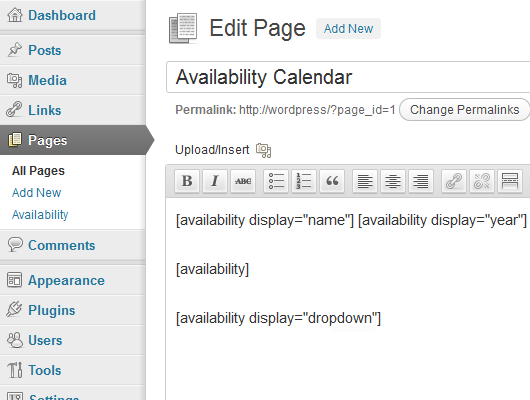
Example showing the addition of shortcodes to a page.

Multi-calendar management and plugin settings.
Changelog
0.2.4
- Updated missing updates intended for version 0.2.3.
0.2.3
- Fixed issue preventing additional calendars from being displayed.
- Fixed database issue affecting multiple calendars where the unique key was not updating during upgrade.
- Modified the way month lengths are calculated on the manage page.
0.2.2
- Addition of extra classes to allow targetting of years and months.
0.2.1
- Important update to modify the upgrade process required for version 0.2 (reliance on register_activation_hook).
- Fixes issues relating to previously booked dates not appearing and new dates not saving.
0.2
- Bug fix for changing calendars when using the default permalink structure.
- Changed permissions to allow users with page edit permission to manage calendars.
- Calendar output now conforms to the “Week Starts On” setting found in “Settings > General”.
- Month and day names now make use of localisation.
- Introduction of multiple calendars.
- Added ability to exclude the default stylesheet.
- The number of years shown can now be modified.
- Fixed unexpected output during activation.
- Moved uninstall process to uninstall.php.
- Updated donate link.
0.1.3
- Fixed manage page bug introdruced since addition of custom post types in WP 3.0
- Default style for booked dates is now red with strike through.
0.1.2
- Removal of link to none existent settings page.
0.1.1
- Settings bug fix during installation.
0.1
- This is the very first version.