

Badge
Display a badge (based the "badges") without requiring file-system access or knowledge of HTML.
Plugin info
Maintenance & Compatibility
Maintenance score
Possibly abandoned • Last updated 701 days ago
Is Badge abandoned?
Possibly abandoned (last update 701 days ago).
Compatibility
Similar & Alternatives
Explore plugins with similar tags, and compare key metrics like downloads, ratings, updates, support, and WP/PHP compatibility.
Description
Display “Badges” in the side-panel which points to a web-site and an image which is then used to build the “badge”.
To access the configuration you have to go to Appearance > Widgets and edit the settings in the Panel.
Using the Widget you can choose whether to:
- (Optionally) display a Title
- Link to a site
- Required link to an image to mark that site (any size will work, but the “standard” seems to be 88 pixels wide by 31 pixels high)
- Pad the Badge (including centring the text); some people may prefer using their own CSS, so this is an optional configuration.
- Enable “Display Badge in a Box” (enabled by default)
- Enable the Displaying of a Drop-Shadow
If more control is needed, or more badges need to be displayed, the badges plugin on the WordPress site might be a better fit.
Installation
Install
- Unzip the
badges.zipfile. - Upload
badges.phpto the/wp-content/plugins/directory. - Activate the plugin through the ‘Plugins’ menu in WordPress.
- Use the “Badges” widget.
Upgrade
- Follow your normal installation process
- Open the Widget Control Panel for “Badges” and confirm settings.
- Sit back and enjoy…
Use the WordPress Plug-in System
- Select “Upgrade and Activate”
- Congratulate yourself on a sterling job.
Frequently Asked Questions
Quite simply by using the div.badge class.
Every badge gets a unique ID generated by the plug-in based on the plug-in’s name and the badge’s container ID. This will likely look something like “inner-badge-[NUMBER]”.
Review feed
Screenshots
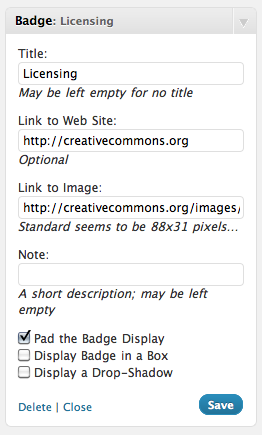
Create a "Licensing" badge that points to the Creative Commons website and uses a CC 88x31 banner

The result of the configuration in No 1
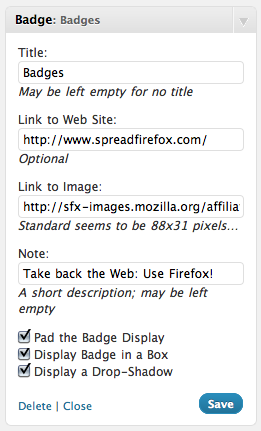
Boxing a Badge to SpreadFirefox with an added drop-shadow
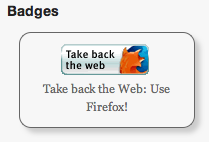
The resultant Badge
Changelog
1.5
- Very minor update to update the links to my blog
- Tested up to WordPress 5.2.3
1.1
- Minor update to add an “id” selector to the displayed badges
1.0
- Initial Public Release