

Plugin info
Maintenance & Compatibility
Maintenance score
Possibly abandoned • Last updated 2974 days ago
Is Bitonics abandoned?
Possibly abandoned (last update 2974 days ago).
Compatibility
Similar & Alternatives
Explore plugins with similar tags, and compare key metrics like downloads, ratings, updates, support, and WP/PHP compatibility.
Description
The iconic font and CSS toolkit for cryptocurrencies
Check the Bitonics website for more information: https://bitonics.net/
Usage examples:
[bitonics currency=’XLM’] 1,234
[bitonics currency=’BTC’] 1,234
[bitonics currency=’IOTA’ showcode=’0′] 1,234
…
[bitonics currency=’BTC’] Bitcoin
[bitonics currency=’ETH’] Ethereum
[bitonics currency=’BCC’] Bitcoin Cash
[bitonics currency=’XLM’] Stellar
…
[bitonics currency=’MIOTA’] IOTA
[bitonics currency=’DASH’] Dash
[bitonics currency=’XMR’] Monero
[bitonics currency=’LSK’] Lisk
…
Installation
Install Bitonics using the built-in plugin installer:
-
Go to Plugins > Add New.
-
Type in the name of the WordPress Plugin (Bitonics) or descriptive keyword, author, or tag in Search Plugins box or click a tag link below the screen.
-
Find the Bitonics Plugin you wish to install.
-
Click Details for more information about the Plugin and instructions you may wish to print or save to help setup the Plugin.
-
Click Install Now to install the Bitonics Plugin.
-
The resulting installation screen will list the installation as successful or note any problems during the install.
-
If successful, click Activate Plugin to activate it, or Return to Plugin Installer for further actions.
Frequently Asked Questions
Check the Bitonics website for the latest frequently asked questions: https://bitonics.net/
Installation Instructions
Install Bitonics using the built-in plugin installer:
-
Go to Plugins > Add New.
-
Type in the name of the WordPress Plugin (Bitonics) or descriptive keyword, author, or tag in Search Plugins box or click a tag link below the screen.
-
Find the Bitonics Plugin you wish to install.
-
Click Details for more information about the Plugin and instructions you may wish to print or save to help setup the Plugin.
-
Click Install Now to install the Bitonics Plugin.
-
The resulting installation screen will list the installation as successful or note any problems during the install.
-
If successful, click Activate Plugin to activate it, or Return to Plugin Installer for further actions.
Review feed
Screenshots
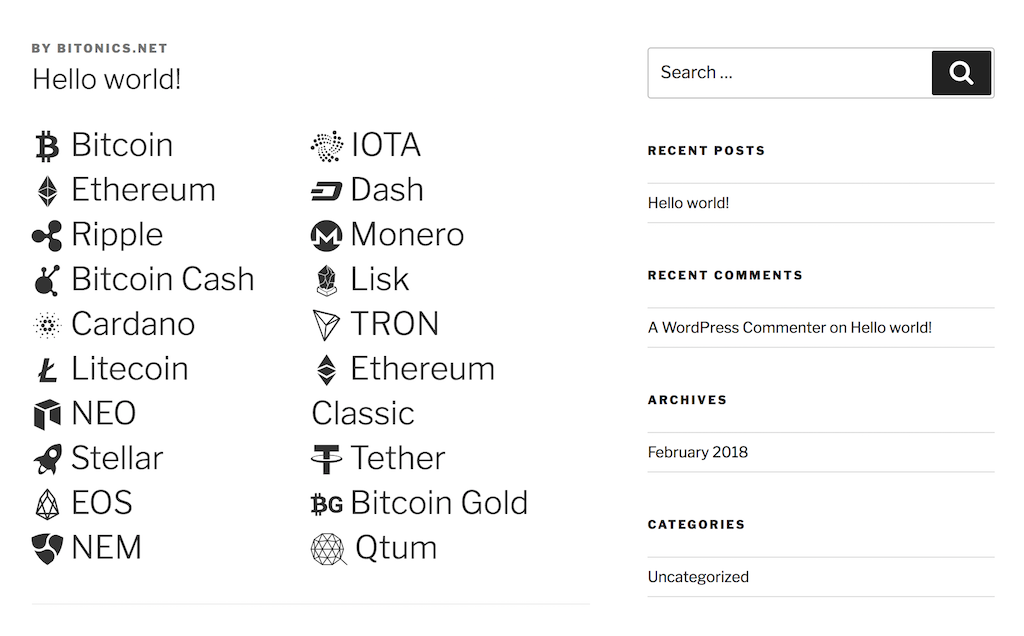
Small selection of the available icons
Changelog
Check the Bitonics website for the changelog: https://bitonics.net/vendor/bitonics/wordpress/plugin/bitonics/svn/trunk/changelog/