

BlockBee Cryptocurrency Payment Gateway
Accept cryptocurrency payments on your WooCommerce website
Plugin info
Maintenance & Compatibility
Maintenance score
Stale • Last updated 182 days ago • 2 reviews
Is BlockBee Cryptocurrency Payment Gateway abandoned?
Likely maintained (last update 182 days ago).
Compatibility
Similar & Alternatives
Explore plugins with similar tags, and compare key metrics like downloads, ratings, updates, support, and WP/PHP compatibility.
Description
Accept payments in Bitcoin, Ethereum, Bitcoin Cash, Litecoin, Solana, BNB, USDT, SHIB, DOGE, and many more directly to your crypto wallet.
Allow users to pay with crypto directly on your store
The BlockBee plugin extends WooCommerce, allowing you to get paid in crypto directly on your store, with a simple setup.
Accepted cryptocurrencies & tokens include:
- (BTC) Bitcoin
- (ETH) Ethereum
- (BCH) Bitcoin Cash
- (LTC) Litecoin
- (TRX) Tron
- (BNB) Binance Coin
- (USDT) USDT
- (USDC) USDC
- (SHIB) Shiba Inu
- (DOGE) Dogecoin
- (SOL) Solana
among many others, for a full list of the supported cryptocurrencies and tokens, check this page.
Auto-value conversion
BlockBee will attempt to automatically convert the value you set on your store to the cryptocurrency your customer chose.
Exchange rates are fetched every 5 minutes from CoinGecko.
Supported currencies for automatic exchange rates are:
- (USD) United States Dollar
- (EUR) Euro
- (GBP) Great Britain Pound
- (CAD) Canadian Dollar
- (JPY) Japanese Yen
- (AED) UAE Dollar
- (MYR) Malaysian Ringgit
- (IDR) Indonesian Rupiah
- (THB) Thai Baht
- (CHF) Swiss Franc
- (COP) Colombian Peso
- (SGD) Singapore Dollar
- (RUB) Russian Ruble
- (ZAR) South African Rand
- (TRY) Turkish Lira
- (LKR) Sri Lankan Rupee
- (XAF) CFA Franc
- (RON) Romanian Leu
- (BGN) Bulgarian Lev
- (HUF) Hungarian Forint
- (CZK) Czech Koruna
- (PHP) Philippine Peso
- (PLN) Poland Zloti
- (UGX) Uganda Shillings
- (MXN) Mexican Peso
- (INR) Indian Rupee
- (HKD) Hong Kong Dollar
- (CNY) Chinese Yuan
- (BRL) Brazilian Real
- (DKK) Danish Krone
If your WooCommerce’s currency is none of the above, the exchange rates will default to USD.
If you’re using WooCommerce in a different currency not listed here and need support, please contact us via our live chat.
Note: BlockBee will not exchange your crypto for FIAT or other crypto, just convert the value
Why choose BlockBee?
BlockBee has no setup fees, no monthly fees, no hidden costs.
All you need to do is to register at our dashboard click here, set up your addresses, get an API Key, and you’re ready to go.
As soon as your customers pay we forward your earnings directly to your own wallet.
BlockBee has a low 1% fee on the transactions processed. No hidden costs.
For more info on our fees click here
Configuration
- Go to WooCommerce settings
- Select the “Payments” tab
- Activate the payment method (if inactive)
- Set the name you wish to show your users on Checkout (for example: “Cryptocurrency”)
- Fill the payment method’s description (for example: “Pay with cryptocurrency”)
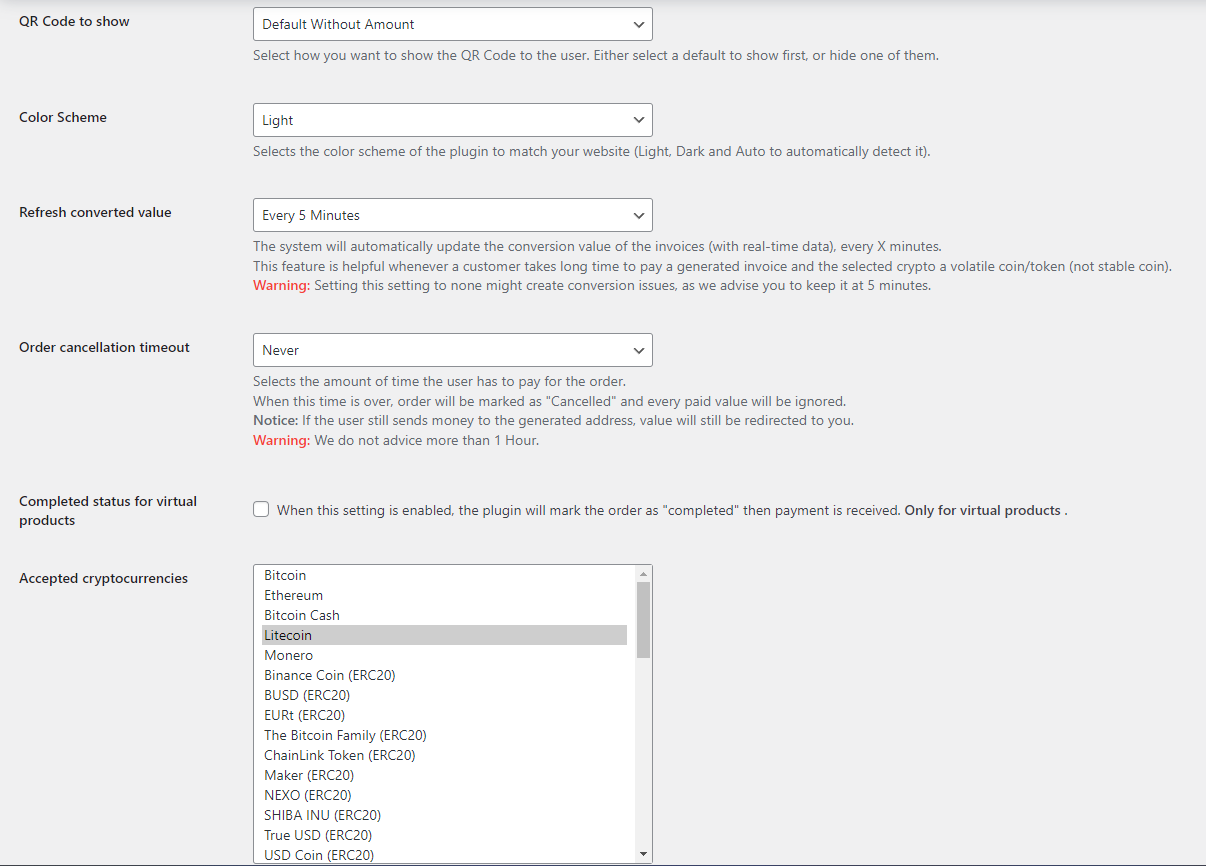
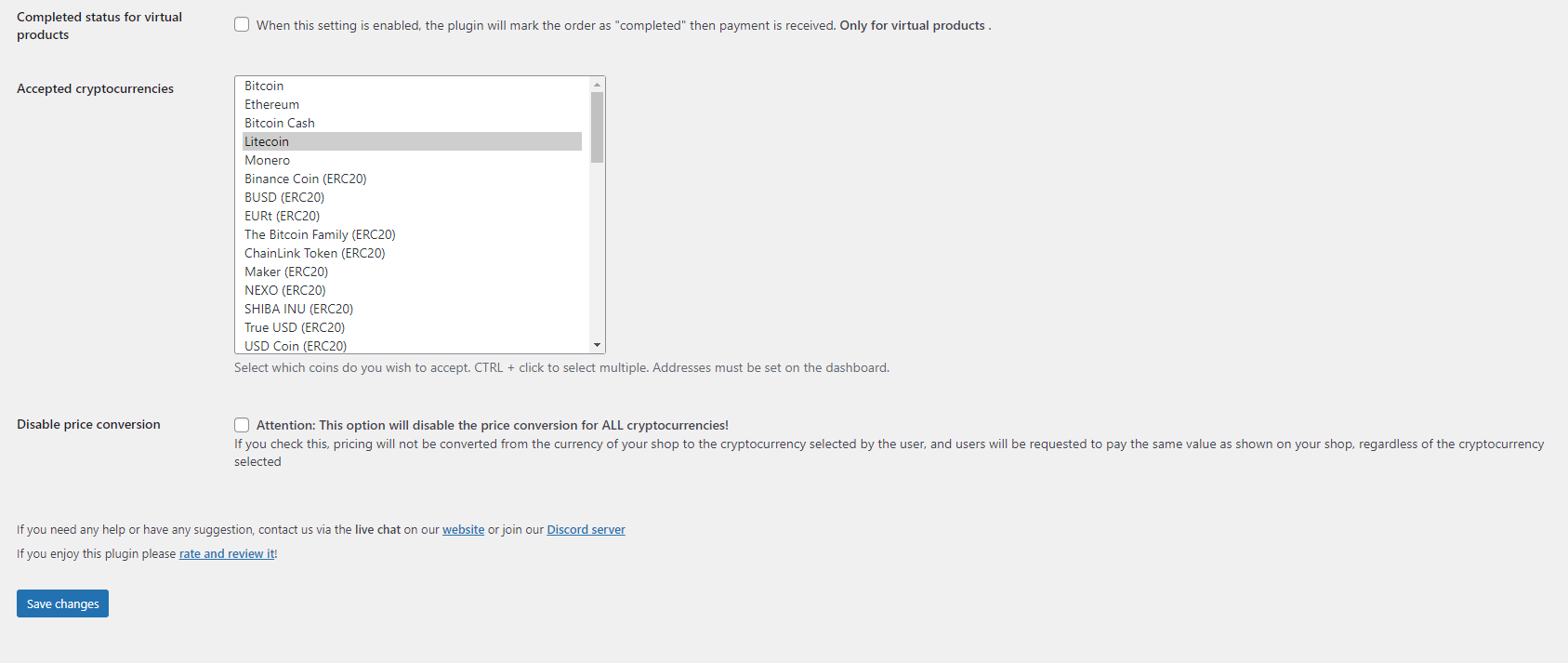
- Select which cryptocurrencies you wish to accept (control/command + click to select many). Addresses are set in BlockBee dashboard.
- Paste the API Key you got from your BlockBee dashboard.
- Click “Save Changes”
- All done!
Installation
Using The WordPress Dashboard
- Navigate to the ‘Add New’ in the plugins dashboard
- Search for ‘BlockBee Payment Gateway for WooCommerce’
- Click ‘Install Now’
- Activate the plugin on the Plugin dashboard
Uploading in WordPress Dashboard
- Navigate to the ‘Add New’ in the plugins dashboard
- Navigate to the ‘Upload’ area
- Select
woocommerce-blockbee.zipfrom your computer - Click ‘Install Now’
- Activate the plugin in the Plugin dashboard
Using FTP
- Download
blockbee-cryptocurrency-payment-gateway.zip - Extract the
blockbee-cryptocurrency-payment-gatewaydirectory to your computer - Upload the
blockbee-cryptocurrency-payment-gatewaydirectory to the/wp-content/plugins/directory - Activate the plugin in the Plugin dashboard
Updating
Automatic updates should work like a charm; as always though, ensure you backup your site just in case.
Frequently Asked Questions
Yes. To use our service you will need to register at our dashboard and create a new API Key.
This depends on the cryptocurrency you’re using. Bitcoin usually takes up to 11 minutes, Ethereum usually takes less than a minute.
Yes, the minimums change according to the chosen cryptocurrency and can be checked here.
If the WooCommerce order total is below the chosen cryptocurrency’s minimum, an error is raised to the user.
You can find more documentation about our service on our website, our technical documentation page.
If there’s anything else you need that is not covered on those pages, please get in touch with us, we’re here to help you!
The easiest and fastest way is via our live chat on our website, via our contact form, via discord or via telegram.
Review feed
Screenshots
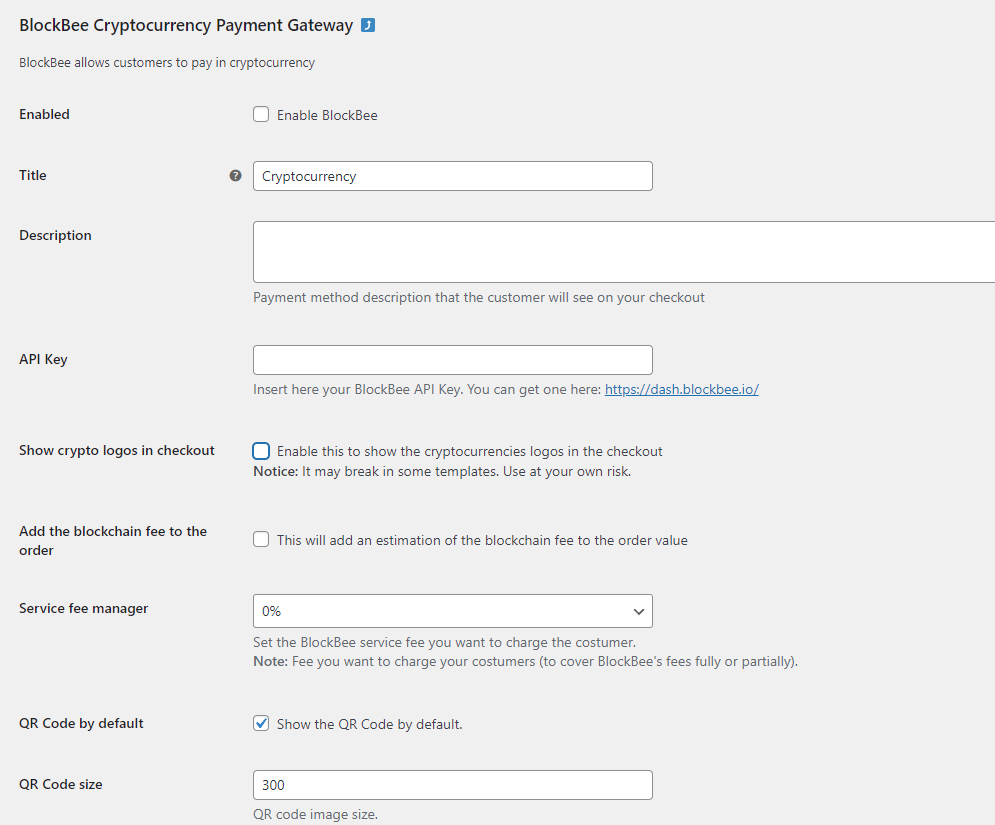
The settings panel used to configure the gateway
Set your crypto addresses (part 1)
Set your crypto addresses (part 2)
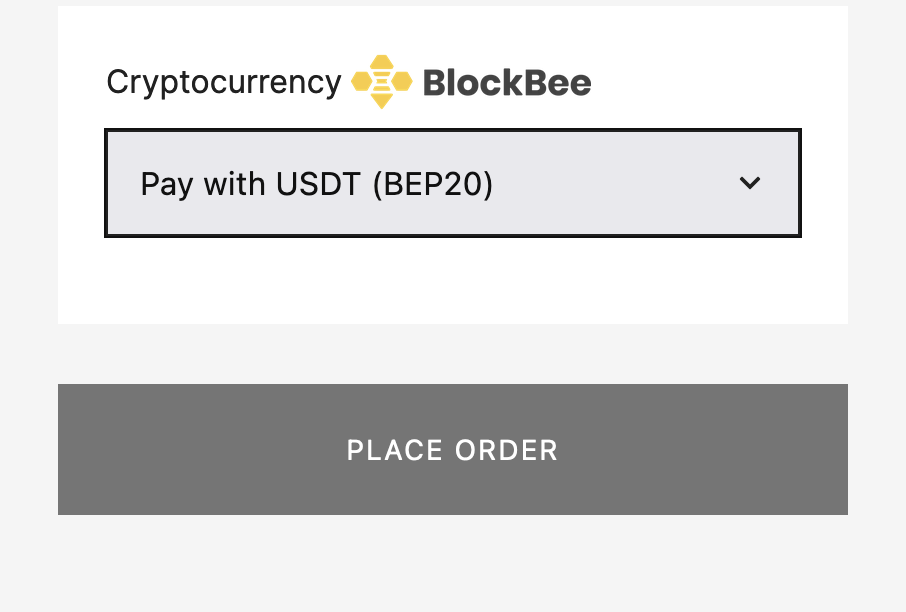
Example of payment using Litecoin
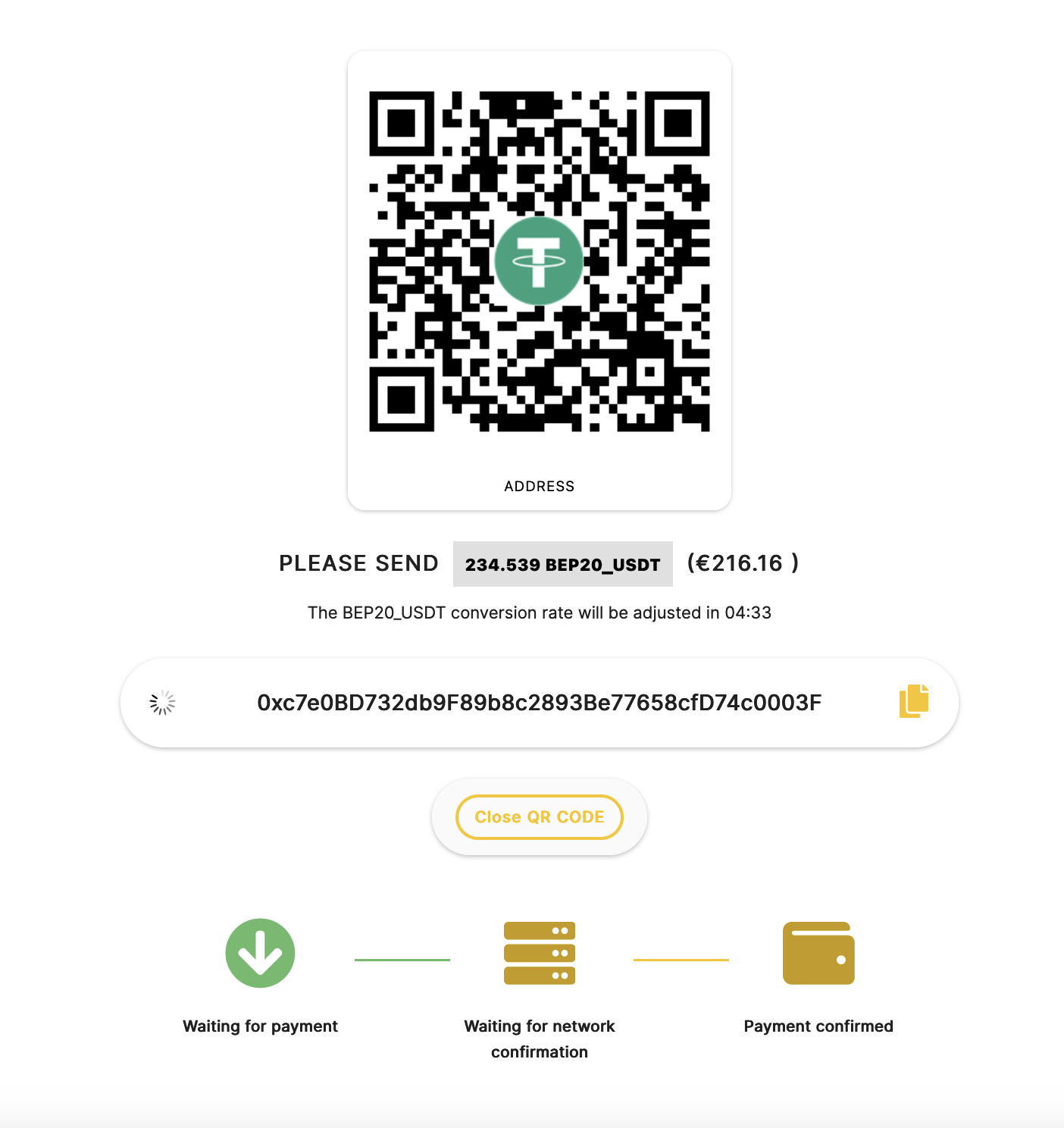
The QR code can be set to provide only the address or the address with the amount: the user can choose with one click
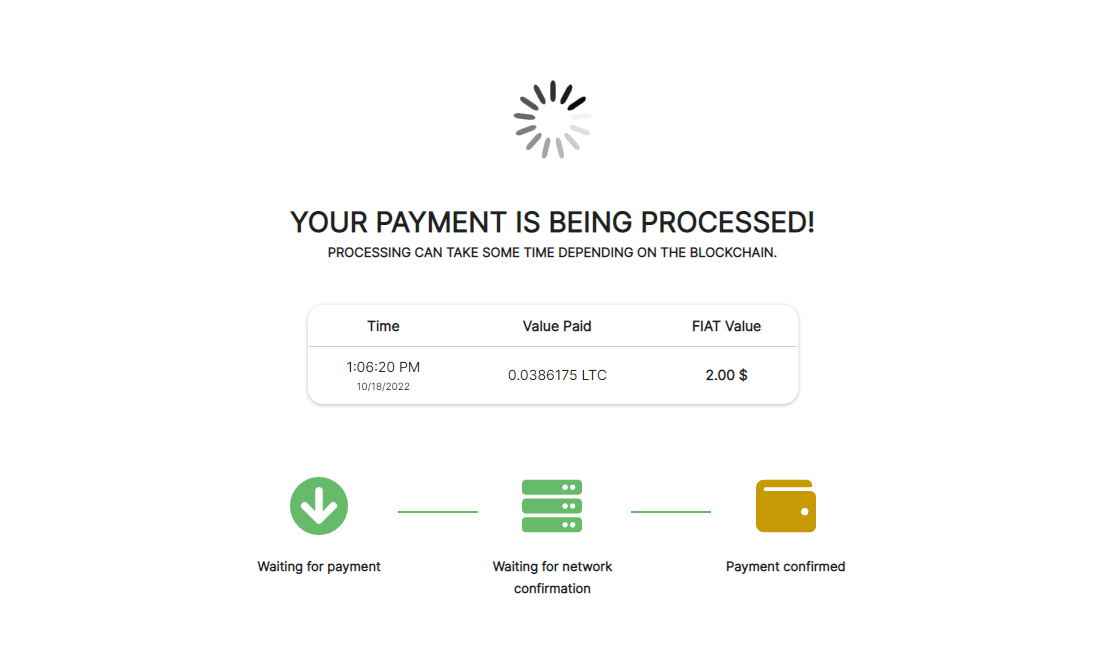
Once the payment is received, the system will wait for network confirmations
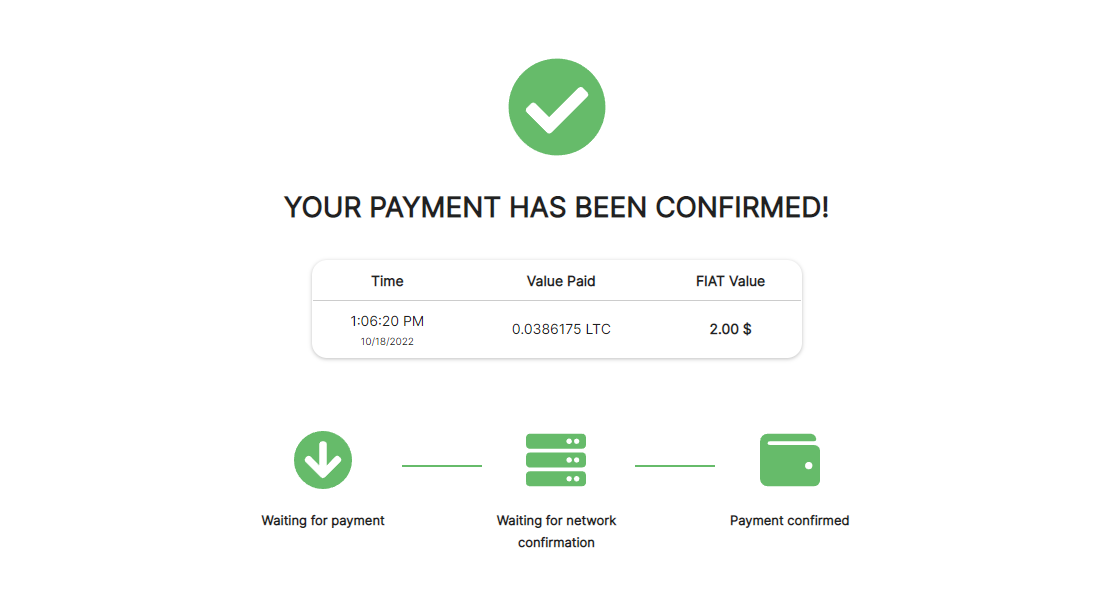
The payment is confirmed!
Changelog
1.0.0
- Initial release.
1.0.1
- Minor fixes.
1.0.2
- Minor fixes.
1.0.3
- Minor fixes.
- UI improvements.
1.0.4
- Minor fixes.
1.0.5
- Minor fixes.
1.0.6
- Minor fixes.
1.0.7
- Minor fixes.
- Improvements on the callback processing algorithm
1.0.8
- Minor fixes.
1.0.9
- Minor fixes.
1.0.10
- Minor fixes.
1.0.11
- Minor fixes.
1.0.12
- Minor fixes.
1.0.13
- Minor fixes.
1.0.14
- Performance improvements.
- Minor fixes.
1.0.15
- Minor fixes.
1.0.16
- Minor fixes.
1.0.17
- Support for WooCommerce HPOS.
- Minor fixes.
1.0.18
- Add new choices for order cancellation.
1.0.19
- Minor fixes and improvements.
1.0.20
- Minor fixes and improvements.
1.1.0
- Support for new languages: German, French, Ukrainian, Russian and Chinese.
1.1.1
- Minor fixes and improvements.
1.1.2
- Minor fixes and improvements.
1.1.3
- Minor fixes and improvements.
1.1.4
- Minor fixes and improvements.
1.1.5
- Minor fixes and improvements.
1.1.6
- Minor improvements
1.1.7
- Minor improvements
1.2.0
- Support BlockBee Checkout page
- Minor improvements
1.2.1
- Minor fixes.
1.2.2
- Minor fixes.
1.2.3
- Minor fixes.
1.2.4
- Minor fixes.
1.2.5
- Minor fixes.
1.2.6
- Minor improvements.
1.2.7
- Minor improvements.
- Minor fixes.
1.2.8
- Minor improvements.
- Minor fixes.
1.3.0
- Version bump.
1.4.0
- Now supports WordPress Blocks.
- Bug fixes.
1.4.1
- Bug fixes.
1.4.2
- Bug fixes.
1.4.3
- Bug fixes.
1.5.0
- Callback improvements
- Minor bugfixes
1.5.2
- Minor bugfixes
1.5.3
- New customization options
- Minor bugfixes
1.5.4
- Minor bugfixes
1.5.5
- Minor bugfixes
1.5.6
- Minor bugfixes
1.5.7
- Minor bugfixes
- Add a refresh coins option
1.5.8
- Minor bugfixes