

Cache External Scripts
Save the Google Analytics file (gtag.js / analytics.js) locally to be able to cache it for longer than 2 hours for a better PageSpeed score!
Plugin info
Maintenance & Compatibility
Maintenance score
Possibly abandoned • Last updated 2517 days ago • 25 reviews
Is Cache External Scripts abandoned?
Possibly abandoned (last update 2517 days ago).
Compatibility
Similar & Alternatives
Explore plugins with similar tags, and compare key metrics like downloads, ratings, updates, support, and WP/PHP compatibility.
Description
Often when trying to optimize the Google Pagespeed score, there is one script which still causing the ‘Leverage browser caching’ rule popping up: Google’s own gtag.js and/or analytics.js file…
With this plugin you will be able to cache this file on your local server and enable browser caching for longer than 2 hours. The plugin will check every day if there is a newer version of the file to keep the cache up to date.
Installation
Installation is very easy;
- Upload the plugin directory
cache-external-scriptsto the/wp-content/plugins/directory or install it directly from the WordPress plugin directory. - Activate the plugin through the ‘Plugins’ menu in WordPress
- Once the external script is cached by the plugin, it will automatically replace the url in your current Google Analytics code (meaning you can use your current Google Analytics plugin).
Frequently Asked Questions
I have installed the plugin, but I can’t find the Google Analytics code in the page source code
This plugin only caches the script and replaces it in your current Analytics code, containing ‘gtag.js’, ‘analytics.js’ or the older ‘ga.js’ script.
We chose not to insert the Analytics code itself because there are tons of plugins for that already, and some users require modifications in the code.
How can I check if the Analytics code is properly cached
We store the cached file in the wordpress uploads directory, in the folder called cached-scripts. If this folder doesn’t exist or is empty, please visit the settings page of the plugin to manually fetch the script.
Review feed
Screenshots
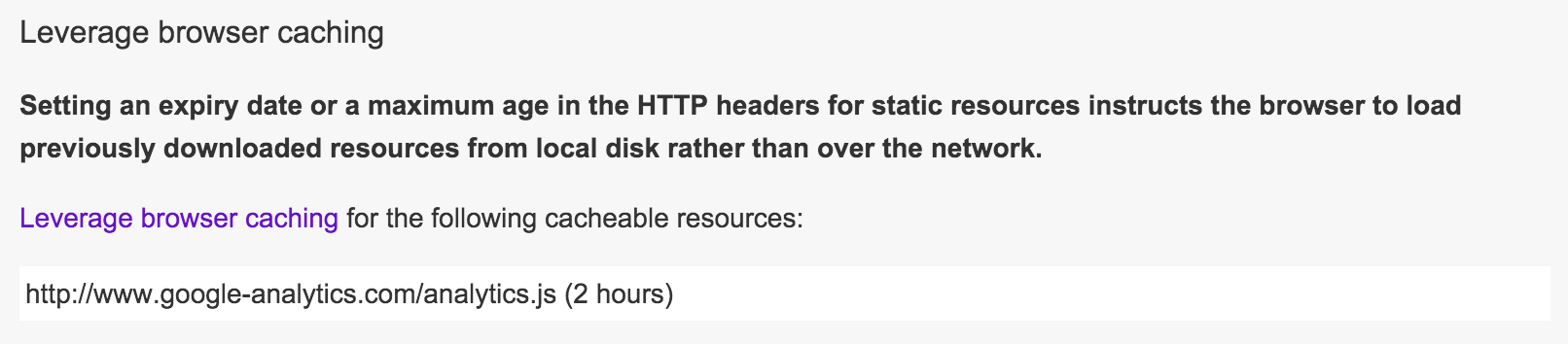
Fix this last Google Pagespeed problem
Changelog
0.4
- Added support for new Google Analytics tracking code using gtag.js
- Added missing semicolon which rarely caused a JavaScript issue in certain cases when minifying source code
0.3
- Added support for new Google Analytics tracking codes using https protocol as standard
- Small bug fix where cache being checked against the wrong file
0.2
- Added support for (old) Google Analytics tracking codes using
ga.jsscript
0.1
- Initial release