

Catalyst Connect
Catalyst Connect is a simple, yet powerful Plugin that makes integrating the BuddyPress, BBPress and WooCommerce Plugins with Catalyst a breeze.
Plugin info
Maintenance & Compatibility
Maintenance score
Possibly abandoned • Last updated 4724 days ago • 2 reviews
Is Catalyst Connect abandoned?
Possibly abandoned (last update 4724 days ago).
Compatibility
Similar & Alternatives
Explore plugins with similar tags, and compare key metrics like downloads, ratings, updates, support, and WP/PHP compatibility.
Description
Whether you want to add Social Networking functionality, a full blown Forum,
or a comprehensive E-Commerce solution to your Catalyst powered website you will
need to apply some specific code tweaks to make it happen. So instead of requiring
such customization of Catalyst by the end-user we’ve developed the Catalyst Connect
Plugin to do all the coding work for you.
Just activate this Plugin and then start
enjoying easy integration of BuddyPress, BBPress and WooCommerce with the Catalyst Framework.
Installation
- Upload the catalyst-connect folder to the /wp-content/plugins/ directory
- Activate the Catalyst Connect Plugin through the ‘Plugins’ menu in WordPress
- Configure the plugin by going to the Catalyst Connect menu at the bottom of your Catalyst Settings area
Using Catalyst Connect
By default there’s nothing that you need to do other than activate the Plugin. It will
detect whether or not the BuddyPress, BBPress and/or WooCommerce Plugins are active
and then react accordingly.
By default, when any one of the above mentioned Plugins is active the Catalyst Connect Plugin
will execute any necessary PHP functions as well as echo any necessary CSS code in the of your site.
Using the provided Plugin options you can de-activate this PHP and/or CSS code as needed.
Removing the Catalyst Connect plugin
To remove the Catalyst Connect plugin just go to the Plugins page in your dashboard
(or the Network Admin dashboard if you’re running a multi-blog setup) and click
the “Delete” link.
Frequently Asked Questions
Does Catalyst Connect work with WordPress Themes other than Catalyst?
No. The Catalyst Framework is required.
Can you use Catalyst Connect with any Catalyst Child Theme?
Yes.
Review feed
Screenshots
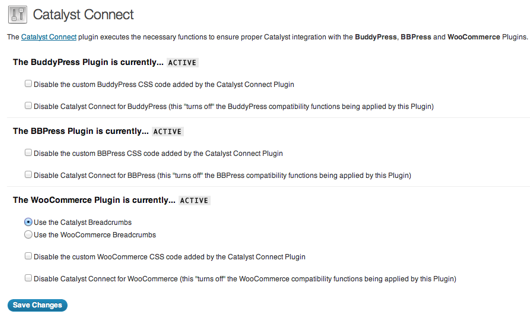
Catalyst Connect executes it's functionality automatically based on which Plugins are currently active.

With the options provided you can "turn off" certain functionality and then manually add it back in as needed.

Use Catalyst Connect with one, two or all three of these 3rd party Plugins.

When all three Plugins are inactive Catalyst Connect is too...at least in terms of executing integration code.
Changelog
1.0 Initial release
1.0.1 Updated bbPress specific styles to work with the latest bbPress release