

Clink – WordPress Link Manager
Clink - WordPress Link Manager is a WordPress plugin to Manage, create and track outbound links by custom links. like : name.com/clink/google
Plugin info
Maintenance & Compatibility
Maintenance score
Possibly abandoned • Last updated 2047 days ago • 7 reviews
Is Clink – WordPress Link Manager abandoned?
Possibly abandoned (last update 2047 days ago).
Compatibility
Similar & Alternatives
Explore plugins with similar tags, and compare key metrics like downloads, ratings, updates, support, and WP/PHP compatibility.
Description
Clink – WordPress Link Manager is a WordPress plugin to Manage, create and track outbound links by custom pretty links with your domain. like : name.com/clink/google
With WordPress Clink plugin you can make 301 redirections and count their visits. Also you can use countdown before redirect to links.
Some Clink Features
- Create and manage indirect, internal and external links
- Show a countdown timer before redirect to destination link
- Manage show or hide countdown timer for all links from Global Clink Settings
- Manage show, hide or use global countdown settings for each link separately
- Count number of visits for each link separately
- All links without the countdown timer, use 301 redirect type
- links with countdown timer, use JavaScript redirect method
- Ability to change Clink base links URL slug easily from Global Clink Settings
- Ability to change Clink countdown timer duration from Global Clink Settings
- You can see popular links in wordpress dashboard with Clink Popular Links widget – new
- You can use Clink Links list widget to show your custom links in WordPress themes sidebars – new
- You can use Clink shortcode to show your custom links anywhere you like – new
- The ability to categorize links in custom categories – new
- RTL style Is supported by Clink
Clink Links list widget options
- Title : Edit title of the widget
- Category : Show links from All links categories or only one category
- Number of Links to show : Defined how many links show on the widget
- Links Offset : Defined number of links to displace or pass over
- Links order by : Order links none, ID, author, title, date, modified, rand, clicks
- Links order : Ordering links in DESC or ASC
- Exclude links : Exclude some links base on the links ids from Clink Links list widget
- Display links clicks : Show or hide number of clicks on each link
Clink shortcode
With Clink shortcode you can have all Clink Links list widget options in a WordPress shortcode.
For more informations about Clink shortcode please see the FAQ page
Translations
- English
- Persian (Farsi)
Installation
To install Clink you can follow these steps:
e.g.
From your WordPress dashboard
- Visit ‘Plugins > Add New’
- Search for ‘Clink’
- Activate Clink from your Plugins page.
- Visit ‘Clink > Add New’ and create new links. (You can always delete these later).
From WordPress.org
- Download Clink.
- Upload the ‘Clink’ directory to your ‘/wp-content/plugins/’ directory, using FTP, SFTP, SCP, …
- Activate Clink from your Plugins page.
- Visit ‘Clink > Add New’ and create new links. (You can always delete these later).
Next
- Visit ‘Clink > global settings’ and adjust your configuration.
Frequently Asked Questions
How can I disable countdown for all links?
For disable countdown for all links please go to the ‘WordPress dashboard > Clink > Global settings’ then select ‘No’ for countdown and save changes.
When I disable countdown from ‘Clink Global settings’ can I enable countdown only for some links?
Yes if you select ‘yes’ from Clink Global settings page for countdown, you can manage countdown for each link directly from Link Informations meta box.
What’s ‘powered by Aryan Themes’ settings?
If you want to support us you can use this option. To use it, please go to the ‘WordPress dashboard > Clink > Global settings’ then select ‘Yes’ for ‘powered by Aryan Themes’ filed and save changes.
How can i change countdown duration for links?
You can go to the ‘WordPress dashboard > Clink > Global settings’ then change the number of ‘countdown duration’ filed and save changes.
How can i change the base slug of Clink links?
Go to the ‘WordPress dashboard > Clink > Global settings’ then change the value of ‘base slug’ filed and save changes.
How can i use Clink shortcode?
The simple use of the Clink shortcode is:
[clink]
But if you want to customize the output of the Clink shortcode you can use the it like below
[clink title="Clink Links list" cat="all" order="DESC" orderby="none" offset="0" number="10" exclude="" showclicks="true"]
- title : a string
- cat : “all” for show links from all categories, or “ids” of the categories that separated by commas
- order : DESC , ASC
- orderby : none, id, author, title, date, modified, rand, clicks
- offset : a number
- number : a number
- exclude : Ids of posts that separated by commas
- showclicks : true, false
Can i use Clink shortcode directly in the WordPress PHP files?
Yes you can use Clink shortcode in the WordPress PHP files like this:
echo do_shortcode('[clink]');
Review feed
Thanks to terrific WordPress users
Screenshots

Clink Countdown page

Add new Clink link

Edit old Clink link
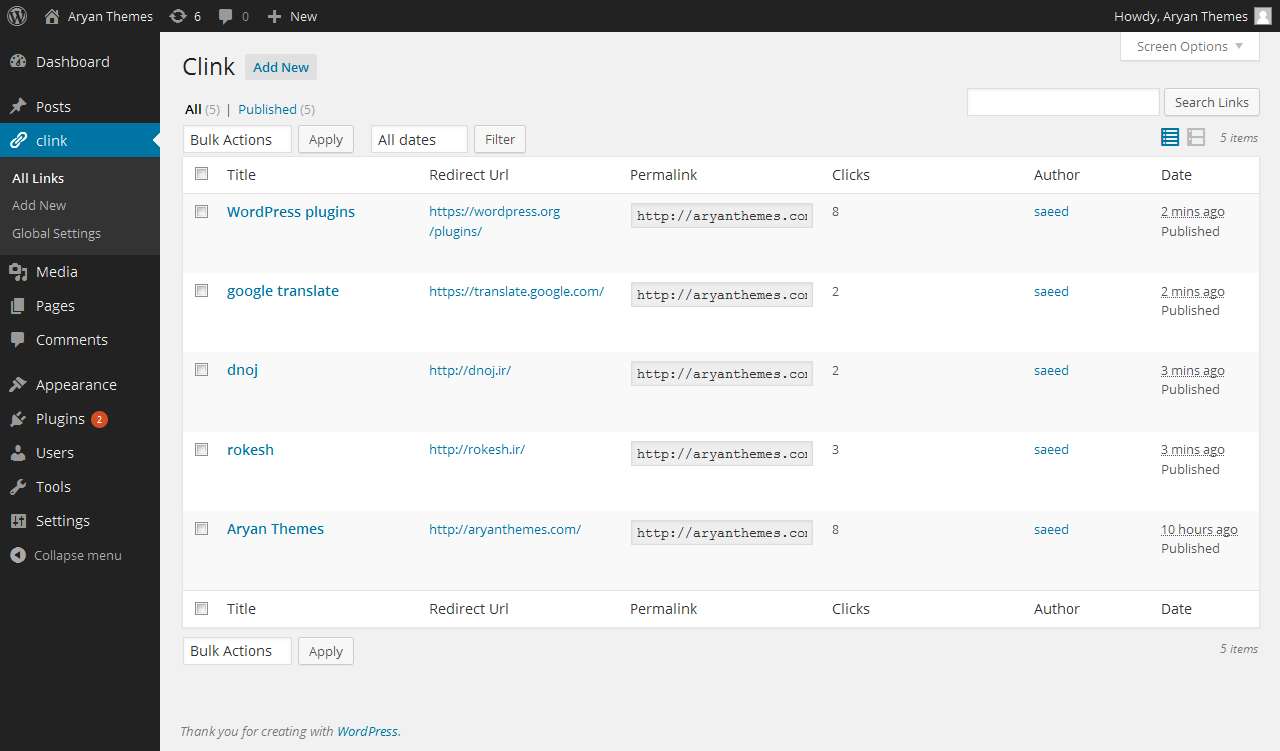
list of all Clink links

Global Clink settings page

Popular links widget for WordPress dashboard

Clink Links list widget

Clink Links list widget in Front-End
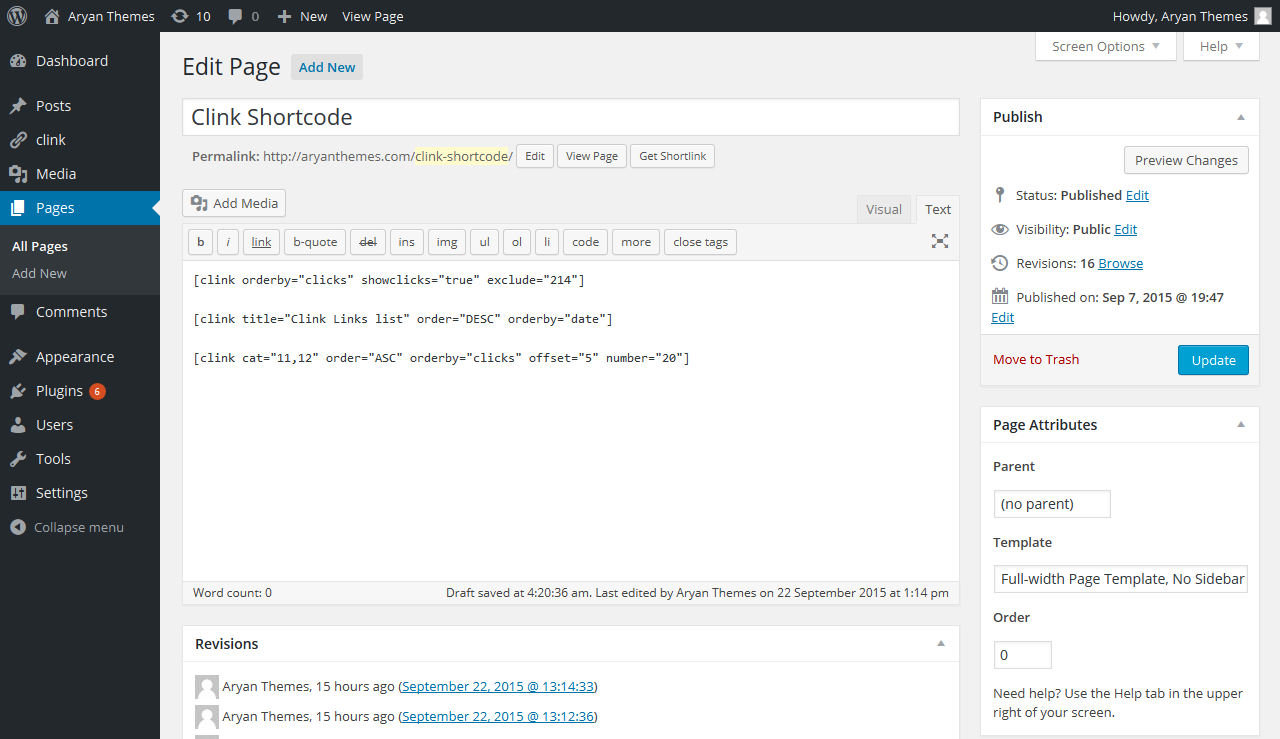
Clink WordPress shortcode

Clink WordPress shortcode in Front-End
Changelog
1.2.2
- Test with WordPress 5.5
1.2.1
- Add new option to Global settings page to moderate seo meta tags of the Clink countdown page – Thanks @prob3
- Fix some bugs of the Clink countdown page with Google Chrome browser – Thanks @prob3
1.2
- Add Clink WordPress shortcode
- Add Clink Links list widget
- Add popular links widget for WordPress dashboard
- Add new option to the Clink global settings to add custom css style to the Clink links countdown page
- Add the ability to categorize links in custom categories
- Fix small bug in the Firefox links clicks count
- Update translation files of the Persian language (fa_IR)
- Tested with WordPress v4.3.1
1.1
- Hello WordPress world …