

Coding Blocks
code block, syntax highlighter, code highlighter, editor, php, html, css, javascript, python, java, jsx, react, snippet, highlight, syntax, github, p …
Plugin info
Maintenance & Compatibility
Maintenance score
Possibly abandoned • Last updated 1293 days ago
Is Coding Blocks abandoned?
Possibly abandoned (last update 1293 days ago).
Compatibility
Similar & Alternatives
Explore plugins with similar tags, and compare key metrics like downloads, ratings, updates, support, and WP/PHP compatibility.
Description
PLEASE NOTE THAT THIS PLUGIN DOES NOT AND WILL NEVER EXECUTE ANY TYPE OF CODE ON YOUR WORDPRESS SITE!
This plugin uses Google Prettify which is an open-source syntax highlighting library.
This plugin relies on 3rd party services under the circumstances below;
-
Syntax highlighting – This is the core library that will make your snippets to be formatted according to your chosen language.
-
Color Themes – This is the color themes that can be used to change what your code snippets looks like
You can find the Terms of Use and privacy policy on the links above.
HOW TO USE
CREATE A NEW SNIPPET
- Head Over to the New Snippet page to create a New Code Snippet.
- On the page, add a title for the new snippet.
- Select the Language you’re working with.
- Type in the code in the code box and when you’re done, click on Preview.
- Click on Save to save your code snippet.
NOTE: YOUR CODE SNIPPETS ARE ENCODED AND STORED AS PLAIN TEXT TO PREVENT ITS EXECUTION
MANAGE CODE SNIPPETS
- Head Over to the All Snippets page to view existing code snippets.
- You can click on the Copy button to copy the shortcode for the snippet.
- You can click on the Edit button to edit a code snippet.
- You can click on the Delete button to delete a code snippet.
EDIT CODE SNIPPET
- Head Over to the All Snippets page to view existing code snippets.
- Click on the Edit button to redirect you to the edit page.
- On the Edit page, change the title for the snippet.
- Change the Language you’re working with.
- Modify the code in the code box and when you’re done, click on Update.
EMBED CODE SNIPPET
- Head Over to the All Snippets page to view existing code snippets.
- Click on the Copy button to copy the shortcode for the snippet.
- In any of your wordpress posts, place the copied shortcode & save the post.
- Preview the post to see the snippet embedded right where you want it.
Installation
- Upload
coding-blocksto the/wp-content/plugins/directory. - Activate the plugin through the ‘Plugins’ menu in WordPress.
- Head Over to Get Started to learn How to add your first code snippet.
Frequently Asked Questions
- Create a new code snippet
- Navigate to the list of code snippets
- Copy the shortcode of the snippet you need
- Paste it into your WordPress post Editor and save the post.
Review feed
Screenshots
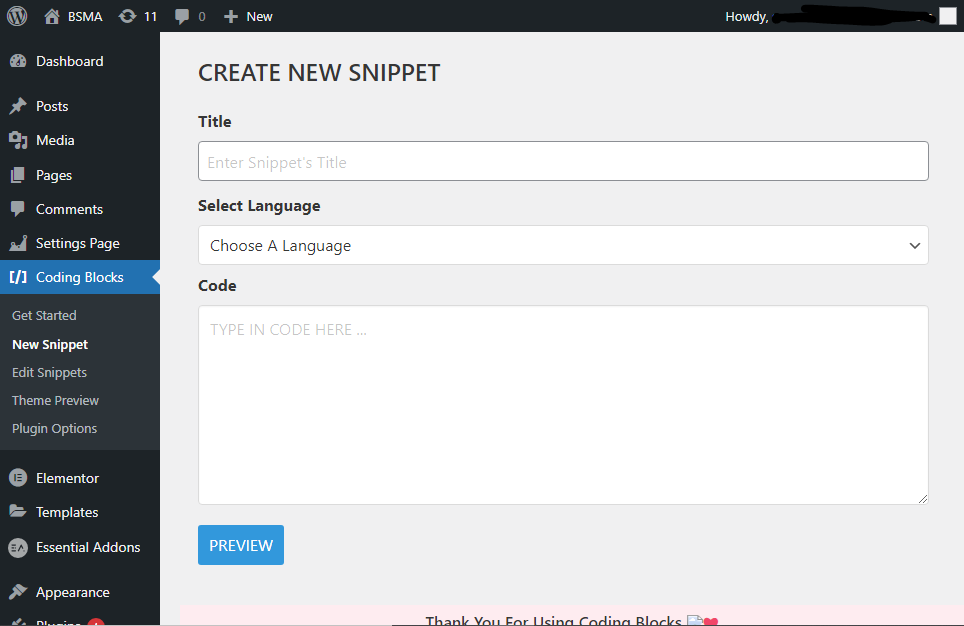
This is the Screenshot of the page where you create a new snippet.

This is the Screenshot of the page, where you edit your snippets.

This is the Screenshot of a snippet in a Wordpress Post.
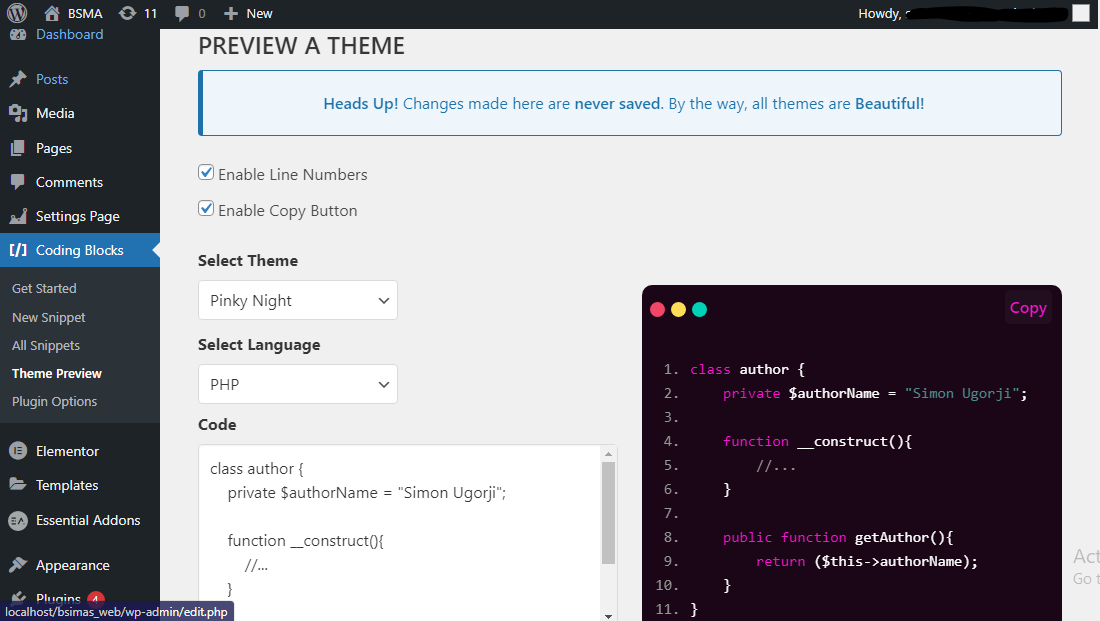
This is a Screenshot of the preview page, where you can preview themes before using them.
Changelog
1.1.0
- Improved Plugin UI
- Optimized plugin’s code base
1.0.6
- Added Copy function to snippet creation page
- Removed Error message that shows when you save an already existing record on plugin options
- Fixed a Bug with copying code snippets on mobile devices
1.0.5
- Fixed a bug with uninstalling the plugin.
- Improved Admin UI & Code snippet UI.
- Added new theme “pinky Night”.
1.0.4
- Admin UI & Snippet’s UI was improved
- Block sync was removed because snippets now have a better way to load
1.0.2
- It supports up to 44 Languages.
- It supports up to 34 Color Themes.
- We Added Settings Page. (More description in Changelog file).
- We Added Preview Page. (More description in Changelog file).
- We Removed Code Labels on code blocks (In re-development process).
- We Redesigned Admin UI.
- Block Sync Now Available (You can update all your code snippets with one tap to reflect your current plugin settings)
1.0.0
- It supports just 6 Languages.
- It has Just one default theme which is Sunburst Google prettify + night glory.
- A brief description of your code snippet is attached at the header section.
- A copy button is attached to each of your code snippet.