

Comapi Webchat Plugin
This plugin quickly and easily installs the Comapi webchat widget across your Wordpress site allowing you to chat in real time to your visitors, as w …
Plugin info
Maintenance & Compatibility
Maintenance score
Possibly abandoned • Last updated 2719 days ago • 1 reviews
Is Comapi Webchat Plugin abandoned?
Possibly abandoned (last update 2719 days ago).
Compatibility
Similar & Alternatives
Explore plugins with similar tags, and compare key metrics like downloads, ratings, updates, support, and WP/PHP compatibility.
Description
This plugin quickly and easily installs the Comapi webchat widget across your WordPress site allowing you to chat in real time to your visitors,
as well as allowing you to answer customers questions from other channels such as:
- Facebook Messenger
- SMS
- Twitter DM
- Plus more…
Find out more or sign up for a free no obligation trial at https://comapi.com
Notes
- Admin users, or more specifically, any user with the manage_options capabilities can use this plugin’s functionality.
- You must ensure you have enabled a team for the webchat channel in the Comapi chat tool before the webchat widget will render
- You must configure the API Space for the webchat widget to use. This can be found in the Comapi portal
in the Platform Configuration -> API SPace Details menu option. In WordPress it can be found in the settings page under Settings -> Comapi Webchat Settings
Installation
- Install the plugin through the WordPress plugins screen directly, or upload the plugin files to the
/wp-content/plugins/plugin-namedirectory, from here - Activate the plugin through the Plugins screen in WordPress
- Open the Settings -> Comapi Webchat Settings to configure the plugin
- In the API Space field copy in the API Space id GUID which can be found in the Comapi portal in the Platform Configuration -> API Space Details menu option
- Now click Save Settings and go to your site to test, if the Comapi Webchat Widget doesn’t show in the bottom right corner, double check you have followed the steps above correctly and ensure you have added a team with the Webchat channel enabled in your Teams tab in the Comapi Chat tool, found in the Comapi Portal under Tools > Chat
Frequently Asked Questions
Review feed
Great and easy
Screenshots
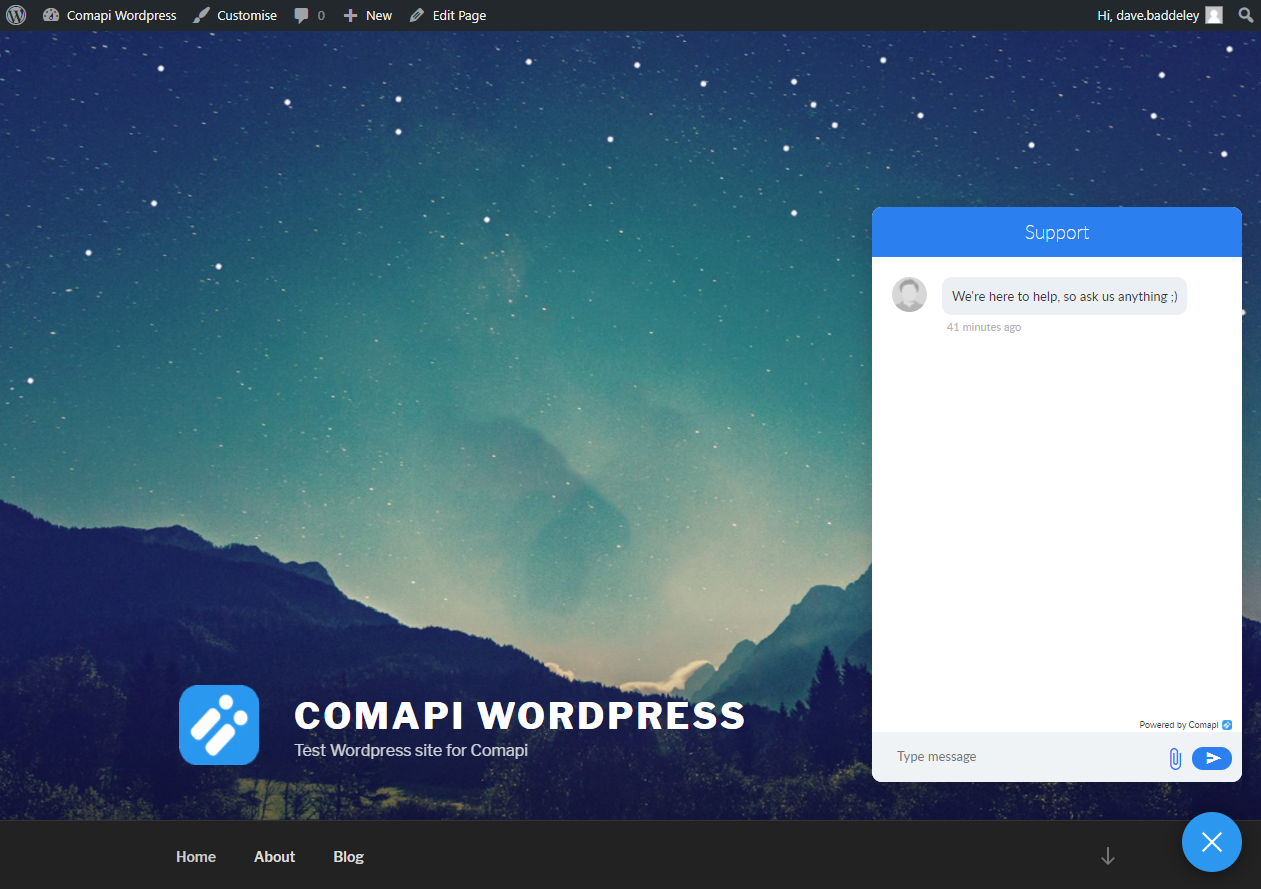
The Comapi webchat widget maximised

The Comapi webchat widget minimised

Configuring the webchat widget
Changelog
1.0.0
- Initial release