

Comment Blacklist Manager
Remotely add terms to the WordPress Disallowed Comment Keys field to manage spam.
Plugin info
Maintenance & Compatibility
Maintenance score
Stale • Last updated 253 days ago • 5 reviews
Is Comment Blacklist Manager abandoned?
Likely maintained (last update 253 days ago).
Compatibility
Similar & Alternatives
Explore plugins with similar tags, and compare key metrics like downloads, ratings, updates, support, and WP/PHP compatibility.
Description
Comment Blacklist Manager retrieves a list of terms from a remote source and updates the disallowed_keys setting in WordPress. The plugin will automatically fetch a list of terms on a regular schedule and update the contents of the “Disallowed Comment Keys” field. Terms added manually via the “Local Blacklist” field will be retained during the scheduled updates. Terms added manually to the “Excluded Terms” field will be removed from the list.
The default list of terms is fetched from a GitHub repository maintained by Grant Hutchinson.
Installation
To install the plugin using the WordPress dashboard:
- Go to the “Plugins > Add New” page
- Search for “Comment Blacklist Manager”
- Click the “Install Now” button
- Activate the plugin on the “Plugins” page
- (Optional) Add terms to the “Local Blacklist” field in “Settings > Discussion”
- (Optional) Add terms to the “Excluded Terms” field in “Settings > Discussion”
To install the plugin manually:
- Download the plugin and decompress the archive
- Upload the
comment-blacklist-managerfolder to the/wp-content/plugins/directory on the server - Activate the plugin on the “Plugins” page
- (Optional) Add terms to the “Local Blacklist” field in “Settings > Discussion”
- (Optional) Add terms to the “Excluded Terms” field in “Settings > Discussion”
Frequently Asked Questions
The default blacklist is maintained by Grant Hutchinson on GitHub.
Generally, the default blacklist is updated several times per month. This includes the addition of new entries and the optimizing of existing entries. Sometimes the default blacklist can undergo multiple updates per week, depending on how much spam in being sent to public WordPress sites we use to test the plugin.
Yes, you can. Use the filter cblm_sources to add different source URLs.
To replace the default source completely:
add_filter( 'cblm_sources', 'rkv_cblm_replace_blacklist_sources' );

function rkv_cblm_replace_blacklist_sources( $list ) {

    return array(
        'http://example.com/blacklist-1.txt'
        'http://example.com/blacklist-2.txt'
    );

}
To add a new source to the existing sources:
add_filter( 'cblm_sources', 'rkv_cblm_add_blacklist_source' );

function rkv_cblm_add_blacklist_source( $list ) {

    $list[] = 'http://example.com/blacklist-1.txt';

    return $list;

}
The plugin expects the list of terms to be in plain text format with each entry on its own line. If the source is provided in a different format (eg: a JSON feed or serialized array), then the result must be run through the cblm_parse_data_result filter, which parses the source as a list of terms and the source URL.
The plugin will update the list of terms from the specified sources every 24 hours.
Yes, you can. Use the filter cblm_update_schedule to modify the time between updates.
add_filter( 'cblm_update_schedule', 'rkv_cblm_custom_schedule' );

function rkv_cblm_custom_schedule( $time ) {

    return DAY_IN_SECONDS;

}
The return data should be specified using WordPress Transient Time Constants.
Yes. Individual terms can be added to the “Local Blacklist” field in the “Settings > Discussion” area of WordPress. Each term must be entered on its own line.
Yes. Individual terms can be excluded from the automatically fetched blacklist by adding them to the “Excluded Terms” field in the “Settings > Discussion” area of WordPress. Each term must be entered on its own line.
Review feed
Great Little Plugin
Screenshots
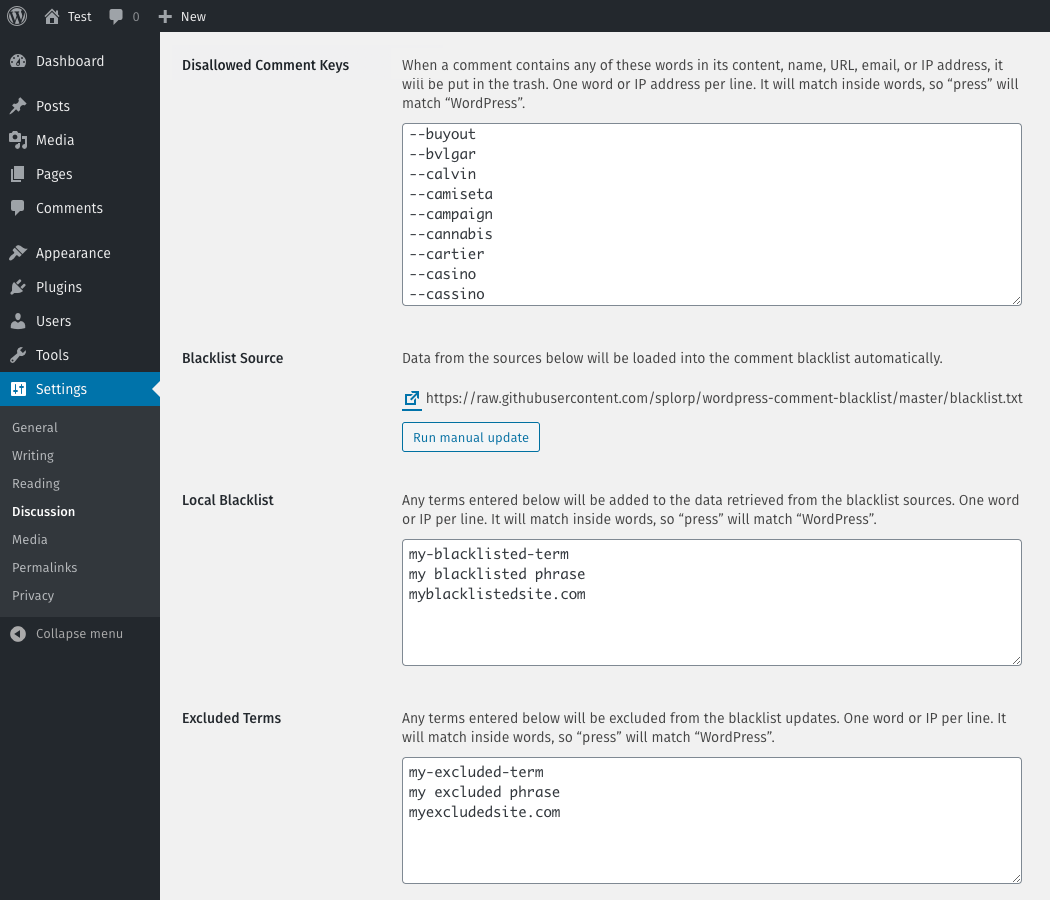
The “Discussion Settings” screen showing the various blacklist fields
Changelog
1.0.1 — 23-Mar-2020
- Fixed admin notice to properly clear when a manual update is run
- Minor code cleanup
1.0.0
- Initial release