
Connect GamiPress to Discord
Create a community of your Members by connecting your GamiPress Website to your Discord server.
Plugin info
Maintenance & Compatibility
Maintenance score
Stale • Last updated 322 days ago • Support resolved 0% • 1 reviews
Is Connect GamiPress to Discord abandoned?
Likely maintained (last update 322 days ago).
Compatibility
Languages
Similar & Alternatives
Explore plugins with similar tags, and compare key metrics like downloads, ratings, updates, support, and WP/PHP compatibility.
Description
You can link your GamiPress website to your Discord server using this add-on. By connecting Rank to a Discord role, you can use this to establish a wonderful community where you can challenge and support your members.
Connect GamiPress to Discord Plugin Features:
1) Allow any user to connect their discord account with their GamiPress website account.
2) Shortcode [gamipress_discord] to display connect/disconnect button.
3) Mapping of Ranks and discord roles.
4) Send custom welcome message when user joins the server.
5) Send custom message when user award Rank.
6) Send custom message when user award points.
7) Send custom message when a user loses points.
8) Force logout of a user from the users list.
Important Links
Checkout Our Other Plugins
- Connect MemberPress and Discord
- Connect PaidmembershipPro and Discord
- Connect ProfilePress and Discord
- Connect LearnPress and Discord
- Connect LifterLMS and Discord
- Webhook For WCFM Vendors
- Inspect HTTP Requests
- Product Questions & Answers for WooCommerce
- Connect Ultimate Member and Discord
- Connect BadgeOS and Discord
- Connect Eduma Theme and Discord
- Connect Restrict Content Pro and Discord Addon
- Connect LearnDash and Discord
- Connect Tutor LMS to Discord
Installation
Download, Install and Activate!
- Go to Plugins > Add New to find and install Connect GamiPress and Discord.
- Or, download the latest version of the plugin, then go to Plugins > Add New and click the “Upload Plugin” button to upload your .zip file.
- Activate the plugin.
Frequently Asked Questions
Please make sure your bot role has the high priority among all other roles your bot has to manager in your discord server roles settings.
- Clear browser cache, to uninstall and install again.
- Try the disabling cache
- Try Disabling other plugins, there may be any conflict with another plugin.
- Due to the nature of Discord API, we have to use schedules to precisely control API calls, This is the reason actions are delayed.
- Due to the nature of Discord API, we have to use schedules to precisely control API calls, This is the reason actions are delayed.
- Sometimes discord API behaves weirdly, It is suggested to TRY again OR use another discord account.
Review feed
Screenshots
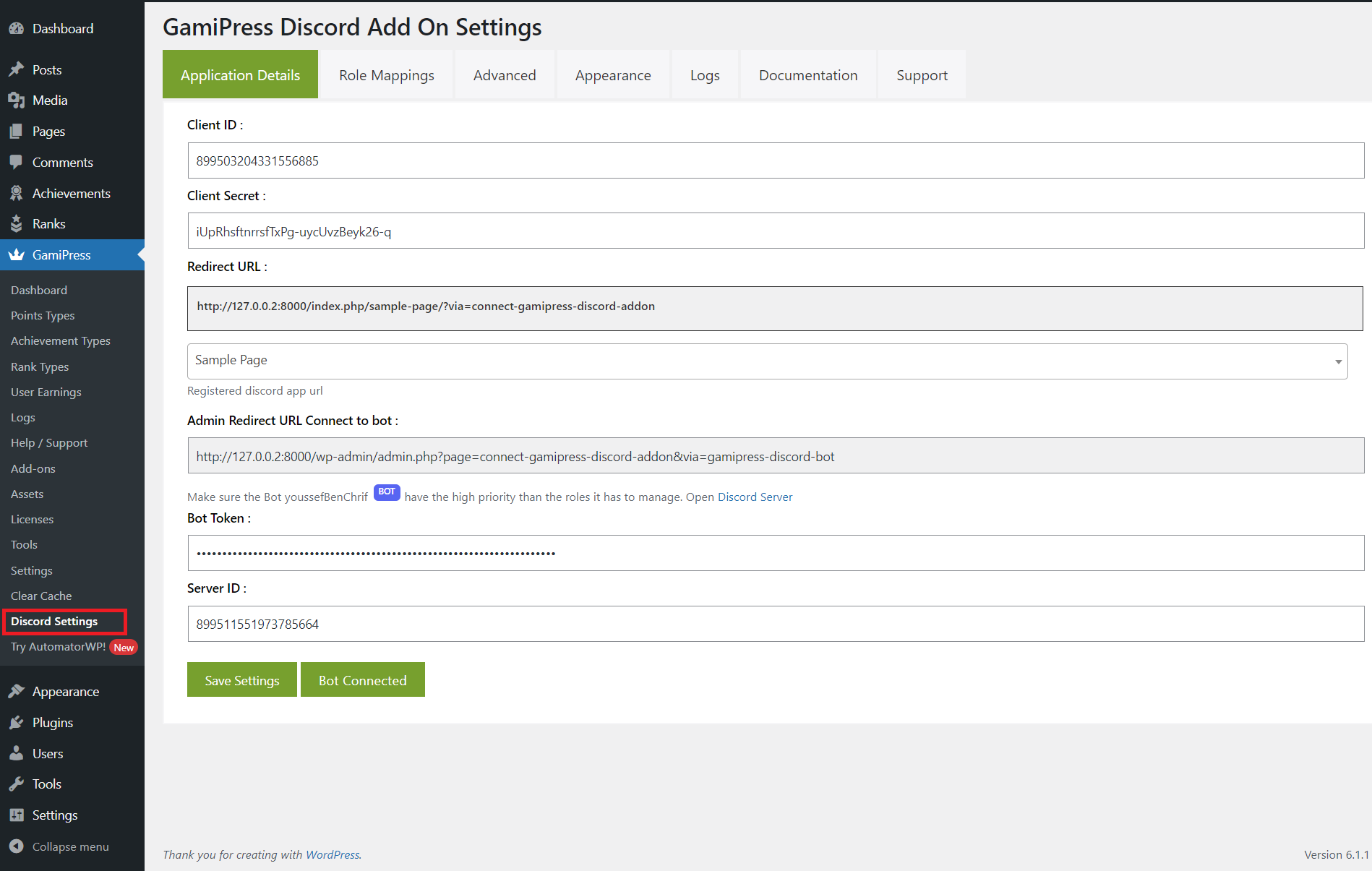
Install and activate the plugin and view the "Discord Settings" menu inside GamiPress.

Map Discord roles and GamiPress Ranks.

Advanced settings.

Connect Button Appearance.

Spot the "Connect to Discord" on WordPress profile page.