

Content Copy Protection & Disable Right Click
This plugin provides a quick and easy way to disable right click, disable cut, copy, paste, disable view source and disable image drag & drop.
Plugin info
Maintenance & Compatibility
Maintenance score
Possibly abandoned • Last updated 648 days ago • 6 reviews
Is Content Copy Protection & Disable Right Click abandoned?
Possibly abandoned (last update 648 days ago).
Compatibility
Developers
Similar & Alternatives
Explore plugins with similar tags, and compare key metrics like downloads, ratings, updates, support, and WP/PHP compatibility.
Description
This plugin provides a quick and easy way to disable right click, disable cut, copy, paste, disable view source and disable image drag & drop.
Using this plugin you can stop plagiarism, stop visitor form downloading images from your website and be sure about your websites content protection.
Features
- Disable right click.
- Show disabled message on right click.
- Disable cut, copy and paste.
- Show disabled message on cut, copy and paste.
- Disable image drag & drop.
- Show disabled message on image drag & drop.
- Disable view source.
- Show disabled message on view source.
- Disable CTRL+C, CTRL+X, CTRL+V, CTRL+U, ⌘+C, ⌘+X, ⌘+V, ⌘+Option+I, ⌘+Option+U
- More content protection options are coming in upcoming releases.
Installation
From your WordPress dashboard
- Visit ‘Plugins > Add New’.
- Search for ‘Content Copy Protection & Disable Right Click’.
- Activate ‘Content Copy Protection & Disable Right Click’ from your Plugins page.
From WordPress.org
- Download ‘Content Copy Protection & Disable Right Click’.
- Upload the ‘disable-wp-registration-page-spam’ directory to your ‘/wp-content/plugins/’ directory, using your favourite method (ftp, sftp, scp, etc…).
- Activate ‘Content Copy Protection & Disable Right Click’ from your Plugins page.
Frequently Asked Questions
- To disable the right click on your WordPress website, login to your WordPress admin dashboard.
- Then, click on ‘Plugins’ and choose the ‘Add New’ option.
- Search for ‘Content Copy Protection & Disable Right Click’ plugin in the search bar.
- Install and activate ‘Content Copy Protection & Disable Right Click’ plugin
- To disable text selection and copy/paste on your WordPress website, login to your WordPress admin dashboard.
- Then, click on ‘Plugins’ and choose the ‘Add New’ option.
- Search for ‘Content Copy Protection & Disable Right Click’ plugin in the search bar.
- Install and activate ‘Content Copy Protection & Disable Right Click’ plugin
You can contact me using plugin support forum
Review feed
Working perfectly with WordPress 5.7.2
Screenshots
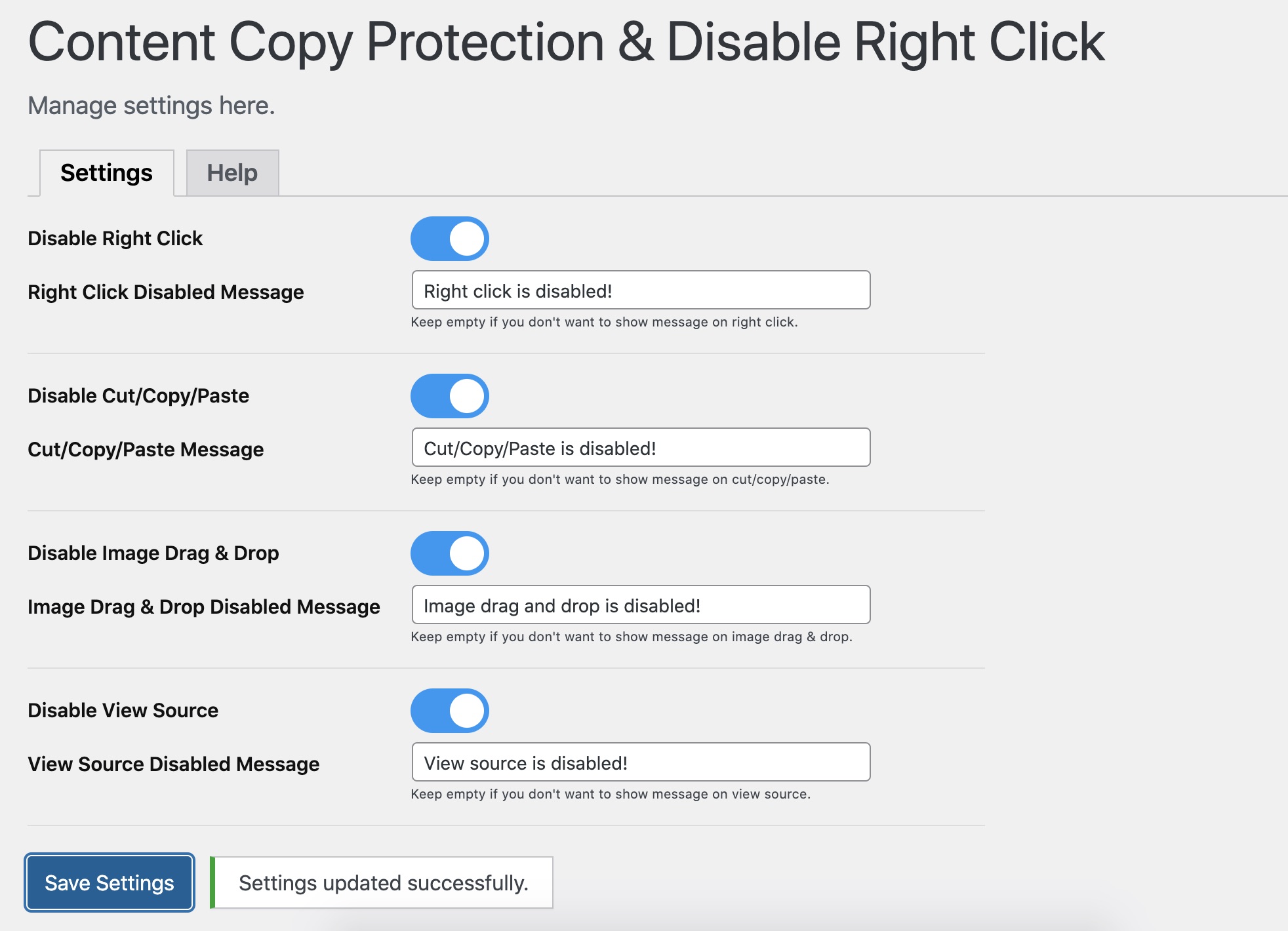
Settings screen
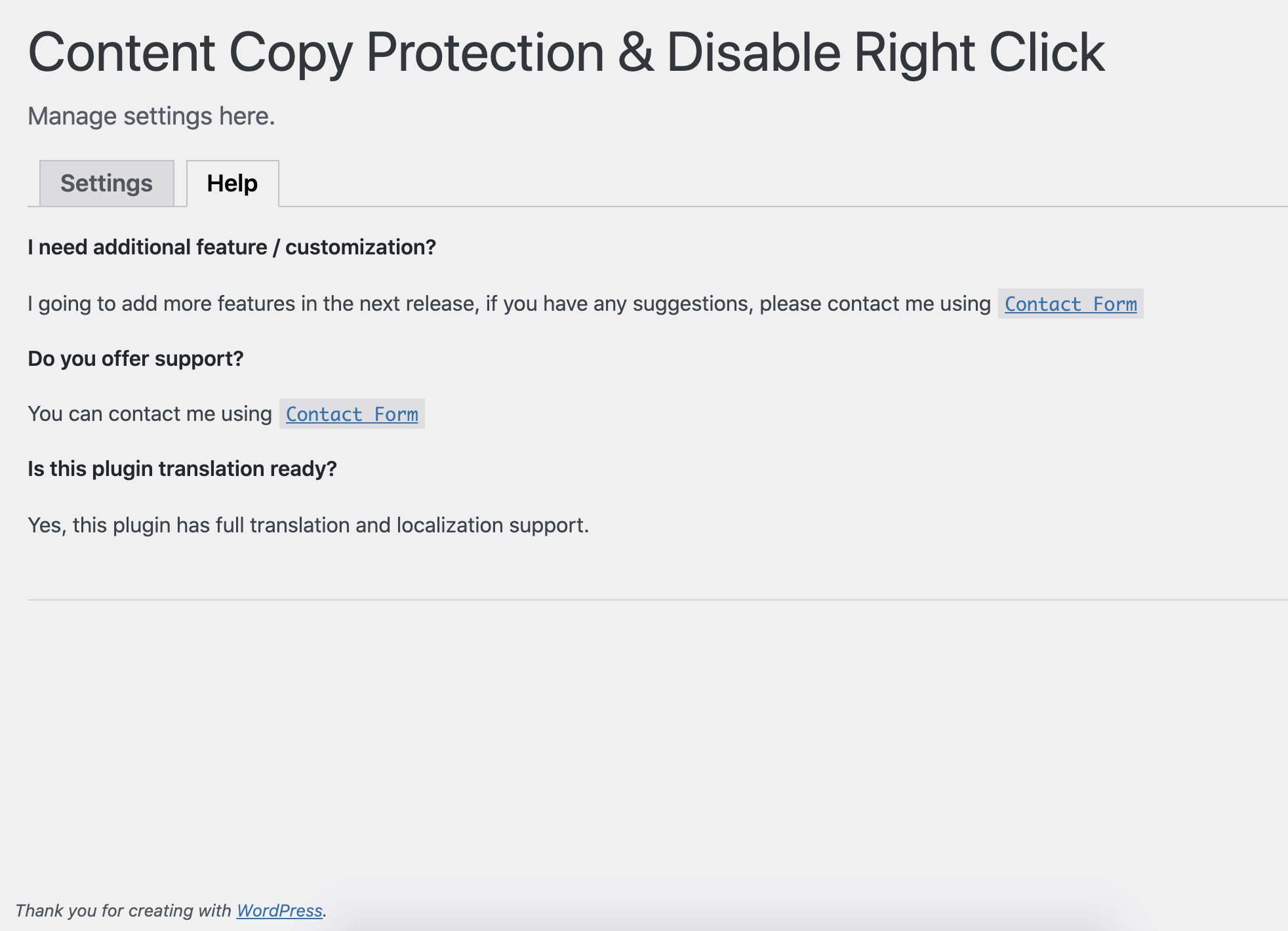
Help screen
Changelog
1.0.0
Initial release
1.0.1
Updated readme.txt
1.0.2
Removed dependency on jQuery
1.0.3
Added option to disable content selection
1.0.4
Tested with WordPress version 5.9
1.1.0
Fixed the issue with the WooCommerce installation
1.1.1
Tested with WordPress version 6.5.4