
Custom connect button block for Discord
A Gutenberg block that provides a customizable "Connect to Discord" button, designed to work with supported Discord integration add-ons.
Plugin info
Maintenance & Compatibility
Maintenance score
Stale • Last updated 210 days ago
Is Custom connect button block for Discord abandoned?
Likely maintained (last update 210 days ago).
Compatibility
Similar & Alternatives
Explore plugins with similar tags, and compare key metrics like downloads, ratings, updates, support, and WP/PHP compatibility.
Description
Custom Connect Button Block for Discord adds a flexible Gutenberg block that allows users to connect or disconnect their Discord accounts from any page or post.
The block is fully customizable (text, colors, text, styles) and can display each user’s connection status, including the Discord roles they will be assigned (via the integration add-on).
Unlike shortcodes, this block supports unique design variations per page and offers a real-time preview toggle directly in the editor, so you can instantly view the exact frontend output without publishing.
Features
– Add a fully customizable “Connect to Discord” button.
– Display a “Disconnect” button for already connected users.
– Show assigned Discord roles dynamically.
– Real-time live preview in the editor with Play/Stop toggle.
– No coding required – all options are visual in the block editor.
Supported Add-ons
This block requires one of the following plugins for the actual Discord integration (authentication and role sync):
– PMPro Discord Add-on
– ExpressTech MemberPress Discord Add-on
– Connect Ultimate Member to Discord
– Connect Tutor LMS to Discord
This plugin’s source code is available on GitHub.
Contributions and bug reports are welcome.
External services
This plugin does not connect to external APIs directly.
Instead, supported add-ons (listed above) handle all communication with the Discord API.
Optional external call used by this plugin:
– Discord CDN (https://cdn.discordapp.com/) — to display a connected user’s avatar image, if provided by the add-on.
– Data sent: None.
– Data retrieved: Avatar image.
– When: Only when the user is already connected to Discord through a supported add-on.
For more details:
– Discord Terms of Service
– Discord Privacy Policy
Installation
- Upload the plugin files to
/wp-content/plugins/custom-connect-button-block-for-discord/or install directly from the WordPress Plugins screen. - Activate the plugin through the “Plugins” menu in WordPress.
Frequently Asked Questions
It provides a customizable “Connect to Discord” button that works alongside supported add-ons. Those add-ons handle the actual Discord connection, while this block lets you design and place the button anywhere in the editor.
It currently supports the PMPro, MemberPress, Ultimate Member, and Tutor LMS Discord add-ons.
Yes. You can set the button’s text, colors, and text directly in the Gutenberg editor.
Yes. The block includes a Play/Stop toggle that renders the live frontend output instantly inside the editor.
Review feed
Screenshots

Animated demo showcasing all block features in action.

Enable live preview for non-connected user.

Live preview for connected user to Discord.

The button text placeholder settings.

The color settings for buttons: front color and background color.
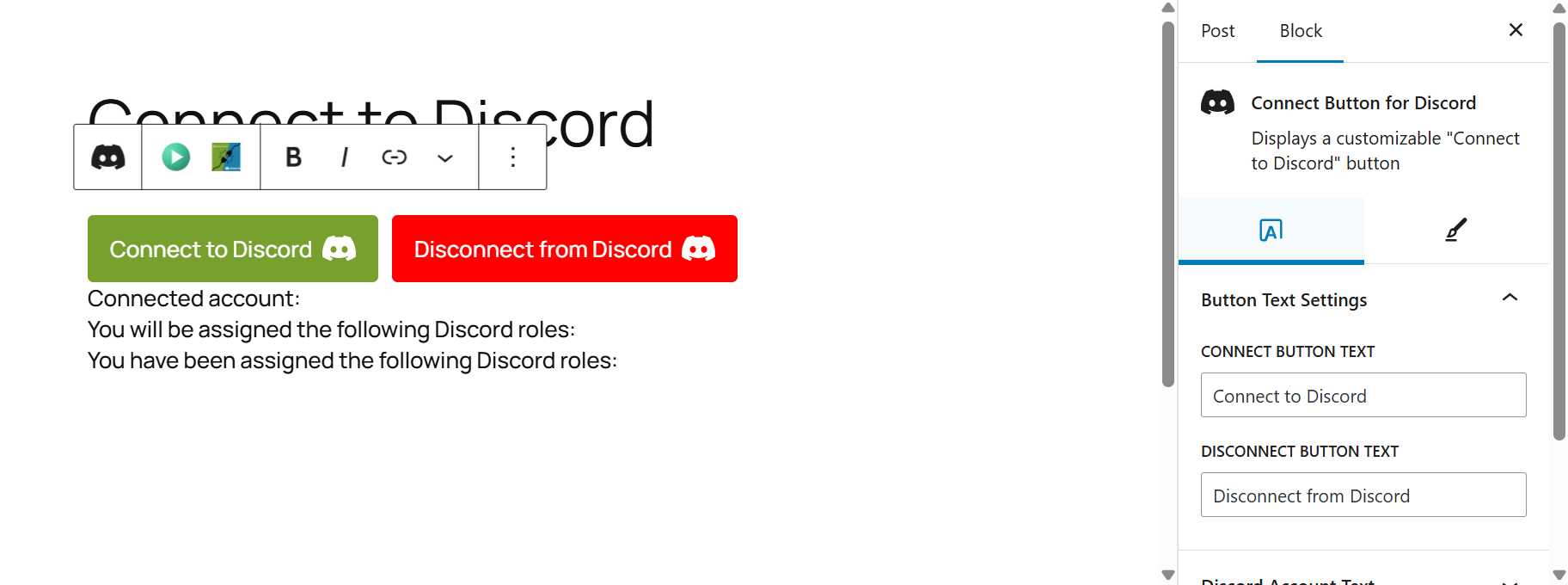
Initial block status - buttons + text.
Changelog
1.0.0
- Initial release.