

Dashdig Analytics
Track and analyze your shortened URLs with Dashdig Analytics. Simple setup, powerful insights.
Plugin info
Maintenance & Compatibility
Maintenance score
Actively maintained • Last updated 89 days ago
Is Dashdig Analytics abandoned?
Likely maintained (last update 89 days ago).
Compatibility
Similar & Alternatives
Explore plugins with similar tags, and compare key metrics like downloads, ratings, updates, support, and WP/PHP compatibility.
Description
Dashdig Analytics automatically integrates Dashdig’s URL tracking and analytics into your WordPress site. Monitor link performance, track clicks, and gain insights into how your shortened URLs are performing—all from your WordPress dashboard.
Features:
- Easy one-time API key setup
- Automatic tracking script injection
- Choose header or footer script placement for optimal performance
- Exclude admin users from tracking
- Test API key connection directly from settings
- No coding required
- GDPR compliant
- Lightweight and fast
Perfect For:
- Bloggers who share affiliate links
- Marketers tracking campaign performance
- Content creators monitoring engagement
- Anyone using Dashdig URL shortener
How It Works:
- Install and activate the plugin
- Get your free API key from https://dashdig.com
- Enter your API key in Settings > Dashdig Analytics
- Save settings and you’re done!
Your Dashdig tracking script will now load on all public pages, sending analytics data to your Dashdig dashboard.
External Services
This plugin connects to external Dashdig API services to provide analytics and tracking functionality. Please review this disclosure to understand how external services are used.
Service Used:
This plugin connects to the Dashdig Analytics API hosted at:
* API Endpoint: https://dashdig-production.up.railway.app/api
* Service Provider: Dashdig (https://dashdig.com)
When Connection Occurs:
- API Key Verification – When you click “Test API Key” in plugin settings, a request is sent to verify your credentials
- Front-End Tracking – When enabled, the tracking script loads on public pages to collect analytics data
- Analytics Dashboard – When viewing analytics data in your WordPress dashboard (if applicable)
Data Transmitted:
The following data may be sent to Dashdig servers:
-
During API Verification:
- Your API key and Tracking ID
- WordPress site URL
- Plugin version information
-
During Front-End Tracking:
- Page URLs visited
- Referrer information
- User interaction data
- Anonymous visitor metrics
- Browser and device information (user agent)
User Privacy:
- No personally identifiable information (PII) is collected without user consent
- IP addresses may be processed for analytics purposes
- Users can be excluded from tracking (administrators by default)
- Tracking can be disabled at any time in plugin settings
Important Links:
- Dashdig Website: https://dashdig.com
- Terms of Service: https://dashdig.com/terms
- Privacy Policy: https://dashdig.com/privacy
- API Documentation: https://dashdig.com/docs
By using this plugin, you acknowledge that data will be transmitted to Dashdig’s servers as described above. Please review Dashdig’s Terms of Service and Privacy Policy before using this plugin.
Installation
Automatic Installation:
- Log in to your WordPress admin panel
- Navigate to Plugins > Add New
- Search for “Dashdig Analytics”
- Click “Install Now” and then “Activate”
Manual Installation:
- Download the plugin ZIP file
- Log in to WordPress admin panel
- Navigate to Plugins > Add New > Upload Plugin
- Choose the downloaded ZIP file and click “Install Now”
- Activate the plugin
Configuration:
- Navigate to Settings > Dashdig Analytics
- Enter your Dashdig API key (get one at https://dashdig.com/dashboard/widget)
- Configure tracking preferences
- Click “Test API Key” to verify connection
- Save settings
Frequently Asked Questions
Yes, you need a free Dashdig account to get an API key. Sign up at https://dashdig.com
Log in to your Dashdig dashboard at https://dashdig.com/dashboard/widget to get your API key.
No. The tracking script loads asynchronously and doesn’t block page rendering. It’s optimized for minimal performance impact.
By default, no. You can enable/disable admin tracking in the settings.
Yes. Dashdig Analytics is designed with privacy in mind and complies with GDPR requirements.
Yes. You can choose header or footer placement in the settings, though footer is recommended for better performance.
Simply uncheck “Enable Tracking” in the settings. Your API key will be saved for when you want to re-enable tracking.
Review feed
Screenshots

Settings page - Easy API key configuration
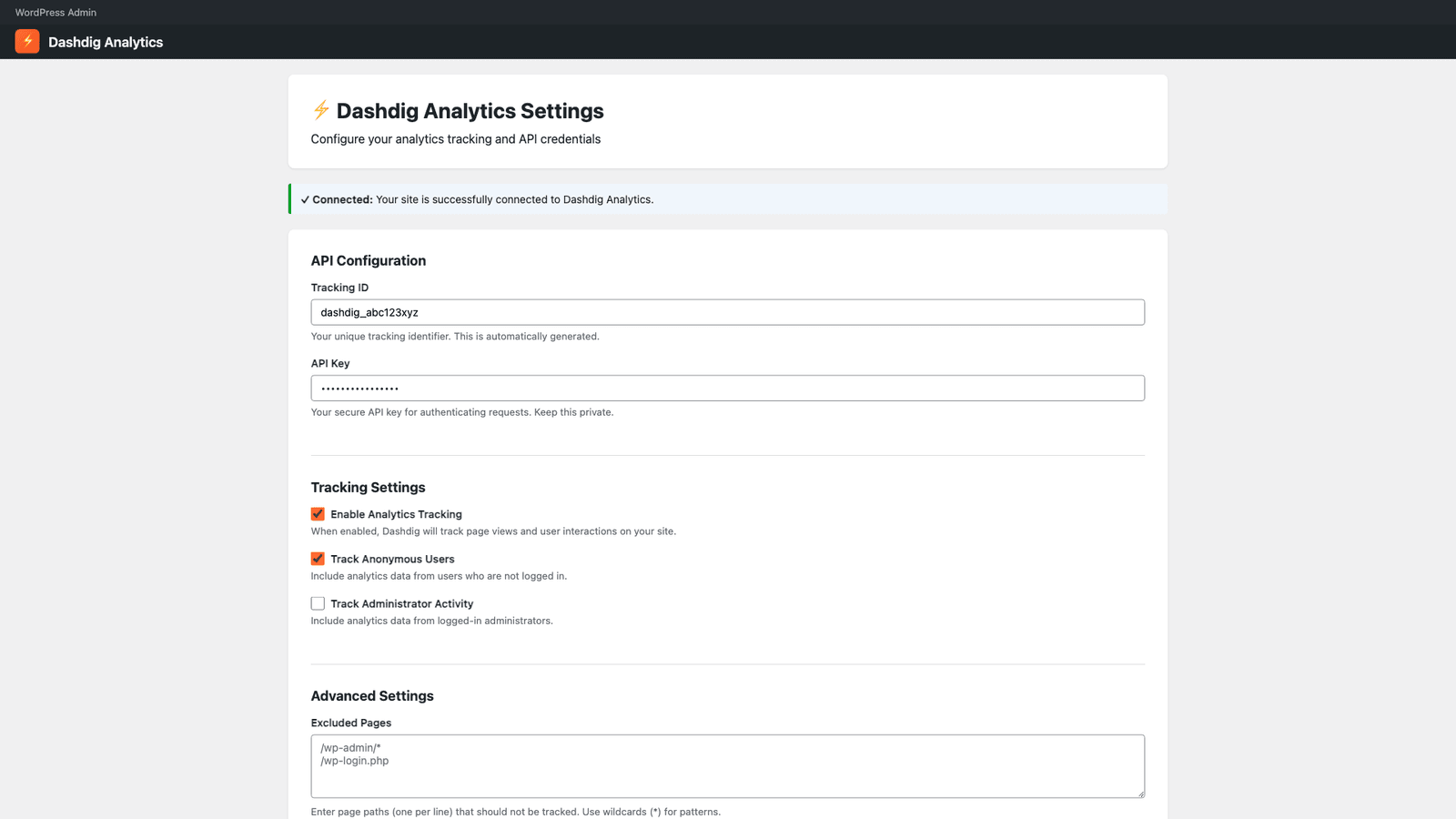
Test connection - Verify your API key works

Dashdig dashboard - View your analytics
Changelog
1.0.0
- Initial release
- API key configuration
- Automatic script injection
- Header/footer placement options
- Admin exclusion option
- AJAX API key testing