

Disable AI
Turn off unwanted AI features and notifications in plugins, themes, and WordPress Core.
Plugin info
Maintenance & Compatibility
Maintenance score
Actively maintained • Last updated 72 days ago • 1 reviews
Is Disable AI abandoned?
Likely maintained (last update 72 days ago).
Compatibility
Similar & Alternatives
Explore plugins with similar tags, and compare key metrics like downloads, ratings, updates, support, and WP/PHP compatibility.
Description
Tired of plugins and themes adding AI features you don’t want?
Tired of getting bothered all the time to pay for AI features?
This plugin currently supports disabling AI features and notifications in:
- All in One SEO
- Elementor
- Rank Math SEO
- WPForms Lite
- Yoast SEO
Installation
From your WordPress dashboard
- Visit Plugins > Add New
- Search for “Disable AI”
- Install and Activate Disable AI from your Plugins page
- Visit Settings > Disable AI to configure
Frequently Asked Questions
Because AI can have negative impacts on people and the planet. And because AI should not be forced on anyone.
There is a Settings page for the plugin in your wp-admin. But you can also disable AI in specific plugins by setting their related constants to true in your wp-config.php file. Ex: DISAI_PLUGIN_AIOSEO, DISAI_PLUGIN_ELEMENTOR, DISAI_PLUGIN_RANKMATH
If you also want to make a few less database queries and only configure plugin settings from wp-config.php, you can set the DISAI_ENABLE_WPCONFIG_MODE constant to true in your wp-config.php file.
Review feed
Screenshots
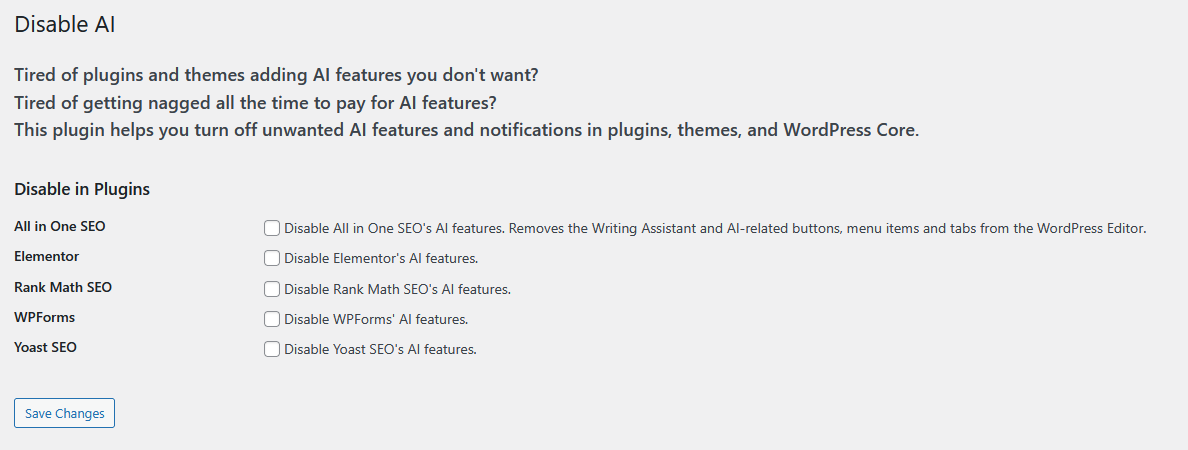
Admin Settings Page
Changelog
0.4.1
- New: Support wp-config.php constant DISAI_ENABLE_WPCONFIG_MODE for enabling/disabling plugin settings from wp-config.php.
- Updated: Convert wp-config.php string constants to booleans so ‘false’ evaluates to false.
- Updated: Compatibility with WordPress 6.9.
0.4.0
- New: Add support for Rank Math SEO – Disable Content AI module and features, and hide the module from the Rank Math admin Dashboard.
- Updated: Add AIOSEO editor styles to fewer admin pages, and disable the AI features on custom post type edit screens.
- Updated: Load utilities earlier in the WP sequence so Rank Math SEO’s options can be overridden.
- Fixed: Correctly update Yoast SEO settings when disabling AI.
0.3.0
- Updated: Rename plugin option and add sanitization.
- Updated: Update PHP file structure and comments.
- Updated: Move css to enqueued files.
- Updated: Hide AIOSEO AI tab in AIOSEO’s General Settings, and load style in Elementor editor too.
0.2.0
- New: Add support for All in One SEO. Hide AI menu items and tabs, hide AI buttons, and remove the Writing Assistant metabox in the post editor.
- Updated: Remove WP from more instances of the plugin’s name to comply with WordPress plugin repository rules.
0.1.0
- Initial release with support for disabling AI in Elementor, WPForms Lite, and Yoast SEO.