

Disable Comments
Disable Comments - easy tool to disable comments for your blog posts, and pages. Admin can disable comments in just a few clicks.
Plugin info
Maintenance & Compatibility
Maintenance score
Maintained • Last updated 119 days ago • Support resolved 100% • 23 reviews
Is Disable Comments abandoned?
Likely maintained (last update 119 days ago).
Compatibility
Similar & Alternatives
Explore plugins with similar tags, and compare key metrics like downloads, ratings, updates, support, and WP/PHP compatibility.
Description
The Disable Comments RB Plugin is a valuable tool for administrators seeking to completely disable comments on their website. Our plugin offers global disabling functionality, effectively removing all comment-related features and options across posts, pages, and attachments. With a focus on simplicity and power, our plugin streamlines the process of managing comments by employing a smart algorithm.
By installing and enabling our plugin, administrators can seamlessly eliminate comment-related elements from the Dashboard, Widgets, and Admin menu. This ensures a clutter-free interface and a smoother user experience for both administrators and visitors alike.
However, if you have specific sections of your website where comments are desired, our plugin offers the flexibility to selectively disable comments. Rather than globally disabling commenting, administrators can choose to deactivate this functionality only in the necessary areas of their WordPress site.
For those unsure of how to disable comments on individual posts or pages, our support team is readily available to provide assistance. Additionally, our FAQ section offers comprehensive guidance on navigating the plugin’s features and settings.
Whether you seek to globally disable comments or selectively manage commenting functionality, the Disable Comments RB Plugin offers a versatile solution tailored to meet your website’s needs.
Key features of Disable Comments RB
- All comment links in the admin menu are hidden.
- Hide Dashboard / Recent Comments section.
- Hide Dashboard / Discussion section.
- All comment links in the admin bar are hidden.
- Disable all comments widgets.
- Discussion page settings are turned off.
- Disable RSS/Atom feeds.
- Turn off Pingback functionality in the header.
- Pingbacks are disabled.
Before enabling the Disable Comments RB plugin, it’s highly recommended to delete any existing comments to prevent potential conflicts with your current theme. Depending on the theme’s code, existing comments may remain published, causing visual or functional discrepancies.
Disabling comments on your website doesn’t necessitate any special skills or code modifications. Simply install the Disable Comments RB plugin and access its settings to activate the primary functionality. Installing the plugin from the directory and enabling the “Disable Comments” function in the plugin settings streamlines the process effectively.
If you have suggestions for new functionality or additional options for the Disable Comments RB plugin, we welcome your input. Feel free to reach out to us through our contact form or support section to share your ideas. We value your feedback and are committed to continuously improving our plugin to better meet your needs.
Installation
Frequently Asked Questions
There are several methods to install plugins on your WordPress blog. Firstly, you can download the plugin installer from the plugin directory and install it in the plugins section of the WordPress backend. Alternatively, you can navigate to the plugins section and click the “Add” button. From there, you can search for the Disable Comments plugin in the online directory. Once you locate the desired plugin, simply click the “Install” button, and then activate it.
Once you have installed the Disable Comments plugin, you need to access the plugin settings and enable the primary function to disable comments for your blog.
Yes, you can disable comments for individual posts without needing the plugin. Navigate to the edit page for the post you wish to disable comments on. Scroll down to the “Discussion” box, where you will find the comment options for that specific post. If you don’t see the “Discussion” box, click on “Screen Options” at the top of your screen and ensure the “Discussion” checkbox is selected.
This issue may be due to a conflict, particularly if you are using a custom theme. The theme might override some elements’ styles and layouts, causing them to remain visible. If you encounter this problem, please contact our support team for assistance in resolving it.
To disable comments across your entire WordPress site, you can utilize the Disable Comments RB plugin. After installing and activating the plugin, navigate to its settings and enable the option to globally disable comments. This will effectively turn off comments for all posts and pages on your website.
Yes, with Disable Comments RB, you have the flexibility to enable comments on specific posts or pages if needed. Simply edit the individual post or page, scroll down to the “Discussion” box, and enable comments as desired. This allows you to customize the commenting functionality on a per-post or per-page basis while still benefiting from the overall comment disabling feature provided by the plugin.
Yes, Disable Comments RB is designed to work seamlessly with custom post types as well as standard posts and pages. Whether you’re using custom post types for portfolio items, products, or any other content, you can easily manage comment settings using the plugin. Simply access the settings for each custom post type to configure comment options according to your preferences.
While Disable Comments RB primarily focuses on disabling comments, it does not directly address spam prevention. However, you can still utilize other WordPress plugins or built-in features to combat spam comments effectively. Consider installing a dedicated anti-spam plugin or enabling comment moderation to approve comments before they appear on your site. Additionally, implementing CAPTCHA or reCAPTCHA verification can further deter automated spam bots from submitting comments.
Review feed
Sadly moving on
Update introduced ads
Doesn't actually disable comments
Screenshots
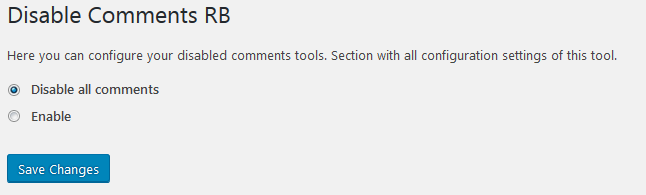
Disable Comments plugin - options screen of the Disable Comments RB

Disable Comments notice
Changelog
1.0.26
- Compatibility with WordPress 6.9
1.0.25
- Compatibility with WordPress 6.8
1.0.24
- Compatibility with WordPress 6.7
1.0.23
- Compatibility with WordPress 6.5
1.0.22
- Compatibility with WordPress 6.2
1.0.21
- Compatibility with WordPress 6.1
1.0.20
- Fixed navigation issues
1.0.19
- Compatibility with WordPress 6.0
1.0.18
- Fixed Menu Issue
1.0.17
- Compatibility with WordPress 5.9
1.0.16
- Admin warning fix
1.0.15
- Update the admin interface section, menu and navigation
1.0.14
- Update the admin interface section
1.0.13
- Update interface and test in WordPress 5.8
1.0.12
- Update interface and test in WordPress 5.7
1.0.11
- Update interface and test in WordPress 5.6
1.0.10
- Update interface and test in WordPress 5.5
1.0.9
- Update interface and test in WordPress 5.3
1.0.8
- Update interface and test in WordPress 5.0
1.0.5
- Files Disable Comments plugin update.
1.0.4
- Core Disable Comments plugin update.
1.0.3
- Recommit Disable Comments plugin.
1.0.2
- Changed the structure of the Disable Comments plugin.
1.0.1
- Modification of the admin interface, added a description.
1.0
- First release of the Disable Comments plugin.