

Disable Thumbnails, Threshold and Image Options
Disable thumbnail sizes, default WordPress sizes and theme/plugins image size and others image advanced control.
Plugin info
Maintenance & Compatibility
Maintenance score
Maintained • Last updated 125 days ago • Support resolved 50% • 4 reviews
Is Disable Thumbnails, Threshold and Image Options abandoned?
Likely maintained (last update 125 days ago).
Compatibility
Similar & Alternatives
Explore plugins with similar tags, and compare key metrics like downloads, ratings, updates, support, and WP/PHP compatibility.
Description
Don’t work? Open ticket, we answer in max 48h.
Disable thumbnail sizes, default WordPress sizes and theme/plugins image size and others image advanced control.
Useful for disable some unused image sizes from WooCommerce, theme or plugins. This can be a good choice for decrease images generated and them space.
Smart Initialization: The plugin intelligently imports current WordPress settings (from themes, other plugins, or custom functions.php) rather than using default values. This maximizes compatibility with existing sites and ensures smooth integration without disrupting current configurations.
Important: From the moment of installation, the plugin takes control of the settings. Any external overrides (from themes, other plugins, or custom code) will be clearly indicated in red warnings below the settings, allowing you to identify and resolve conflicts.
**
Thumbnails
- Disable WordPress default image size.
- Disable theme image size.
- Disable plugin image size.
Threshold & EXIF
- Change default image threshold size.
- Disable threshold.
- Disable image rotation by EXIF.
Image Quality
- Change JPEG image quality.
Smart Initialization
- Automatically imports current WordPress settings for maximum compatibility
- Respects existing theme and plugin configurations
- Seamless integration with active sites
Conflict Detection
- Red warning messages indicate external overrides
- Clear identification of conflicts with themes/plugins
- Easy troubleshooting and resolution guidance
Installation
- Upload the plugin files to the ‘/wp-content/plugins/’ directory, or install the plugin through the WordPress plugins page directly.
- Activate the plugin through the ‘Plugins’ page in WordPress.
- Go to settings page inside menù Tools -> Thumbnails, Image Quality or Image Threshold & EXIF
Frequently Asked Questions
When some image sizes aren’t useful you can decrease number of files on your server and used space.
Go to settings page inside menù Tools -> Image Thumbnails
Regenerate Thumbnails after disable/enable sizes.
Because you need to delete or generate the image size disabled/enabled.
We recommend: Regenerate Thumbnails by Alex Mills – Viper007Bond
You can read WordPress guide: WP-CLI Thumbnail Regeneration
The plugin uses Smart Initialization to maximize compatibility:
- JPEG Quality: Imports current WordPress JPEG quality (from themes/plugins) instead of default 82%
- Image Threshold: Imports current big image threshold (from themes/plugins) instead of default 2560px
- EXIF Rotation: Respects existing EXIF rotation settings from other sources
- Thumbnail Sizes: Works with current thumbnail configuration
After Installation: The plugin takes full control of the settings. Any external overrides will be clearly indicated with red warning messages below each setting, helping you identify and resolve conflicts with themes, other plugins, or custom code.
Red warning messages below settings indicate that external code (themes, plugins, or custom functions.php) is overriding the plugin’s settings:
- “Plugin quality/threshold is being overridden”: Another source is changing the value
- “Plugin intends to disable threshold/exif rotation, but currently active”: Plugin wants to disable but external code is keeping it active
- “Currently disabled by external settings”: External code disabled something the plugin wants to keep active
These warnings help you identify conflicts and take appropriate action (disable conflicting code, adjust priorities, etc.).
Go to settings page inside menù Tools -> Image Quality
Go to settings page inside menù Tools -> Image Threshold&EXIF
Go to settings page inside menù Tools -> Image Threshold&EXIF
Review feed
Screenshots
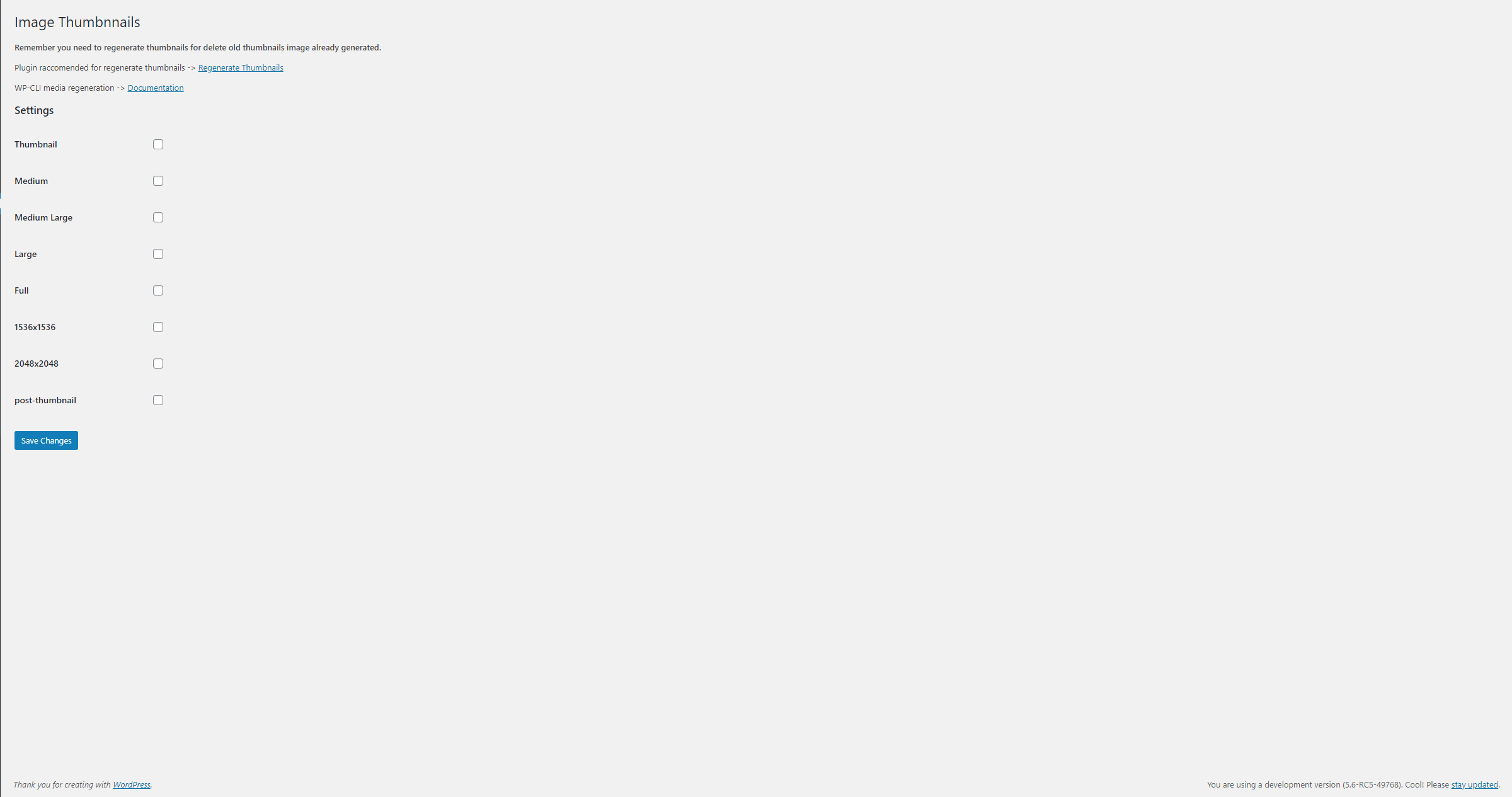
Image Thumbnails page settings.
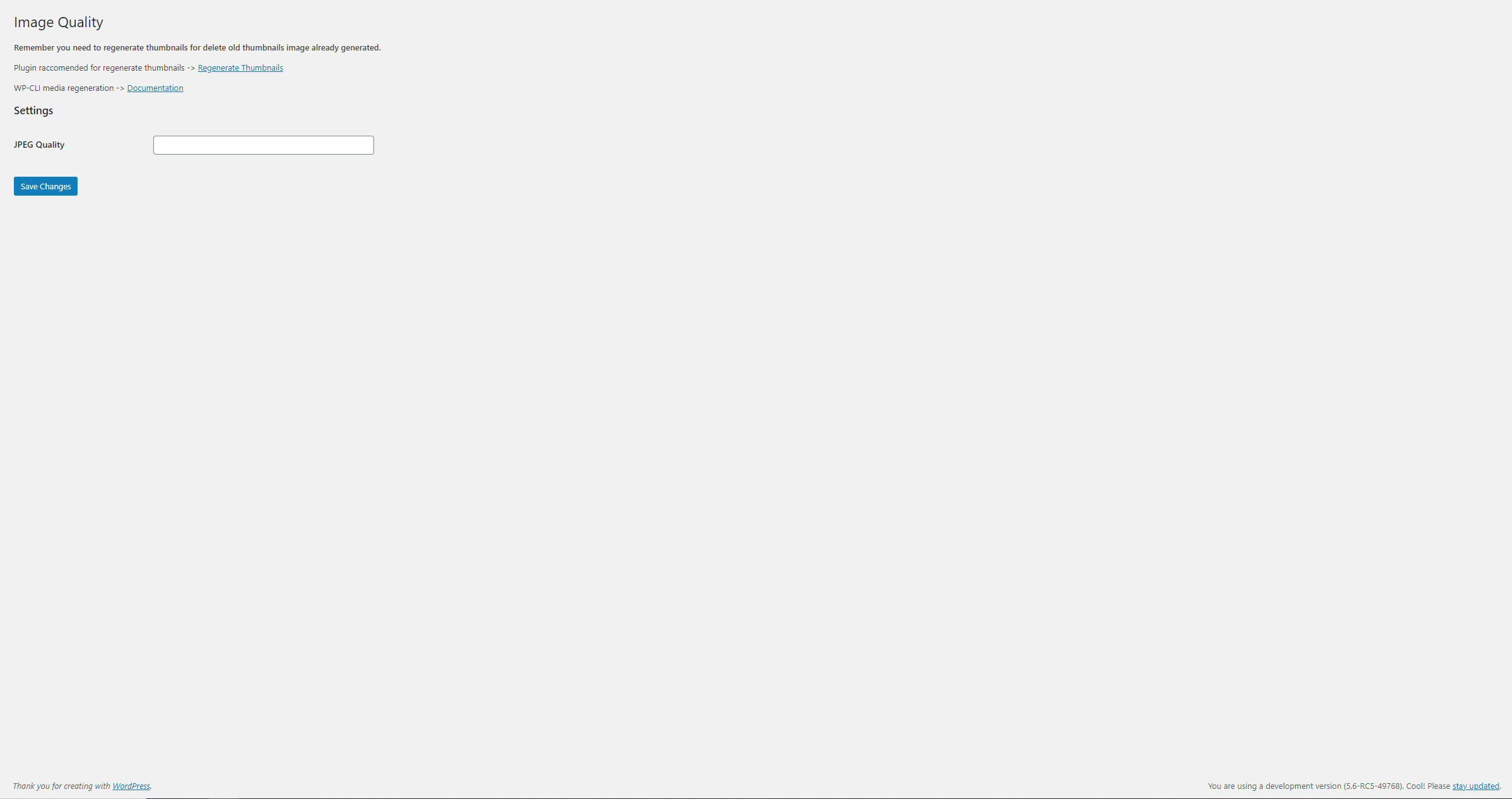
Image Quality page settings.
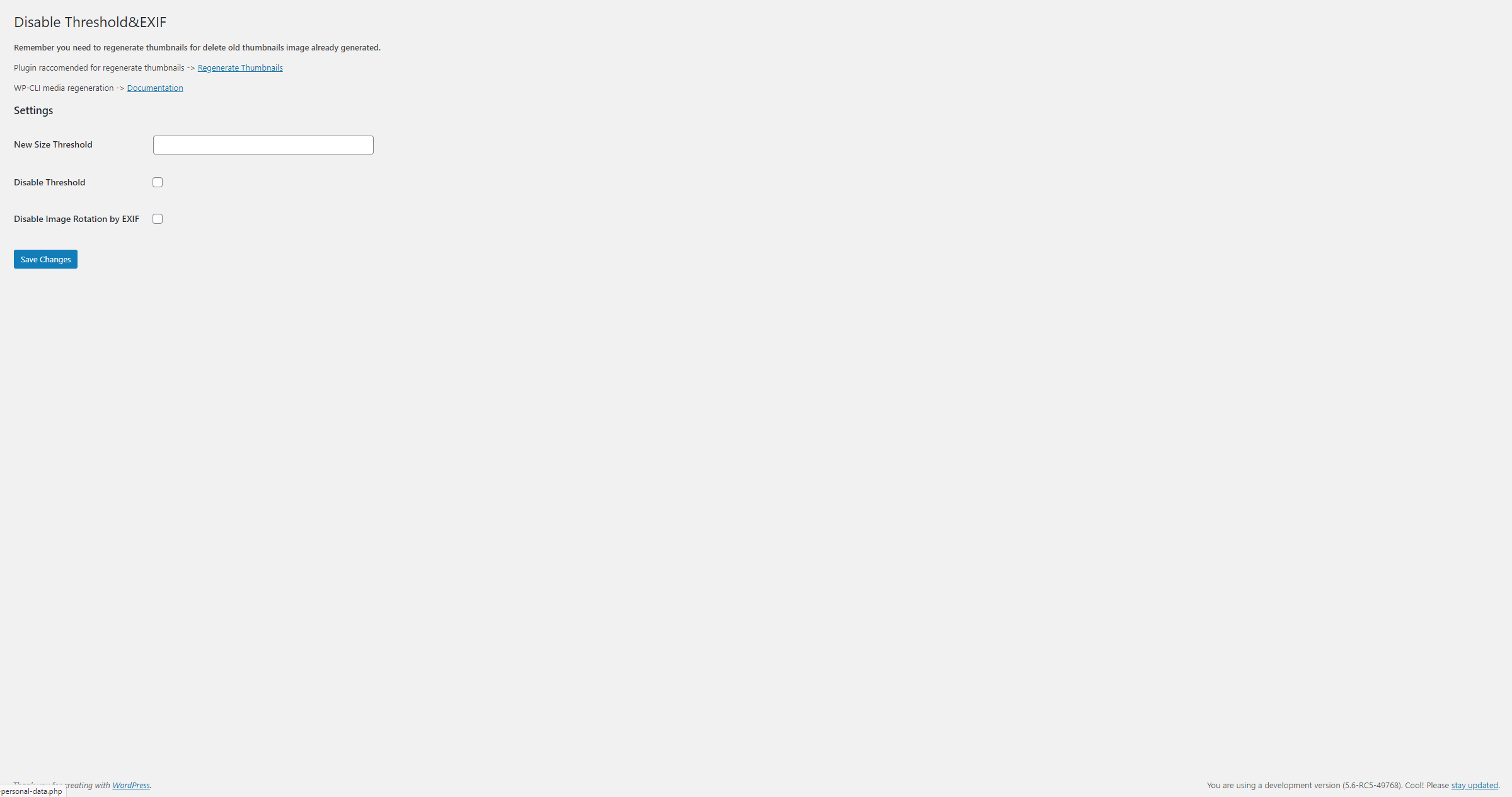
Image Threshold&EXIF page settings.
Changelog
0.6.5
- Bugfix.
0.6.4
- Bugfix, removed option full.
0.6.3
- Fix for version check and update old settings.
WordPress & PHP Requirements: Updated minimum requirement to WordPress 5.4+ and PHP 7.4+
Code Modernization
Performance Optimization
Smart Initialization
Intelligent Debug System