

Docswrite – Export Google Docs to Your Site ✨
Effortlessly publish Google Docs to WordPress, preserving formatting and structure for a streamlined content workflow
Plugin info
Maintenance & Compatibility
Maintenance score
Maintained • Last updated 173 days ago • 4 reviews
Is Docswrite – Export Google Docs to Your Site ✨ abandoned?
Likely maintained (last update 173 days ago).
Compatibility
Similar & Alternatives
Explore plugins with similar tags, and compare key metrics like downloads, ratings, updates, support, and WP/PHP compatibility.
Description
Docswrite is a powerful tool for editorial and content teams. It automates and optimizes content publication, making it easier for teams to manage and publish content consistently. Whether you’re editing blog posts, articles, or any other type of content, Docswrite integrates seamlessly with your WordPress site to enhance your content management workflow.
This plugin allows you to connect your WordPress website to Docswrite, a platform offering seamless content transformation from Google Docs to WordPress. With this integration, website owners can save hundreds of hours per month by simplifying the content distribution process.
Join hundreds of content teams that use Docswrite! Interested to know the difference between us and our competitors? Check out the full details and insights from each challenge on our blog:
🏆 Docswrite vs. Competitors: In-Depth Comparisons
Discover how Docswrite stacks up against other solutions:
Want to see these comparisons in action? Check out our YouTube channel for visual breakdowns:
🌟 Features
- Bulk Publish: Import multiple documents at once for efficient content management.
- Content Workflow Management: Create and manage content workflows with collaborative features, allowing multiple users to work together efficiently.
- Programmatic SEO: Create and optimize a large number of unique, high-quality web pages at scale.
- AI-Powered Content Generation Automation: Generate and publish automatically high-quality, SEO-optimized content, ensuring your posts are optimized for search engines without extra effort.
- Enhanced Security: Protect your content with advanced security features and user management controls by securely keeping your website ID.
- Free Trial: Get 5 free exports to try out all features without any commitment.
- ACF Support: Update ACF fields for posts created by Docswrite.
- Rankmath and Yoast SEO Support: Update Rankmath and Yoast SEO fields for posts created by Docswrite.
- Newspack SEO Support: Update Newspack SEO fields for posts created by Docswrite.
📦 Installation
-
Activate the plugin from the Plugins menu in your WordPress admin panel.
-
Have an account at Docswrite.
🛠️ How Does it Work?
-
After Docswrite is activated, click on “Connect” and you will be redirected to Docswrite.
-
If you have an account with Docswrite, your website will be automatically registered. If not, you will be redirected to the signup page.
-
Once connected, go to the Docswrite dashboard and start your publishing journey.
-
Happy publishing!
💬 Support
For support or inquiries, please visit Docswrite Support or contact us at [email protected]
How it works
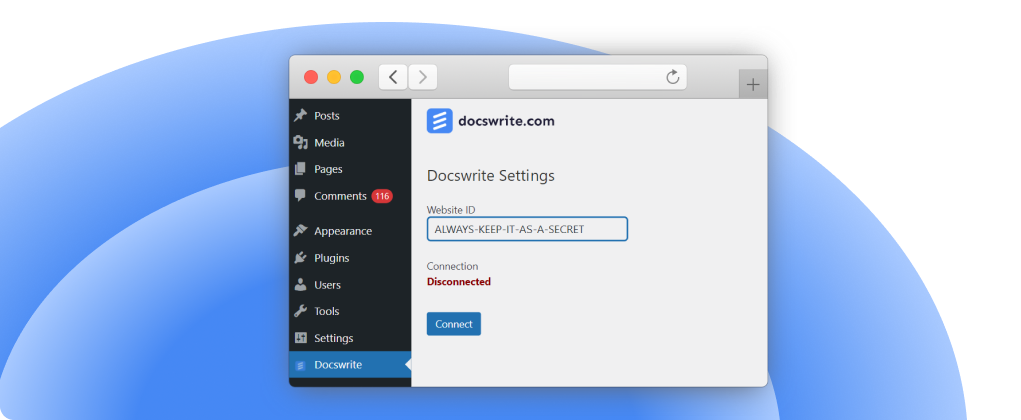
- After installation and activation of the plugin, this is the screen you see. The Website ID represents a secret that will be used to connect with Docswrite
- After clicking on ‘Connect’ you will be redirected to Docswrite – you need to be logged in to Docswrite
- If you don’t have an account with Docswrite, you will be redirected to the sign up page
- Your site will be added to Docswrite dashboard
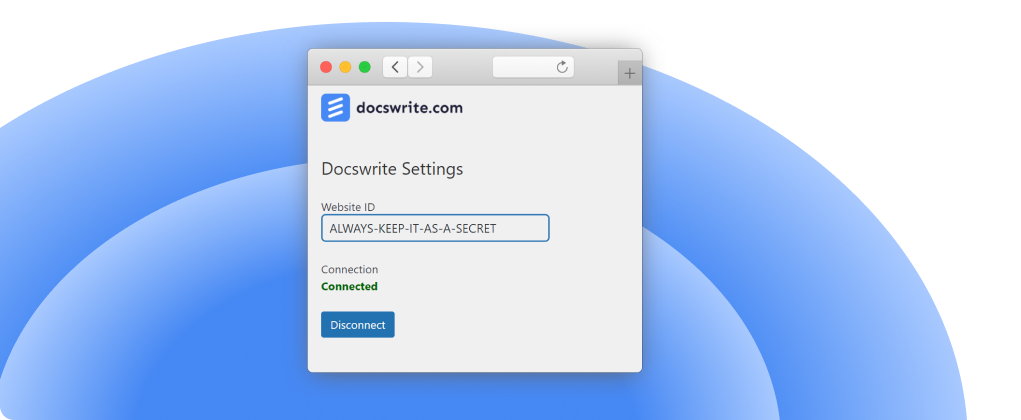
- You are successfully connected
- Now, you can publish content using Docswrite ✨
Installation
Frequently Asked Questions
After activating the plugin, go to the Docswrite settings page and follow the instructions to connect your Google Docs account. You will need to provide your website information and authorize the connection.
Yes, Docswrite allows you to create and manage content workflows, enabling multiple users to collaborate on content creation and publication efficiently.
Docswrite offers enhanced security features including user management controls to protect your content and ensure only authorized users have access.
Docswrite uses advanced algorithms to generate SEO-optimized content, ensuring your posts are crafted with best practices for search engine visibility.
To disconnect Docswrite, go to the Docswrite settings page in the WordPress admin menu and click the “Disconnect” button. This will stop synchronization and remove the connection.
Docswrite offers a variety of pricing plans. For detailed information, please visit our website
Docswrite offers two methods for publishing. You can publish directly from your existing tool, such as Trello, using our Zapier App. Alternatively, you can publish from the Docswrite dashboard. All the fields available in the Zapier app can also be added as a table at the top of your Google Docs document.
You can configure SEO details within your Google Doc. You also have the option to set them using the Zapier App or our API. We provide support for Yoast and Rankmath SEO plugins, as well as Newspack SEO settings.
Docswrite is a productivity tool designed to help you and your team publish articles from Google Docs to WordPress. You can also publish articles from Trello, Monday, Airtable, and Google Sheets. You can publish articles from any source using our Zapier App.
No, we offer 5 free exports as a trial. No credit card required. You can explore all the features and decide if you want to continue with us. You can contact us anytime if you have any questions.
Yes, you can set the featured image. You can choose to set the first image found in the Google Docs as the featured image. The featured image can also be set via an image URL.
You can set tags, categories, slug, title, etc., and SEO (Yoast and Rankmath) in the Google Doc.
Yes, you can set multiple Newspack settings for an article in the Google Doc or via the Zapier app.
You can publish 75 articles in the startup plan, plus the 5 free exports you get as a trial. If you need more, you can upgrade to the higher plans. All the published articles will be perfectly formatted and SEO optimized.
You can publish 1000 programmatic posts in the startup plan. Each row of data from Google Sheets will be published as a separate post.
Nothing will happen to your articles. They will remain published.
Any images found in your Google Docs will be uploaded to your WordPress site. You can find them in the Media Library. You have the option to automatically set the first image found in the Google Docs as the featured image.
Yes, you can use Docswrite with your existing WordPress site. You can also use it with your client’s WordPress site. You can contact us if you have any questions.
Yes, you can compress images using Docswrite. When you publish an article, you can choose to compress the images.
Review feed
Screenshots




Changelog
1.0
- First release of Docswrite plugin