

Drag and Drop File Upload for Contact Form 7
Allows you to add powerful Drag & Drop or choose Multiple Files Uploading area to your Contact Form 7. You can provide your website visitors with …
Plugin info
Maintenance & Compatibility
Maintenance score
Possibly abandoned • Last updated 570 days ago
Is Drag and Drop File Upload for Contact Form 7 abandoned?
Possibly abandoned (last update 570 days ago).
Compatibility
Similar & Alternatives
Explore plugins with similar tags, and compare key metrics like downloads, ratings, updates, support, and WP/PHP compatibility.
Description
DEMO: https://demo.add-ons.org/demo-drag-and-drop-fields/
Allows you to add powerful Drag & Drop or choose Multiple Files Uploading area to your Contact Form 7. You can provide your website visitors with a seamless and user-friendly file upload experience, allowing them to submit multiple files as part of your forms easily
Features
- Easy to use
- Image Preview: Show Thumbnail for images
- File Type Validation
- File Size Validation
- Limit number of files Upload
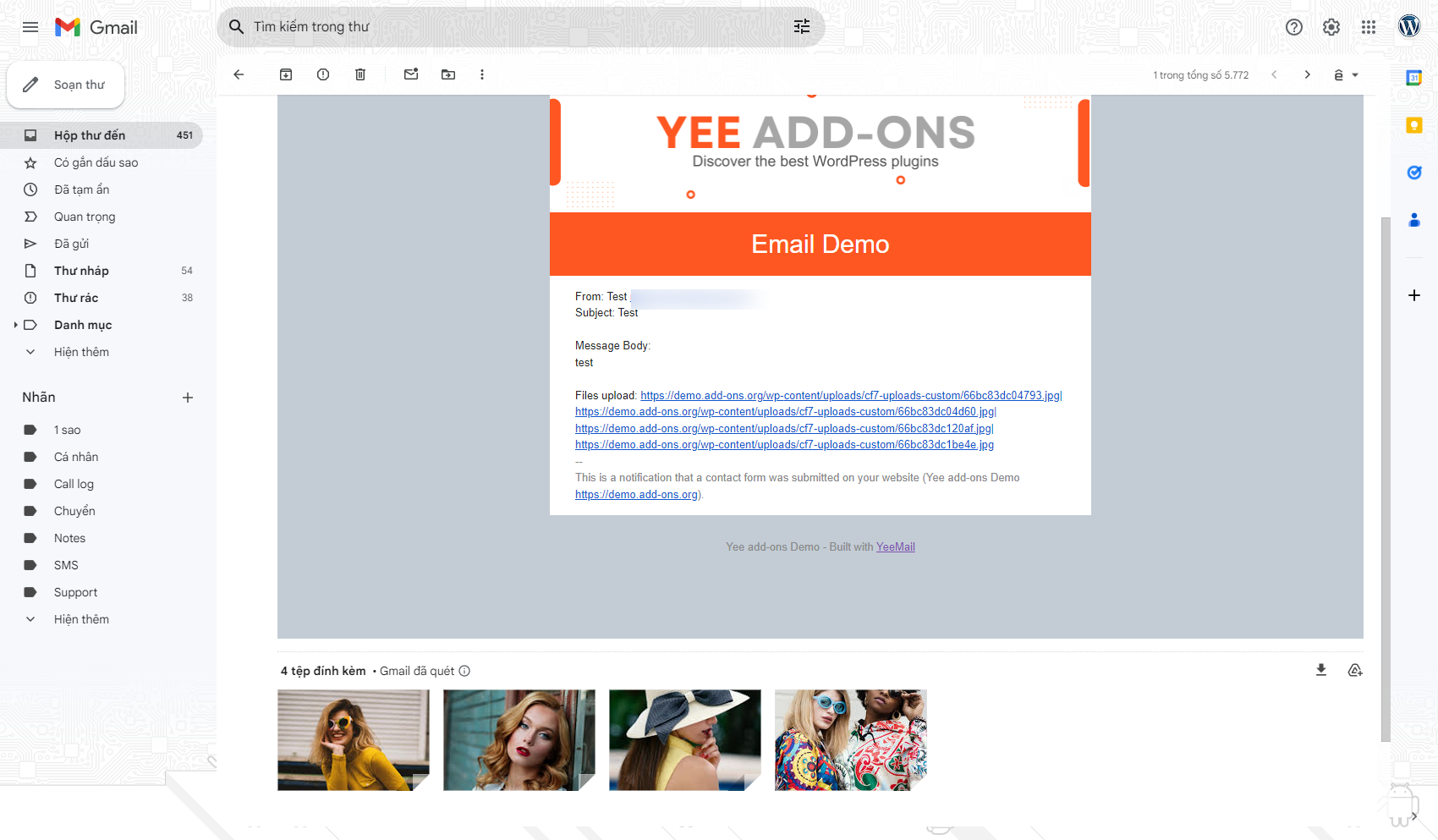
- Send files as email attachment or as a links
- Support multiple languages
- Mobile Responsive
Download Pro Version: https://add-ons.org/plugin/contact-form-7-drag-and-drop-files-upload//
Document: https://add-ons.org/document-contact-form-7-drag-and-drop-files-multiple-files/
Installation
Normal installation
- Download the drag-and-drop-file-upload-for-elementor-forms.zip file to your computer.
- Unzip the file.
- Upload the
drag-and-drop-file-upload-for-elementor-formsdirectory to your/wp-content/plugins/directory. - Activate the plugin through the ‘Plugins’ menu in WordPress.
-
Document: https://add-ons.org/document-contact-form-7-drag-and-drop-files-multiple-files/Normal installation
-
Download the *****.zip file to your computer.
- Unzip the file.
- Upload the
*****.directory to your/wp-content/plugins/directory. - Activate the plugin through the ‘Plugins’ menu in WordPress.
Frequently Asked Questions
Review feed
Screenshots
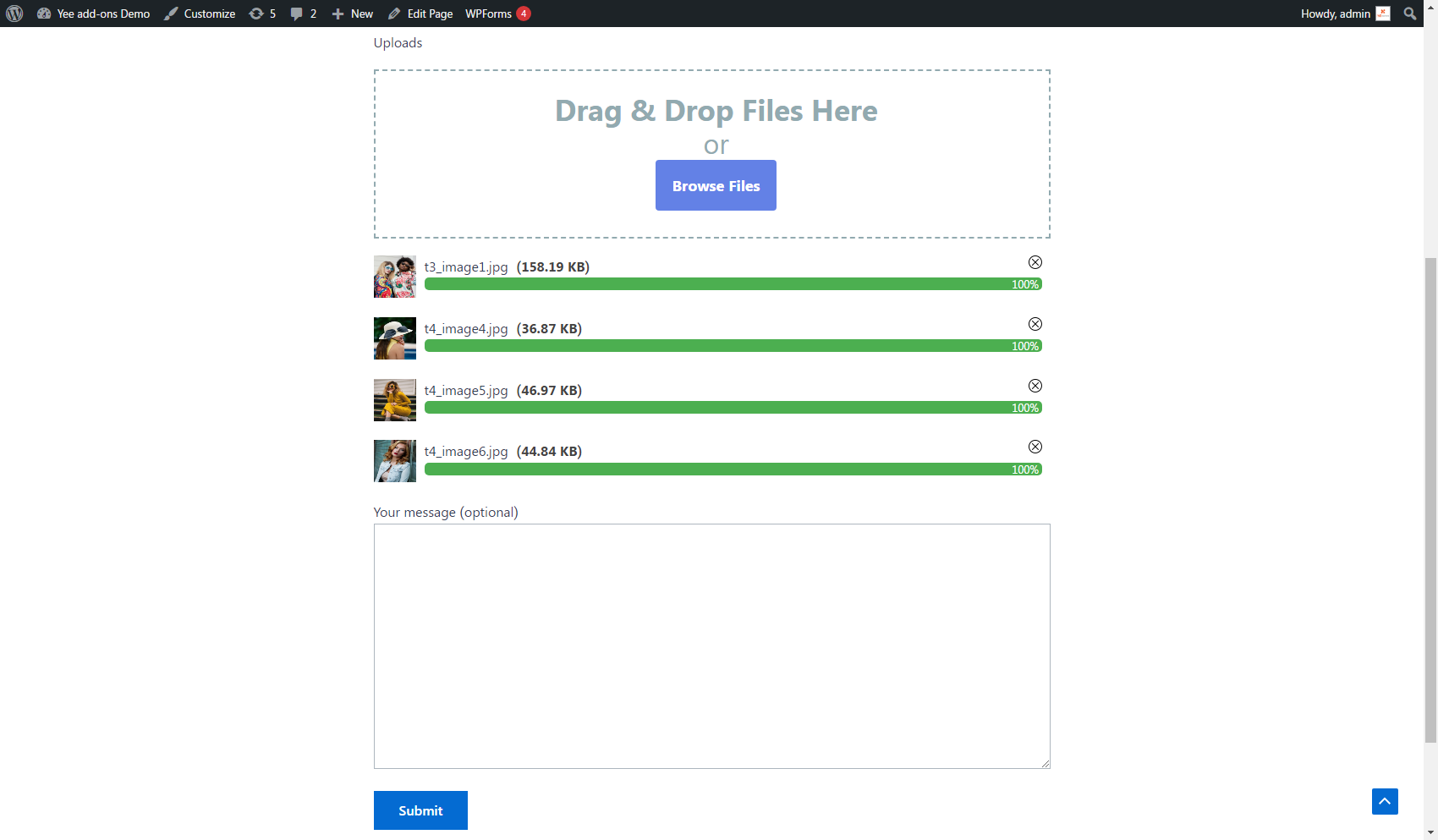
Frontend uploads
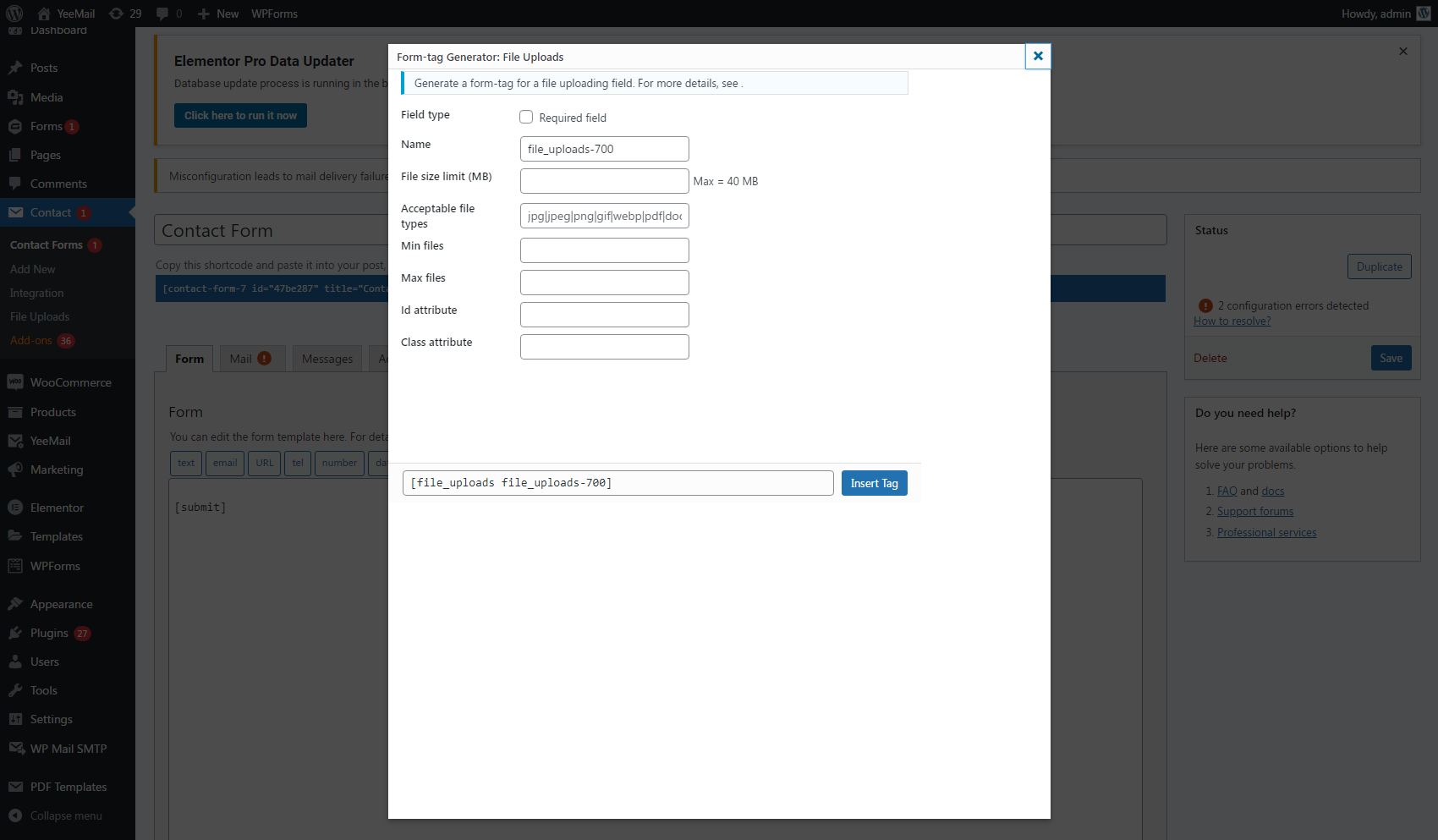
Backend settings
Email uploads
Changelog
1.0.0
- Version 1.0 Initial Release