

Easy Menu Icons – WordPress Menu Icon Plugin
The Easy Menu Icons Plugin for WordPress menu icon plugin where can decoration your menu item with different types icon.
Plugin info
Maintenance & Compatibility
Maintenance score
Stale • Last updated 192 days ago • 2 reviews
Is Easy Menu Icons – WordPress Menu Icon Plugin abandoned?
Likely maintained (last update 192 days ago).
Compatibility
Similar & Alternatives
Explore plugins with similar tags, and compare key metrics like downloads, ratings, updates, support, and WP/PHP compatibility.
Description
Easy Menu Icons is a versatile and user-friendly plugin that enhances your WordPress menus with icon support. This plugin allows you to effortlessly add icons to your menu items, making your navigation more intuitive and visually appealing. With support for a wide range of icon libraries, including Dashicons, FontAwesome, Elusive Icons, Fontello Icons, and even custom icons, Easy Menu Icons provides unparalleled flexibility and customization options for your WordPress menus.
Usage
- After the plugin is activated, go to Appearance > Menus to edit your menus
- Add your icon now to your menu item
- Select icon by clicking on the “Add Icon” link
- Save the menu
Free Version Features
- Easily Change Menu Icon Color
- Adjust Your Icon Size
- Adjust Your Icon Position Easily
- You can manage Icon Spacing As well
- You can use Dashicon and Font Awesome Only for free version.
Pro Version Extra Features
- All Free version features included
- Fontawesome Icon Supported Font Awesome
- Elegant Icon Supported Elegant Icons
- Foundation Icon Supported Foundation Icons
- Elusive Icon Supported Elusive Icons
- Themify Icon Supported Themify Icon
- Fontello Icon Supported Fontello
- Generic Icon Font Supported Genericons
- Custom Icon like SVG, PNG images supported
Installation
- Go to the Plugins Menu in WordPress
- Search for “Easy Menu Icons”
- Click “Install Now” and then “Activate”
Frequently Asked Questions
To add an icon to a menu item, go to the WordPress dashboard and navigate to Appearance > Menus. Select the menu item you want to add an icon to, and you will see an option to choose an icon from Dashicons, FontAwesome, Elusive Icons, Fontello Icons, or upload your own custom icon. Simply select your desired icon and save your changes.
Yes, you can use your own custom icons! The Easy Menu Icons plugin allows you to upload custom icons directly from the menu settings. Just select the “Custom Icon” option and upload your icon file.
Yes, the Easy Menu Icons plugin is designed to be compatible with all WordPress themes. If you encounter any issues with specific themes, please contact our support team for assistance.
For the Easy Menu Icons plugin to work correctly, your theme should use the default WordPress walker for displaying navigation menus. If your theme uses a custom walker, make sure that the menu item titles are filterable. If you’re unsure, please check with your theme’s developer for compatibility.
This is a bug with the font icon itself. When the font is updated, this plugin will update its font too.
Absolutely! The Easy Menu Icons plugin allows you to mix and match icons from different libraries (Dashicons, FontAwesome, Elusive Icons, Fontello Icons) on the same menu, giving you the flexibility to create a unique and personalized menu design.
Review feed
Screenshots
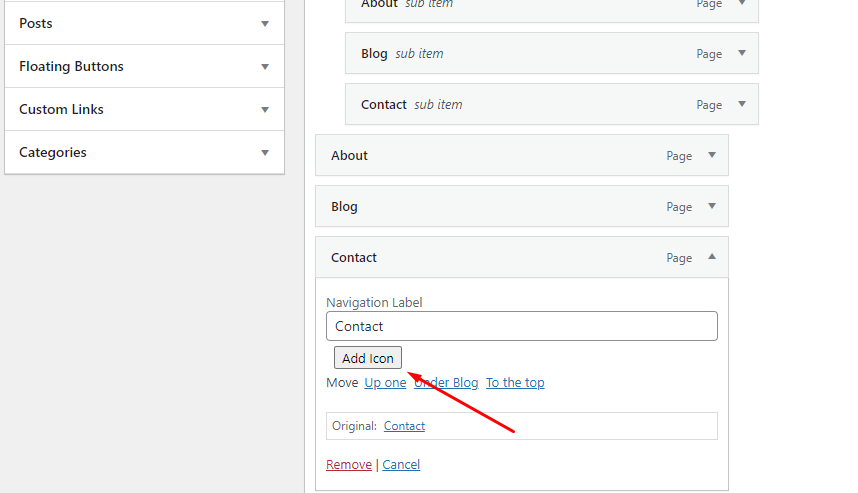
Add Icon
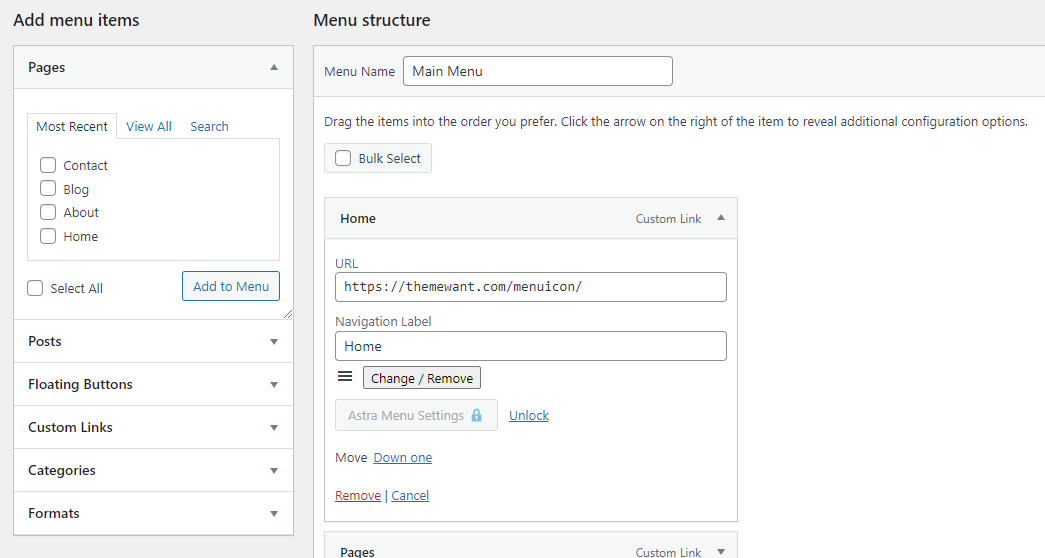
Change Icon

Select Icon and Icon Library

Custom Image

Icon Individual Settings

Global Settings

Icon Demo From Astra Theme
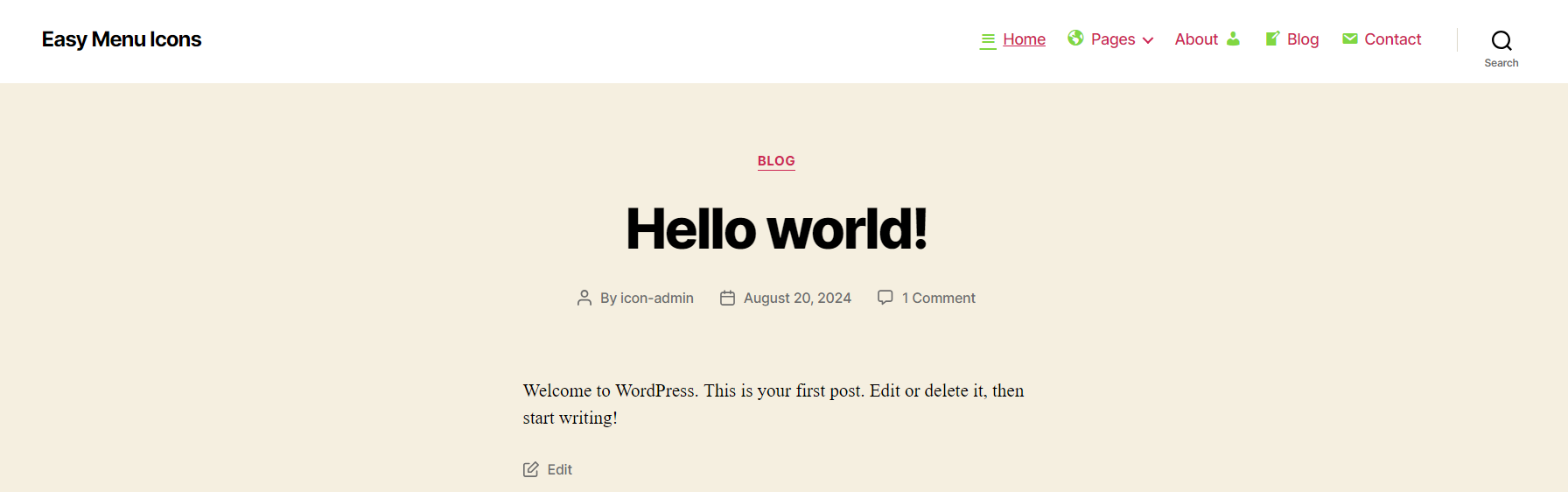
Icon Demo From Twenty Twenty Theme
Changelog
1.1.0 – 10 Aug 2025
- Fixed Some Bugs
- Compatible with Latest WP
1.0.9 – 02 Dec 2024
- Fixed Some Conditions
1.0.7 – 05 Nov 2024
- Fixed ettings Tabs Issus
1.0.6 – 04 Nov 2024
- Added FontAwesome Icons
1.0.2 – 1 Sept 2024
- Fixed Icon Display Issue wihtout refresh
- Fixed Delete Icon
1.0.0 – 27 Aug 2024
- Initial Release