

External files in Media Library
Add external files to your media library to link or embed them in your website. They will be integrated as if they were locally available.
Plugin info
Maintenance & Compatibility
Maintenance score
Stale • Last updated 323 days ago • Support resolved 50% • 3 reviews
Is External files in Media Library abandoned?
Likely maintained (last update 323 days ago).
Compatibility
Developers
Similar & Alternatives
Explore plugins with similar tags, and compare key metrics like downloads, ratings, updates, support, and WP/PHP compatibility.
Description
Add one or more files with their URLs under Media > “Add new media file”. In this way, you can add external files in all places where the media library is used.
Embed your files from Google Drive, YouTube, Vimeo, FTP, local paths or many other possible sources. Use them in your preferred editor such as Block Editor, Elementor, Divi, Classic Editor, WpBakery and many more.
Automatically synchronize the external files with your media library.
Support for other plugins
Use an external data source for product images in your WooCommerce-based store.
Sort your external files in folder of CatFolders, Filebird and Folderly or assign them into categories from Enhanced Media Library.
Mass-Import
You can import complete directories from any of the supported TCP protocols. Just enter the directory as path to import and the plugin will import any supported files from it. For very large directories there is also an automatically processed queue.
TCP Protocols
You can use the following TCP-protocols to import external files in your media library:
http://https://ftp://ftps://sftp://ssh://file://
Some of them require credentials, for http(s) it is optional.
Checks
The plugin checks for you automatically on a regular basis whether the external hosted files you have embedded are still available.
Repository, documentation and reliability
You find some documentations here.
The development repository is on GitHub.
Each release of this plugin will only be published if it fulfills the following conditions:
- PHPStan check for possible bugs
- Compliance with WordPress Coding Standards
Installation
- Upload “external-files-in-media-library” to the “/wp-content/plugins/” directory.
- Activate the plugin through the “Plugins” menu in WordPress.
Frequently Asked Questions
Yes, you can select under Settings > “External files in Media Library” which roles gets the ability to add external URLs as files.
Yes, but these files are integrated locally and not from the external URL so that your visitors can access them without any problems.
Yes, see our documentation.
Yes, you can. Just enter the directory to import.
Yes, you can. Simply enter the absolute path with file-protocol, e.g.: file:///var/www/path/to/file.png – see also our documentation.
Yes, simply enable the setting under Settings > “External files in Media Library” > WooCommerce. Add your external URLs
for images in the CSV you want to import as it is already possible with WooCommerce. They will be handled as
external files by this plugin. This also allows you to use all protocols supported by the plugin for importing these files.
Yes, there are many options on WP CLI, see our documentation.
According to Google guidelines, an app that is used to connect to the Google Drive API is only checked and confirmed once it has 100 active users. As long as less than 100 active users use this function via this plugin, you will always see this message. You can confirm it via “unsecure” and still complete the connection of your Google Drive with your WordPress website.
Review feed
Screenshots
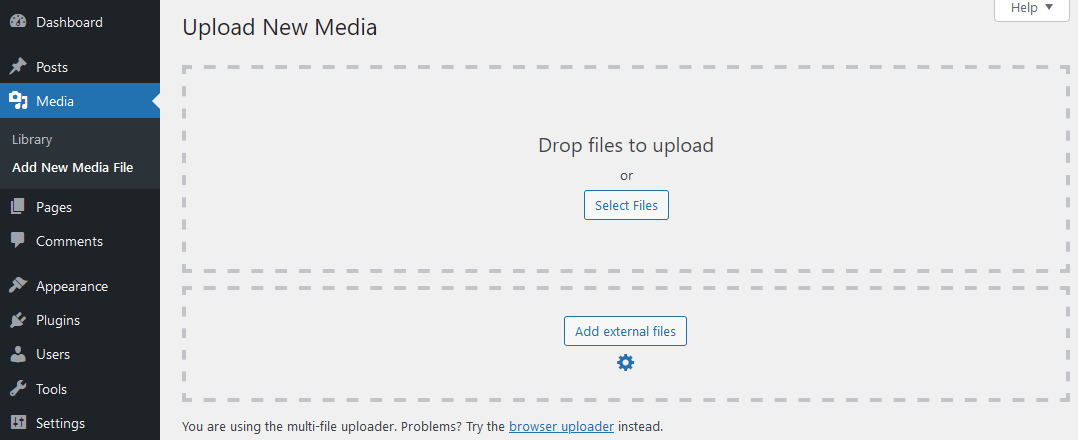
Field to add external files in Media > Add New Media File.

Dialog to add URLs of external files.
Changelog
4.0.0
- Added option to synchronize directories with files on every supported protocol
- Added support for the plugins CatFolders, Filebird and Folderly to import files in specific folders of this plugins
- Added support for the plugin Enhanced Media Library to add imported files to their categories
- Added wrapper for all settings of this plugin for easier management in the future
- Added custom intervals for any cron event this plugin delivers
- Added option for import local files from chosen directory via queue (for very large directories)
- Added support to add external SVG files
- PHP 8.1 is now minimum requirement
- Optimized styling of list of directory services
- Optimized handling of import through directory services
- Moved import tasks from general Files in own object Import which is now also a directory listing object
- Multiple code optimizations
- Extended support for YouTube channel imports
- Extended help for using Imgur images
- Renamed Directory Credentials to Directory Archive
- Optimized hint if PHP-module zip is missing for the ZIP service
- More hooks
- Fixed error on import on any files from local hosting
- Fixed to early loading of translations
- Fixed error on GoogleDrive import which would break if a duplicate is detected
- Fixed potential error of sodium encryption is used and failed
- Fixed faulty check for existing schedules
- Fixed missing check for duplicate YouTube videos during import of them
- Fixed preview of files in FTP service (which also prevents the usage of FTP-files as service)
- Fixed wrong “Go to logs” URL if import failed
- Fixed typos