

Favorites Menu Manager
Control what goes into the favorite actions menu in WordPress 2.7+
Plugin info
Maintenance & Compatibility
Maintenance score
Possibly abandoned • Last updated 6138 days ago
Is Favorites Menu Manager abandoned?
Possibly abandoned (last update 6138 days ago).
Compatibility
Similar & Alternatives
Explore plugins with similar tags, and compare key metrics like downloads, ratings, updates, support, and WP/PHP compatibility.
Description
Starting in WordPress 2.7, a menu is included in the upper-right corner of the Admin. The menu, by default, includes links allowing easy access to frequently used pages in the Admin. But there isn’t an option to add your own links!
Favorites Menu Manager allows you unfettered customization of that dropdown menu. You can easily add your own links, remove existing ones, and put them in the order you desire. Customizations are stored on a per-user basis, so each user can have their own collection of frequently used links.
Usage
Visit the Users -> Edit Favorites Menu page of the Admin to add, remove, and reorder items in the Favorite Actions menu.
The easiest way to add a new item is to visit the page you wish to add, then choose the “Bookmark This” option from the menu. You will be taken to a Manage Favorites Menu screen, where you can adjust the name of the menu item before pressing the button to accept.
Be careful of the Remove links when managing the menu. The item will be removed immediately. You will NOT be prompted.
Upgrading
The easiest way to update the plugin is to use the automatic plugin upgrader found in all versions of WordPress since 2.5.x. Just visit the Plugins page and if a new version is available, click the link to update the plugin. WordPress will take care of the rest.
Manual Upgrade:
1. Download the latest version of the plugin from the repository.
2. Deactivate plugin
3. Upload updated files
4. Reactivate plugin
Version history
- Version 1.0
Installation
-
Unzip the download and FTP the entire
favorites-menu-managerdirectory to your WordPress blog’s plugins folder (/wp-content/plugins/). -
Activate the plugin on the “Plugins” tab of the Admin.
-
Visit the Users -> Edit Favorites Menu page of the Admin to manage the menu. Refer to the Usage section of this document for further information.
Frequently Asked Questions
Can I link to external pages?
No, you can only add menu links to pages in the WordPress Administration, not pages outside of it. This is a limitation of the WordPress core.
Can I put HTML in the Favorite Name field?
Yes. You can use HTML tags in the Favorite Name field (e.g. <em>). They will be added inside the <a>...</a> element for the menu item. Note that you should only use tags valid under the XHTML 1.0 Transitional DOCTYPE.
Review feed
Screenshots
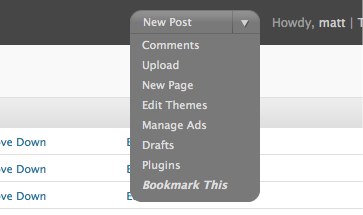
An example of a customized Favorite Actions menu. Note the "Bookmark This" link at the bottom for easily adding new links.

The Manage Favorites Menu page.