

Full Background Manager
Full Background Image Manager WordPress Plugin allows you to set separate background image of each page.
Plugin info
Maintenance & Compatibility
Maintenance score
Possibly abandoned • Last updated 1149 days ago • 22 reviews
Is Full Background Manager abandoned?
Possibly abandoned (last update 1149 days ago).
Compatibility
Similar & Alternatives
Explore plugins with similar tags, and compare key metrics like downloads, ratings, updates, support, and WP/PHP compatibility.
Description
A full background manager WordPress plugin allows users to set different background images on each page. Being a free and feature-rich plugin, it delivers an incredible experience to users by allowing them to set images to the background of the body.
The company developed this full-fledged plugin for all the WordPress users, who wanted to give different look on the each page of their website as it has capability to change the entire look, feel and touch of your website within just few seconds.Moreover, users of plugin are also allowed to set the background color, background Layout and background image as per their ease.
One of the best things about this plugin is that it comes with lots of features that will surely give a wonderful experience that you ever get with any other plugin. Moreover, it also allows you to set images as per your convenience like in the fixed, middle, right, left, stretch and more. However, it is a page WordPress plugin, not a post plugin, so users need to make sure it while downloading it.
To update the version of this plugin, the company has done lots of changes in the coding part of it and various bugs have been solved as well.Therefore, users will not get any problem while using this plugin in their website as it brings numerous new options like background Layout and background image
Imp Note – While updating this new version of the plugin, you should make sure to take all back-up of your website with database so that you will not face any problem in near future.
How to Install Full Background Manager WordPress Plugin?
- First of all, you need to download the plugin and install it in your website.
- Now, you can activate and go the page in WordPress admin.
- After this, you can find the meta box its name like Full Background Manager at last the of every page in admin section.
- Now, you have to upload an image by just clicking on the ‘Choose Image’.
- After uploading image you can see one dropdown to set background postion of page.
- At last, you just need to publish the page and you will get the image in the background of the page.
So, these were simple steps that you can follow to install this plugin on your website and successfully change the background of each pageYou can also check-out the demo of this plugin in order to get its view. Click here to check-out the demo of this plugin.
Perception System offers this user-friendly and highly flexible plugin to enable you to give your website’s each page a refreshing look that you desire. Additionally, the company also provides various other products for its precious customers. To know more about the other products of the company, you can
http://www.store.perceptionsystem.com
Installation
- Upload ‘Full Background Manager’ to the wordpress admin
- Activate the plugin through the ‘Plugins’ menu in WordPress
- Upload the images from the Background Image meta box in page.
Frequently Asked Questions
-
What is use of Full Background Manager plug-in?
Using this plug-in, you can simply set an image to the Webpage background. -
How can I use Full Background Manager plug-in?
Full Background Manager plug-in is very easy to use. You just have to install your plug-in like others and upload the image in the Background Image metabox placed in the page in admin. -
How can I display Background Image?
No need to add any shortcode. Just upload the image and see the page at front side.
Review feed
Screenshots
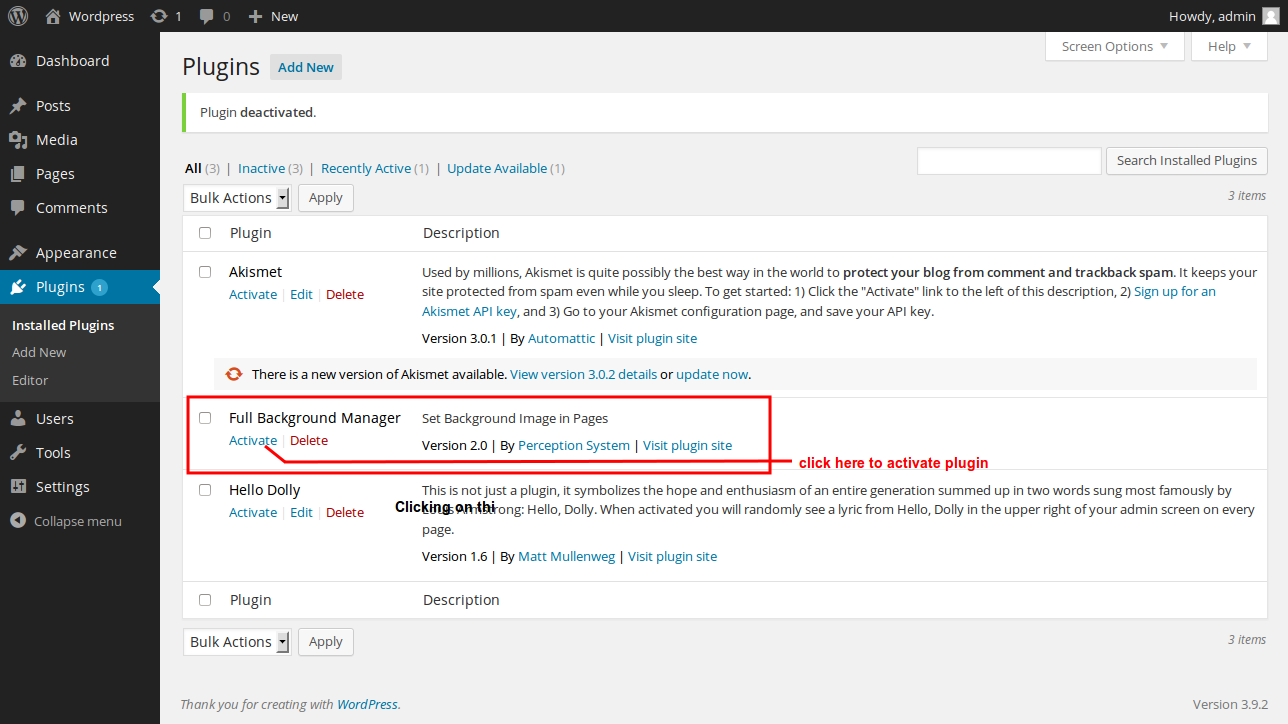
Install and Activate Plugin
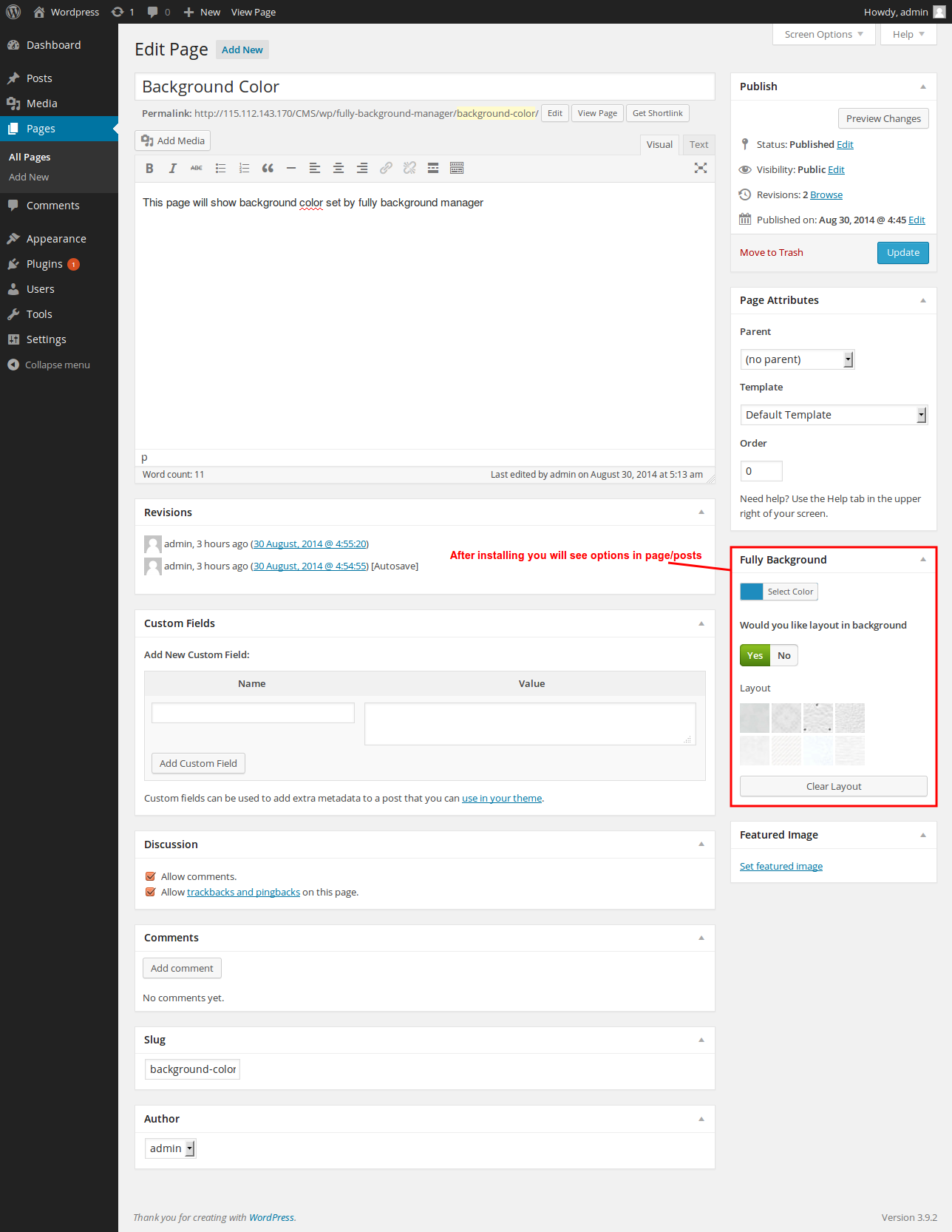
After activate plugin you can see Full Background section in each page/post

Select background color what you want
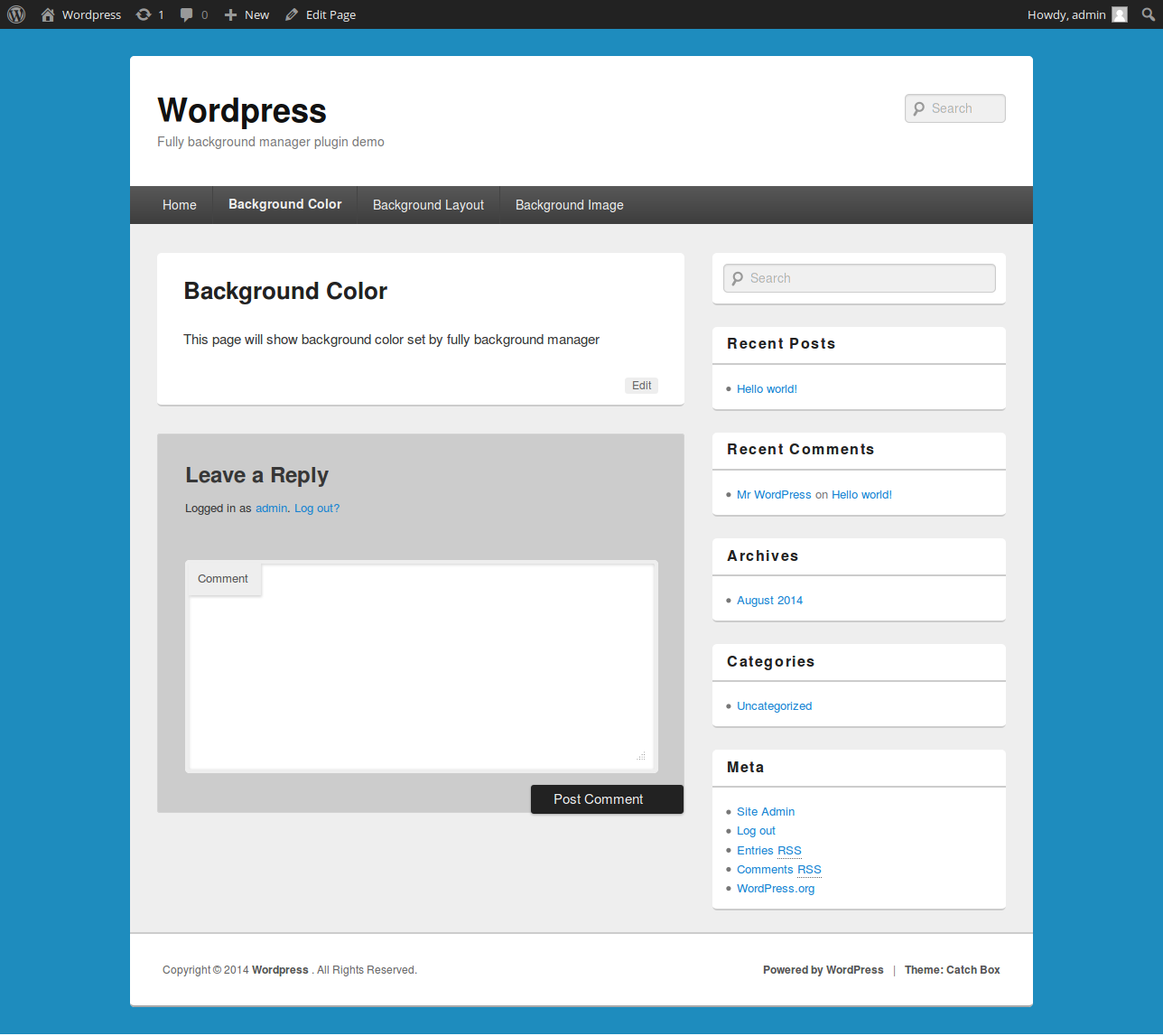
Your selected background color you can see on particular page/post
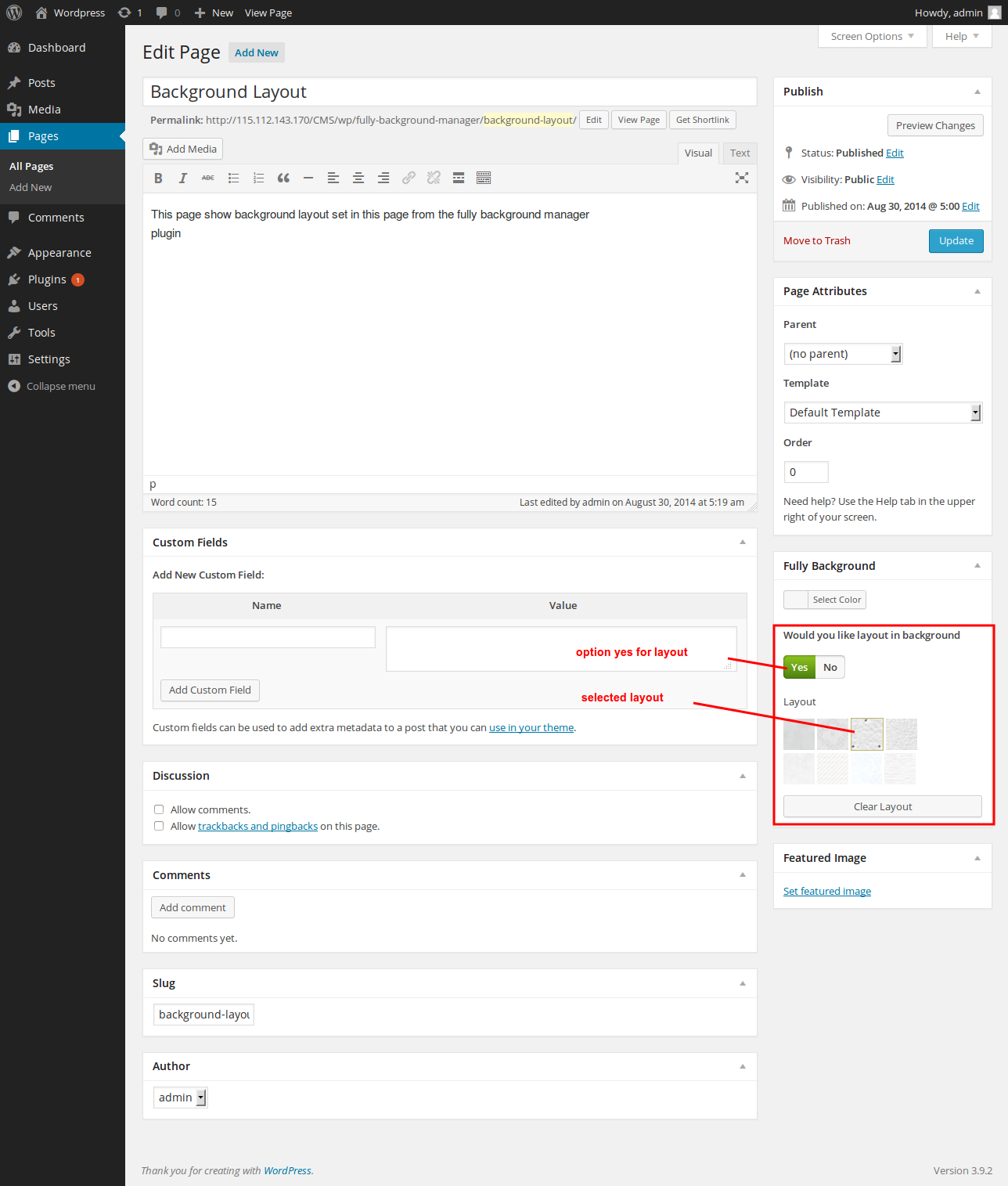
Select layout what you want

Your selected layout you can see on particular page/post
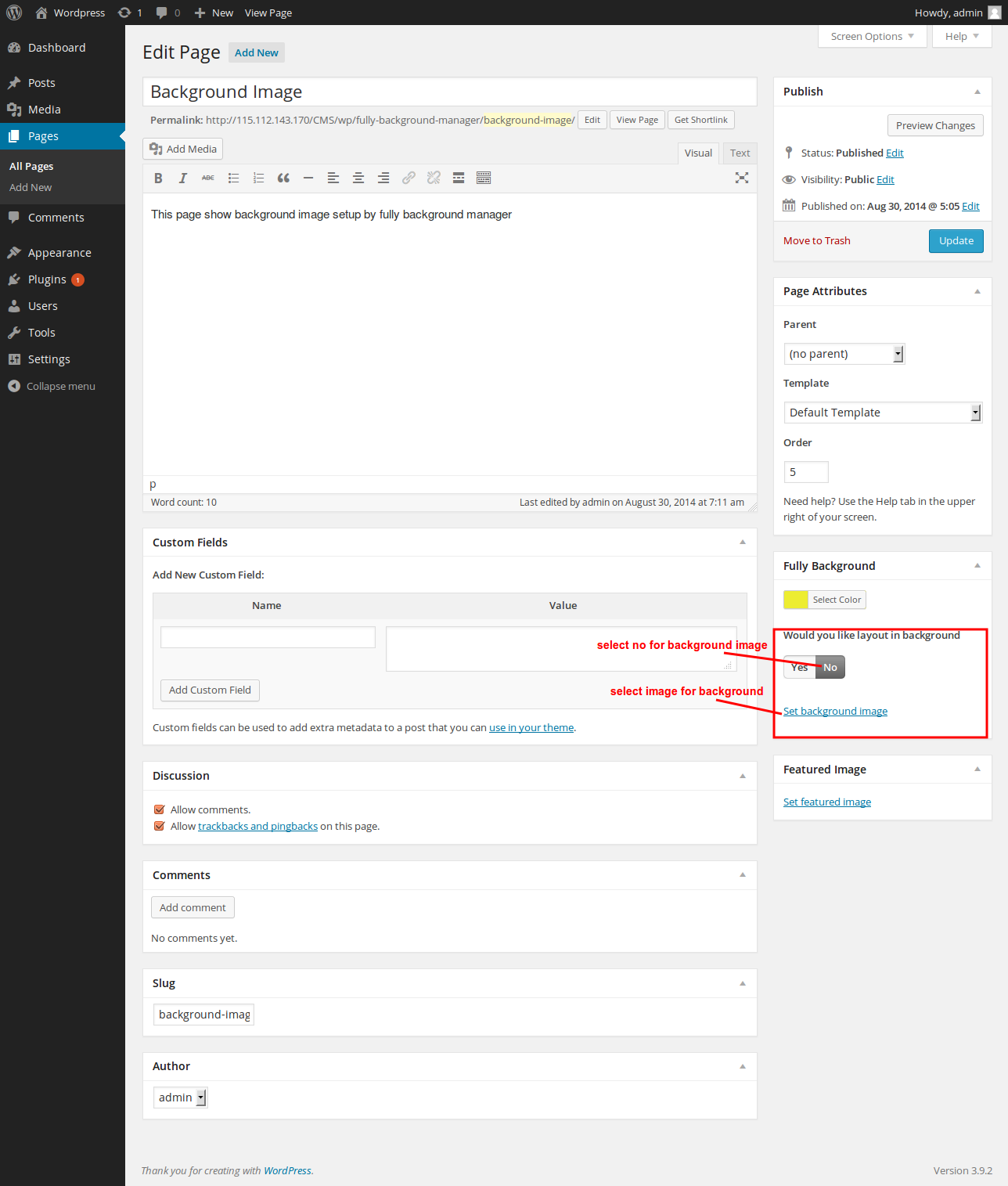
Select background image what you want

Your selected background you can see on particular page/post