

Plugin info
Maintenance & Compatibility
Maintenance score
Possibly abandoned • Last updated 3533 days ago • 2 reviews
Is f(x) Photo Tag abandoned?
Possibly abandoned (last update 3533 days ago).
Compatibility
Similar & Alternatives
Explore plugins with similar tags, and compare key metrics like downloads, ratings, updates, support, and WP/PHP compatibility.
Description
f(x) Photo Tag: Add label and tag to your photo/image just like facebook!
After installation of this plugin, you can tag your photo in “Media > Photo Tag”. And create a photo tag item.
Features:
- Super simple and easy to use.
- Add label/tag image/photo like facebook.
- Easy to embed photo in post/page using shortcode.
- Easily add shortcode in post/page using “Add Media” button.
- Two color scheme for the tag/label. Black(default) and White.
- Lightweight no bloated features.
- Responsive and mobile ready.
- Works in any theme.
- Very cool 🙂
- The GPL v2.0 or later license. 🙂 Use it to make something cool.
- Support available at Genbu Media.
Notes for developer:
Github
Development of this plugin is hosted at GitHub. Pull request and bug reports are welcome.
Installation
- Navigate to “Plugins > Add New” Page from your Admin.
- To install directly from WordPress.org repository, search the plugin name in the search box and click “Install Now” button to install the plugin.
- To install from plugin .zip file, click “Upload Plugin” button in “Plugins > Add New” Screen. Browse the plugin .zip file, and click “Install Now” button.
- Activate the plugin.
- Navigate to “Media > Photo Tag” to create and manage your photo.
Frequently Asked Questions
Where is the settings ?
There’s no settings page. You can navigate to “Media > Photo Tag” to manage your photo and tag entry.
How to Add Tag/Label Photo ?
Create a new Photo Entry, Upload/Select Image, click anywhere in image to add your tag.
How to Edit tag ?
When you editing a photo, simply click on the tag, and you can edit/delete the tag.
How to display in post ?
Simply use the shortcode provided in any post content.
Review feed
Screenshots

Manage your tagged photos.

Click image to add tag.

Click the tag to edit or delete.

Default (black) color scheme.

White color scheme (for dark photo).

Click "Add Media" button to add shortcode.

Click "Photo Tag" to select and insert your tagged photo shortcode.

Shortcode inserted in post editor.
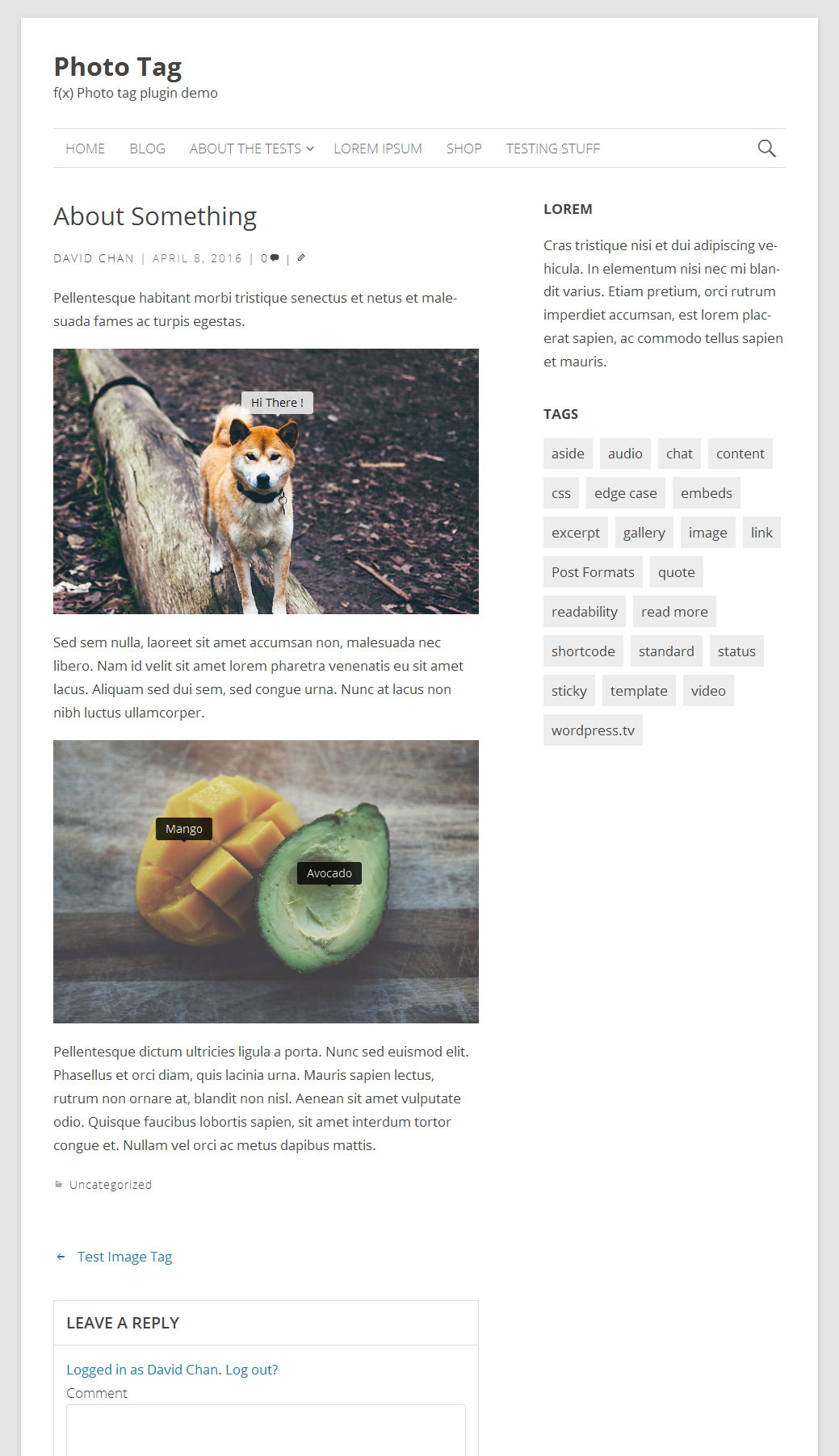
Final result.
Changelog
1.1.0 – 14 April 2016
- Add Media Modal Tab to insert photo tag shortcode easier.
- Update f(x) Box Pup Up.
- Fix edit tag bug when no changes.
1.0.0 – 08 April 2016
- Init