

Gravity Forms Entries Inventory Management
Entries inventory management for Gravity Forms.
Plugin info
Maintenance & Compatibility
Maintenance score
Possibly abandoned • Last updated 3624 days ago • 3 reviews
Is Gravity Forms Entries Inventory Management abandoned?
Possibly abandoned (last update 3624 days ago).
Compatibility
Similar & Alternatives
Explore plugins with similar tags, and compare key metrics like downloads, ratings, updates, support, and WP/PHP compatibility.
Description
The Gravity Forms Entries Inventory Management provides an easy way to accept a given number of bookings/sell X tickets on your website.
Mark the desired field with ‘gfinventory’ css class in the Field Appearence tab. Further to this the plugin will:
- Sum up the values from the ‘gfinventory’ field from all the available Entries of this form
- Will compare that total with the “Number of Entries” (total entries) option from Form Settings tab.
- Will display any needed validation both at form load time as well as upon form submit.
Note!
Plugin works with “total entries” option for Number of Entries.
Plugin not tested with other Number of Entries limits like:
- per day
- per week
- per month
- per year
Compatibility
This plugin is compatible with:
* Gravity Forms >= 1.9.12.10
Installation
See Screenshots tab for a short visual tutorial.
- Copy the
gravity-entry-inventory-managementfolder into yourwp-content/pluginsfolder - Activate the Gravity Forms Entries Inventory Management plugin via the plugins admin page
- Create a new Gravity Form
- Add a new input field on the form
- Go to the Field Appearence tab and add ‘gfinventory’ (without single quotes) to the Custom Css Class field. Save the form.
- Go to Form Settings (NOT Global Gravity Form Settings) and
- Check “Enable entry limit”
- Set your limit for this form in “Number of Entries” field
- Set yor message in “Entry Limit Reached Message” field
- Save settings
Frequently Asked Questions
Review feed
Screenshots
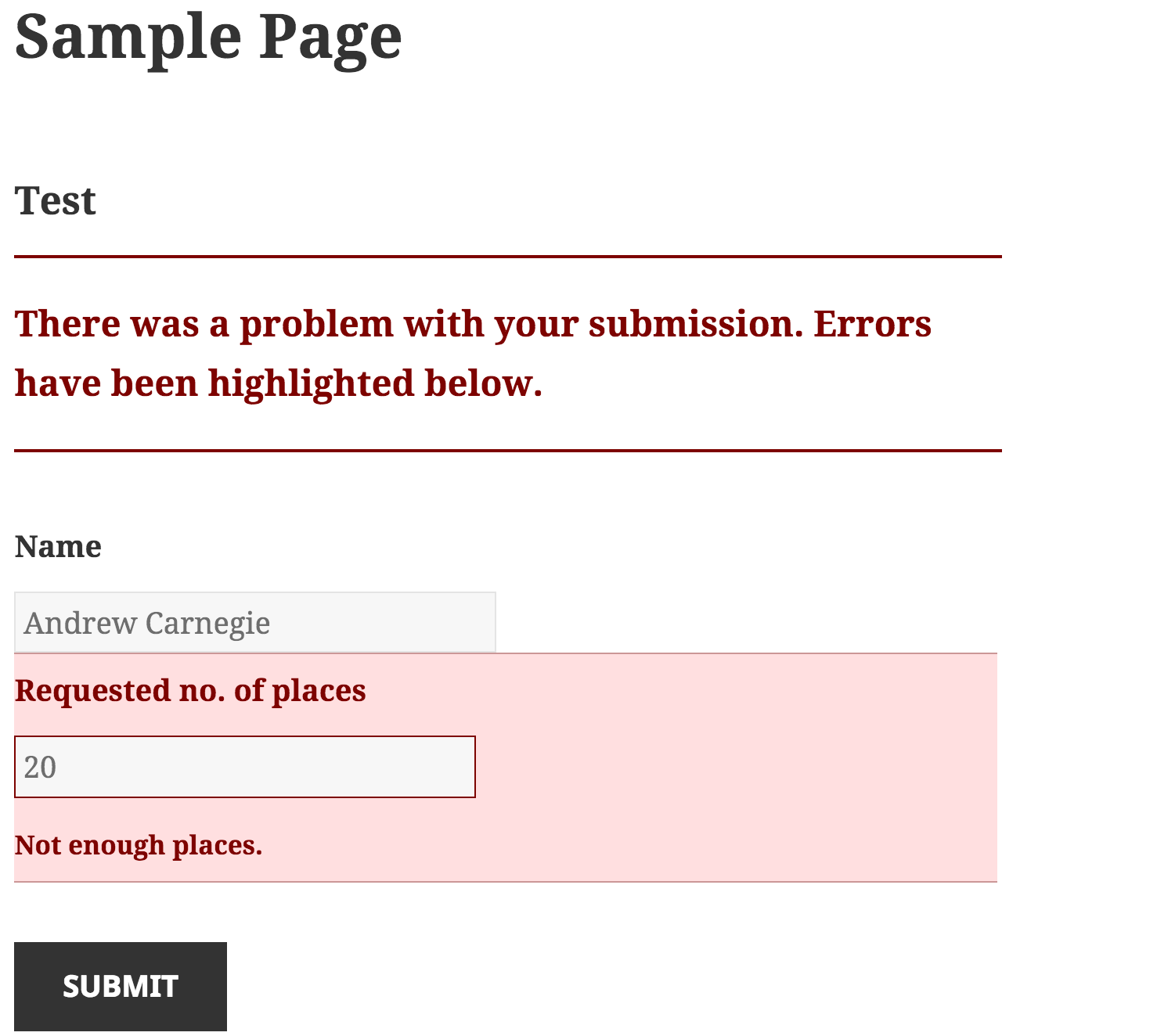
Validate field upon form submission and make sure we don't book more entries than available screenshot-1.png.

Display a friendly message upon form display if no place is available screenshot-2.png
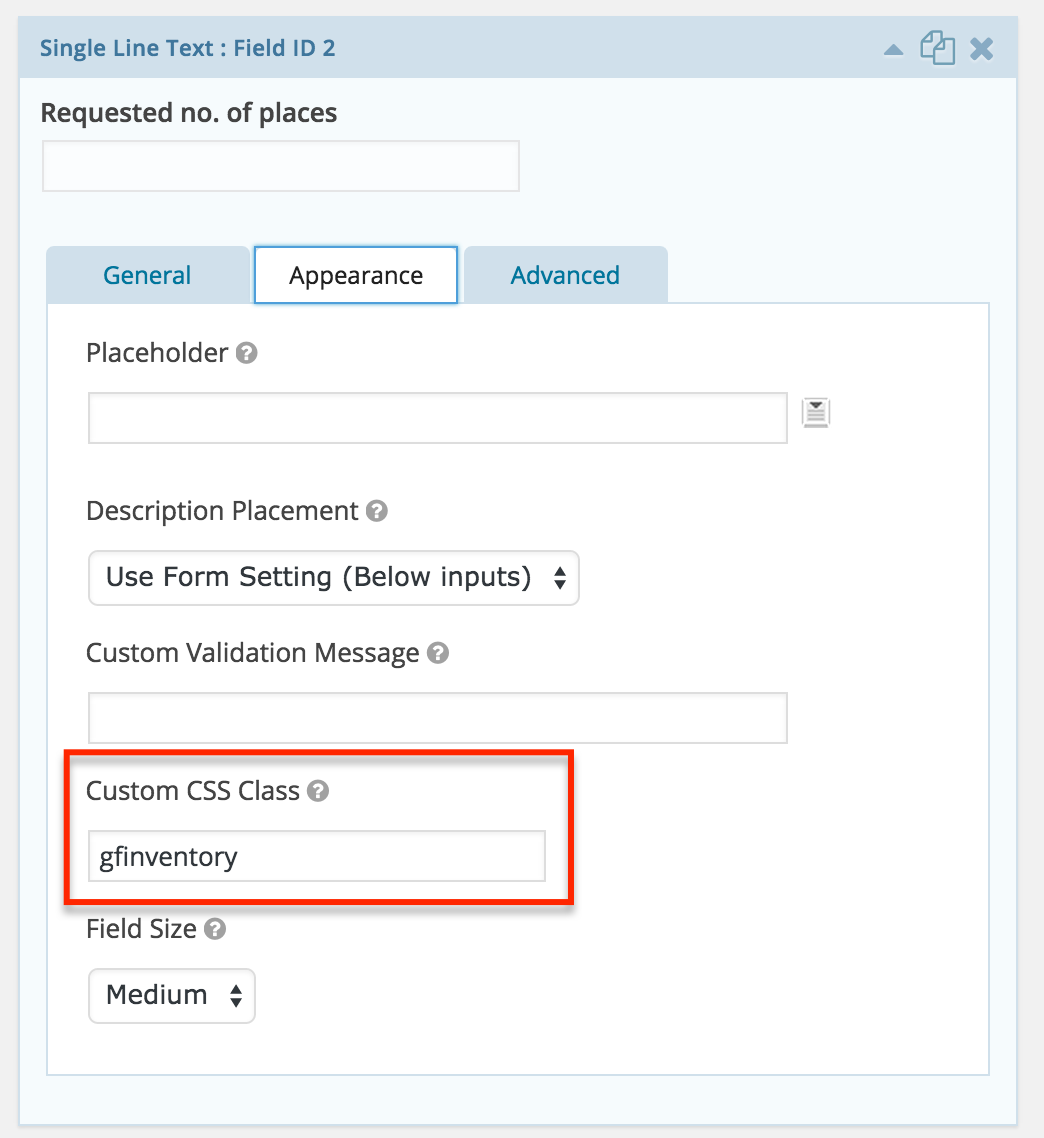
Configure the inventory field screenshot-3.png
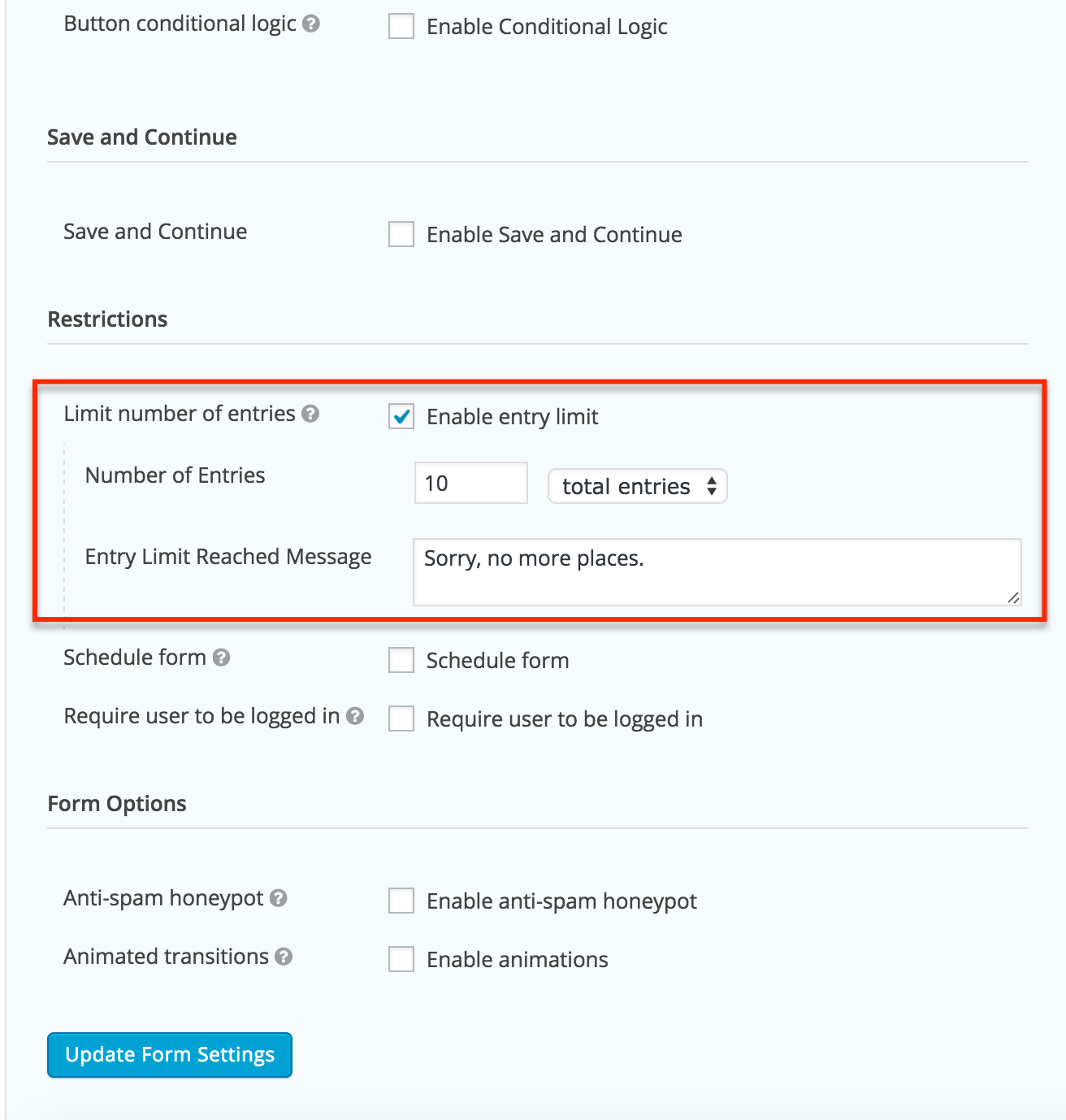
Configure the entry limits screenshot-4.png
Changelog
1.0.0
- First working version