

GravityOps Search – Search and Display Gravity Forms Entries
Search Gravity Forms entries on the front end and display matching results anywhere. Filter by any field value. Output custom formatted data.
Plugin info
Maintenance & Compatibility
Maintenance score
Maintained • Last updated 127 days ago
Is GravityOps Search – Search and Display Gravity Forms Entries abandoned?
Likely maintained (last update 127 days ago).
Compatibility
Similar & Alternatives
Explore plugins with similar tags, and compare key metrics like downloads, ratings, updates, support, and WP/PHP compatibility.
Description
GravityOps Search is a free, powerful shortcode for searching Gravity Forms entries on the front end and displaying the matching results anywhere on your site. Instead of paging through the admin entries screen, you can drop a single shortcode into a page, post, GravityView, or custom template and surface exactly the data you need. It works like an Excel-style lookup for Gravity Forms entries: you define which forms and fields to search, how to compare the values, and what to output for each match.
The core [gravops_search] shortcode lets you target one form, several forms, or even all forms at once. You can filter by one field or many, pass in values directly in the shortcode content, and control whether entries must match all conditions or any of them. The same shortcode can handle simple lookups (showing a single field from the latest matching entry) or more complex reporting-style views that combine fields, entry properties, and custom HTML. Because everything is driven by attributes, you stay in full control of which entries are included and how their data appears on the front end.
Results are rendered through a flexible display attribute, which understands both simple comma-separated field lists and advanced custom display strings with placeholders. You can output raw values, mix multiple fields into labeled text, or construct HTML lists, tables, and cards with links, CSS classes, and nested shortcodes. This gives you a fully custom front-end listing of Gravity Forms entries that you can drop into any layout, theme, or builder, without building a custom query or touching PHP.
GravityOps Search fully supports Gravity Forms entry properties (such as entry ID, form ID, created-by, and more) alongside regular fields, and it includes options for sorting, limiting, and deduplicating results before they are rendered. You can sort by field values or entry properties, choose ascending, descending, or random ordering, add a secondary sort key, and request unique values only. When no entries match, you can show fallback text or per-field default values, so front-end visitors never see a broken layout or confusing blank output.
This plugin is built explicitly for front-end entry search and display. It does not add live search tools to the Gravity Forms admin area and does not replace the Entries screen. Instead, it focuses on one thing and does it well: querying Gravity Forms entries in the background and printing clean, formatted results on the pages your users actually see.
Features
- Front-end search for Gravity Forms entries using a single, flexible shortcode.
- Target all forms, a single form, or a comma-separated list of form IDs using the
targetattribute. - Filter entries by a comma-separated list of field IDs or entry properties via the
searchattribute. - Pass search values in the shortcode content, separated by a pipe (
|) to match positions with the fields insearch. - Choose whether entries must match all search conditions (default) or any condition by setting
search_mode=\"any\". - Use the
operatorsattribute to control how each value is compared to its field, with support for equals, not-equals, partial matches, SQL-styleLIKE, “in” / “not in” arrays, and numeric comparisons (greater than / less than / greater-or-equal / less-or-equal). - Display one or many fields and properties for each result using the
displayattribute, which supports both simple lists and rich custom templates. - Include entry properties and field values in your output using placeholder formats like
{13},{id},{form_id}, and{gos:id}where appropriate. - Build fully custom HTML output (lists, tables, cards, badges, buttons, links) directly inside the
displaystring. - Insert CSS classes and inline markup into the output so results adopt your theme’s design and layout patterns.
- Use the
separatorattribute to control how multiple entry results are separated (including HTML separators or no separator at all using__none__). - Sort entries using
sort_key,sort_direction, andsort_is_num, with optionalsecondary_sort_keyandsecondary_sort_directionfor tie-breaking. - Limit the number of results returned with
limit, including support forlimit=\"all\"when you need to show every matching entry. - Turn on
uniqueto return only unique result values, great for building deduplicated lists such as unique email addresses, user IDs, or other fields. - Search for empty or blank values with the
search_emptyattribute and an empty shortcode content, to find incomplete or missing data. - Provide fallback values when no entries match—or when individual fields are empty—using the
defaultattribute. - Add an admin link to each result with the
linkattribute so power users can jump directly from the front end to the entry in the Gravity Forms admin. - Designed to work smoothly alongside GravityView, GravityMath, and other shortcodes that can be nested inside the output.
- Compatible with the legacy
gfsearchsnippet approach while offering ongoing updates and a more robust, plugin-based implementation.
How It Works
At its core, GravityOps Search evaluates your shortcode attributes and content to determine which entries to fetch, then formats each matching entry according to the display string you provide. The target attribute defines which forms to query: pass 0 to search all forms, a single form ID to target one form, or a comma-separated list of IDs for multi-form searches. The search attribute specifies the field IDs and entry properties to filter on, and the shortcode content supplies the corresponding values, separated by the pipe (|) character in the same order.
You can configure the search_mode attribute to determine matching logic. The default mode (all) requires each entry to satisfy all conditions, while search_mode=\"any\" returns entries that meet at least one of the conditions listed. This gives you the flexibility to build both strict, multi-field filters and more permissive, keyword-style searches. If you need to perform a global search across all fields for a given value, you can leave the relevant search ID blank, and the plugin will look for that value anywhere in the entry.
Sorting, limiting, and uniqueness are handled after the search conditions are applied. You can specify a sort_key (field ID, entry property, or meta key) with sort_direction set to ASC, DESC, or RAND. If you are sorting by numeric data, sort_is_num ensures values are compared correctly rather than as plain strings. When you need a consistent secondary ordering—such as sorting first by date and then by name—you can use secondary_sort_key and secondary_sort_direction. Once ordered, the plugin applies the limit attribute to control how many entries are actually returned and optionally filters down to unique results based on the full rendered output when unique is enabled.
Defaults and fallbacks keep your front-end output robust. The default attribute can define text to display when no entries are found or when specific fields are empty, and the plugin can handle multiple default values mapped to multiple display fields. The separator attribute governs how multiple entries are joined, making it easy to build line-separated lists, HTML elements, or table rows. Because each [gravops_search] shortcode runs its own live database query, you can place different instances around your site to build different views of the same underlying Gravity Forms data.
Display and Formatting
The display attribute is the heart of how results are shown. In its simplest form, you can pass a comma-separated list of field IDs or entry properties, such as display=\"13,14,15\". For each matching entry, GravityOps Search outputs those values in order, using sensible default separators between fields and entries. This mode is ideal when you simply need to surface raw values: a quick list of email addresses, a set of IDs, or basic single-column output.
For more control, display supports custom display strings with placeholders. Instead of a list of IDs, you can provide a template like display=\"Name: {13}, Email: {14}\", which will be rendered for each matching entry. Placeholders like {13} insert the value of field 13, while placeholders such as {id} and {form_id} work with entry properties. When you need to reference non-numeric properties or use merge tags in contexts that parse standard tags (such as GravityView content fields, confirmations, or notifications), you can use the special {gos:id} syntax. This gives you a consistent way to assemble complex messages, labels, and markup that incorporate both field data and meta data.
The display attribute also accepts full HTML, including tags, attributes, and CSS classes. You can wrap values in ,, ,, “, or any other markup to build lists, tables, cards, or media objects. Because the separator attribute supports HTML as well, you can structure your markup so that each entry becomes one list item, table row, or card component. This makes it straightforward to integrate entry results into existing sections of your design, matching your theme and layout without a custom PHP query.
Nesting Shortcodes and Advanced Templates
GravityOps Search supports nesting other shortcodes inside the display attribute via a double-curly-brace syntax: {{ ... }}. This means you can embed tools like GravityMath, another gravops_search, or any other shortcode directly inside the output template for each entry. The outer [gravops_search] processes its own placeholders first and then hands the rendered string to the nested shortcodes, allowing you to feed entry values into calculations, secondary lookups, or formatting helpers.
When you nest a second gravops_search inside the display attribute, each shortcode runs its own search and display logic in sequence. The outer shortcode resolves placeholders such as {13} and {gos:id} in its display string, while the nested shortcode uses its own display template and attributes. In nested scenarios where you need to reference placeholder values as input to another shortcode or formula, you can use the gos:id pattern without braces (for example, gos:21) to avoid conflicts with merge-tag parsing. This lets you do things like passing a field value into a GravityMath filter or dynamically controlling filters and IDs inside the nested shortcode configuration.
Because nested shortcodes are fully supported and the plugin respects all standard shortcode attributes, you can construct sophisticated, layered outputs without custom PHP. For example, you can build a front-end summary that uses one [gravops_search] to list matching entries, another to pull related entries, and a GravityMath shortcode to compute totals—all wrapped in your own HTML structure. GravityOps Search handles placeholder substitution and nested processing order so that each piece of your template receives the data it needs at the right time.
Search Operators and Multi-Input Fields
The operators attribute lets you tell GravityOps Search exactly how to compare each search value against its corresponding field or property. You define a comma-separated list of operators that line up with the IDs in the search attribute. Supported operators include equality (= or is), inequality (!=, isnot, is not), partial matches (contains), SQL-style wildcard matches (like), membership tests (in, not in), and numeric comparisons (gt, lt, gt=, lt=). If you provide fewer operators than search fields, remaining fields default to exact matches; extra operators beyond the number of fields are ignored. When you omit operators entirely, all fields use exact matching by default.
For more advanced scenarios, certain operators expect specific value formats. When using in or not in, for example, you can pass a PHP-style array in the shortcode content—such as array(\'item one\',\'item two\',\'item three\')—to test whether the field value appears in that list. This makes it easy to filter entries against multiple acceptable values for a single field without duplicating field IDs. Combined with search_mode, you can express a wide range of conditions: from strict multi-field comparisons to flexible multi-value lists and keyword-style filters.
Multi-input Gravity Forms fields (like Name, Address, and Checkbox fields) are fully supported, but they behave differently for display versus search. When displaying, using the base field ID in a placeholder (e.g., {13}) automatically combines all sub-inputs (such as first name and last name) into a single string separated by spaces. If you need to display a specific sub-input—like first name only—you can use its input ID directly, for example {13.3}. When searching, checkboxes are best handled by searching the base field ID so that changes to individual options or dynamic checkboxes do not break the search. Other multi-input fields (like Name and Address) should be searched using their individual input IDs (e.g., 13.3, 13.6), as searching by the base ID will not work for those types.
Performance and Access Control
Every [gravops_search] shortcode runs a live database query against Gravity Forms entries, so thoughtful usage is important for both performance and privacy. On the performance side, heavy use of limit=\"all\", many nested shortcodes, and large forms with complex conditions can slow down page loads. To keep pages responsive, it is recommended to set a reasonable limit where possible, minimize unnecessary nesting, and consider caching the rendered page output using your preferred caching plugin or server-level caching tools. These simple steps help ensure that even data-heavy views remain fast and reliable.
On the access-control side, the shortcode does not enforce any special permission checks by itself. Anyone who can view the page where the shortcode is placed will be able to see whatever Gravity Forms entry data you choose to display, including potentially sensitive information. To protect private or restricted data, you should place the shortcode inside pages or templates that are protected by membership plugins, password protection, role-based visibility, or other gating mechanisms. This keeps the plugin flexible and focused on data retrieval and formatting, while allowing you to decide how and where to expose entry data based on your site’s security model.
GravityOps Search is designed to be both powerful and predictable: you define the forms, fields, filters, and display template, and the plugin takes care of querying and rendering. Used thoughtfully, it becomes a core tool for building dynamic, entry-driven front-end experiences on top of Gravity Forms, without custom development or complex integrations.
Installation
- Install GravityOps Search:
- In WordPress, go to Plugins Add New Upload Plugin.
- Upload the ZIP file and click Install Now.
- After installation, click Activate.
- Use the shortcode anywhere you need to search entries:
- Edit a page, post, widget, or template that accepts shortcodes.
- Insert the
[gravops_search]shortcode with the attributes you need. - Save or update the page.
- View the page on the front end:
- Matching Gravity Forms entries will now display according to your shortcode’s filters and layout.
Frequently Asked Questions
No. GravityOps Search does not modify or enhance the admin-side Entries screen in any way. It is designed exclusively for front-end searching: you place a shortcode on a page, post, or view, and the plugin retrieves matching Gravity Forms entries and displays the data exactly as you format it.
Use the [gravops_search] shortcode. You specify which forms to target, which field IDs or entry properties to search, which values to match, and how to output the results. The shortcode runs a live query against Gravity Forms entries and prints the matching results anywhere shortcodes are supported.
Yes. You can target a single form, several forms, or all forms. Just pass a comma-separated list of form IDs in the target attribute, or use target=\"0\" to query every form on the site. This allows you to build global lookups and multi-form reporting views.
Yes. The search attribute accepts a comma-separated list of field IDs or entry properties. The shortcode content (inside the opening and closing tags) supplies the values, separated with a pipe (|) in the same order. You can match on a single field, several fields together, or a mix of fields and entry meta.
Use the operators attribute to define comparison behavior for each field. Supported operators include exact match, not-equal, contains, wildcard-style “like”, numeric comparisons (greater-than / less-than), and array-based “in” or “not in” checks. When no operator is provided for a field, the default behavior is exact matching.
Yes. By default, the shortcode requires entries to match all conditions. Set search_mode=\"any\" to return entries that satisfy at least one of the provided search fields and values.
Use the display attribute. You can provide:
– A comma-separated list of field IDs.
– A custom template string with placeholders like {15} or {id}.
– Full HTML markup for custom layouts (lists, cards, rows, tables).
This gives you complete control over how each entry appears on the front end.
Yes. The display template supports text, HTML tags, attributes, classes, and multiple placeholders. You can mix fields, entry properties, links, labels, or structured markup to build clean, styled results that match your site’s theme.
Yes. The plugin supports nested shortcodes using {{ ... }} syntax to avoid parsing conflicts. You can nest GravityMath, additional [gravops_search] shortcodes, or any shortcode that produces text or numbers. Nested shortcodes receive processed values, enabling chained lookups and computed displays.
Yes. Multi-input fields can be displayed as either:
– Combined values using the base field ID ({13}), or
– Individual inputs using dot notation ({13.3}).
For searching, checkboxes should be matched using the base field ID, while other multi-input fields should be matched using specific input IDs.
Yes. You can search for empty fields using search_empty=\"true\" and passing an empty value for that position in the shortcode content. This is useful for finding incomplete submissions or missing data.
Yes. Use sort_key, sort_direction, and optionally sort_is_num to sort by numeric or text values. You can also add secondary_sort_key and secondary_sort_direction for tie-breaking. For random ordering, use sort_direction=\"RAND\".
Yes. Use the limit attribute. You can return a specific number or use limit=\"all\" to show all matches. When combined with sorting, this allows you to show the newest, oldest, largest, smallest, or otherwise top-ranked results.
Yes. Setting unique=\"true\" returns only unique results after formatting. This is ideal for building deduplicated lists such as unique emails, product IDs, or user identifiers pulled from multiple entries.
You can provide fallback text using the default attribute. This text displays instead of an empty result, keeping your front-end layout informative and user-friendly.
The plugin displays whatever data you ask it to display. If you include fields with personal or private information, anyone who can access the page will see that data. To restrict visibility, place the shortcode inside protected pages controlled by your membership or role-based access tools.
Each shortcode triggers a live database query. Normal usage is fast, but heavy configurations—large multi-form searches, deep nesting, or unlimited results—may impact performance. Use reasonable limits where possible and consider caching the page output if you’re displaying large data sets.
Yes. You can use the shortcode inside GravityView fields, calculations, template blocks, or custom layouts. Nested shortcode support lets you combine data filters, math, and dynamic rendering cleanly.
Yes. GravityOps Search supports environments where the old gfsearch snippet is present. You can continue using it for legacy shortcodes while using [gravops_search] for new builds. They can run simultaneously without conflict.
No. The entire search, filtering, and output process is achieved through shortcode attributes. You can build simple or highly advanced data displays without writing any PHP.
Review feed
Screenshots
![Shows a basic <code>[gravops_search]</code> shortcode with search fields and a simple display.](https://ps.w.org/gravityops-search/assets/screenshot-1.png?rev=3403092)
Shows a basic
[gravops_search]shortcode with search fields and a simple display.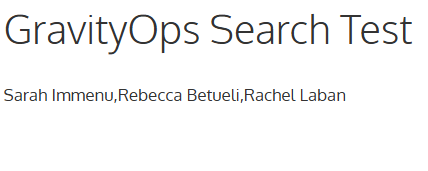
Displays the formatted results returned by the sample shortcode on a live page.
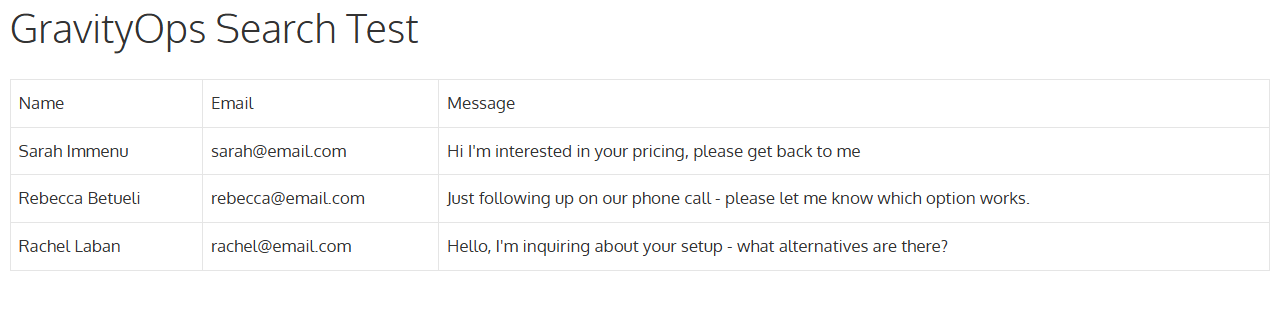
Shows a more complex shortcode producing a richer, multi-field front-end layout.
Changelog
1.0.1 | Nov 26, 2025
Updating plugin readme and display name.
1.0.0
Initial plugin release based on the original Gravity Forms entry search snippet. This version packages the functionality into a dedicated plugin for easier installation, updates, and ongoing development.