

Happy Coders Multi Address for WooCommerce
Allow logged-in WooCommerce customers to manage multiple addresses in an address book and select them easily during checkout.
Plugin info
Maintenance & Compatibility
Maintenance score
Maintained • Last updated 135 days ago • Support resolved 100% • 8 reviews
Is Happy Coders Multi Address for WooCommerce abandoned?
Likely maintained (last update 135 days ago).
Compatibility
Languages
Similar & Alternatives
Explore plugins with similar tags, and compare key metrics like downloads, ratings, updates, support, and WP/PHP compatibility.
Description
Tired of customers having to re-type addresses for different shipping locations or billing details? HappyCoders Multiple Addresses for WooCommerce enhances the WooCommerce “My Account” area and Checkout process by providing a robust address book feature.
Logged-in customers can save multiple billing and shipping addresses, give them nicknames for easy recognition (like “Home”, “Work”, “Parents’ House”), set defaults, and edit or delete addresses as needed.
During checkout, customers can quickly select from their saved addresses using a dropdown or list format (configurable by the admin), streamlining the process and reducing errors. This plugin integrates with both the Classic WooCommerce Checkout (using the [woocommerce_checkout] shortcode) and the modern Block-Based Checkout experience.
Key Features:
- Multi Address Book: A dedicated section in the “My Account” page.
- Automatic Import: Seamlessly imports a customer’s existing default WooCommerce address into the address book on their first visit.
- Automatic Saving of New Checkout Addresses: Any new, unique address a customer enters during checkout is automatically saved to their address book and set as the new default for future use.
- Save Multiple Addresses: Customers can save distinct billing and shipping addresses.
- Address Nicknames & Types: Easily label and identify saved addresses with custom nicknames and predefined types (Home, Work, Other).
- Set Default Addresses: Designate default billing and shipping addresses.
- Easy Editing/Deletion: Customers can manage their saved addresses.
- Checkout Selection: Choose saved addresses directly on the checkout page.
- Admin option for Dropdown or Radio List display.
- Admin option to allow/disallow entering a brand new address at checkout.
- Address Limits: Admin can set maximum number of billing/shipping addresses per user.
- Customizable Menu Text: Admin can change the “Multi Address Book” menu item text.
- Auto-Default New Address: Newly added addresses automatically become the default.
- Classic & Block Checkout Integration: Works with both checkout types.
- Classic: Uses standard WooCommerce hooks.
- Block: Uses modern JavaScript integration with the WooCommerce Blocks API (
registerCheckoutBlock).
- Multisite Compatible: Includes support for Multisite installations, ensuring endpoints and functionality work correctly across the network.
- My Account Address Display Style: Admin can choose to display saved addresses in the “My Account” page as a carousel or a list.
Building from Source
This plugin uses modern JavaScript tools for development. The source code is included for transparency and to allow developers to contribute or modify the code. You do not need to follow these steps to use the plugin; the pre-built files are included.
If you wish to modify the JavaScript or CSS source files (/src directory), you will need to have Node.js and npm installed on your machine.
-
Navigate to the Plugin Directory:
Open your terminal and navigate to the plugin’s root directory:
cd path/to/wp-content/plugins/happycoders-multiple-addresses/ -
Install Dependencies:
Run the following command to install the necessary development packages listed inpackage.json:
npm install -
Build for Production:
To compile and minify the source files for a production environment, run:
npm run build
This will generate the final JavaScript and CSS files in the/builddirectory. -
Run in Development Mode:
For active development, use this command to watch for changes in the/srcdirectory and automatically re-compile the files:
npm run start
The source files for the block integration can be found in the /src directory.
Installation
Minimum Requirements:
- WordPress 5.6 or greater
- WooCommerce 6.0 or greater
- PHP 7.4 or greater
Automatic Installation (Easiest):
- Log in to your WordPress admin dashboard.
- Navigate to Plugins > Add New.
- Search for “Happy Coders Multi Address for WooCommerce”.
- Click “Install Now” and then “Activate”.
Manual Installation:
- Download the plugin zip file.
- Log in to your WordPress admin dashboard.
- Navigate to Plugins > Add New.
- Click the “Upload Plugin” button at the top.
- Choose the downloaded zip file and click “Install Now”.
- Click “Activate Plugin”.
Manual Installation (FTP):
- Download the plugin zip file and unzip it.
- Using an FTP client or your hosting file manager, upload the unzipped plugin folder (
happycoders-multiple-addresses) to thewp-content/plugins/directory on your server. - Log in to your WordPress admin dashboard.
- Navigate to the Plugins screen.
- Find “HappyCoders Multiple Addresses for WooCommerce” in the list and click “Activate”.
After Activation:
- A new “Multi Address Book” menu item will appear in the WooCommerce “My Account” page for logged-in users.
- Configure plugin settings under WooCommerce > Settings > HC Multiple Addresses.
- If you encounter issues with the “Multi Address Book” page showing a “Not Found” error after activation or changing themes/settings, please go to Settings > Permalinks in your admin dashboard and simply click Save Changes (no changes needed) to flush the rewrite rules.
Frequently Asked Questions
Yes! The plugin includes integration for both the Classic ([woocommerce_checkout] shortcode) and the modern Block-Based Checkout experience introduced in recent WooCommerce versions. The address selectors will appear automatically in the appropriate sections.
When an existing customer visits their “Multi Address Book” page for the first time after you install the plugin, their current default billing and shipping addresses (from the standard WooCommerce “Addresses” tab) will be automatically imported into the new address book. This provides a seamless experience so they don’t have to re-enter their primary address.
If a logged-in customer enters a new, unique address when placing an order, the plugin will automatically save that address to their address book and set it as their new default. This makes it instantly available for their next purchase without needing to manually add it first.
Logged-in customers can find a new “Multi Address Book” tab within their main “My Account” page (usually /my-account/hc-address-book/). From there, they can add, view, edit, delete, and set default billing/shipping addresses.
Yes. Go to WooCommerce > Settings > HC Multiple Addresses. You can choose between a “Dropdown Select Box” or a “List (Radio Buttons)” for the selector style.
Yes. In the plugin settings (WooCommerce > Settings > HC Multiple Addresses), you can set the “Allow New Address Entry” option to “No”. This will remove the “Enter a new address” option from the selectors.
Yes. The plugin settings include options to set a maximum number of saved billing addresses and shipping addresses per user. Set to 0 or leave blank for unlimited.
The plugin aims to use standard WooCommerce hooks and APIs where possible. However, themes or plugins that heavily modify the “My Account” page structure or the Checkout process (especially Block Checkout customizations beyond the standard blocks) could potentially cause conflicts. If you experience issues, try temporarily switching to a default theme (like Storefront) and deactivating other plugins to identify a conflict.
Review feed
Screenshots
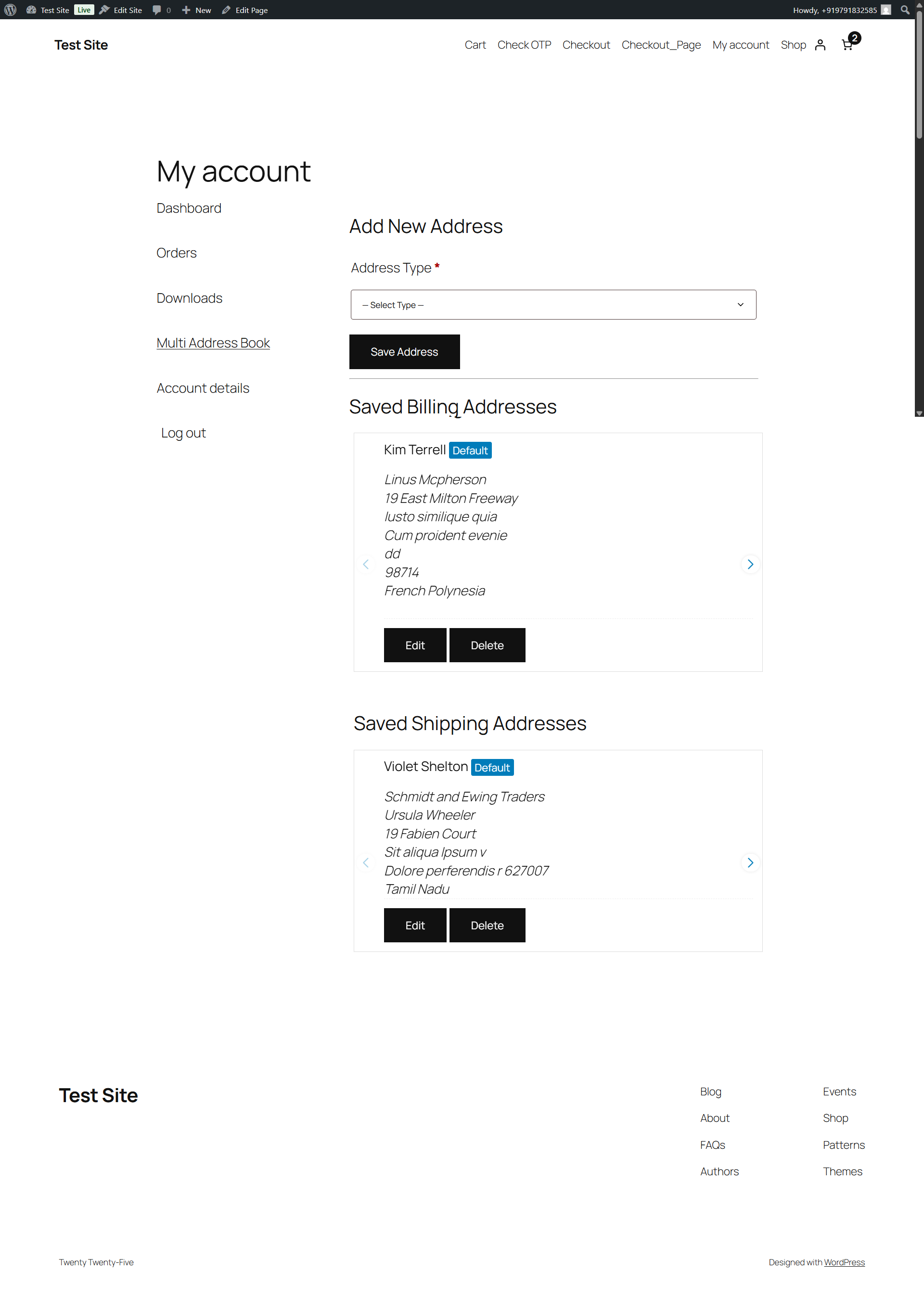
The "Multi Address Book" section in the My Account page showing saved addresses.
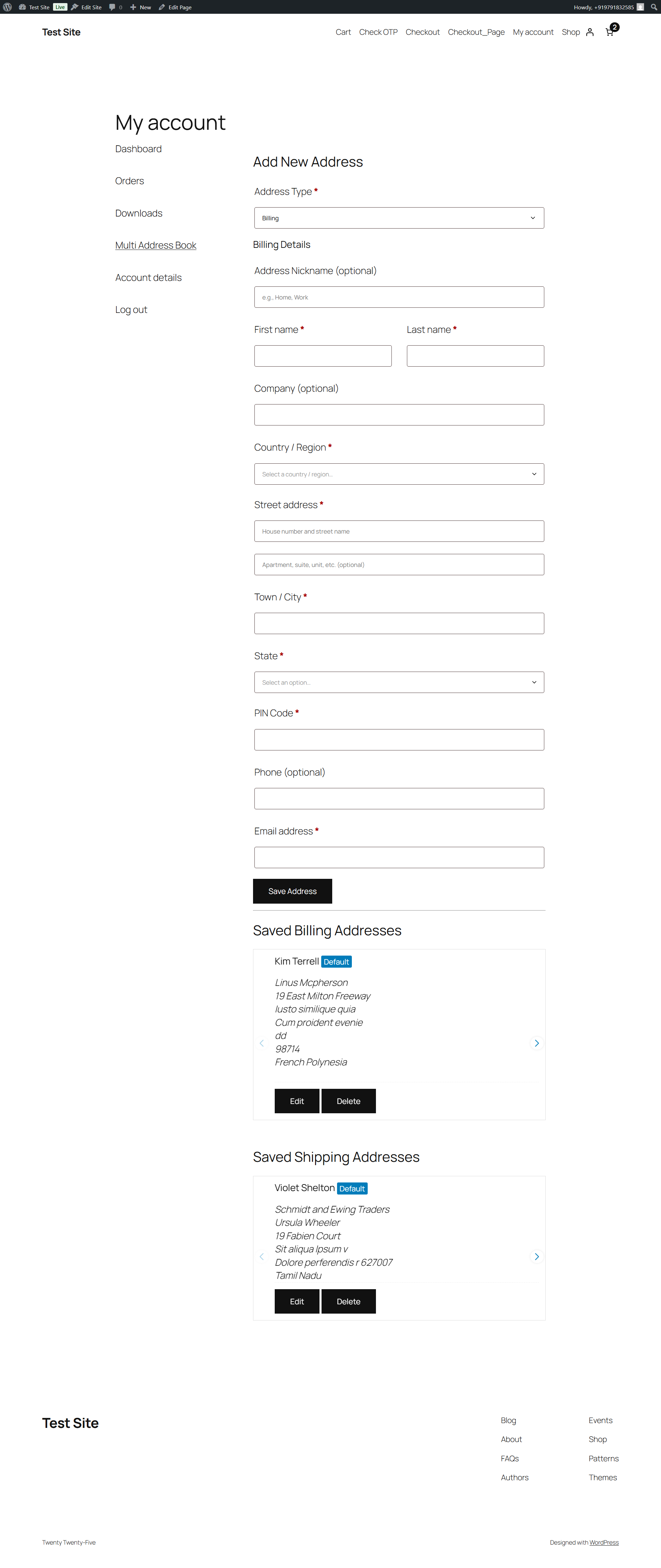
The "Add New Address" form in the Multi Address Book.
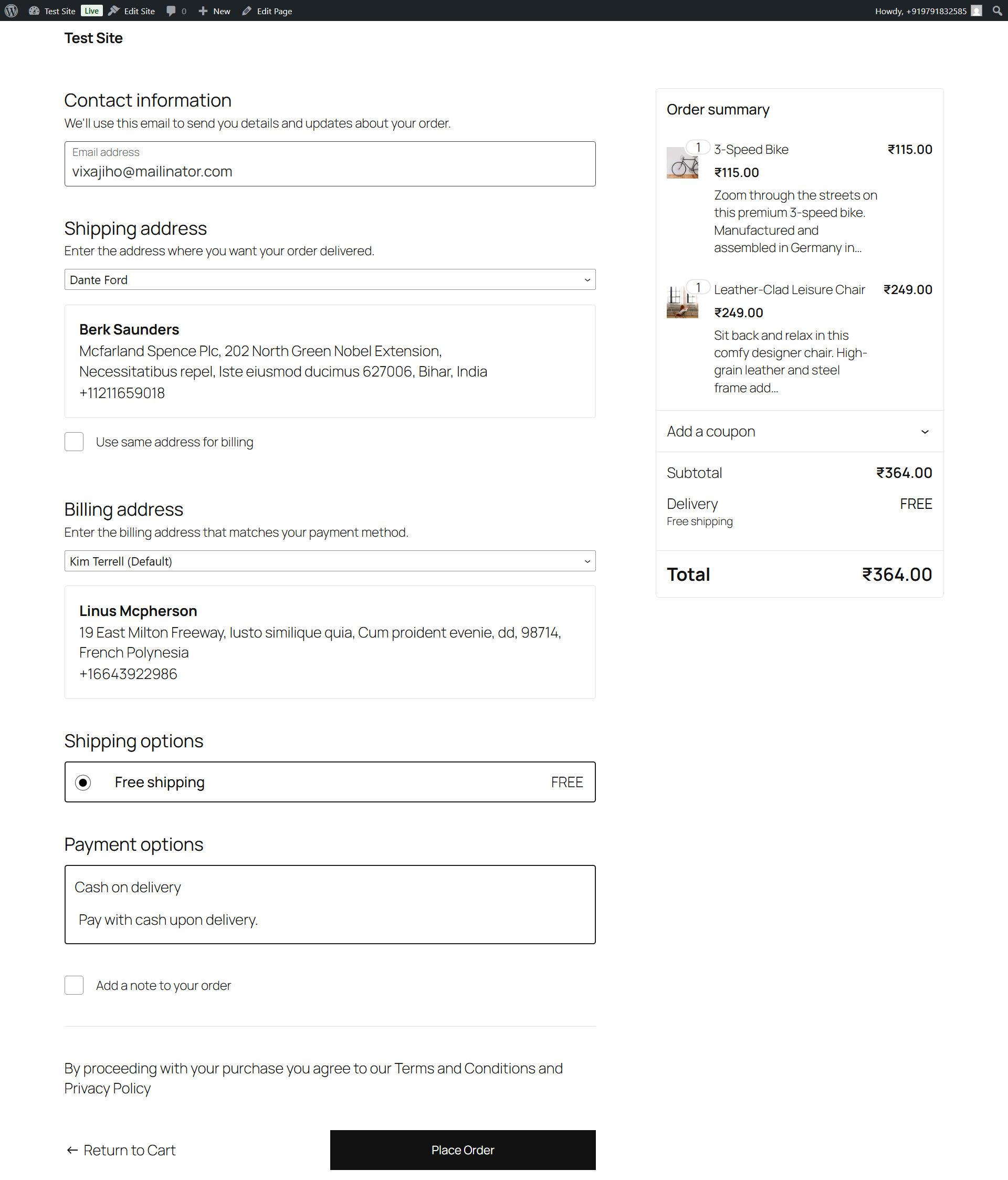
The Checkout page showing the billing address selector (Dropdown style).
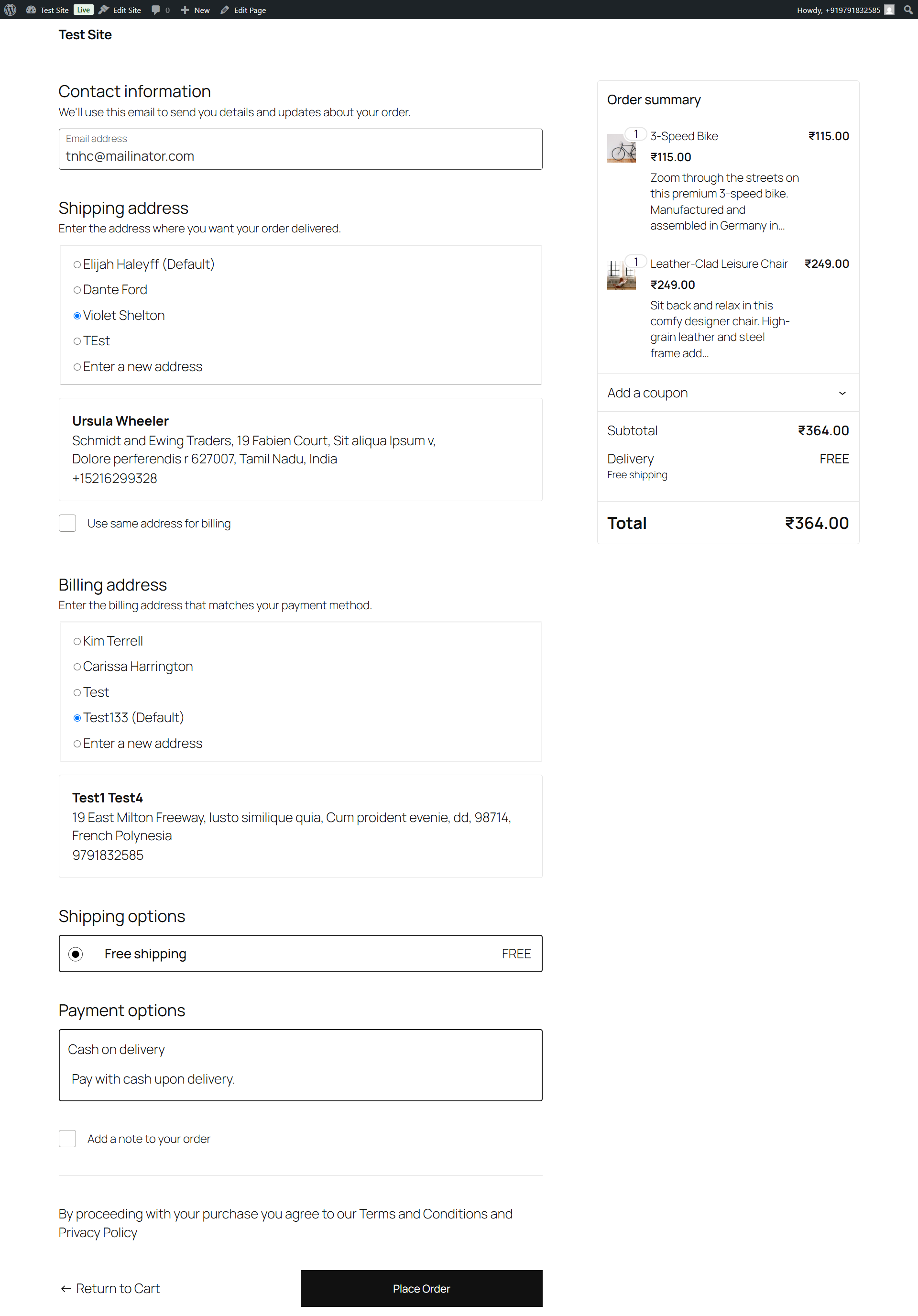
The Checkout page showing the shipping address selector (List style).
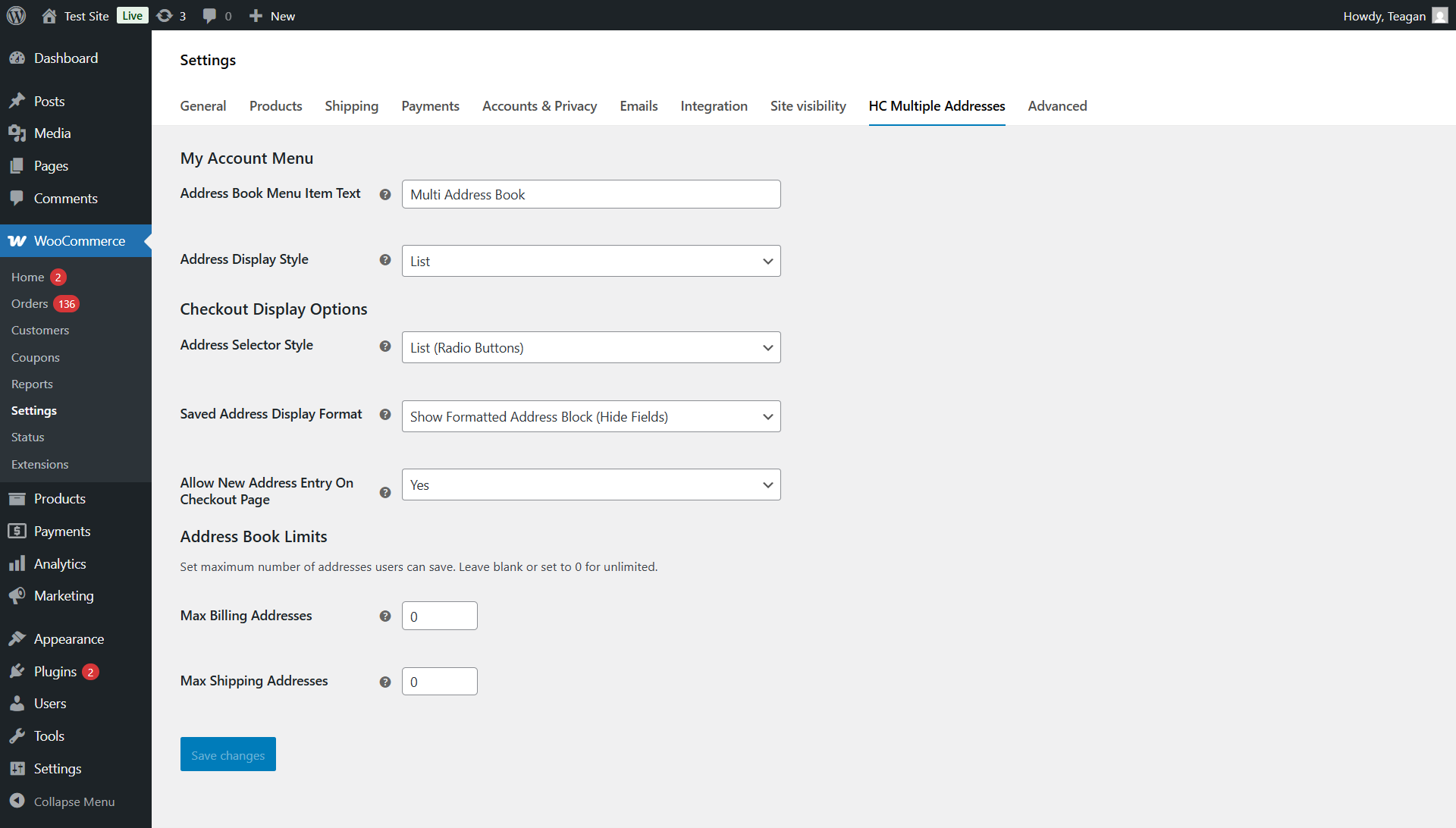
The Plugin Settings page (WooCommerce > Settings > HC Multiple Addresses).
Changelog
[1.0.14]
- Fix – Resolved a fatal error
Call to a member function get() on nullinclass-hc-wcma-checkout.phpby adding a null check forWC()->session. - Fix – Resolved a fatal error
Call to a member function get_billing_country() on nullinhc-wcma-functions.phpby adding a null check forWC()->customerand falling back to the base country.
[1.0.13]
- Enhanced Block Checkout Validation – Added comprehensive validation for incomplete saved addresses in block checkout
- Improved Error Messaging – Shows specific missing required fields when addresses are incomplete
- WooCommerce Integration – Integrated with WooCommerce’s checkout validation system to prevent order placement with incomplete addresses
- User Experience – Added clear guidance on how to fix incomplete addresses with direct links to account page
- Real-time Validation – Validates addresses on selection and page load for immediate feedback
- Fallback Error Display – Multiple error display methods ensure users always see validation messages
[1.0.12]
- Fix: Corrected validation error message for phone number field in My Account forms.
- Feature: Added “Incomplete” badge to addresses in My Account if required fields are missing.
- Feature: Display all filled address details in My Account address cards.
- Fix: Ensured phone number is correctly saved for new shipping addresses in Block Checkout, respecting WooCommerce phone field settings.
[1.0.11]
- Fix: Resolved an issue in the Block Checkout where the shipping address selector would not reappear correctly when switching back from “Pickup” to “Ship”.
- Fix: Corrected an issue where the shipping address selector was incorrectly placed inside the billing address block on re-render.
[1.0.10]
- Feature: Added full internationalization (i18n) support, allowing the plugin to be translated into other languages.
- Feature: Included a
.potfile to make it easy for users to generate their own translations. - Tweak: Updated the Block Checkout integration to correctly load and display translated strings.
[1.0.9]
- New Feature: My Account Address Display Style. Added an option in plugin settings to display saved addresses on the “My Account” page as either a carousel or a list.
- Fix: Corrected HTML structure for carousel view to ensure proper Swiper.js functionality.
- Fix: Ensured “Edit” button works correctly for both billing and shipping addresses by improving data attribute handling.
- Fix: Resolved “An invalid form control” error on address forms by correctly managing required states of nickname fields.
[1.0.8]
- New Feature: Added an option in the plugin settings to allow administrators to change the text of the “Multi Address Book” menu item on the My Account page.
[1.0.7]
- Address Nickname Type support (Home, Work, Other) on My Account and Checkout pages.
[1.0.6]
- New Feature: Any new, unique address used during checkout is now automatically saved to the customer’s address book and set as the new default. Works for both Classic and Block checkouts.
- Fix: Improved Multisite compatibility to ensure the “Address Book” endpoint works correctly across all sites in a network and on new site creation.
- Tweak: Refined JavaScript for Block Checkout to improve reliability of selector mounting.
[1.0.5]
- Fix: General bug fixes and performance improvements.
[1.0.4]
- New Feature: Automatically imports a customer’s existing default WooCommerce address into the address book on their first visit for a seamless experience.
- Tweak: Minor code enhancements and improved PHPDoc comments.
[1.0.3]
- Fix: General bug fixes and performance improvements.
[1.0.2]
- Fix: General bug fixes and performance improvements.
[1.0.1]
- Fix: General bug fixes and performance improvements.
[1.0.0]
- Initial release.
- Feature: My Account Multi Address Book (Add/Edit/Delete/Set Default).
- Feature: Checkout Address Selection (Classic & Block Checkout).
- Feature: Admin settings for selector style, field display, allow new, address limits.
- Feature: Admin management of user addresses.