

High Performance CSS Only Slider
Its a High Performance CSS only slider, That is Optimized to the Max possible.
Plugin info
Maintenance & Compatibility
Maintenance score
Possibly abandoned • Last updated 2069 days ago
Is High Performance CSS Only Slider abandoned?
Possibly abandoned (last update 2069 days ago).
Compatibility
Similar & Alternatives
Explore plugins with similar tags, and compare key metrics like downloads, ratings, updates, support, and WP/PHP compatibility.
Description
Its a High Performance CSS only slider, That is Optimized to the Max possible.
The CSS of the Slider only gets loaded in if the Shortcode is used on that page, so other pages without that slider dont suffer performance issues.
The CSS is just 2.2 Kb in Size.
In Google Lighthouse the slider have:
100% In Performance
100% in Best practices
100% in Accessibility
and 99% in SEO
How it should be used:
2-5 Images that have the SAME size, the image sizes and repsonsive look depends on where you place the shortcode of the slider.
and they should be in jpg format, for the best performance possible.
Its Optimized for a max of 5 Slides only, dont use more.
Also non minified version of the CSS is in the Plugin folder if you want to Style it yourself, but please use a minifier too.
HPCSS Slider Installation and Usage
This Instructions are in Pictures explained but here short in text form:
- Upload ‘hpcss_slider’ to the wordpress admin
- Activate the plugin through the ‘Plugins’ menu in WordPress
- Open hpcss_slider and add a slide
- insert the image gallery using ‘add media’ button
- Select “Create Gallery” on the far left than pick your items and click on save
- Take the shortcode from the overview page
- Place it anywhere on your page
- Add Title and Meta Description to the Images than they will appear. (in the description field of the image you can also ad html)
Installation
Frequently Asked Questions
Can I use unlimited slides?
no please only use max of 5
What about image format?
If you place the Slider Shortcode than it will use the full width on the element above. The Images will be adjusted to that format. Please use only images of the the same size in the slider.
Review feed
Screenshots

Slider Preview
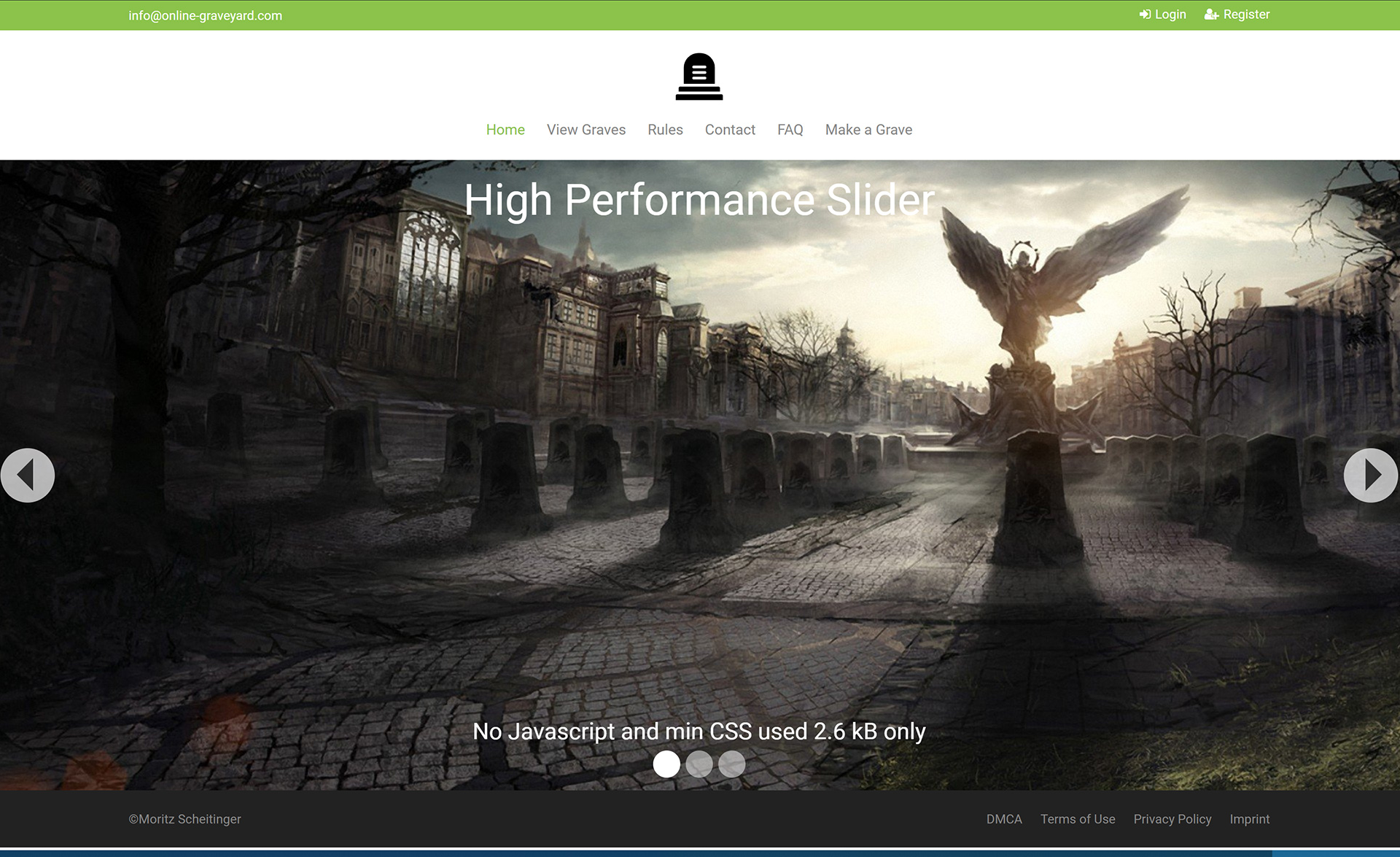
Slider on website with content

Performance Test

Features Explained

Features Explained

How to Use Step 1

How to Use Step 2

How to Use Step 3

How to Use Step 4

How to Use Step 5

How to Use Step 6

How to Use Step 7

Mobile Example

Mobile Example
Changelog
1.0
- Initial Release