
Integration for Zoho Desk
Connect Contact Form 7, WPForms, Elementor Forms, Gravity Forms, and Formidable Forms submissions with Zoho Desk.
Plugin info
Maintenance & Compatibility
Maintenance score
Maintained • Last updated 132 days ago
Is Integration for Zoho Desk abandoned?
Likely maintained (last update 132 days ago).
Compatibility
Similar & Alternatives
Explore plugins with similar tags, and compare key metrics like downloads, ratings, updates, support, and WP/PHP compatibility.
Description
This plugin sends form submissions from Contact Form 7, WPForms, Elementor Forms, Gravity Forms, and Formidable Forms to Zoho Desk.
When a user submits a form, the plugin can create support tickets in your Zoho Desk account. This helps reduce manual ticket creation and keeps your support system synchronized with your website forms.
Supported form plugins:
Authentication
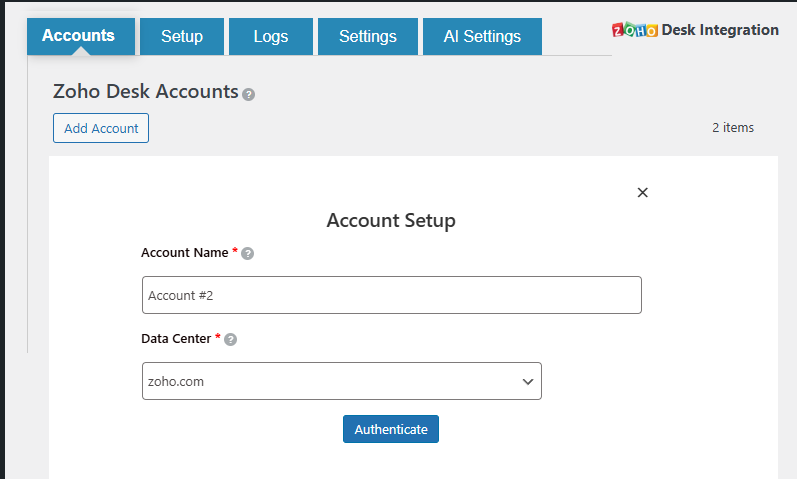
To connect your Zoho Desk account:
- Go to the Accounts page in the plugin.
- Click Add Account.
- Enter an identifiable account name (for example, “Main Zoho Desk Account”).
- Select the appropriate data center (for example,
zoho.com,zoho.eu). - Click Authenticate to open the Zoho authorization page.
- Log in to Zoho and approve the requested permissions.
- After approval, you will be redirected back to WordPress, and the account will be listed on the Accounts page.
Add Integration
To create a new integration:
- Go to the Setup page.
- Click Add Integration.
- Enter an integration name (for example, “Support Ticket Form”).
- Select the form type (Contact Form 7, WPForms, Elementor, Gravity Forms, or Formidable).
- Choose the connected Zoho Desk account.
- Select the Zoho Desk department where tickets should be created.
- Map form fields to Zoho Desk fields in the field mapping section.
- Optionally map additional fields such as priority, category, custom fields, or attachments (where supported).
- Use the filter criteria section to apply conditions (for example, create tickets only when specific conditions are met).
- Click Save Mapping.
Logs
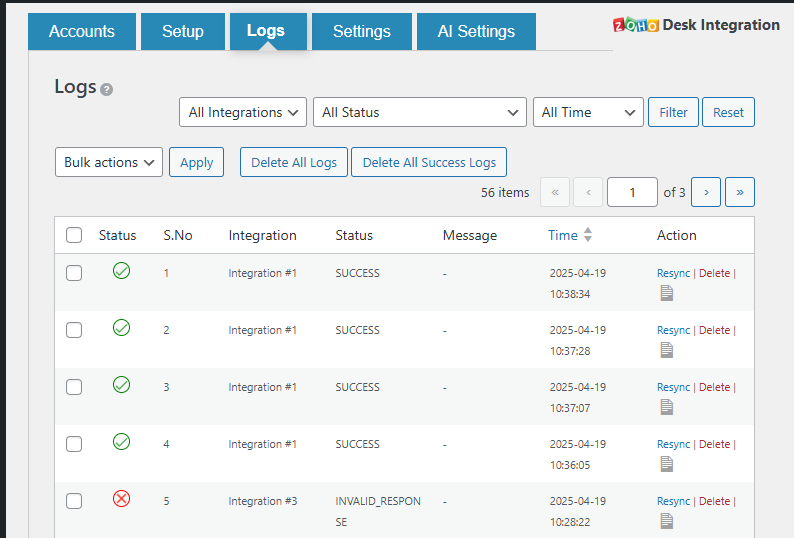
The plugin provides a logs section to review how data is being sent to Zoho Desk.
- Open the Logs page to see a list of submissions and their statuses.
- Typical statuses include:
- SUCCESS – ticket created successfully.
- RECORD_FAILED – ticket not created due to an error.
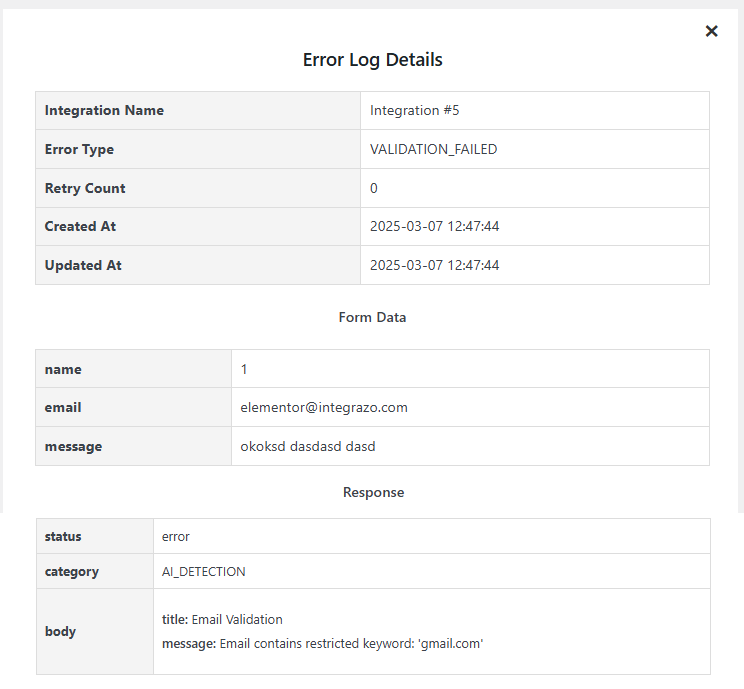
- AI_DETECTION – held due to AI rules (for example, domain or validation rules).
Additional options:
- Filter logs by integration, status, or date range.
- Open the log details view to see the full request, response, and error messages.
- Resync or delete individual records, or use bulk actions where available.
- Review AI-detected records and resync them after manual review, if required.
Settings
Global settings can be managed from the Settings page:
- Delete data on uninstall – when enabled, plugin data will be removed when the plugin is deleted from WordPress.
- Error email notification – enable or disable email notifications when a record fails.
- Notification emails – specify one or more email addresses (comma-separated) to receive error notifications.
- Email subject – set the subject line for error notification emails.
AI Settings
AI-related options can be managed from the AI Settings section:
- Email validation – configure rules to handle email addresses from specific domains.
- Blocked domains – add or remove domains that should be treated according to your rules.
- Action for blocked emails:
- Send to Zoho Desk (ignore AI detection), or
- Store in logs for review and manual resync later.
- Tabs for Email Validation, Email Detection, and Spam Detection – configure rules separately for each type of check.
Privacy and Data Handling
- Form submission data is sent from your WordPress site to Zoho Desk via their API.
- The plugin does not send data to any third-party service other than the configured Zoho services.
Free and Paid Features
Free version includes:
- Connect up to 2 Zoho Desk accounts
- Connect up to 2 forms
- Support for standard fields and basic field mapping
- Custom value support
- System fields mapping (where available)
- Basic AI options
- Error log view and basic management
Paid version adds:
- Unlimited account connections (subject to Zoho limits)
- Unlimited form connections
- Premium field support
- Custom field mapping
- Extended AI controls and detection rules
- Advanced resync options and log handling
- Email notifications for failed records
Upgrade now: https://integrazo.com/products/integrate-with-zoho-desk
Features Overview
- Connect Zoho Desk to supported form plugins
- Configure multiple Zoho Desk accounts and departments
- Map form fields to Zoho Desk fields, including custom fields
- Real-time ticket creation
- Optional conditional logic
- Activity logs with status and error details
- Resync options for failed or AI-held records
- AI-based email and spam handling
- Optional email notifications
- Settings to control data removal on uninstall
Support
If you need help or want to request a feature:
- https://integrazo.com/pages/contact
- https://integrazo.com/pages/request-feature
Website: https://integrazo.com
Email: [email protected]
Additional Notes
This plugin supports WordPress multisite installations and has been tested for compatibility with recent WordPress versions.
Installation
Automatic installation
1. Go to Plugins > Add New in your WordPress dashboard.
2. Search for Integrazo and locate this plugin.
3. Click Install and then Activate.
4. Go to plugin settings to connect your Zoho Desk account and start syncing.
Manual installation
1. Upload the plugin ZIP file via Plugins > Add New > Upload Plugin.
2. Activate the plugin.
3. Go to the plugin settings and complete the setup.
Frequently Asked Questions
This plugin currently supports:
- Contact Form 7
- WPForms
- Elementor Forms
- Gravity Forms
- Formidable Forms
- Open the plugin and go to the Setup tab.
- Choose Contact Form 7 as the form type.
- Select the Zoho Desk department.
- Map the Contact Form 7 fields to Zoho Desk fields.
- Save the integration.
- Go to the plugin’s Setup section.
- Select WPForms as the form type.
- Choose the Zoho Desk department.
- Map WPForms fields to Zoho Desk fields.
- Save the integration.
The same steps apply for Elementor Forms, Gravity Forms, and Formidable Forms.
Yes, you can map form fields to custom fields in Zoho Desk where supported.
Failed submissions are:
- Recorded in the Logs section
- Shown with error messages returned by Zoho Desk
- Available for manual or bulk resync
Yes. Form entries are sent to Zoho Desk immediately after submission.
Yes. You need an active Zoho Desk account to send data from your WordPress site to Zoho Desk.
The plugin uses OAuth 2.0 for authentication and communicates over HTTPS.
Review feed
Screenshots
Connect account

Map fields
Integration logs
Detailed log view
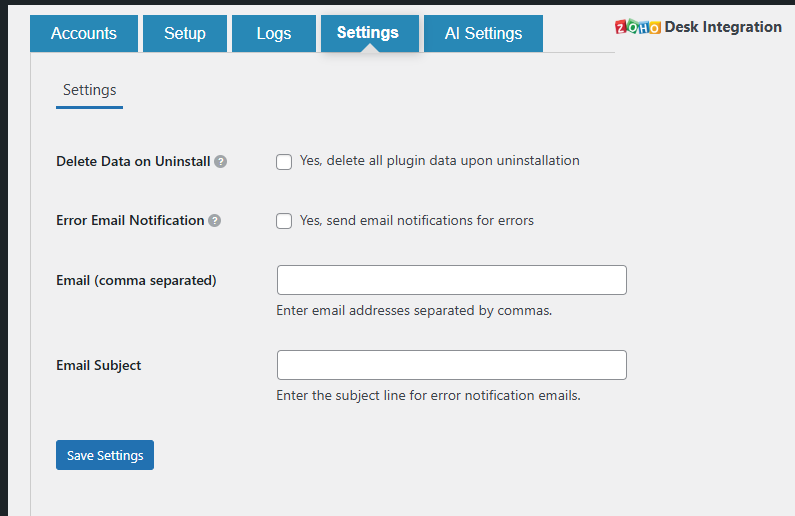
Settings page
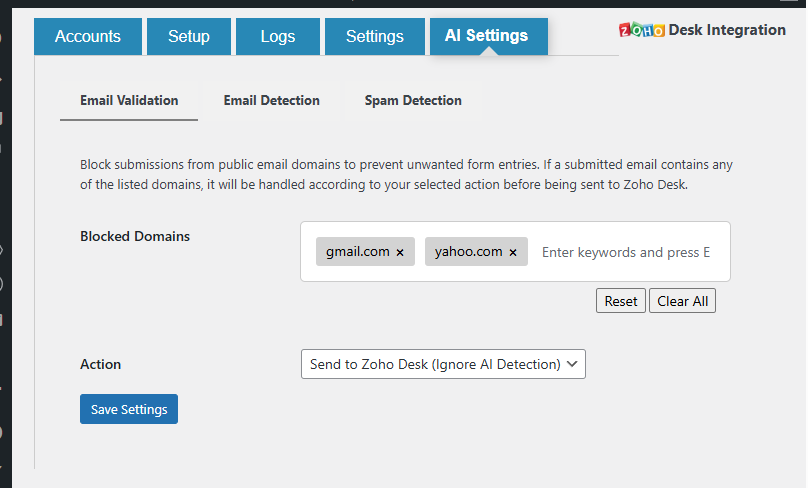
AI validation settings
Changelog
1.0.7
- Updated: Readme file revised to follow WordPress.org guidelines.
- Updated: Description, tags, and sections rewritten for clarity and compliance.
1.0.6
- Changed: Elementor Forms integration flow updated for smoother setup.
- Improved: Better results and reliability when mapping Elementor form fields.
1.0.5
- Fixed: PHP 7.4 compatibility adjustments.
- Fixed: Parse error during plugin activation.
- Improved: Security checks and sanitization in OAuth flow.
1.0.4
- Added: New FAQ about disabling specific integrations.
- Fixed: All error notices shown by WP error log or debug mode.
- Checked: Plugin tested with latest WordPress 6.8 and works fine.
1.0.3
- Fixed: “Invalid_Data” API response issue.
- Added: Description field mapping.
1.0.2
- Fixed: Elementor Forms field-loading issue.
1.0.1
- Added: Improved validation and sanitization.
- Fixed: Issue causing a blank page when selecting a department.
1.0.0
- Initial release with:
- Support for Contact Form 7, WPForms, Elementor Forms, Gravity Forms, and Formidable Forms.
- OAuth authentication.
- AI validation options.
- Error logging and resync.