

JavaScript Obfuscator
Encrypt Your JavaScript Source Code By Obfuscating To Prevent Let Others Copying.
Plugin info
Maintenance & Compatibility
Maintenance score
Maintained • Last updated 142 days ago • 2 reviews
Is JavaScript Obfuscator abandoned?
Likely maintained (last update 142 days ago).
Compatibility
Similar & Alternatives
Explore plugins with similar tags, and compare key metrics like downloads, ratings, updates, support, and WP/PHP compatibility.
Description
Obfuscate your JavaScript Source Code to enable anti-theft protection by converting your js source code into completely unreadable form & preventing it from analyzing and reusing.
Features:
- Enable/Disable Obfuscating Any Time
- Include Script By File Name
- Obfuscate JS Source Code Using 3 Different Modes (Minify Too)
- Cache Feature
Installation
To add a WordPress Plugin using the built-in plugin installer:
Go to Plugins > Add New.
- Type in the name “JavaScript Obfuscator” in Search Plugins box
- Find the “JavaScript Obfuscator” Plugin to install.
- Click Install Now to begin the plugin installation.
- The resulting installation screen will list the installation as successful or note any problems during the install.
If successful, click Activate Plugin to activate it, or Return to Plugin Installer for further actions.
To add a WordPress Plugin from GitHub repo / plugin zip file :
1. Go to WordPress plugin page
2. Click Add New & Upload Plugin
3. Drag / Click upload the plugin zip file
4. The resulting installation screen will list the installation as successful or note any problems during the install.
If successful, click Activate Plugin to activate it, or Return to Plugin Installer for further actions.
Frequently Asked Questions
Just after installing the plugin, go to settings page and enable the obfuscating settings according to your needs… See screenshot.
Review feed
Screenshots
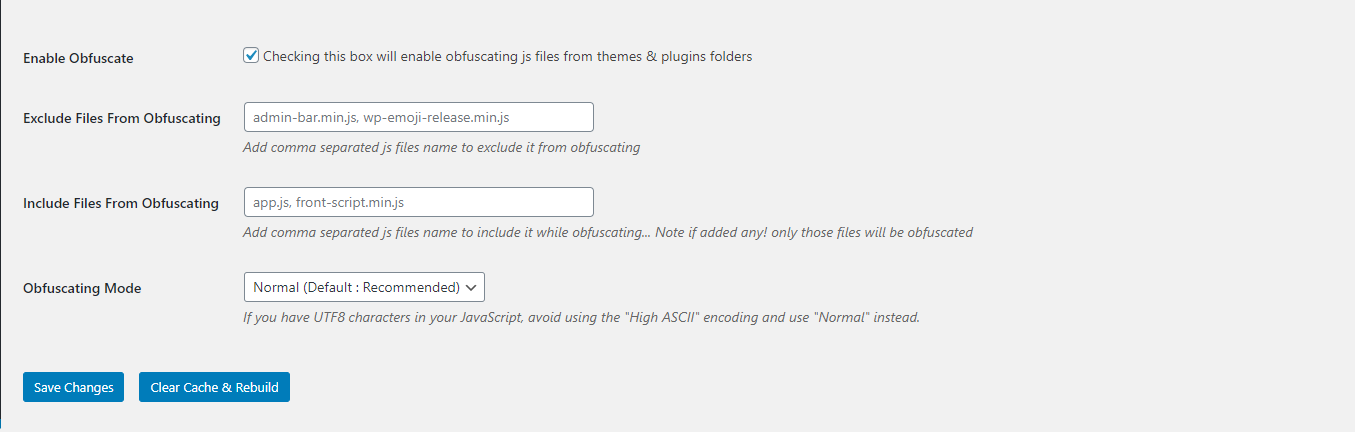
Obfuscating Settings
Changelog
2.0.3
- Fixed issue: PHP v8.1 warning
2.0.2
- Fixed issue: typo giving fatal error
2.0.1
- Checked for latest wp version 6.8
2.0.0
- Major changes in codebase. Compatibility checkup for latest wp version 6.7
1.0.3
- Compatibility check for wp 6.6
1.0.2
- Compatibility check for wp 6.3
1.0.1
- Compatibility check for wp 6.0
1.0.0
- Initial release.