
Jump Links Block (SEO 44)
A custom block that automatically creates a clickable, customizable Jump Links table of contents from the headings in your post.
Plugin info
Maintenance & Compatibility
Maintenance score
Maintained • Last updated 125 days ago
Is Jump Links Block (SEO 44) abandoned?
Likely maintained (last update 125 days ago).
Compatibility
Similar & Alternatives
Explore plugins with similar tags, and compare key metrics like downloads, ratings, updates, support, and WP/PHP compatibility.
Description
A WordPress block that automatically generates a customizable Jump To “On this Page“ table of contents to improve user navigation and engagement on your posts and pages.
Jump Links Block (SEO 44) intelligently scans your content for headings and creates a dynamic, interactive list of links. With a complete collection of controls in the editor sidebar, you have command over the block’s functionality and appearance, from reordering links to fine-tuning the design for your theme.
The SEO & User Engagement Benefits
Boost Your SEO & User Engagement
Adding a well-structured table of contents is one of the most effective ways to improve both your website’s user experience and its visibility in search engine rankings. The Jump Links Block is more than just a navigation tool; it’s a powerful feature for enhancing your SEO.
Stand Out in Search Results
Google and other search engines can detect the anchor links created by this block and may feature them directly in the search results. This adds valuable “Jump to” links below your page description (also known as fragment links or in-page links), allowing users to go directly to the section that answers their question.
Improve Click-Through Rate (CTR)
By occupying more space in the search results and presenting a clear outline of your content, you make your listing more appealing and informative. This encourages more users to click on your link over your competitors, directly boosting your CTR—a key metric that can lead to better search engine rankings.
Enhance User Experience
For long articles, a table of contents is essential. It allows readers to easily navigate to the sections they care about most, and see exactly where they are in the article at a glance, which reduces bounce rates and increases the time they spend on your page. Search engines place value on these positive user engagement signals.
Provide Clear Context for Search Engines
A list of jump links acts as a clear, semantic outline of your page’s structure. This helps search engines better understand the topics and sub-topics you cover, which can improve your chances of ranking for a broader range of related search queries.
Key Features
Automatic & Intelligent
-
Auto-Generates Links: Scans your document in real-time and creates a list of links from your H2, H3, and H4 heading blocks.
-
Smart Anchor ID Handling: Automatically adds unique, semantic ID attributes to heading blocks that don’t have one.
-
Respects Your Content: Never overwrites a custom ID you’ve already added to a heading, giving you complete control.
-
Live Syncing: The list automatically updates in real-time as you add, remove, or edit headings in the editor.
Full Customization
-
Viewing & Editing Modes: Switch between a clean preview (Viewing Mode) and a detailed interface (Editing Mode) directly in the sidebar’s “Presentation” panel.
-
Custom Link Text: Change the text of any link. For example, turn a long heading like “Frequently Asked Questions about Our Product” into a short and simple “FAQ.”
-
Custom Ordering: Easily reorder links with simple up and down arrow buttons to create the perfect flow for your readers.
-
Toggle Visibility: You can exclude any heading from the list with a simple “Include/Exclude” toggle. This allows you to leave a section out of your Jump Links List, if desired.
-
Customizable Heading: Add an optional title (like “On This Page”) above your list of links.
Advanced Styling
-
Organized Sidebar: All styling controls are neatly organized in a dedicated “Appearance” panel.
-
Layout Control: Display your links in a standard vertical list or a modern horizontal, button-style layout.
-
List Styles: Choose between a bulleted list (
-
Typography: Control the font size with a simple picker, including a reset button.
-
Block Background: Set a background color for the entire block container to make your table of contents pop or match your theme’s card style. This setting extends upon the block margin, padding, and border options within the block styling tab.
-
Full Color Control: Use integrated color pickers to customize: Link Color, Other Text Color (for bullets, numbers, and the main heading).
-
Conditional Horizontal Link Styles: When in the horizontal layout, you can fine-tune the design with controls for Link Background Color, Link Background Color on hover, Link Border Color, and border radius.
-
Visual Hierarchy: Optional “Smart Indentation” creates a nested outline look, making it easier for readers to scan your document structure in a larger Table of Contents (e.g., indenting H3s under H2s).
Front-End Experience
-
Smooth Scrolling: Clicking a link smoothly scrolls the user to the relevant section of the page, providing a modern and pleasant user experience.
-
Collapsible List: Optional feature to collapse long lists with an elegant “Show More” / “Show Less” SVG icon button to expand and contract the list horizontally or vertically.
-
Sticky Navigation: Optionally, keep the table of contents pinned to the viewport as users scroll, ensuring navigation is always accessible for long articles.
-
Smart Sticky Controls: Includes a Top Offset setting to prevent the block from hiding behind your site’s sticky header, a Jump Offset setting to ensure that the sticky header does not cover the heading text, and a Disable on Mobile strategy to prevent it from blocking content on small screens.
-
Auto-Hide Title: When using Sticky Positioning, the block title (e.g., “On This Page”) automatically fades out and collapses once the block sticks to the top of the screen. This maximizes reading space while keeping the navigation links accessible.
-
Active Link Indicator (ScrollSpy): As your readers scroll through the content, the table of contents automatically highlights the link for the section they are currently reading, giving them instant context on their progress.
How to Use
- Create or edit a post or page.
- Click the + icon to add a new block and search for Jump Links Block.
- Add the block to your page. It will automatically find your headings.
- Use the settings in the editor sidebar to customize the block.
A. In the Presentation panel, switch to Editing Mode to see all the controls for customizing individual links (reordering, renaming, and hiding).
B. In the “Appearance” panel, control the layout, styling, and colors.
C. In the “Heading Settings” panel, toggle the optional title and select which heading levels to include.
You Might Also Like
If you like this plugin, you might also enjoy these WordPress tools:
- Search Appearance Toolkit (SEO 44) – A lightweight, feature-packed SEO plugin for WordPress that offers a comprehensive suite of site optimization tools, all easy to control.
- Microdata to JSON-LD Converter – A handy tool to convert your existing Schema.org Microdata into the preferred JSON-LD format, clean up your HTML, and maintain structured data.
- Under The Weather – A lightweight and customizable weather widget, powered by the OpenWeather API, that caches and presents weather data with multiple style options.
Installation
From the WordPress Plugin Directory File
- Log in to your WordPress Admin Dashboard.
- Navigate to Plugins > Add Plugin in the left-hand menu.
- Search for the plugin: Jump Links Block (SEO 44).
- Install the plugin: Once you locate the correct plugin, click the “Install Now” button next to it.
- Activate the plugin: After the installation is complete, click the “Activate Plugin” button that appears.
From a Zip File
- Download a copy of the plugin, available in the WordPress Plugin Directory Jump Links Block (SEO 44) webpage.
- Upload the jump-links-block-seo-44 folder to the
/wp-content/plugins/directory - Activate the plugin through the Plugins menu in WordPress.
Frequently Asked Questions
The main Search Appearance Toolkit (SEO 44) plugin is a complete suite of tools that includes meta tag optimization, schema generation, XML sitemaps, and the Jump Links Block. This standalone Jump Links Block (SEO 44) plugin offers only the Jump Links Block functionality for users who don’t need a full SEO suite. If you are using the Search Appearance Toolkit (SEO 44) plugin, you already have access to the Jump Links Block and do not need to install this standalone block plugin.
While they look similar, sitelinks and jump to links are two distinct features in Google’s search results. The main difference is where the links take the user.
-
Sitelinks: Links to separate pages on the same website (site-level navigation). They most often appear for branded searches when Google is confident the user wants to navigate the main sections of a specific site. Their purpose is to navigate a website’s main sections and help users get to the most popular or important pages on a website more quickly.
-
“Jump to” links: Links to different sections within the same page (page-level navigation). Jump To Links are also called “fragment links” or “in-page links.” They typically appear for long articles, tutorials, or FAQs where a table of contents with anchor links is used. Their purpose is to navigate a long piece of content and take search users directly to the specific part of the page that answers their question.
Jump To Links are the search result feature that the Jump Links Block is designed to create.
That’s your choice. By default, the block will create a list of the H2 headings, but you can add H3 and H4 headings (or remove H2 headings) by simply checking a box (H1 and H5 headings are not included as they are less commonly used for in-page content structure). Control which levels are included in the Heading Settings panel in the sidebar by checking or unchecking the boxes. You can also use the Editing Mode screen to exclude individual headings from your list.
In the block’s sidebar, go to the Presentation panel and click the Editing Mode button. This will reveal all the controls inside the block editor for customizing each link. When you’re done, you can switch back to Viewing Mode to see a clean preview.
No. The block is designed to be smart about this. If a heading block already has a custom anchor ID, the Jump Links Block will use that existing ID and will not overwrite it. It only adds an ID if one is missing. The anchor ID is required to create semantic jump links.
Note: If one of the headings on your page is “Office Directions,” the ID created will be “office-directions.” This could create a potential conflict if you have another ID on your webpage named “office-directions.” In this case, assign a different ID to the block heading to resolve the conflict.
In the block settings sidebar, look for the Position Settings panel. Toggle on “Sticky Position”.
You can then use the “Top Offset” slider to adjust how far from the top of the screen the block sits (useful if you have a sticky site header).
The sticky feature includes a “Disable on Mobile” setting that is enabled by default.
Sticky elements on mobile devices often cover up too much reading space and lead to a poor user experience. If you want it sticky on mobile, you can uncheck this box in the Position Settings panel.
Yes. In fact, you can customize the second jump links block to appear different than the first. For example, you might have a horizontal jump links block at the top of your page containing jump links to each H2 heading. Lower on your webpage, you could add a second jump links block formatted as a numbered vertical list of links for each H3 heading in the biggest section of your page.
The collapsible functionality and the Show More button, which features a down arrow icon, are front-end features that function using a JavaScript file. They are designed to work only on the live, published page. To give you an accurate preview, the editor displays a non-functional replica of the “Show More” button when the feature is enabled. You can hover over it to see a helpful tooltip, and clicking it will show an informational notice confirming that it’s interactive on the front end.
The special styling options for the horizontal layout (like link background and border color) will automatically appear in the Appearance panel in the sidebar after you select the “Horizontal” layout option.
You can save a fully customized Jump Links block as a Block Pattern to easily reuse it across your site. This is a handy WordPress feature. With Block Patterns, you don’t have to repeat the process of manually setting the same style settings for Jump Links blocks on multiple pages. That work is done for you.
Follow these instructions to create a Block Pattern of a Jump Links Block.
Review feed
Screenshots
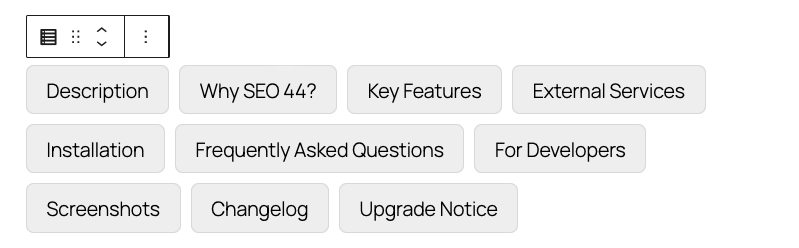
The Jump Links Block in Viewing Mode.
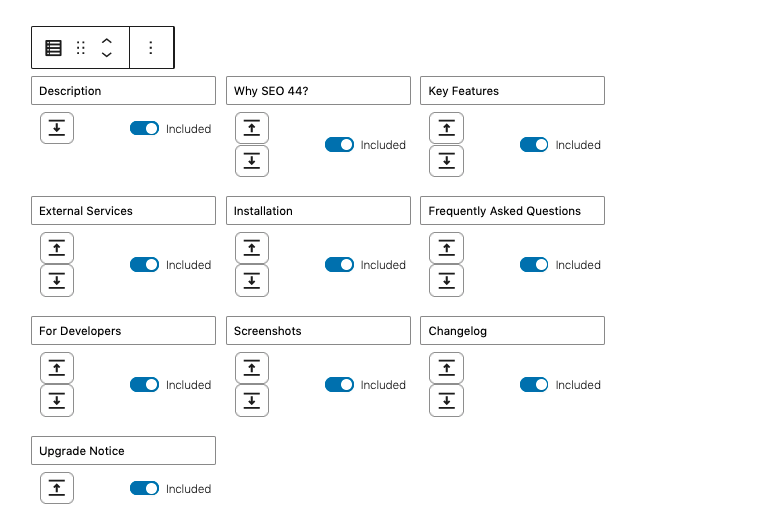
The Jump Links Block in Editing Mode.
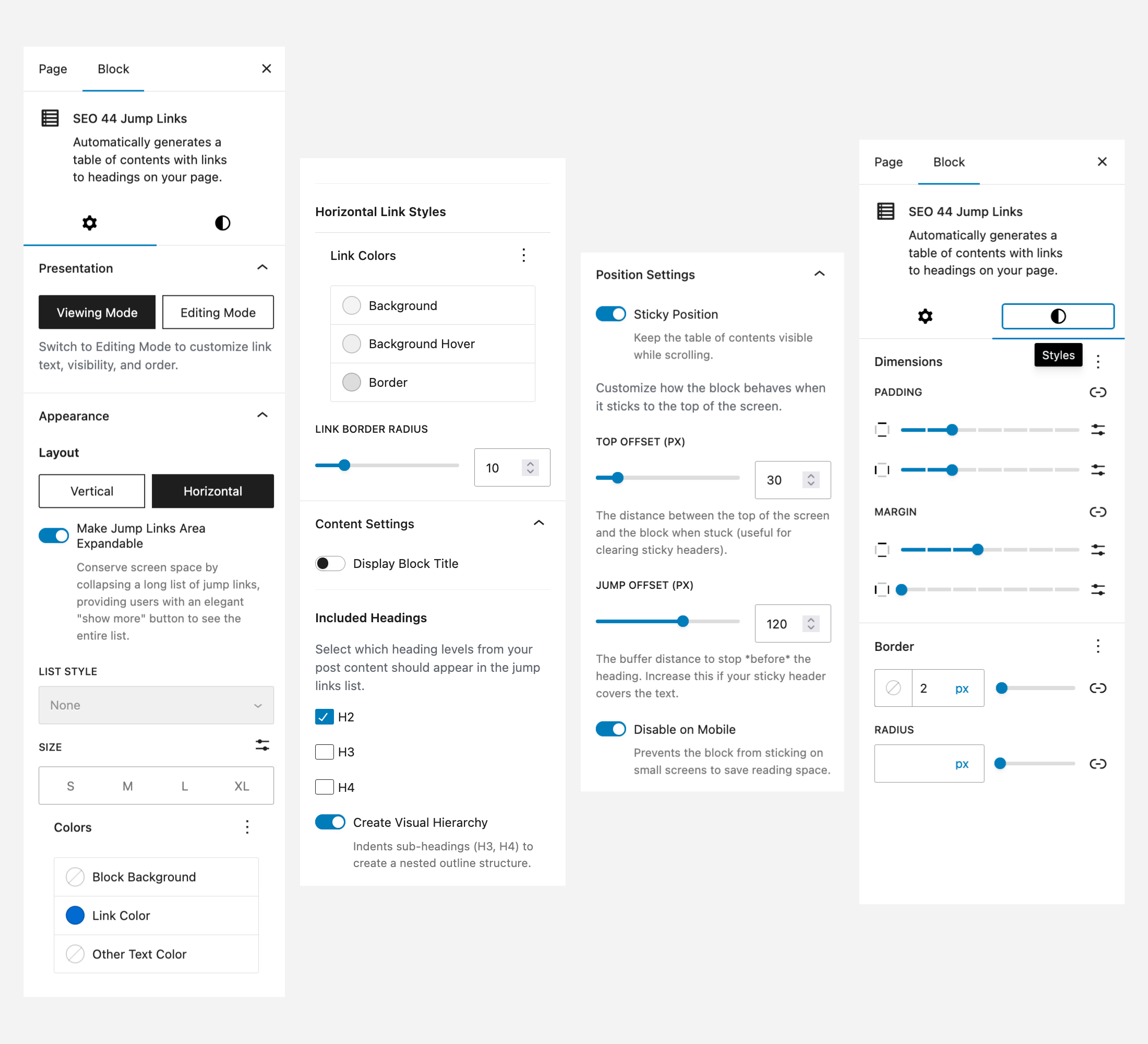
The Sidebar controls for the Jump Links Block.
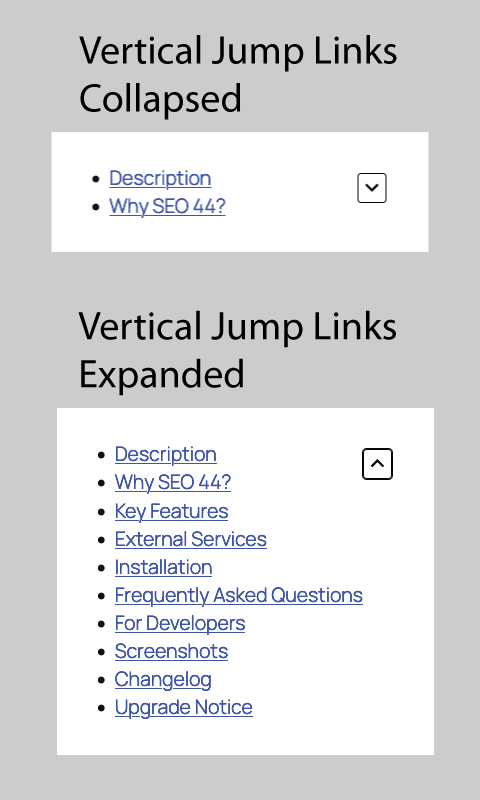
Published Vertical Jump Links, expanded and collapsed.
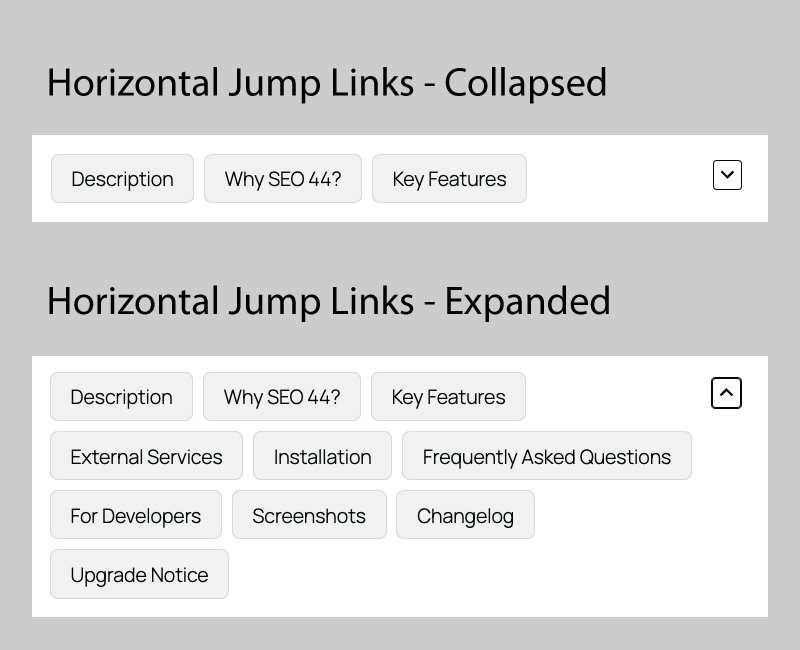
Published Horizontal Jump Links, expanded and collapsed.
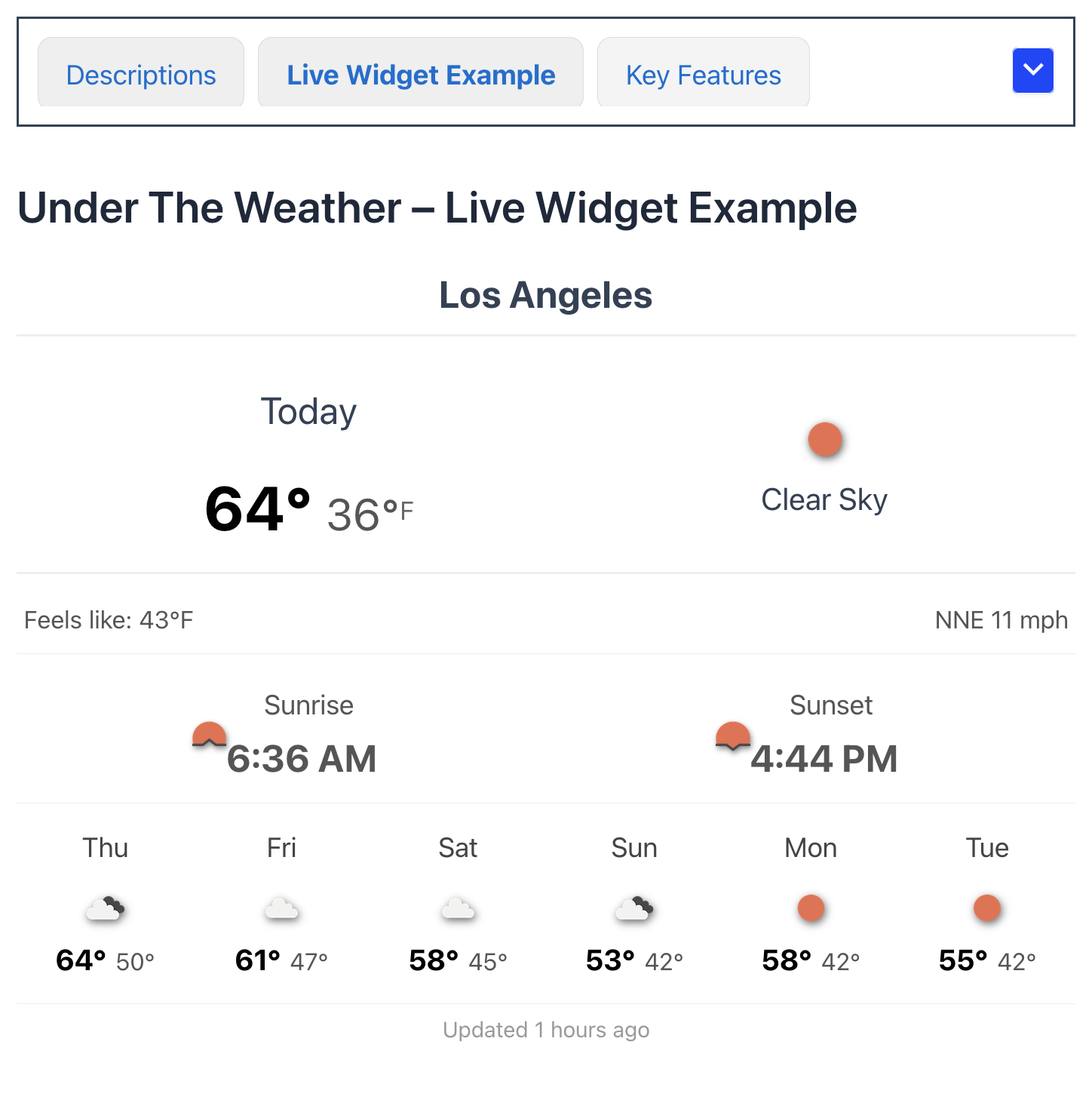
Published Horizontal Jump Links with sticky navigation showing the Active Link Indicator.
Changelog
2.0.1
- TWEAK: To avoid the bottom of horizontal link “buttons” from ever being cut off when the menu is collapsed, the styling has been finetuned to include a defined line-height for list items.
2.0.0
- FEATURE: Sticky Positioning: Keep your table of contents visible while users scroll. Includes a “Top Offset” slider to clear sticky headers, a “Jump Offset” slider to ensure that the sticky header does not cover the heading text, and a “Disable on Mobile” toggle to preserve screen space on small devices.
- FEATURE: Auto-Hide Title: Implemented a smart “sticky state” detection. When the block sticks, the title gently collapses and fades out to keep the interface clean (this occurs when a block title is used alongside sticky positioning).
- FEATURE: Smart Indentation: Added a “Create Visual Hierarchy” toggle. When enabled, H3 and H4 sub-headings are visually indented to create a clear, nested outline structure.
- FEATURE: Block Background: You can now set a background color for the entire block container, perfect for creating “card-style” floating navigation.
- FEATURE: ScrollSpy: Automatically highlights the active link in the table of contents as the user scrolls through the corresponding section of the post.
1.9.2
- FEATURE: Added support for Border and Spacing controls. You can now add borders, rounded corners, margins, and padding to the Jump Links block directly from the editor settings.
- FEATURE: Added a “Title tag” control. You can now choose the specific HTML tag (H2, H3, H4, H5, Paragraph, or Div) for the “On This Page” heading to better match your document structure.
- REFACTOR: Optimized the block’s styling logic to use CSS variables on the parent container instead of inline styles for every link. This reduces the block’s HTML size and improves rendering performance.
- FIX: Resolved an accessibility and HTML validation issue where using multiple Jump Links blocks on a single page created duplicate element IDs. Each block now generates a unique instance ID.
- PERFORMANCE: Refactored the front-end JavaScript to use event delegation for smooth scrolling. This reduces memory usage by attaching a single event listener to the block instead of individual listeners for every link.
- TWEAK: Reorganized the sidebar settings for better clarity between Block Title settings and Content Inclusion settings.
For a complete list of changes, please see the full changelog or the changelog.txt file included with the plugin.