

Login As Users
This plugin allows you to quickly change between user accounts at the click of a button.
Plugin info
Maintenance & Compatibility
Maintenance score
Possibly abandoned • Last updated 604 days ago • 1 reviews
Is Login As Users abandoned?
Possibly abandoned (last update 604 days ago).
Compatibility
Similar & Alternatives
Explore plugins with similar tags, and compare key metrics like downloads, ratings, updates, support, and WP/PHP compatibility.
Description
This plugin allows you to quickly change between user accounts at the click of a button.
This plugin gives ability to access any user account without having the user password by just clicking one button and thus solve problems or provide better and faster customer support.With one click admin will be logged in as the specific user and then he can handle any situation without wasting much time.
KEY FEATURES
- You can choose the position of the “Login as user” toolbar from this plugin’s settings (Login As User) page. There are four available positions, the top, the bottom, the left and the right.
- In the Admin area, go to the all users list. Now, all users of your website appear on the screen along with the Login as… button besides each name. You can click the button of the user you want to switch account.
- Woocommerce Supported.
- You will see the Login as user button beside each customer On the WooCommerce orders page and order edit page.
- Provide better support to your customers or users.
- No need to logout and login again to your customer or user account.
- You will be able to know what your customers or users see inside their account pages with just one click.
- No more search for customer passwords to login with.
- Redirect option to set specific page URL where you want to get redirect after get logged into another user’s account.
- Setting to select which username field admin wants to see on the “Login As…” button as well as on the front side sticky CTA. The selected name type will be show on the front side sticky CTA and “Login as …” button at the place of “…”.
HOW TO USE
- First Activate Plugin.
- Go to Login As User Menu page and activate Plugin Status then save settings.
- Then go user list page and click on “User as login” button for specific user.
Installation
Extract the zip file and just drop the contents in the wp-content/plugins/ directory of your WordPress installation and then activate the Plugin from Plugins page.
After Plugin Active go to Settings-> Login As User.
Frequently Asked Questions
Review feed
Goood
Screenshots

Plugin Settings

Users Page: On the Users List page, users will have a button "Login as User". You can click on this button to login to that specified account.

User’s Edit Profile Page: If you open any user profile page and want to login as this user, Just click the button "Login as User" at the top of the page.

WooCommerce Orders Page: If you have the WooCommerce plugin, In the WooCommerce orders page, the Login as user button appears beside each customer to login as that user.
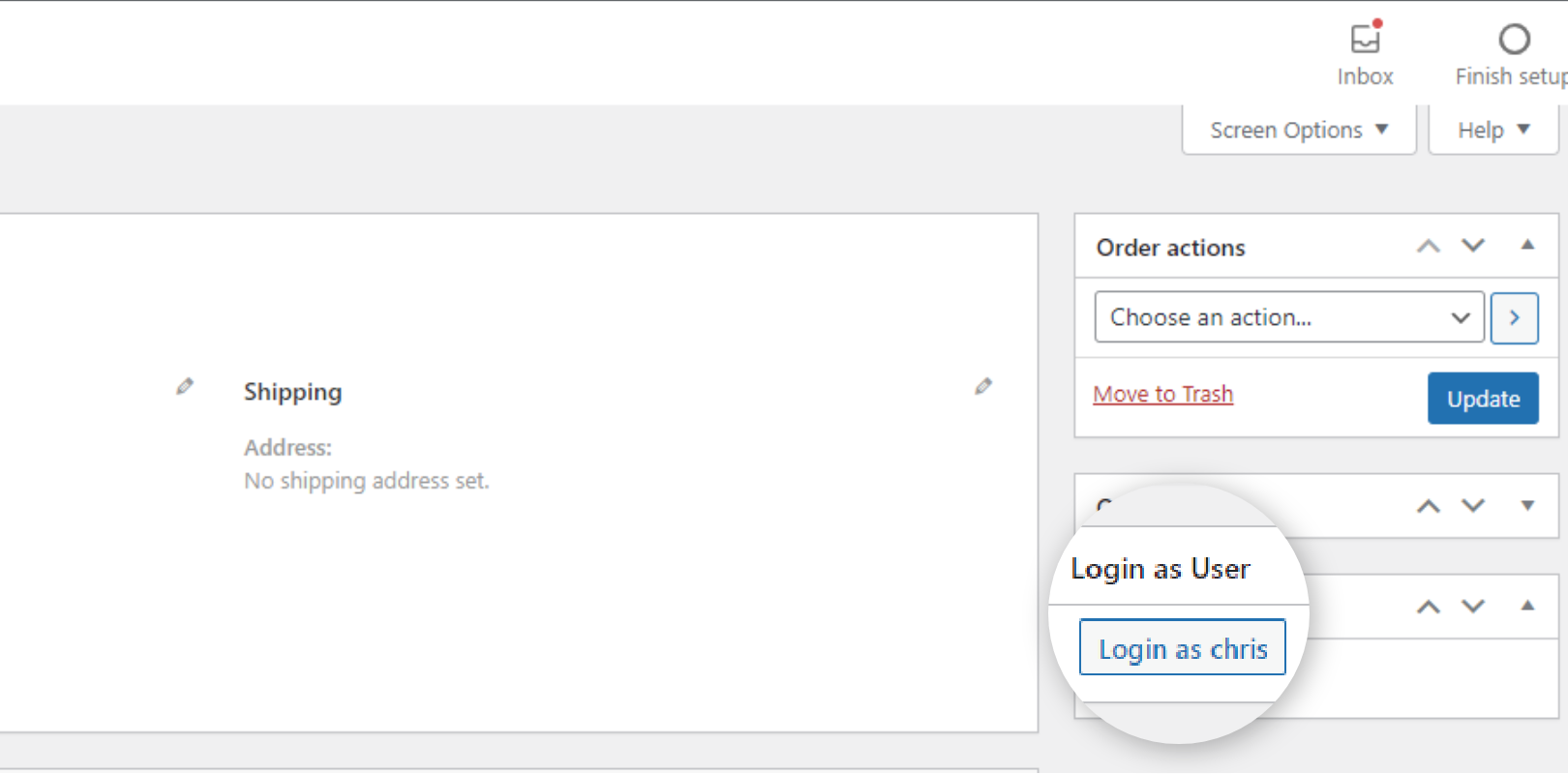
WooCommerce Order Details Page: If you want to check the details of a customer’s order? You can easily check the customer’s problem from his/her perspective by switching with the Login as User button on the WooCommerce order details page.

You will see this Sticky CTA after login as user, you can minimize this CTA. To get logout from the user's account and get back to your own account, you will have to click on the "Back To Your Account" Button.

You will see this CTA after minimizing the main CTA, you can click on this to open the main CTA which have "Back To Your Account" Button.
Changelog
1.4.4
- Fixed:
Nonce Verification for User Switching
User capability authentication for User Switching
1.4.3
- Fixed security bugs: Updated authentication to be session-based
1.4.2
- Fixed bug: login as user in woocommerce orders with HPOS
1.4.1
*Tested up to wp version 6.5
1.4
*Tested up to wp version 6.2.2
1.3
*Tested up to wp version 6.0.1
1.2
*Tested up to wp version 5.9
1.1
*Tested up to wp version 5.8.3
1.0
*Initial release