

Logto – User Authentication and Authorization
Enable beautiful and secure user authentication, including passwordless, social login, single sign-on, multi-factor authentication (MFA), and more.
Plugin info
Maintenance & Compatibility
Maintenance score
Stale • Last updated 365 days ago
Is Logto – User Authentication and Authorization abandoned?
Likely maintained (last update 365 days ago).
Compatibility
Similar & Alternatives
Explore plugins with similar tags, and compare key metrics like downloads, ratings, updates, support, and WP/PHP compatibility.
Description
Thank you for choosing Logto! By integrating Logto into your WordPress site, you are not only enhancing the security and user experience of your site, but also enabling a unified login experience across all your applications.
Why Logto?
Logto is an open-source Auth0 alternative and a modern authentication and authorization solution for all your applications, including your WordPress sites. With Logto, you can:
- Enable passwordless login, social login, single sign-on (SSO), and multi-factor authentication (MFA) for your WordPress site.
- Use role-based access control (RBAC) to manage user permissions.
- Support generic OAuth2, OpenID Connect, and SAML protocols.
- Customize the login and registration pages to match your brand.
In addition, Logto offers dozens of out-of-the-box integrations with popular social login providers, including Google, GitHub, Entra ID (Azure AD), Facebook, and more. Check out the full list of built-in integrations and social login providers.
Get started
If you are new to Logto, we recommend checking out our introduction page to have a quick overview of Logto concepts and features.
If you are looking for a step-by-step guide to set up Logto, please refer to our WordPress plugin quick start guide.
If you have any questions or feedback, please feel free to:
- Join our Discord server to get help from the community.
- Open an issue on GitHub to report bugs or request features.
- Subscribe to a paid plan to get access to official support and more features.
From WordPress admin panel
- Go to Plugins > Add New.
- Search for “Logto”.
- Click Install Now.
- Click Activate.
- Go to Settings > Logto to configure the plugin.
- Follow the quick start guide to set up Logto.
From WordPress.org
- Search for “Logto” in the WordPress.org plugin directory.
- Download the plugin ZIP file.
- Go to Plugins > Add New in your WordPress admin panel.
- Click Upload Plugin.
- Select the downloaded ZIP file and click Install Now.
- Click Activate.
- Go to Settings > Logto to configure the plugin.
- Follow the quick start guide to set up Logto.
Installation
Frequently Asked Questions
To enable passwordless login, ensure you have configured one of the passwordless login methods (email or SMS) in the Logto Console and enabled them in the sign-in experience page. For more information, refer to our Sign-in and sign-up documentation.
To enable social login, ensure you have configured one of the social connectors in the Logto Console and enabled them in the sign-in experience page. For more information, refer to our Social sign-in documentation.
To add an enterprise SSO connection, head to the Logto Console and click on “Enterprise SSO” in the left sidebar. Then, click on “Add enterprise connector” and follow the instructions to configure the connector.
To enable multi-factor authentication (MFA), head to the Logto Console and click on “Multi-factor auth” in the left sidebar. Then, enable the desired MFA methods and configure them as needed.
To customize the login and registration pages, head to the Logto Console and click on “Sign-in experience” in the left sidebar. Then, you can customize the appearance and behavior of the pages as needed.
Review feed
Screenshots
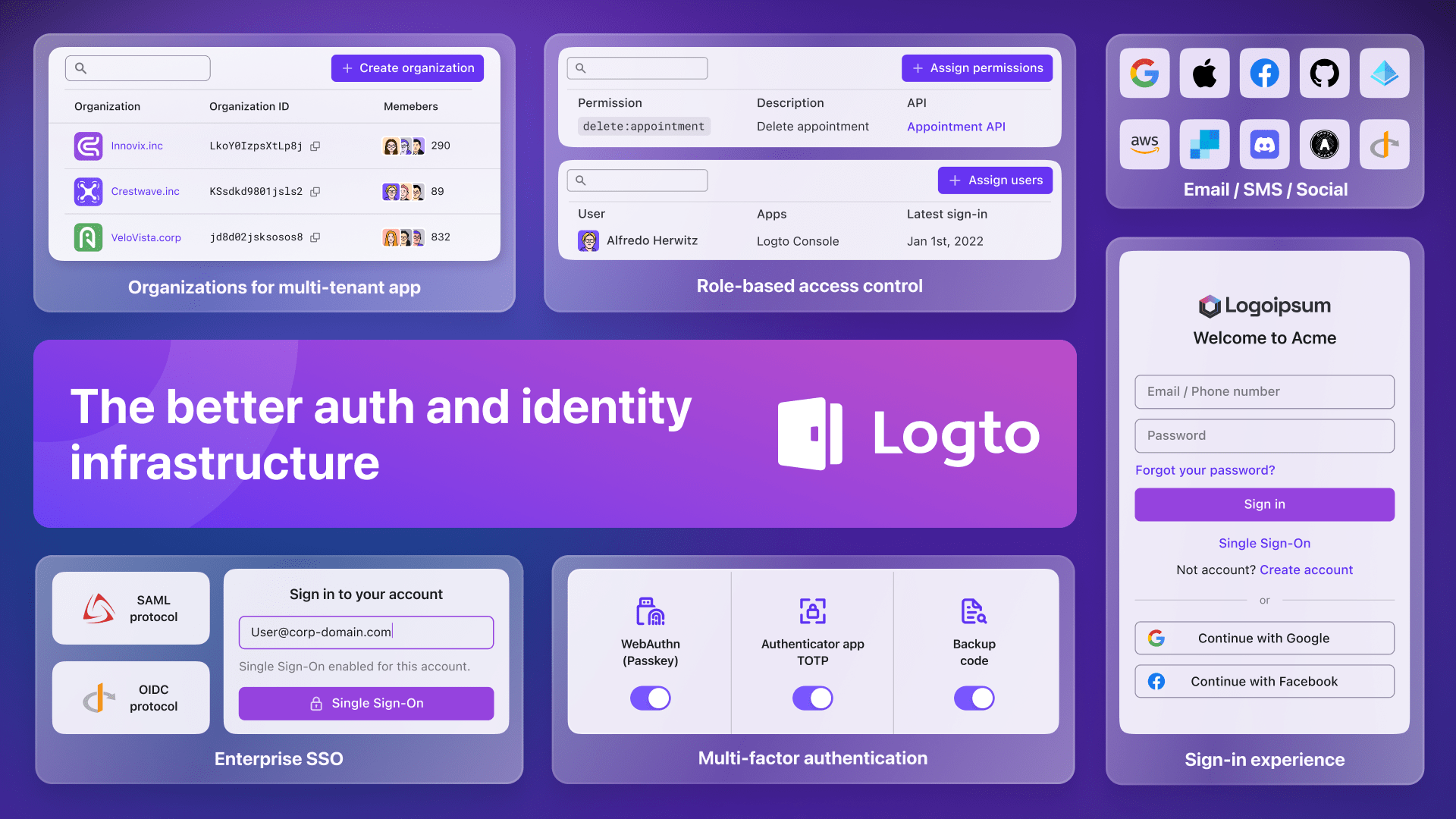
Logto feature overview.
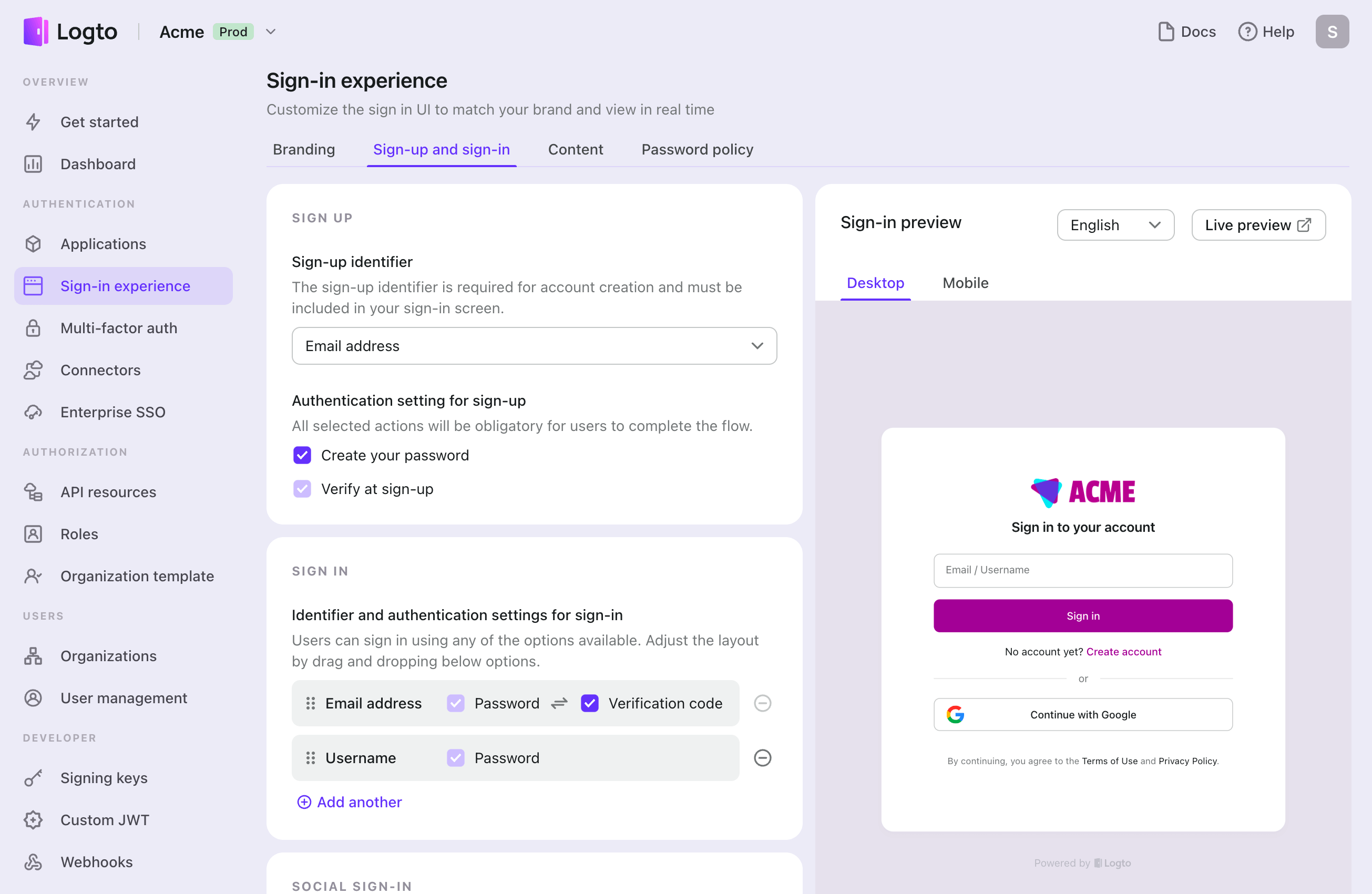
Logto sign-in experience configuration.
Changelog
See Releases.