
Material Design Icons
Insert Material Design Icons into your WordPress post and pages.
Plugin info
Maintenance & Compatibility
Maintenance score
Possibly abandoned • Last updated 3882 days ago • 3 reviews
Is Material Design Icons abandoned?
Possibly abandoned (last update 3882 days ago).
Compatibility
Similar & Alternatives
Explore plugins with similar tags, and compare key metrics like downloads, ratings, updates, support, and WP/PHP compatibility.
Description
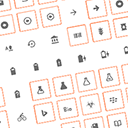
Enables 1000+ Material Design icons within WordPress pages and posts. Icons can be inserted with a shortcode or HTML markup.
Features
- Shortcode generator – includes an easy-to-use TinyMCE pop-up shortcode generator.
Usage
Material Design Icons can be used in 3 different ways: shortcode, HTML, and TinyMCE
1. Shortcode
[mdi-icon name="material-ul" size="2x" color="red"]
You can also use hex values for color:
[mdi-icon name=”material-ul” size=”2x” color=”#000000″]
You can read more about shortcode usage on Github
2. TinyMCE
Material Design Icons also provides you with a pop-up window when editing in TinyMCE’s visual mode. Check out our Screenshots to see what it looks like.
3. HTML
Note that prefixes are required for HTML usage. For this reason, shortcode usage is encouraged over HTML. A HTML version would look like:
Installation
To use any of the Material Design icons on your WordPress site follow the steps below:
- Upload
material-design-iconsto the/wp-content/plugins/directory - Activate the plugin through the ‘Plugins’ menu in WordPress
- Add the HTML markup or shortcode to your WordPress post or page.
A full list of the 1000+ Material Design icons is available: materialdesignicons.com/
To use any of the Material Design icons on your WordPress site you have two options:
HTML
Examples
Bell icon
<i class="mdi mdi-bell"></i>
Shortcode
Don’t want to worry about HTML tags? You can use a shortcode in your posts, pages and even widgets to display a Material Design icon.
The shortcode to use is [mdi-icon name=X], where name=X is the class of the icon you would like to use.
Examples
Amazon icon
[mdi-icon name="amazon"]
Since v0.0.3 you can now add size and color.
[mdi-icon name="amazon" color="red" size="2x"]
Hex values will work for the color option and the include size values are: lg, 2x, 3x, 4x, 5x, 6x, 7x, 8x, 9x, 10x
Author
Frequently Asked Questions
Can I use this in any WordPress theme?
Yes
Can I use the icons within widget areas?
Yes
Review feed
Screenshots

When you click the Material Design Icon in the post editor a pop-up window will appear to help build your icon shortcode.

Example of the HTML markup and the shortcode markup to display Material Design icons
Changelog
0.0.5
- tested on 4.3
0.0.4
- update MDI to 1.1.70
- fix icon font sizes
0.0.3
- Add TinyMCE button
- Add size and color options
0.0.2
- Update to Material Design Icons 1.0.62
0.0.1
- Initial release