

MaxBooking Booking Widget
The Official MaxBooking.com booking widget. Allow your customers to search for accommodation directly from your website.
Plugin info
Maintenance & Compatibility
Maintenance score
Possibly abandoned • Last updated 3008 days ago
Is MaxBooking Booking Widget abandoned?
Possibly abandoned (last update 3008 days ago).
Compatibility
Similar & Alternatives
Explore plugins with similar tags, and compare key metrics like downloads, ratings, updates, support, and WP/PHP compatibility.
Description
This plugin allows you to set up a widget for booking with MaxBooking.com and place it on your website.
Features
- Easy to use – Installation and setup is very easy and can be done in your WordPress administration.
- Flexible – You can select vertical or horizontal layout, default arrival date, number of nights, number of guests, etc.
- Customizable – You can easily use your own additional styles to customize the widget further.
- Shortcode support – The plugin provides a shortcode that allows you to insert the widget in the content of a page, post or any other place that uses content editor.
- Multiple widgets – You can add multiple independent widgets to your website with different settings (even for different properties).
If you don’t have a MaxBooking.com account for your hostel or hotel yet, you can sign-up for free here:
More information
For more information visit:
Installation
Automatic installation
The plugin can be easily installed from your WordPress administration.
- Log in to your site’s dashboard and navigate to “Plugins” -> “Add New”.
- Input “MaxBooking.com” into the search field and wait for plugin to show up.
- Click “Install Now” and when the installation finishes click “Activate Plugin”.
Manual installation
You can install the widget manually by downloading the zip file and extracting it in your “/wp-content/plugins” directory.
Configuration
- From your dashboard navigate to “Appearance” -> “Widgets”.
- Find “Booking Widget” in the “Available Widgets” list find and click on it.
- Select which section of the theme you would like to place the widget to and click “Add Widget”.
- In the selected section click the booking widget and the property ID (corresponds to the MaxBooking.com account ID).
- Optionally configure other other settings.
- Click Save and verify that the widget shows up on your website.
Shortcode
The plugin allows you to insert a booking widget within standard content by using a shortcode named “maxbookingwidget”.
The shortcode uses the following attributes:
property– Required. Property ID or a list of multiple properties with id an label (format as described in the widget settings).layout– Optional. Widget layout (style). Allowed values: “vertical”, “horizontal”.nights_default– Optional. Default number of nights.nights_max– Optional. Maximum number of nights.guests_default– Optional. Default number of guests.guests_max– Optional. Maximum number of guests.
Example usage:
[maxbookingwidget property="1234567" layout="vertical"]
Frequently Asked Questions
Installation Instructions
Automatic installation
The plugin can be easily installed from your WordPress administration.
- Log in to your site’s dashboard and navigate to “Plugins” -> “Add New”.
- Input “MaxBooking.com” into the search field and wait for plugin to show up.
- Click “Install Now” and when the installation finishes click “Activate Plugin”.
Manual installation
You can install the widget manually by downloading the zip file and extracting it in your “/wp-content/plugins” directory.
Configuration
- From your dashboard navigate to “Appearance” -> “Widgets”.
- Find “Booking Widget” in the “Available Widgets” list find and click on it.
- Select which section of the theme you would like to place the widget to and click “Add Widget”.
- In the selected section click the booking widget and the property ID (corresponds to the MaxBooking.com account ID).
- Optionally configure other other settings.
- Click Save and verify that the widget shows up on your website.
Shortcode
The plugin allows you to insert a booking widget within standard content by using a shortcode named “maxbookingwidget”.
The shortcode uses the following attributes:
property– Required. Property ID or a list of multiple properties with id an label (format as described in the widget settings).layout– Optional. Widget layout (style). Allowed values: “vertical”, “horizontal”.nights_default– Optional. Default number of nights.nights_max– Optional. Maximum number of nights.guests_default– Optional. Default number of guests.guests_max– Optional. Maximum number of guests.
Example usage:
[maxbookingwidget property="1234567" layout="vertical"]
Do I need to have a MaxBooking.com account to use this plugin?
No, to use a booking widget on your website you don’t need to own a MaxBooking.com account. You can create a widget to search for accommodation on any MaxBooking.com property as long as you know the account ID.
If you’re a property owner and want to set up a MaxBooking.com account, you can sign up for free here:
MaxBooking.com Signup
Where do I find the widget?
You can add the widget to your website by navigating to “Appearance” -> “Widgets”. The configuration details are described in the installation instructions.
How do I change the style of the widget?
To ensure that the widget adopts the styles of the theme you’re using (font style, button style, input box style, etc.) the plugin itself contains only very basic styles. Unfortunately, it is impossible to set it up so that would perfectly match all WordPress themes that exists.
However, the widget provides useful CSS classes that allow easy style customization. In WordPress version 4.7 and higher you can add your own CSS directly in the administration by going to “Appearance” -> “Customize” -> “Additional CSS”.
For more information visit:
Review feed
Screenshots

Example of vertical and horizontal layout with different themes.
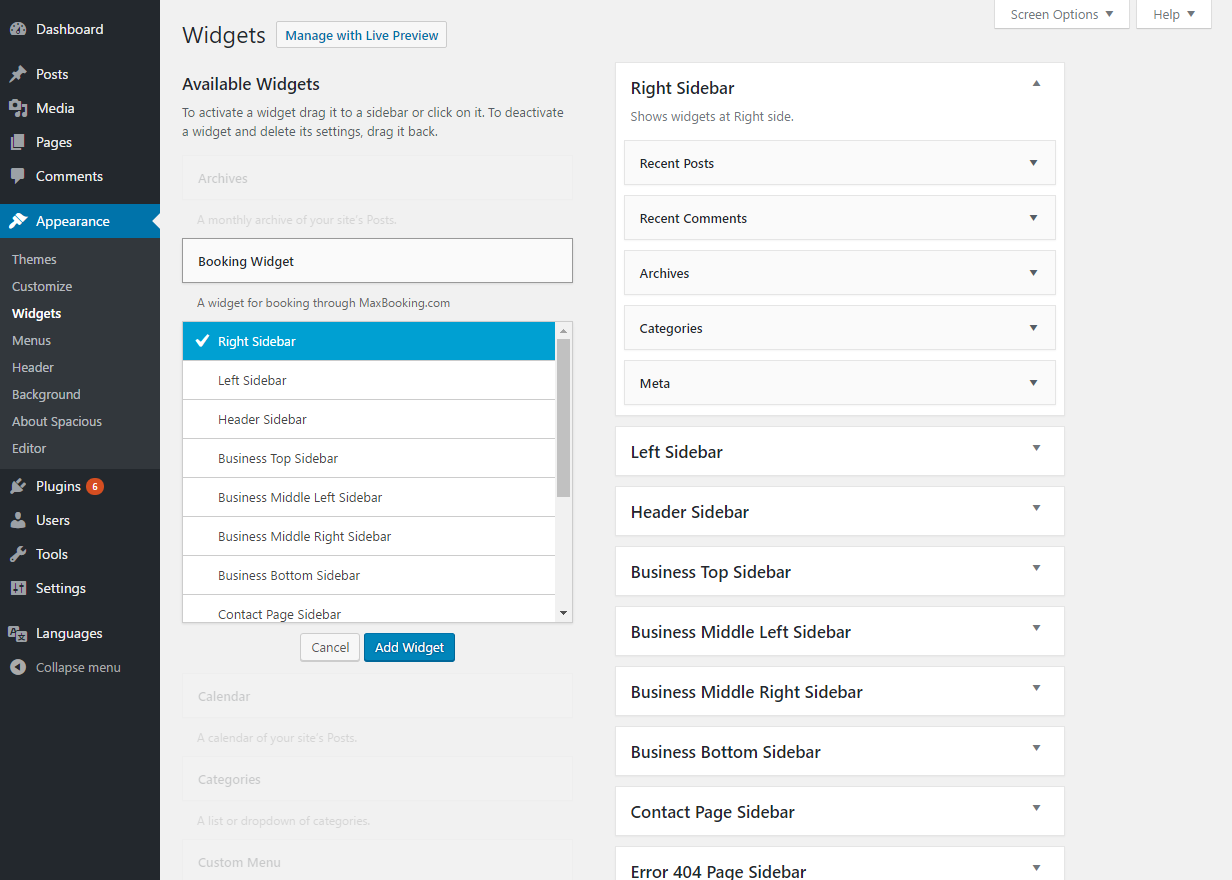
Adding a widget to a specific section.

Widget configuration.

Example of a widget in a sidebar and a widget in a page content (using shortcode).

Arrival date selection.
Changelog
1.1.1
- First release.
1.1.2
- Fixed layout issues caused by wpautop().
1.1.3
- Month format changed from full name to a shortened name.