

WP-Myposeo
The Myposeo plugin is an extension that allows you to track your SEO monitoring projects directly in your WordPress back-office.
Plugin info
Maintenance & Compatibility
Maintenance score
Possibly abandoned • Last updated 1869 days ago
Is WP-Myposeo abandoned?
Possibly abandoned (last update 1869 days ago).
Compatibility
Similar & Alternatives
Explore plugins with similar tags, and compare key metrics like downloads, ratings, updates, support, and WP/PHP compatibility.
Description
The Myposeo plugin is an extension that allows you to track your SEO monitoring projects directly in your WordPress back-office. To do this you must connect the extension to your Myposeo user account via the API key. To install the plugin, please follow the 6 steps in the installation tab.
This extension is only available to Myposeo users.
Note that updates of the extension are planned over time.
If you encounter any problems during installation, please contact our technical support.
Installation
Once the plugin is downloaded, follow the 6 steps below:
1-Login to your Myposeo account.
2-Click the “Configuration” button at the top right of the screen, then click on the “API” tab.
3-Copy your API key by pressing the “Copy to clipboard” button.
4-Go to the “admin” of your WordPress and click on “the Myposeo” tab then “Settings” on the menu on the left of the screen.
5-Copy the API key in the “API Key” field
6-Then select “a campaign” being tracked in your Myposeo user account then press the “validate” button (You can also refer to the project ID to select your campaign).
Frequently Asked Questions
Review feed
Screenshots

Login to your Myposeo account.

Click the "Configuration" button at the top right of the screen, then click on the "API" tab.
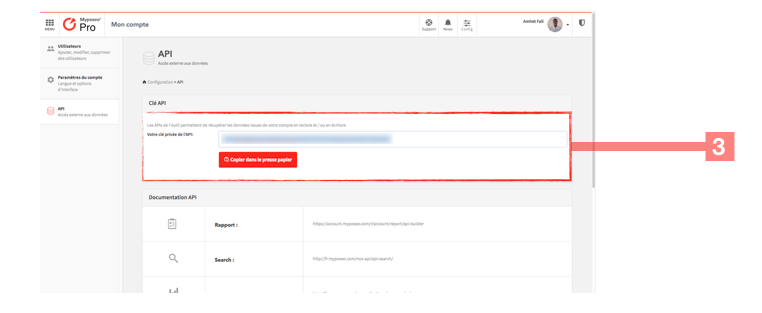
Copy your API key by pressing the "Copy to clipboard" button.

Go to the "admin" of your WordPress and click on "the Myposeo" tab then "Settings" on the menu on the left of the screen.

Copy the API key in the "API Key" field

Then select "a campaign" being tracked in your Myposeo user account then press the "validate" button (You can also refer to the project ID to select your campaign).


