

Authorize.net for WooCommerce
Authorize.net WooCommerce addon adds a payment option for customers to pay with their Credit Cards.
Plugin info
Maintenance & Compatibility
Maintenance score
Possibly abandoned • Last updated 3265 days ago
Is Authorize.net for WooCommerce abandoned?
Possibly abandoned (last update 3265 days ago).
Compatibility
Similar & Alternatives
Explore plugins with similar tags, and compare key metrics like downloads, ratings, updates, support, and WP/PHP compatibility.
Description
Authorize.net WooCommerce addon adds a payment option for customers to pay with their Credit Cards.
WooCommerce 3 Compatible
Features
- Accept Card right on your website.
- No redirecting on other url.
- Easy to install and configure
- Option to configure success & failure message
- Safe way to process credit cards and debit cards on WooCommerce using Authorize.net
- This plugin uses internal card processing, so faster and more relaible.
Support
So that others can share in the answer, please submit your support requests through the WordPress forums for Authorize.net for WooCommerce(https://wordpress.org/support/plugin/os-woocommerce-authorizenet-aim).
Installation
Minimum requirements:
WordPress 4.3+
WooCommerce 2.6+
PHP 5.5x
MySQL 5.2x+
Installation from within backend:
- In plugin manager, click “Add New”
- Search for “os-woocommerce-authorizenet-aim”
- Click “install”
- Activate the plugin once it is installed
FTP upload installation method:
- Upload the
os-woocommerce-authorizenet-aimfolder to the/wp-content/plugins/directory using your FTP client - Activate the plugin through the ‘Plugins’ menu
Zip upload installation method (make sure uploads up to 5MB are allowed for your hosting):
- Login to your WordPress site administrator panel and head over the ‘Plugins’ menu
- Click ‘Add New’
- Choose the ‘Upload’ option
- Click Choose file (Browse) and select the os-woocommerce-authorizenet-aim.*.zip file.
- Click Install Now button.
- Once it is complete, activate the plugin.
Frequently Asked Questions
Installation Instructions
Minimum requirements:
WordPress 4.3+
WooCommerce 2.6+
PHP 5.5x
MySQL 5.2x+
Installation from within backend:
- In plugin manager, click “Add New”
- Search for “os-woocommerce-authorizenet-aim”
- Click “install”
- Activate the plugin once it is installed
FTP upload installation method:
- Upload the
os-woocommerce-authorizenet-aimfolder to the/wp-content/plugins/directory using your FTP client - Activate the plugin through the ‘Plugins’ menu
Zip upload installation method (make sure uploads up to 5MB are allowed for your hosting):
- Login to your WordPress site administrator panel and head over the ‘Plugins’ menu
- Click ‘Add New’
- Choose the ‘Upload’ option
- Click Choose file (Browse) and select the os-woocommerce-authorizenet-aim.*.zip file.
- Click Install Now button.
- Once it is complete, activate the plugin.
A question that someone might have
An answer to that question.
Review feed
Screenshots
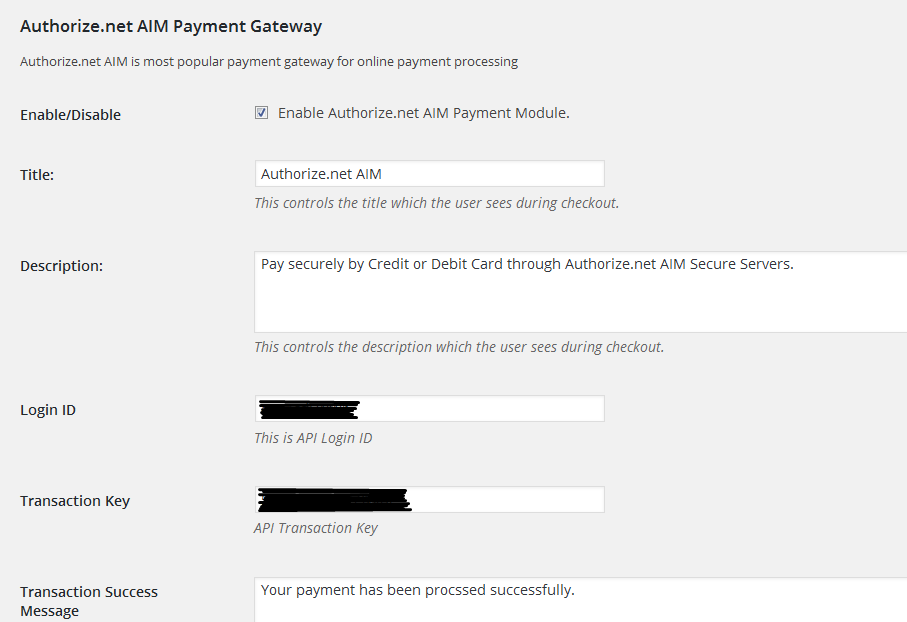
First Data admin settings 1.

First Data admin settings 2.