

Custom Payment Gateway Icons
Customize the payment gateway icons that appear on the WooCommerce checkout page.
Maintenance 40/100292d since update
Active installs
1,000
Downloads
5,717
Reviews
1
Age
3.5y
Plugin info
Total downloads: 5,717
Active installs: 1,000
Total reviews: 1
Average rating: 5
Support threads opened: 0
Support threads resolved: 0 (0%)
Available in: 1 language(s)
Contributors: 1
Last updated: 6/14/2025 (292 days ago)
Added to WordPress: 9/23/2022 (3 years old)
Minimum WordPress version: 5.8
Tested up to WordPress version: 6.8.3
Minimum PHP version: 7.4
Maintenance & Compatibility
Maintenance score
Stale • Last updated 292 days ago • 1 reviews
40/100
Is Custom Payment Gateway Icons abandoned?
Likely maintained (last update 292 days ago).
Compatibility
Requires WordPress: 5.8
Tested up to: 6.8.3
Requires PHP: 7.4
Similar & Alternatives
Explore plugins with similar tags, and compare key metrics like downloads, ratings, updates, support, and WP/PHP compatibility.
Skyboot Custom Icons for Elementor
Rating 5.0/5 (19 reviews) • Active installs 200,000
Dicode Icons Pack
Rating 0.0/5 (0 reviews) • Active installs 700
Advanced Social icons
Rating 0.0/5 (0 reviews) • Active installs 100
FaeCursor | WordPress Custom Cursor Plugin
Rating 0.0/5 (0 reviews) • Active installs 30
Octagon Elements for Elementor
Rating 0.0/5 (0 reviews) • Active installs 10
IA Map Analytics Basic
Rating 0.0/5 (0 reviews) • Active installs 10
Description
Customize the payment gateway icons that appear on the WooCommerce checkout page to anything you like or brand that suits your business. You can sizes for desktop and mobile view.
Installation
- Download and Upload
Payment_Gateway_Icon_For_WooCommerce folder to the/wp-content/plugins/` directory. - You may also search in WordPress dashboard directly and install.
- Activate the plugin through the ‘Plugins’ menu in WordPress.
- Go to WooCommerce → Settings → Payments → select the payment gateway you want change its icon → below the settings of every payment method, you’ll see additional settings added below by this plugin. Enter an image URL to the Icon field.
- There is provision for two sizes, mobile and desktop. Format your icons to your desired size before uploading as plugin does not utter size.
Frequently Asked Questions
No FAQ available
Review feed
No reviews available
Screenshots

This is how the icons appear on checkout
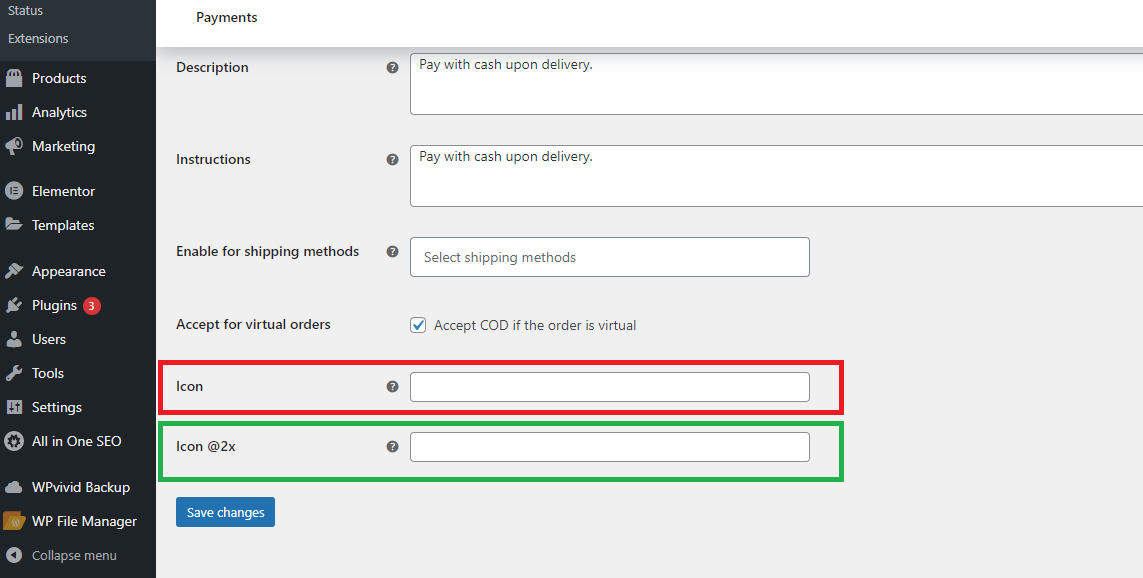
This is the plugin's settings view in WooCommerce
Changelog
1.1.0
- Clean up.
1.1.0
- First release.
1.1.1
- Second release
- Minor bug fixes and corrections
1.2.0
- Plugin tested successfully with WordPress 6.2
1.2.1
- Plugin tested successfully with WordPress 6.3
1.2.2
- Plugin tested successfully with WordPress 6.5
- Minor bug fixes and corrections
1.2.3
- Plugin tested successfully with WordPress 6.7.1
- Minor bug fixes and spelling corrections
2.0.0
- Plugin tested successfully with WordPress 6.8
- Minor bug fixes and spelling corrections