

Plugin Notes Plus
Adds a column to the Plugins page where you can add, edit, or delete notes about a plugin.
Plugin info
Maintenance & Compatibility
Maintenance score
Possibly abandoned • Last updated 379 days ago • 61 reviews
Is Plugin Notes Plus abandoned?
Possibly abandoned (last update 379 days ago).
Compatibility
Developers
Similar & Alternatives
Explore plugins with similar tags, and compare key metrics like downloads, ratings, updates, support, and WP/PHP compatibility.
Description
Have you ever returned to a site that you built a while back and asked, “Why did I install this plugin?” This plugin provides an extra column on the Plugins page that enables you to add, edit, or delete notes about the plugins you have installed on a particular site. These notes are intended to provide documentation regarding why a particular plugin was installed and how or where it’s being used.
Features
- Add as many or as few notes as you need for each plugin.
- Edit or delete notes as desired.
- Select an icon to go with each note to quickly convey what type of content it contains (e.g., info, warning, link, etc.)
- Format notes using basic HTML tags if desired.
- Any links included in the note will be automatically converted to
target="_blank" - Notes are added and updated via Ajax, avoiding slow page reloads.
- Notes also display on the WordPress Updates page for any plugins that need to be updated.
- A filter is provided if you would like to display notes beneath the plugin description instead of in a separate column.
- A filter is available to selectively hide or display plugin notes in the admin.
Installation
- You can either install the plugin via the Plugins directory from within your WordPress install, or you can upload the files manually to your server by extracting the .zip file and placing its contents in the /wp-content/plugins/ directory.
- Activate the plugin through the Plugins menu in WordPress.
- Add, edit, or delete notes in the Plugin Notes column on the Installed Plugins page.
Frequently Asked Questions
As of version 1.2.4, you can use the filter plugin-notes-plus_note_placement to move notes beneath the plugin description.
Here is an example of a snippet that places plugin notes beneath the plugin description. It can be added to your child theme’s functions.php. Without this, the note position will default to a separate column on the plugins page.
function pnp_change_note_placement( $note_placement ) {

    $note_placement = 'description';

    return $note_placement;

}
add_filter( 'plugin-notes-plus_note_placement', 'pnp_change_note_placement' );
Yes, you can use the filter plugin-notes-plus_icon_options to modify the set of icons available. The icons must be selected from the list of available WordPress dashicons.
Here is an example of a snippet that removes one icon and adds an additional icon to the list of options. It can be added to your child theme’s functions.php:
function pnp_change_icon_options( $icon_options ) {

    // Remove key option
    unset( $icon_options['dashicons-admin-network'] );

    // Add smartphone option
    $icon_options['dashicons-smartphone'] = 'Smartphone';

    return $icon_options;
}
add_filter( 'plugin-notes-plus_icon_options', 'pnp_change_icon_options' );
You can use the following HTML tags: a, br, p, b, strong, i, em, u, hr.
To modify the list of available tags, use the filter plugin-notes-plus_allowed_html. Be careful, however, to avoid allowing tags that could leave the site vulnerable to an XSS attack.
function pnp_change_allowed_html_tags( $allowed_tags ) {

    // Remove br from allowed tags
    unset( $allowed_tags['br'] );

    // Add img to allowed tags
    $allowed_tags['img'] = array();

    return $allowed_tags;
}
add_filter( 'plugin-notes-plus_allowed_html', 'pnp_change_allowed_html_tags' );
Plugin notes and note metadata are stored in a custom table whose name ends in plugin_notes_plus. In the initial version (1.0.0), notes were stored in the options table. Version 1.1.0 was released to migrate existing notes from the options table into the plugin_notes_plus table. Upgrading to version 1.1.1 will perform a cleanup, removing any notes from the options table.
Each site within a multisite install maintains its own plugin notes. Additionally, the superadmin can maintain their own plugin notes.
As of version 1.2.6, you can use the filter plugin-notes-plus_hide_notes to show or hide plugin notes.
Here is an example of a snippet that hides plugin notes from a specfic user. It can be added to your child theme’s functions.php. Without this, plugin notes are displayed by default to all users who can view the plugins page.
function pnp_hide_notes( $hide_notes ) {

    // logic to set $hide_notes to TRUE or FALSE

    return $hide_notes;

}
add_filter( 'plugin-notes-plus_hide_notes', 'pnp_hide_notes' );
Review feed
Super useful plugin for multi-admin sites
Does one thing and does it well.
Exactly What I Needed!
Screenshots
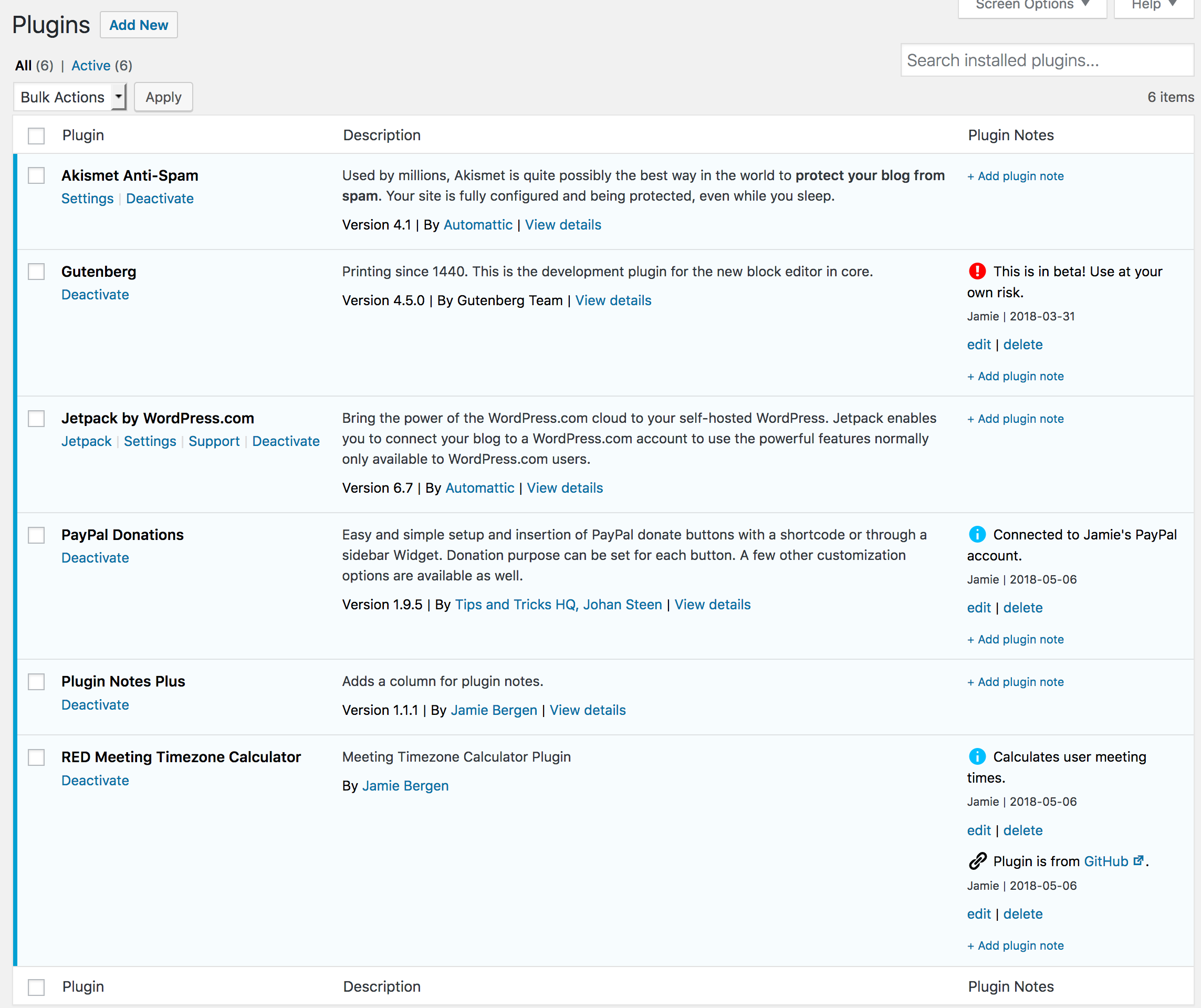
Upon activating the plugin, you will see a new column on the Plugins page that enables you to add, edit, or delete notes about the plugins you have installed on a particular site.
Changelog
1.2.10
- Fixed: Ajax conflict with WPML version 4.7.0 and up. Thanks to @ericmuc for bringing this to my attention.
1.2.9
- Fixed: PHP warnings related to I18n.
1.2.8
- Fixed: Checking for user permission on ajax requests.
1.2.7
- Fixed: Cross site scripting (XSS) vulnerability related to icon rendering.
1.2.6
- Added: Option to selectively hide or display plugin notes. Thanks to @garconis for the suggestion.
1.2.5
- Fixed: PHP warning caused by deprecated usage of wp_localize_script. Thanks to @brianhenryie for finding this.
1.2.4
- Added: Option to display notes beneath plugin description. Thanks to @antipole for the suggestion.
1.2.3
- Added: Money icon option. Thanks to @brianhenryie.
1.2.2
- Added: Updates for RTL compatibility. Thanks to @ramiy.
- Removed: Unnecessary po and mo translation files.
1.2.1
- Fixed: JavaScript error that sometimes happened on update-core.php if a plugin had no notes. Thanks to @brianhenryie for bringing this to my attention.
- Added: Hungarian translation. Thanks to @tomek00.
1.2.0
- Added: Plugin notes now display in a read-only format on the WordPress Updates page (update-core.php). Thanks to @douglsmith for the suggestion.
- Fixed: Removed unnecessary multisite hook. Thanks to @foomagoo for pointing this out.
1.1.2
- Fixed: Bug that prevented user from adding or updating notes after an ajax response. Thanks to @anticosti for helping to identify this bug.
- Added: Spinning icon to indicate that a note is in the process of being deleted.
1.1.1
- Added: Cleanup routine to remove notes from the options table. (If upgrading from 1.0.0, notes will first be migrated into their own table.)
1.1.0
- Fixed: Bug that caused plugin notes to disappear on Windows servers due to discrepancies in the plugin file path related to forward vs. backslash. This update will recover missing notes. Thanks to @gwalsh66 for helping to identify this bug.
- Changed: Plugin notes will now be stored in a custom table called
$wpdb->prefix . 'plugin_notes_plus' - Added: Migration routine to move notes from the options table into their own table if upgrading from version 1.0.0
- Added: Entry in the options table called ‘plugin_notes_plus_db_version’ to track the custom database table version
1.0.0
- Initial release