

Plugin info
Maintenance & Compatibility
Maintenance score
Possibly abandoned • Last updated 3844 days ago • 3 reviews
Is Popcorn abandoned?
Possibly abandoned (last update 3844 days ago).
Compatibility
Similar & Alternatives
Explore plugins with similar tags, and compare key metrics like downloads, ratings, updates, support, and WP/PHP compatibility.
Description
This plugin has 4 types of Popups.
-
Image only : Here you can set an image and give a hyper-link to the image. For example if there is an offer on e-commerce website, you can upload the offer image and give the link to that page.
-
Ask a Question : This pop-up helps you to get some feedback from clients. For example if you want to ask any question to user, you can simply set the question and when user fills the form. An email will be shot to your email-id which has been set in Pop Dashboard.
-
Text Only : This pop-up helps you to show some static information on the website. For example there is a news website and they want to show the latest news on a pop-up.
They can use this and show the news in the pop-up. As well as they can give a hyper-link to the particular news. -
Custom Form : This pop-up is basically used to get information from the user. By default it has Name, Mobile, Email, Message fields in the form. But this feature has been extended by making it work with the Custom form 7 plugin short-code. You can simply set the short-code of the contact form 7 plugin and the form will be displayed in the pop-up.
Note : If you use contact form 7 short code you need to make changes in the CSS code.
Installation
- Upload the whole ‘popcorn’ folder to the /wp-content/plugins/ directory.
- Activate the plugin through the Plugins menu in WordPress.
- In page use the shortcode [popcorn] to create a popcorn link.
- Go to the popcorn dashboard page to select the popcorn you want to activate.
- There are individual dashboards form \’Image only\’, \’Ask a Question\’, \’Text Only\’, \’Custom Form\’. Make changes as per your need
Frequently Asked Questions
What is popcorn ?
Popcorn name is familiar to popups which we see on the websites. Since it has different types of popups the name has been kept as Popcorn.
Why Popcorn ?
This WP Popcorn Plugin helps the Administrator in various ways. Admin can activate any one of the following features.
1. Image Only
2.Ask a Question
3.Text Only
4.Custom Form
Review feed
Simple and Useful popups
Screenshots

Dashboard - By default the popcorn is disabled, so in order to activate the popup just click on Activate radio button and save the changes. Select any type of popup amongst the 4 listed radio button, to show it on Pages.

Image Only - Here you can set an image and give a hyper-link to the image. For example if there is an offer on e-commerce website, you can upload the offer image and give the link to that page.

Ask a Question - This pop-up helps you to get some feedback from clients. For example if you want to ask any question to user, you can simply set the question and when user fills the form. An email will be shot to your email-id which has been set in Pop Dashboard.

Text Only - This pop-up helps you to show some static information on the website. For example there is a news website and they want to show the latest news on a pop-up. They can use this and show the news in the pop-up. As well as they can give a hyper-link to the particular news.
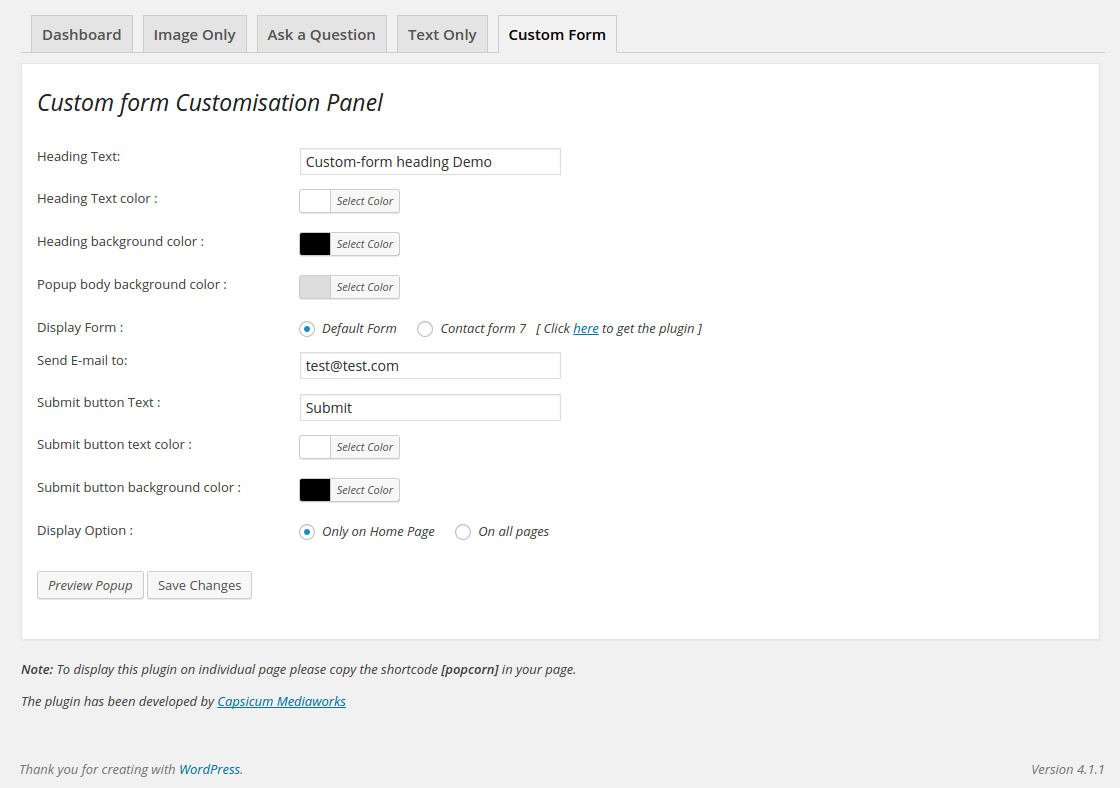
Custom Form - This pop-up is basically used to get information from the user. By default it has Name, Mobile, Email, Message fields in the form. But this feature has been extended by making it work with the Custom form 7 plugin short-code. You can simply set the short-code of the contact form 7 plugin and the form will be displayed in the pop-up. Note : If you use contact form 7 short code you need to make changes in the CSS code.

Front end Image Only Popup

Front end Ask a Question Popup

Front end Text Only Popup
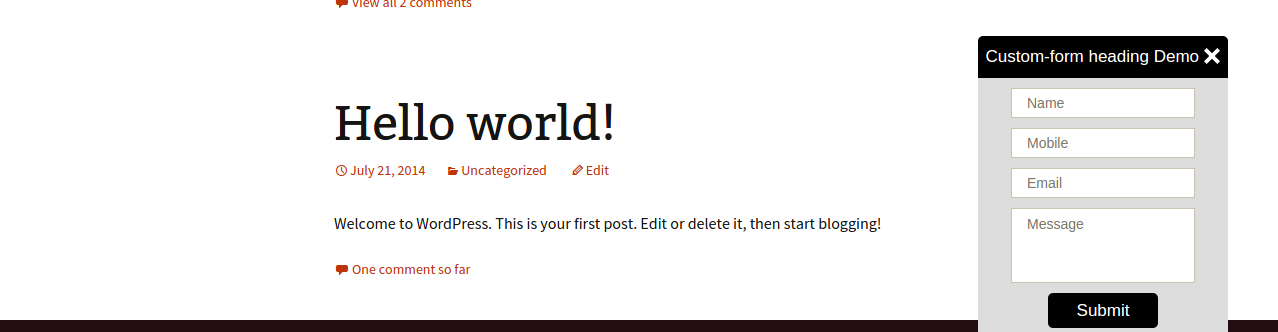
Front end Custom Form Popup
Changelog
1.0
*First public release
1.0.1
*Fixed some minor bugs.
1.0.2
*Resolved Admin Css conficting with Popcorn CSS