

Plugin info
Maintenance & Compatibility
Maintenance score
Possibly abandoned • Last updated 2578 days ago • Support resolved 0% • 89 reviews
Is Portfolio Slideshow abandoned?
Possibly abandoned (last update 2578 days ago).
Compatibility
Similar & Alternatives
Explore plugins with similar tags, and compare key metrics like downloads, ratings, updates, support, and WP/PHP compatibility.
Description
A clutter-free slideshow plugin for WordPress
Portfolio Slideshow adds a simple slideshow builder to posts and pages on your site. Its drag-and-drop interface lets you upload, order, and edit images “on the fly” right on the page.
Once you’ve arranged your images as you see fit, simply drop the [portfolio_slideshow] shortcode anywhere in that post or page, and voila—an elegant, customizable, responsive slideshow will appear on your site.
Installation
Install & Activate
Installing the plugin is easy. Just follow these steps:
- From the dashboard of your site, navigate to Plugins → Add New.
- Select the Upload option and click “Choose File.”
- When the popup appears, use it to select the Portfolio Slideshow .zip file for the plugin.
- Follow the on-screen instructions and wait as the upload completes.
- When it’s finished, activate the plugin via the prompt.
Requirements
- PHP 5.6.0 or greater (recommended: PHP 7.1 or greater)
- WordPress 4.9 or above
Frequently Asked Questions
Q: How do I insert a slideshow into a post or page?
A: Upload your photos to the post or page using the “Add Slides” metabox. You can drag-n-drop images into the uploader that pops up, add captions and descriptions to these images, etc.
Then, simply add the shortcode [portfolio_slideshow] where you want the slideshow to appear in the page, and publish the post. Nice!
One common mistake is to insert the images into the post using the content editor. This is not necessary – the plugin detects all images attached to the post and creates the slideshow automatically.
Q: Does the plugin support images that are not uploaded via the media uploader?
A: No, the plugin does not support random folders of images or images on a third-party site at this time.
Q: Why isn’t my slideshow loading?
A: If the images show up fine in the “Add Slides” metabox in your admin, but don’t on the front-end, this could be a theme conflict. Your best option is to inspect the page with a browser console open, and/or to set WP_DEBUG to true in your site’s wp-config.php file to see if any PHP errors show up on your site.
If you can see the first slide of the slideshow, but clicking doesn’t do anything, this is almost always a JavaScript conflict from your theme (or another plugin). It could caused by a jQuery library conflict. View the HTML source of the page which is supposed to show the slideshow. Do you see more than one copy of jQuery or the Cycle plugin being loaded? If your theme or other plugins load those same files directly, you will have a conflict. Your best option here is to manually dequeue conflicting scripts. Check out the wp_dequeue_script() function for more information on doing so.
Q: I haven’t found multiple versions of a conflicting file. In fact, I can’t see jQuery Cycle or Portfolio Slideshow’s CSS loading at all! What gives?
If you don’t see the jQuery Cycle plugin or Portfoliio Slideshow JavaScript and CSS files being loaded on posts and pages with the [portfolio_slideshow], then 99 times out of 100 this means that your theme is not using the required WordPress theme functions wp_head() and/or wp_footer(). These functions are required for almost all plugins to work correctly, not just Portfolio Slideshow. Please consider using a different theme, or at least contact the theme developer about these missing functions.
Q: How do I change the size of the images?
A: By default, the slideshow uses the large-size images that are generated by WordPress when you upload an image. You can change this default in the settings panel for the plugin, or on a per-page basis using the size attribute (see installation instructions for usage).
If you would like to change the size of the images system-wide (for example, you want a large image to be 800px instead of 1025px) you can change the WordPress settings in the “Settings -> Media” control panel. You will need to regenerate your thumbnails to make the setting retroactive. If you’re in this situation, I cannot recommend the aptly named Regenerate Thumbnails plugin enough! Download it here. I have used that on sites with thousands and thousands of large images, and it works very well.
Review feed
Love this plugin
broken
Screenshots

Example gallery.
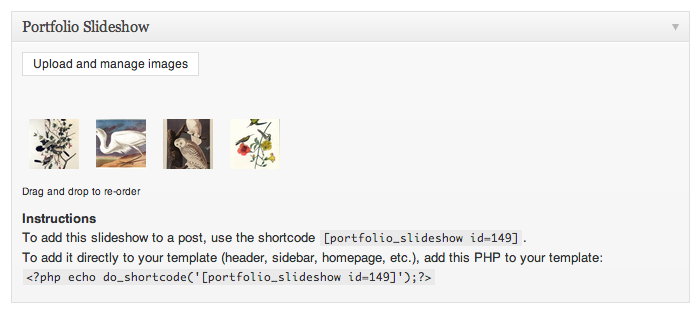
Use the "Upload and Manage Images" button to add, sort, and delete your photos.

Insert the slideshow by using this shortcode, exactly as shown. Do not insert the photos into the post.

Settings control panel.
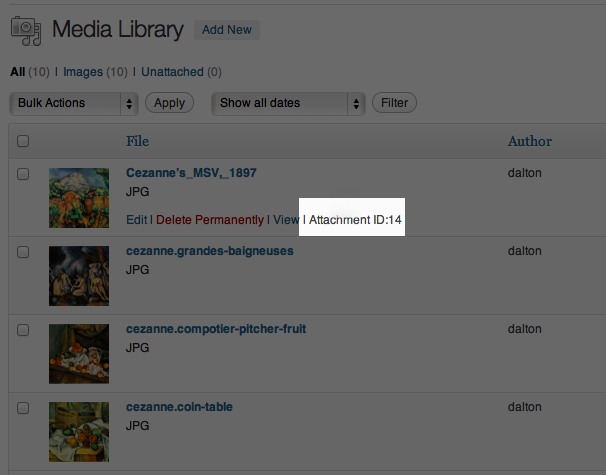
Finding the attachment ID for your images.

Adding an external URL to a slide.
Changelog
1.13.0 2019-3-10
- Fix — Fixed the too-long default transition speed; it’s now 1 second instead of 4 seconds.
- Tweak — Increased the default timeout speed from 3 seconds to 4 seconds.
- Removal — Removed survey notice added in 1.12.1.
1.12.1
- Fix — Fixed a “non well-formed numeric value” PHP notice that would arise in the system info page.
- Tweak — Bumped “Tested up to” version number.
1.12.0
- Fix — Made the “help” icon link in slides meta box go to a new page instead of leaving the current one.
- Tweak — Temporarily removed the “updated URL with Slide IDs” option.
- Removal — Removed references to some pager features that don’t yet exist.
- Removal — Removed references to some lightbox features that don’t yet exist.
- Removal — Removed some internal references to the old Portfolio Slideshow website.
1.11.1
- Fix — Ditched custom Underscores templating in place of safer and more widely-supported wp.template()
- Fix — Fixed errors with missing “slide URL” attachment fields.
- Tweak — Safer translatable strings.
1.11.0
- New — Restored full support for PHP 5.2 and higher!
- New — Added “System Info” tab for use in support requests.
- New — Made documentation translatable.
- New — Added more documentation links for faster/more specific navigation.
- Tweak — Some JS cleanup to being laying the groundwork for the few releases of improvements.
- Tweak — added “support” and “settings” quick links to Plugins page.
- Tweak — Moved screenshots and some other assets to wp.org repo /assets folder – makes for a smaller plugin file and thus, hopefully, faster updates.
- Tweak — Reduced number of variables created in view includes.
- Tweak — Code cleanup in some of the views.
- Fix — Fixed the “Slide URL” attachment field to ensure it saves.
- Fix — Repaired functionality of the
openurlandtargetattributes. - Fix — Fixed some max-width CSS to ensure images don’t pop out of their container.
- Fix — Fixed bug that prevented
centered="true"shortcode attribute from working. - Fix — Relocated and renamed many files for a more organized plugin structure to lay a foundation for future changes (heavily inspired by The Events Calendar).
- Fix — Fixed a broken placeholder image src.
- Fix — removal of references to erroneous plugin versions.
- Fix — escape some translated strings that weren’t.
- Removal — Removed unused function
portfolio_slideshow_is_plugin_active(). - Removal — Removed unused function
portfolio_slideshow_get_image_sizes(). - Removal — Removed unused function
portfolio_slideshow_sanitize_text_field_deep(). - Removal — Removed unused file
ps-custom-post-type.js. - Removal — Removed unused file
ps-custom-post-type.css. - Removal — remove all references to “fluid” / “allowfluid” option.
1.10.0
- Fix — A few fixes to address the retrieval of slides, which should mean your pre-1.9.9 slideshows will work fine in many more cases than with the 1.9.9 release itself.
- Fix — Fixed some “Undefined Index” PHP notices with a few slideshow arguments.
- Fix — Removal of unnecessary “protected” access on several class methods and properties.
- Fix — Removal of a handful of unnecessary JavaScript and CSS files that could cause 404 errors on pages if loaded.
1.9.9
- Ported the existing plugin to PHP 5.3-compatible code and laid the foundation for some major changes in the next few versions: 1.10.x, and then 2.0.0