

Post Content Shortcode
Embed the content of another post using a simple shortcode. Useful for reusing content across pages or posts.
Plugin info
Maintenance & Compatibility
Maintenance score
Stale • Last updated 277 days ago
Is Post Content Shortcode abandoned?
Likely maintained (last update 277 days ago).
Compatibility
Similar & Alternatives
Explore plugins with similar tags, and compare key metrics like downloads, ratings, updates, support, and WP/PHP compatibility.
Description
Post Content Shortcode allows you to display the content of any post using a shortcode like:
[post_content id=”123″]
This is useful for reusing content in multiple places, referencing another post inline, or including dynamically updated blocks of content.
You can configure which post statuses are allowed to be embedded from the plugin’s settings page under Settings Post Content Shortcode.
Usage
Use the shortcode like this:
[post_content id=”123″]
Where 123 is the ID of the post you want to embed.
To avoid infinite loops, the plugin prevents a post from including itself.
Only posts with selected statuses (e.g. Published, Draft) will be rendered. You can control this from the plugin settings page.
Customizing the Shortcode Tag
By default, the shortcode tag is post_content. You can change it by adding this to your theme’s functions.php file:
add_filter( ‘herron_pcs_shortcode_tag’, function( $tag ) {
return ‘my_custom_shortcode’;
});
After doing so, use the new tag:
[my_custom_shortcode id=”123″]
The settings page and all logic will automatically respect this change.
Learn More About Herron
This plugin is part of Herron’s ongoing effort to give back to the WordPress community. If you’re interested in how we build custom WordPress solutions for clients or want to collaborate, please visit https://herron.agency/.
Installation
- Upload the plugin folder to the
/wp-content/plugins/directory. - Activate the plugin through the ‘Plugins’ menu in WordPress.
- Visit Settings Post Content Shortcode to configure allowed post statuses.
Frequently Asked Questions
Make sure the post you’re referencing exists and has an allowed post status (e.g. Published). Check the plugin’s Settings page for configuration.
Use the herron_pcs_shortcode_tag filter in your theme’s functions.php. See the “Usage” section for an example.
Yes, but only when WP_DEBUG_LOG is enabled in your wp-config.php file. This ensures no logs are written unless your site is in debugging mode.
To enable logging, add the following lines to wp-config.php:
define( ‘WP_DEBUG’, true );
define( ‘WP_DEBUG_LOG’, true );
Logs will be written to wp-content/debug.log.
Review feed
Screenshots
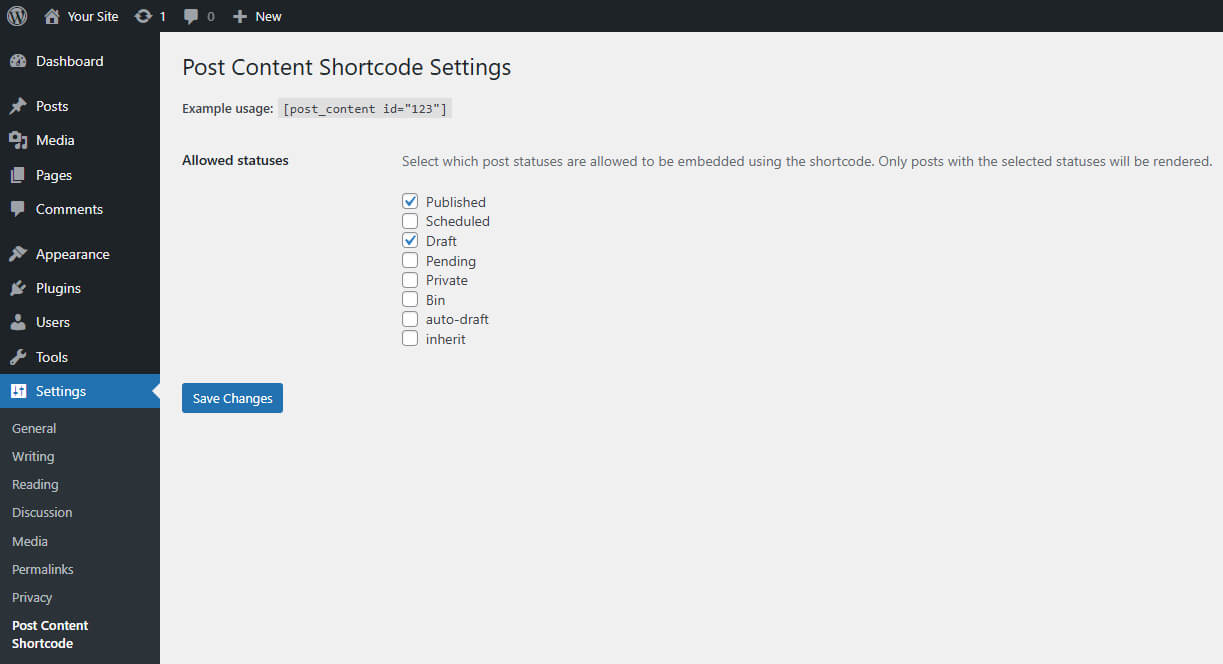
Settings page showing allowed post statuses.
Changelog
1.0.1
- Updated plugin metadata to include plugin and author URIs. No functionality has changed.
1.0.0
- Initial release.