

Prevent Browser Caching
Updates the assets version of all CSS and JS files. Shows the latest changes on the site without asking the client to clear browser cache.
Plugin info
Maintenance & Compatibility
Maintenance score
Possibly abandoned • Last updated 724 days ago • 28 reviews
Is Prevent Browser Caching abandoned?
Possibly abandoned (last update 724 days ago).
Compatibility
Developers
Similar & Alternatives
Explore plugins with similar tags, and compare key metrics like downloads, ratings, updates, support, and WP/PHP compatibility.
Description
Are you a frontend developer? Do you want to clear browser cache for all users? Just activate this plugin and show your work!
Prevent Browser Caching allows you to update the assets version of all CSS and JS files automatically or manually in one click.
Now you can show the latest changes on the site without asking the client to clear the cache.
How it works?
Usually, WordPress loads assets using query param “ver” in the URL (e.g., style.css?ver=4.9.6). It allows browsers to cache these files until the parameter will not be updated.
To prevent caching of CSS and JS files, this plugin adds a unique number (e.g., 1526905286) to the “ver” parameter (e.g., style.css?ver=4.9.6.1526905286) for all links, loaded using wp_enqueue_style and wp_enqueue_script functions.
For developers
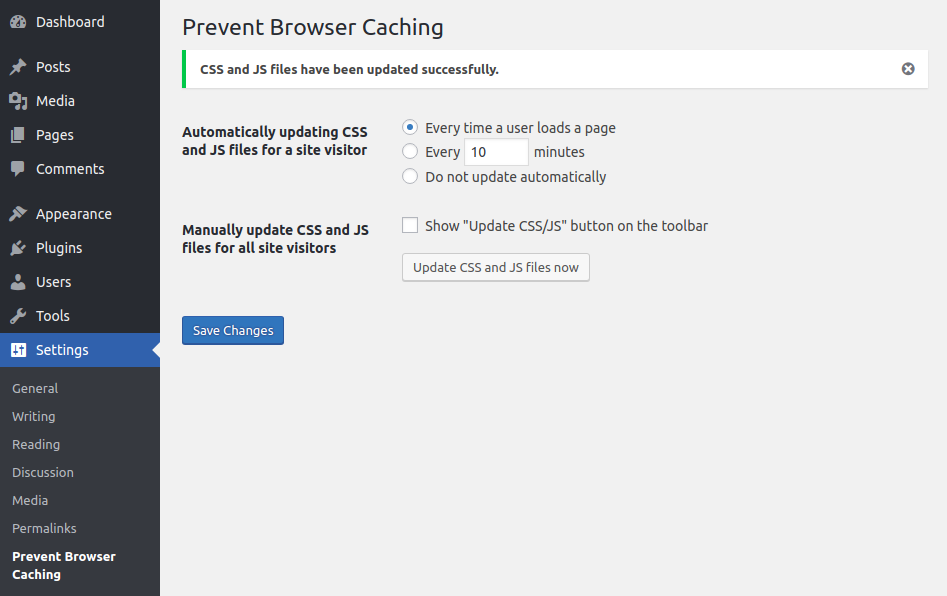
By default, this plugin updates all assets files every time a user loads a page and adds options in the admin panel (Settings -> Prevent Browser Caching) which allows you to configure updating of these files.
But you can also set the version of CSS and JS files programmatically.
Just insert this code in functions.php file of your theme and change the value of assets_version when you need to update assets:
prevent_browser_caching( array(
    'assets_version' => '123'
) );
Installation
From WordPress dashboard
- Visit “Plugins > Add New”.
- Search for “Prevent Browser Caching”.
- Install and activate Prevent Browser Caching plugin.
From WordPress.org site
- Download Prevent Browser Caching plugin.
- Upload the “prevent-browser-caching” directory to your “/wp-content/plugins/” directory.
- Activate Prevent Browser Caching on your Plugins page.
Frequently Asked Questions
Review feed
Thank you
Screenshots
Changelog
2.3.5
- Tested the plugin in WordPress 6.5.
2.3.4
- Tested the plugin in WordPress 6.1.
2.3.3
- Tested the plugin in WordPress 6.0.
2.3.2
- Fixed “Update CSS/JS” button in the admin bar.
2.3.1
- Tested the plugin in WordPress 5.1.
2.3
- Tested the plugin in WordPress 5.0-beta1 and optimized the code.
2.2
- Added function “prevent_browser_caching” which disables all admin settings of this plugin and allows to set the new settings.
- Changing “ver” param instead of adding additional “time” param.
2.1
- Added option to show “Update CSS/JS” button on the toolbar.
2.0
- Added setting page to the admin panel.
- Added automatically updating CSS and JS files every period for individual user
- Added manually updating CSS and JS files for all site visitors
1.1
- Added plugin text domain.
1.0
- First version of Prevent Browser Caching plugin.