

Product Condition Manager for WooCommerce
Set default & custom product conditions easily in WooCommerce - New, Used, Like New, and more!
Plugin info
Maintenance & Compatibility
Maintenance score
Maintained • Last updated 135 days ago
Is Product Condition Manager for WooCommerce abandoned?
Likely maintained (last update 135 days ago).
Compatibility
Languages
Similar & Alternatives
Explore plugins with similar tags, and compare key metrics like downloads, ratings, updates, support, and WP/PHP compatibility.
Description
The Product Condition for WooCommerce feature allows you to assign a condition (such as new, used, like new, etc.) to all the products on your site. With this feature, you can set a single default product condition that applies to all products. Additionally, you can specify a unique condition for each individual product, which will override the default setting.
For example, if most of your products are in “new” condition, you would set the default product condition to “new.” However, there may be instances when you have a few products that are in “used” or another condition. In such cases, you can designate the “used” condition for those specific products.
Video Overview
Features
- Easy to use
- Set a default product condition for all products in your store.
- Specify the product condition for individual items.
- Override the default condition and specify the current condition for specific products.
- Set the product condition for multiple products at once.
- Help customers easily find products based on their preferred condition.
- Improve search engine rankings by informing Google through schema markup.
- Custom CSS: adjust styles without modifying the stylesheet.
- Able to add custom conditions.
- Seamlessly integrate with WooCommerce.
Predefined Conditions
- NewCondition
- Brand new
- New
- New with box
- New with defects
- New with tags
- New without box
- New without tags
- UsedCondition
- Acceptable
- Cetified pre-owned
- Good
- Lie-new
- Pr-owned
- Usd
- Vey good
- RefurbishedCondition
- Manufacturer refurbished
- Remanufactured
- Retread
- Seller refurbished
- DamagedCondition
- Damaged
- Fo parts
- Other <- (for custom condition)
Installation
Automatic Installation from the WordPress Dashboard
- Login to your admin panel
- Navigate to Plugins -> Add New
- Search Product Condition Manager for WooCommerce
- Click install and activate respectively.
Manual Installation from the WordPress Dashboard
If your server is not connected to the Internet, then you can use this method
- Download the plugin. A ZIP file will be downloaded.
- Login to your site\’s admin panel and navigate to Plugins -> Add New -> Upload.
- Click choose file, select the plugin file and click install
Install Using FTP
If you are unable to use any of the methods due to internet connectivity and file permission issues, then you can use
this method
- Download the plugin. A ZIP file will be downloaded.
- Unzip the file.
- Launch your favorite FTP client. Such as FileZilla, FireFTP, CyberDuck etc. If you are a more advanced user, then you
can use SSH too. - Upload the folder to wp-content/plugins/
- Log in to your WordPress dashboard.
- Navigate to Plugins -> Installed
- Activate the plugin
Frequently Asked Questions
It lets you easily add and display the condition of your products (e.g., New, Used, Refurbished) on product pages and shop pages. It also updates your product’s Schema markup to help improve search engine rankings.
Yes! You can set a store-wide default condition, but you can also override it by setting specific conditions for individual products.
The condition can appear on the individual product page and optionally on the shop page (product listing page).
The plugin offers over 20 predefined conditions, such as:
- Brand new
- New
- New with box
- New with defects
- New with tags
- New without box
- New without tags
- Acceptable
- Cetified pre-owned
- Good
- Lie-new
- Pr-owned
- Usd
- Vey good
- Manufacturer refurbished
- Remanufactured
- Retread
- Seller refurbished
- Damaged
- Fo parts
You can also add custom conditions if needed.
By adding the product condition into the Schema markup, search engines can better understand your product listings, helping your products appear in more targeted search results (e.g., people searching for “used iPhones” will find your store more easily).
No, it’s designed for store owners to easily select and display conditions without coding. Developers can extend it if needed.
It’s ideal for stores selling used, refurbished, open-box, damaged, or for-parts items — or any store wanting to clearly show the product condition to customers.
No, you can choose to apply a default condition or set it individually for each product.
Review feed
Screenshots
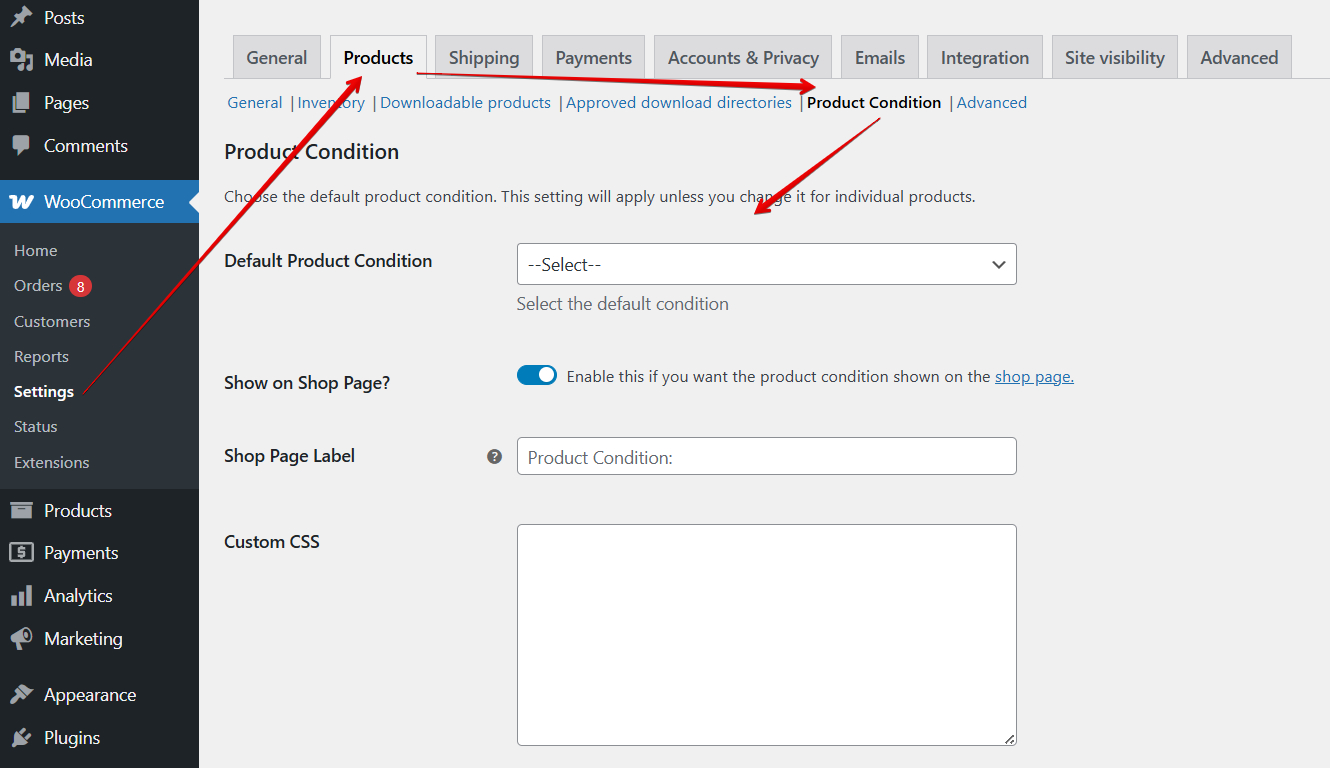
Settings page.
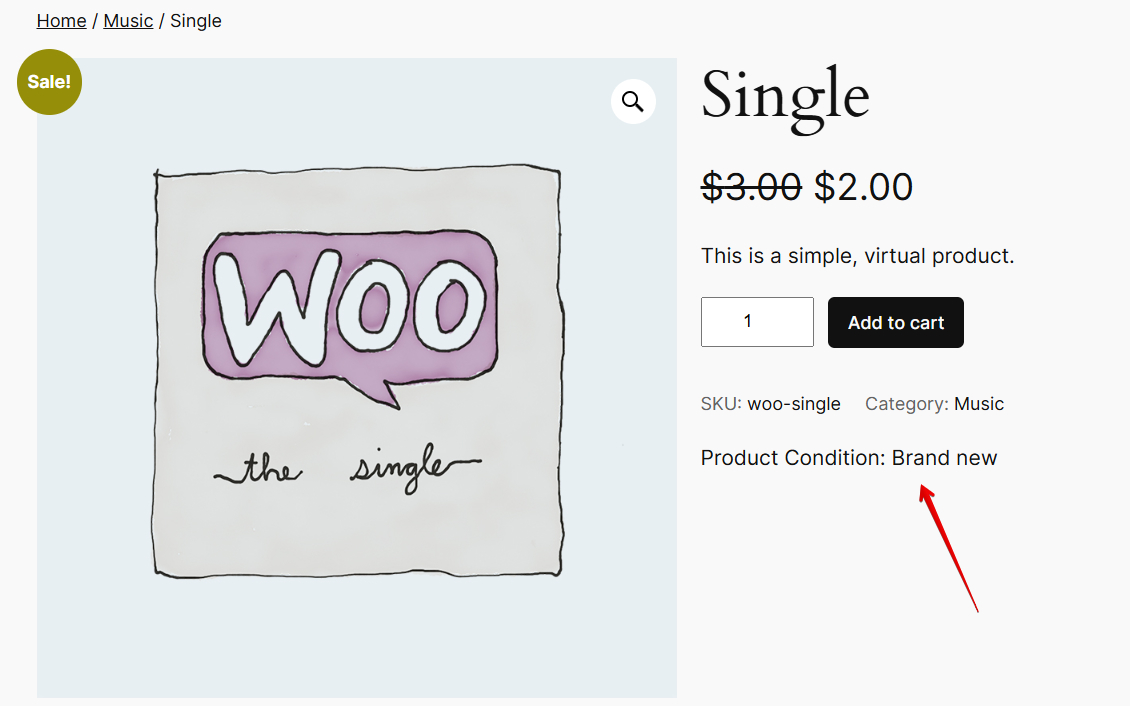
Single product page.
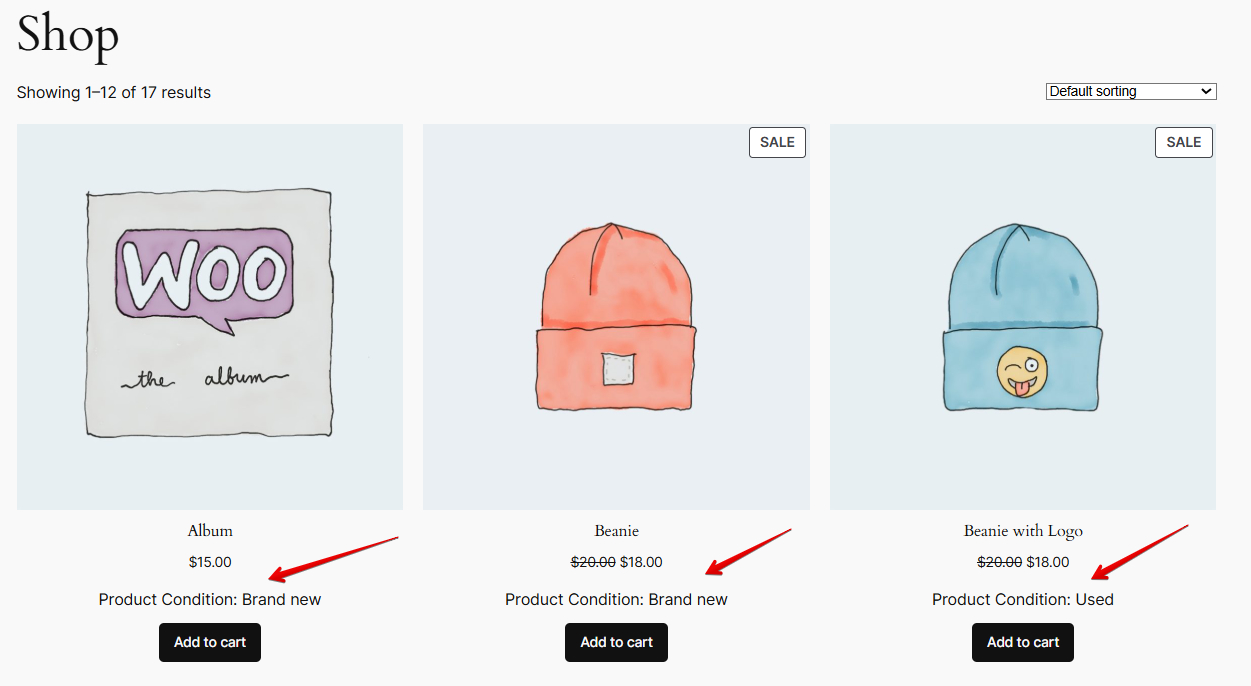
Shop page.
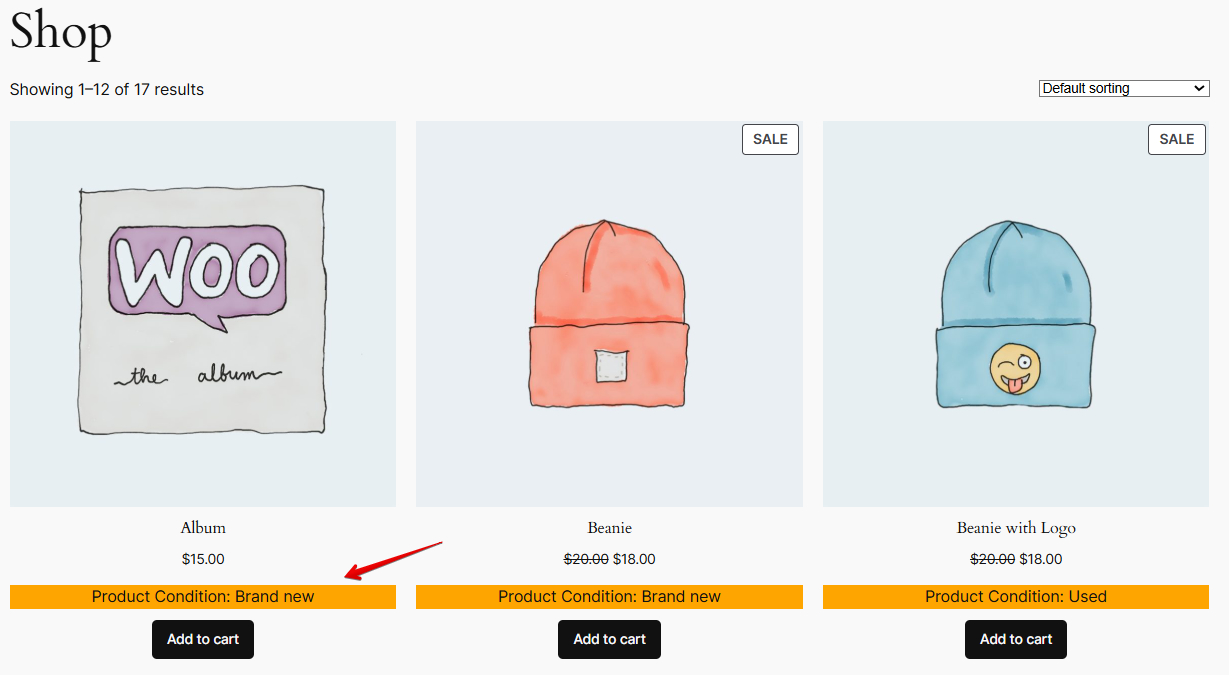
Shop page.
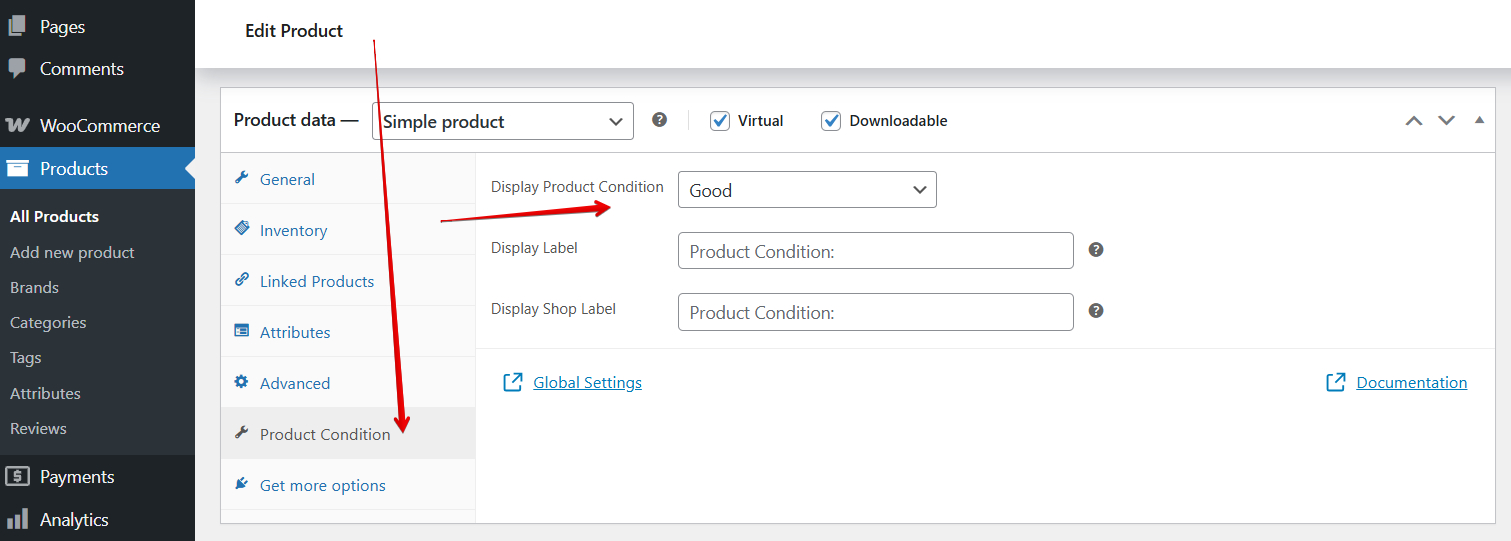
Product edit page.
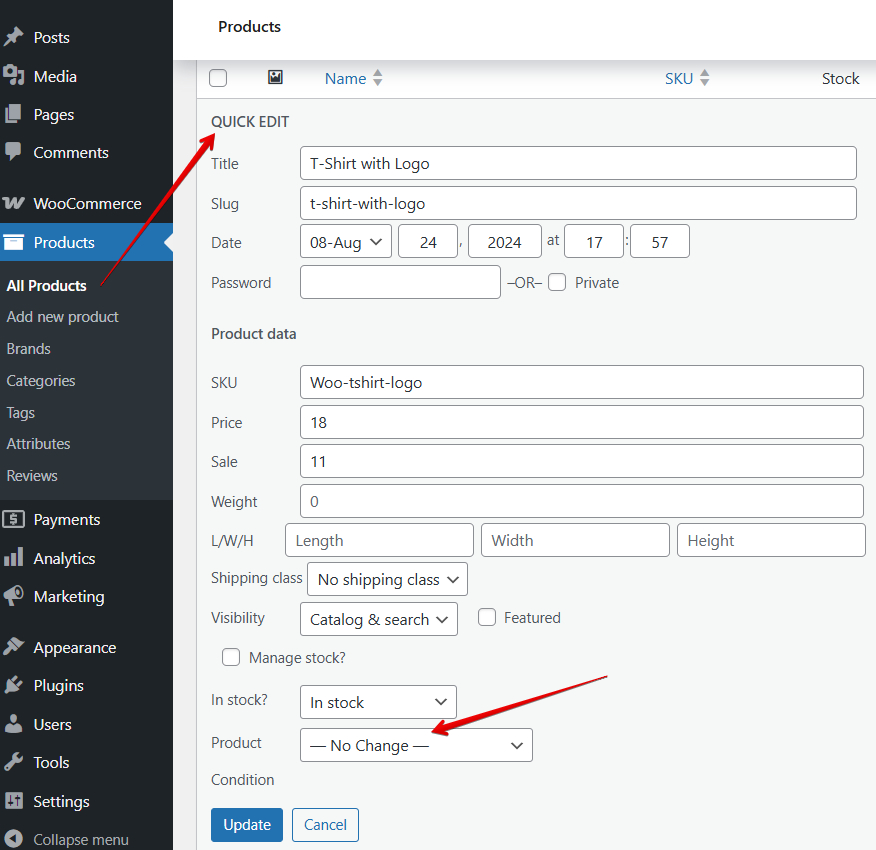
Product quick edit.
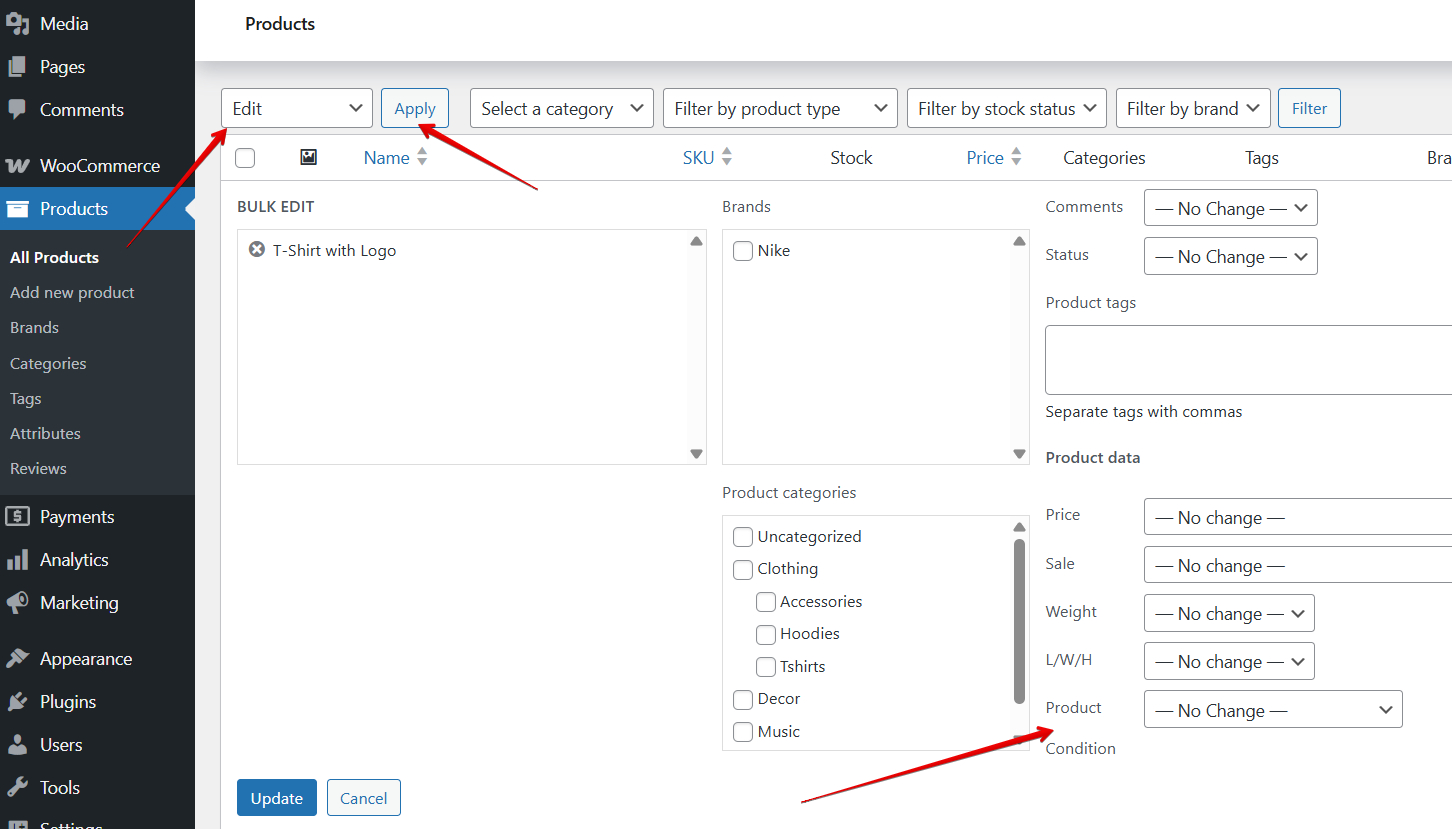
Product bulk edit.
Changelog
1.1.2
- Code improved
1.1.1
- Bug fixes
1.1.0
- Updated Freemius SDK to the latest version
- Updated language files
1.0.0
- Initial release