

Proportional Image Scaling
This plugin is an attempt to prevent distorted images when a CSS max-width rule is in effect and the image is inserted using the visual editor.
Plugin info
Maintenance & Compatibility
Maintenance score
Possibly abandoned • Last updated 3602 days ago
Is Proportional Image Scaling abandoned?
Possibly abandoned (last update 3602 days ago).
Compatibility
Similar & Alternatives
Explore plugins with similar tags, and compare key metrics like downloads, ratings, updates, support, and WP/PHP compatibility.
Description
When a user inserts an image using the visual editor, WordPress automatically sets the
width and height attributes on the image tag. Unfortunately, when the images’ width is
larger than the CSS “max-width” value, the width is capped but the height is not
affected, leading to distorted images.
This plugin either removes all height and width tags from images of a given class
(resulting in a correct “max-width” behavior) or scales them to a given width to assist
browsers in creating the layout.
Known Limiations
- Currently, only pixel values are supported when scaling.
Installation
Just drop the .php file into the plugins folder and activate it.
It should work fine out of the box.
Configuration
By default, the plugin removes all “width” and “height” attributes from images, that
contain the term “wp-image-” in their class.
To enable proportional scaling, a width can be entered here. If this width is zero,
scaling is disabled and the attributes are removed.
Additionally, images can be selected by terms that appear in their class attribute.
It’s a space separated list, so “wp-image- foo” will match against “wp-image-” and “foo”.
If one of these terms is missing, the image is not processed.
Frequently Asked Questions
Which width should I enter?
When in doubt: 0.
Whats difference does it make when I enter a width?
If you enter a value of 0, the width and height attribute are removed. While this
works, it may be desirable to set these values in order to allow browsers to lay
out the page before the images are loaded. Setting a width and height allows the
plugin to scale these values so they fit int the design.
It’s basically a setting for purists.
Can I exclude images?
Yes, by their CSS class.
Can I disable the plugin on a per-post base?
Yes, by adding [disable_image_scaling] anywhere in the post.
After editing or changing my theme, the images are distorted again
This might be due to the plugin’s configuration. If a target width larger than zero,
but smaller than the (new) theme’s max-width value is set, the images will be scaled
to the given width. Then the max-width rule caps the width again, leading again to the
distortion. This is normal behavior; Either set the target width to zero in the plugins’
settings (this should be fail safe), or to the matching max-width value.
Review feed
Screenshots
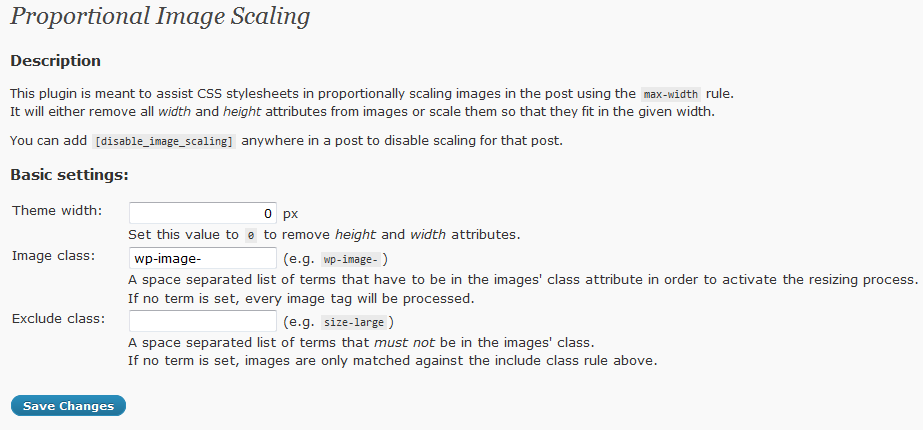
The settings menu.
Changelog
1.1
- Added class exclude setting
- Made the matching algorithm more robust to unexpected html.
- Added [disable_image_scaling] keyword support
1.0
- Initial version