

Share Interactive Content from Spotify – By PulseShare
Share interactive content from Spotify on your website seamlessly without any embed codes.
Plugin info
Maintenance & Compatibility
Maintenance score
Stale • Last updated 247 days ago
Is Share Interactive Content from Spotify – By PulseShare abandoned?
Likely maintained (last update 247 days ago).
Compatibility
Similar & Alternatives
Explore plugins with similar tags, and compare key metrics like downloads, ratings, updates, support, and WP/PHP compatibility.
Description
PulseShare provides wordpress blocks and elementor widgets to embed Spotify content on your website. You can embed podcast, an album, or other audio and video content to your website and promote your music, share your new podcast episodes with fans, or highlight your favourite album or playlist.
How to set up the plugin:-
- First you need to create a free Spotify Developer Account to get the Client ID and Client Secret. You can create a Spotify Developer Account here – https://developer.spotify.com/dashboard/login
- Go to https://developer.spotify.com/dashboard/applications and Click on Create an app. Fill in the details and click on Create/Save button. Click on the Settings button in top. Copy the Client ID and Client Secret and paste it in the PulseShare settings page. Click on Save Settings button.
- If you and to integrate albums then Open Spotify and go to the album you want to embed. Now copy the id from the url in the address bar: e.g. If the url is like this – https://open.spotify.com/album/0sNOF9WDwdfwdcDfdPD3Baj then the id is –
0sNOF9WDwdfwdcDfdPD3Baj. Now copy and paste the id in the PulseShare settings page. Click on Save Settings button. - If you and to integrate podcast Open Spotify and go to the podcast you want to embed. Now copy the id from the url in the address bar: e.g. If the url is like this – https://open.spotify.com/show/0s54Nhd4345F9WDwdfwdcDfd then the id is –
0s54Nhd4345F9WDwdfwdcDfd. Now copy and paste the id in the PulseShare settings page. Click on Save Settings button.
NEED SUPPORT
Need help with something? Have an issue to report? Visit Plugin’s Forum.
OR
Get in touch with us on EMAIL
Made with love by Swapnil Deshpande!
Installation
- Upload the plugin files to the
/wp-content/plugins/pulsesharedirectory, or install the plugin through the WordPress plugins screen directly. - Activate the plugin through the ‘Plugins’ screen in WordPress.
- Use the Settings->PulseShare screen to configure the plugin.
Frequently Asked Questions
Yes, this plugin supports gutenberg. You can use the PulseShare blocks in gutenberg.
– Blocks available in gutenberg:
– Podcast & Episodes
– Album & Tracks
No, this plugin works without Elementor as well. But if you want to use it with Elementor, you can use the PulseShare widgets in Elementor.
– Widgets available in Elementor:
– Podcast & Episodes
– Album & Tracks
No, this plugin works with Elementor Free as well.
Yes, you need to create a Spotify Developer Account to get the Client ID and Client Secret. You can create a Spotify Developer Account here – https://developer.spotify.com/dashboard/login
- Go to https://developer.spotify.com/dashboard/applications
- Click on Create an app
- Fill in the details and click on Create/Save button.
- Click on the Settings button in top.
- Copy the Client ID and Client Secret and paste it in the PulseShare settings page
- Click on Save Settings button.
- Open Spotify and go to the album you want to embed
- Now copy the id from the url in the address bar:
- e.g. If the url is like this – https://open.spotify.com/album/0sNOF9WDwdfwdcDfdPD3Baj
- Then the id is – 0sNOF9WDwdfwdcDfdPD3Baj
- Now copy and paste the id in the PulseShare settings page
- Click on Save Settings button.
- Open Spotify and go to the podcast you want to embed
- Now copy the id from the url in the address bar:
- e.g. If the url is like this – https://open.spotify.com/show/0sNOF9WDwdfwdcDfdPD3Baj
- Then the id is – 0sNOF9WDwdfwdcDfdPD3Baj
- Now copy and paste the id in the PulseShare settings page.
- Click on Save Settings button.
Review feed
Screenshots
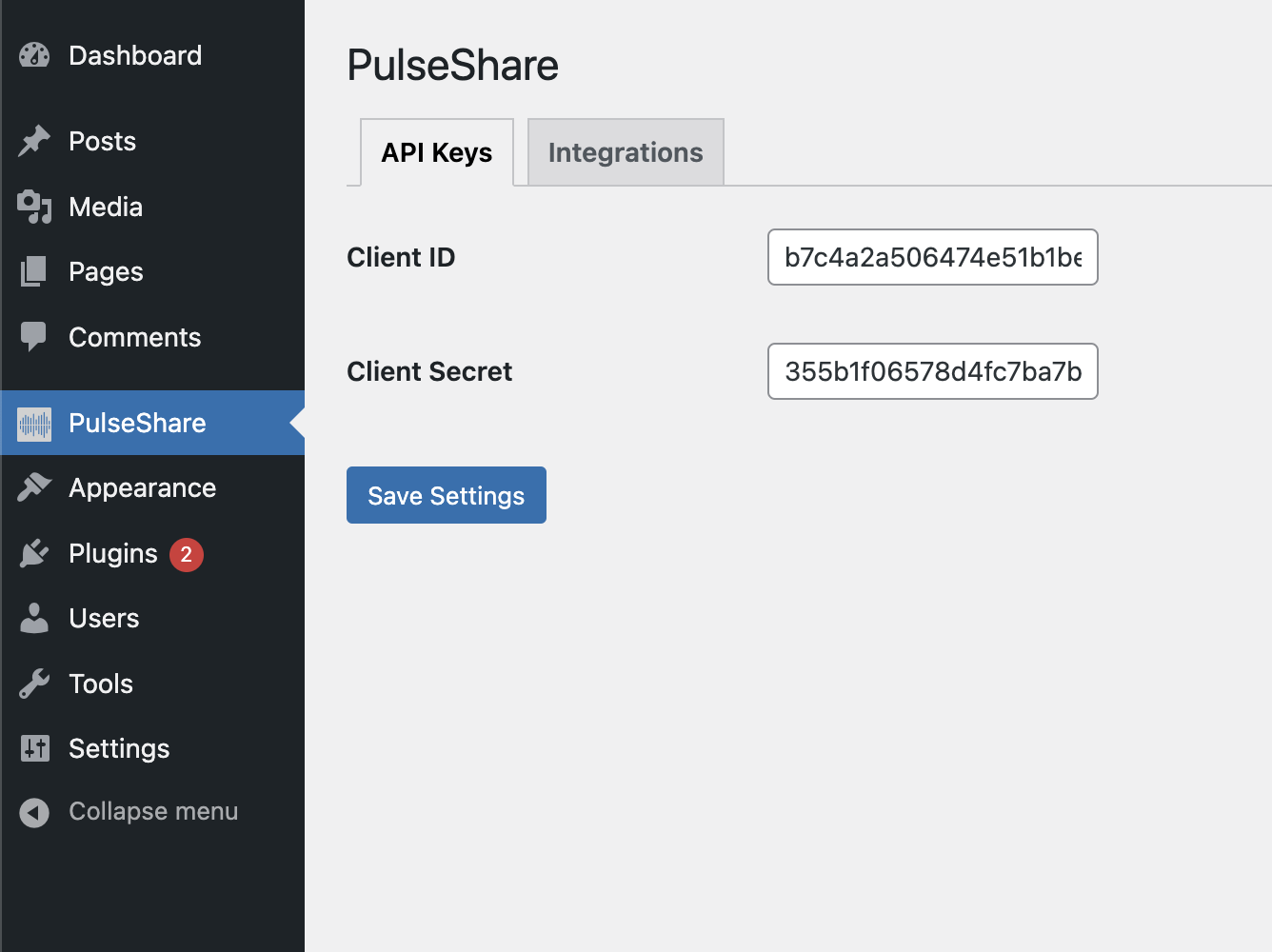
PulseShare Settings Page - Here you can add your Spotify Client ID and Client Secret.
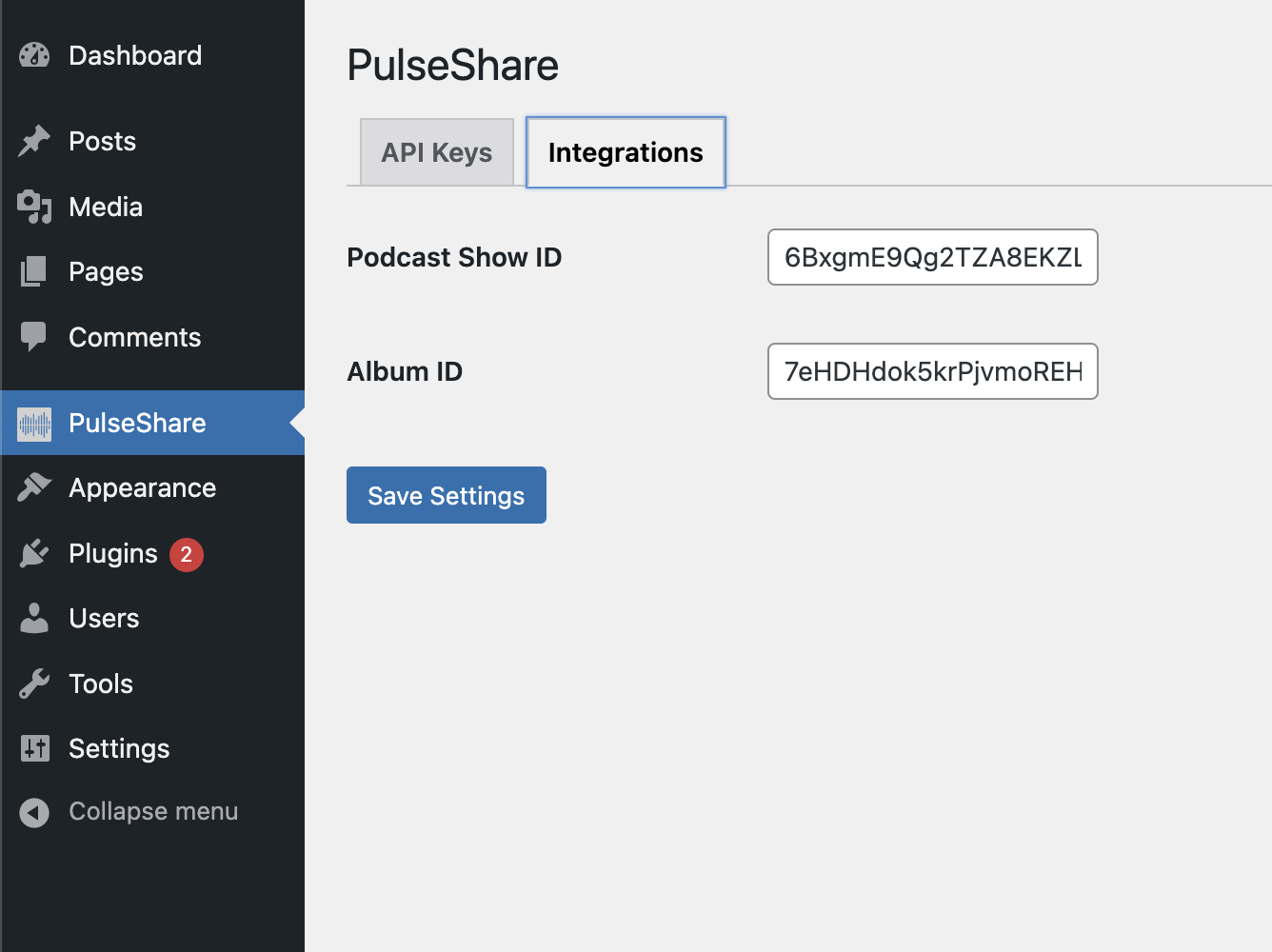
PulseShare Settings Page - Here you can add your Spotify Album ID and Podcast ID.
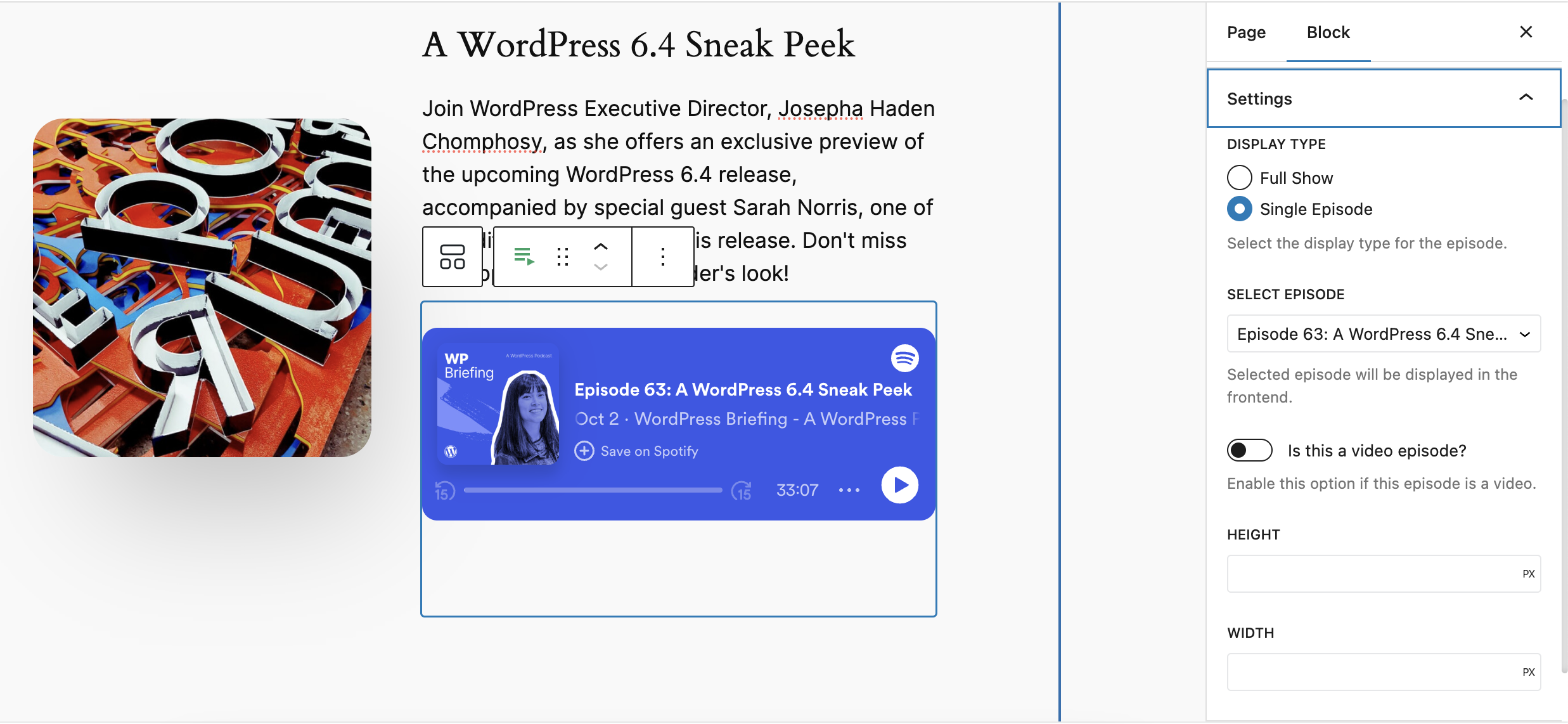
Block editor - Here you can add the PulseShare blocks in block editor.
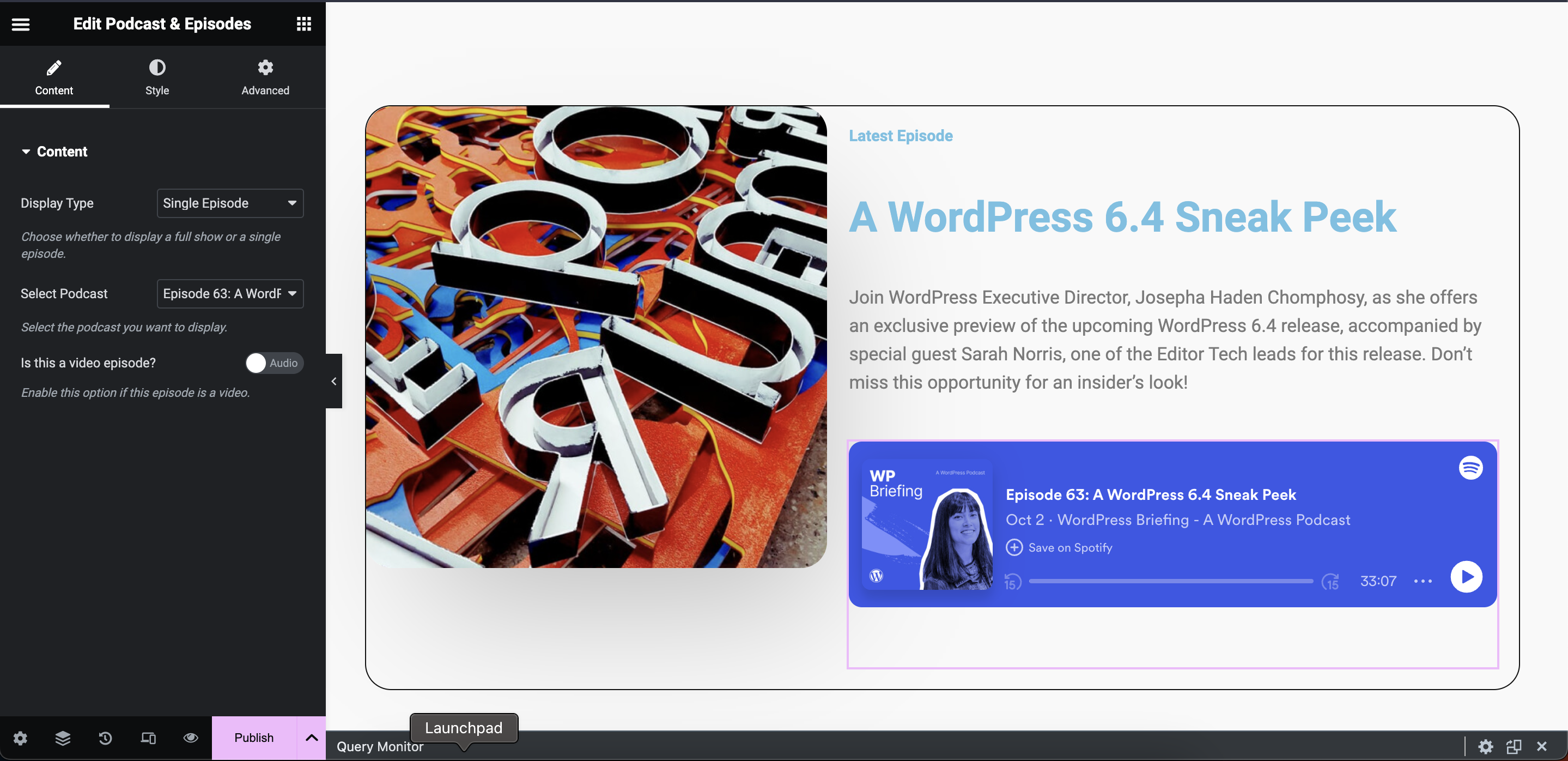
Elementor - Here you can add the PulseShare widgets in Elementor.
Changelog
1.0.2
- Improvement: Compatibility with latest WordPress version.
- Improvement: Compatibility with latest Elementor version.
- Fix: Spotify embed URLs in album block.
- Fix: Handle potential undefined index for options.
1.0.1
- Improvement: Compatibility with latest WordPress version.
- Improvement: Compatibility with latest Elementor version.
1.0.0
- Initial release